User Guide: Adding and Configuring an Application
1. Accessing the Application Stack
To begin using an application, follow these steps:

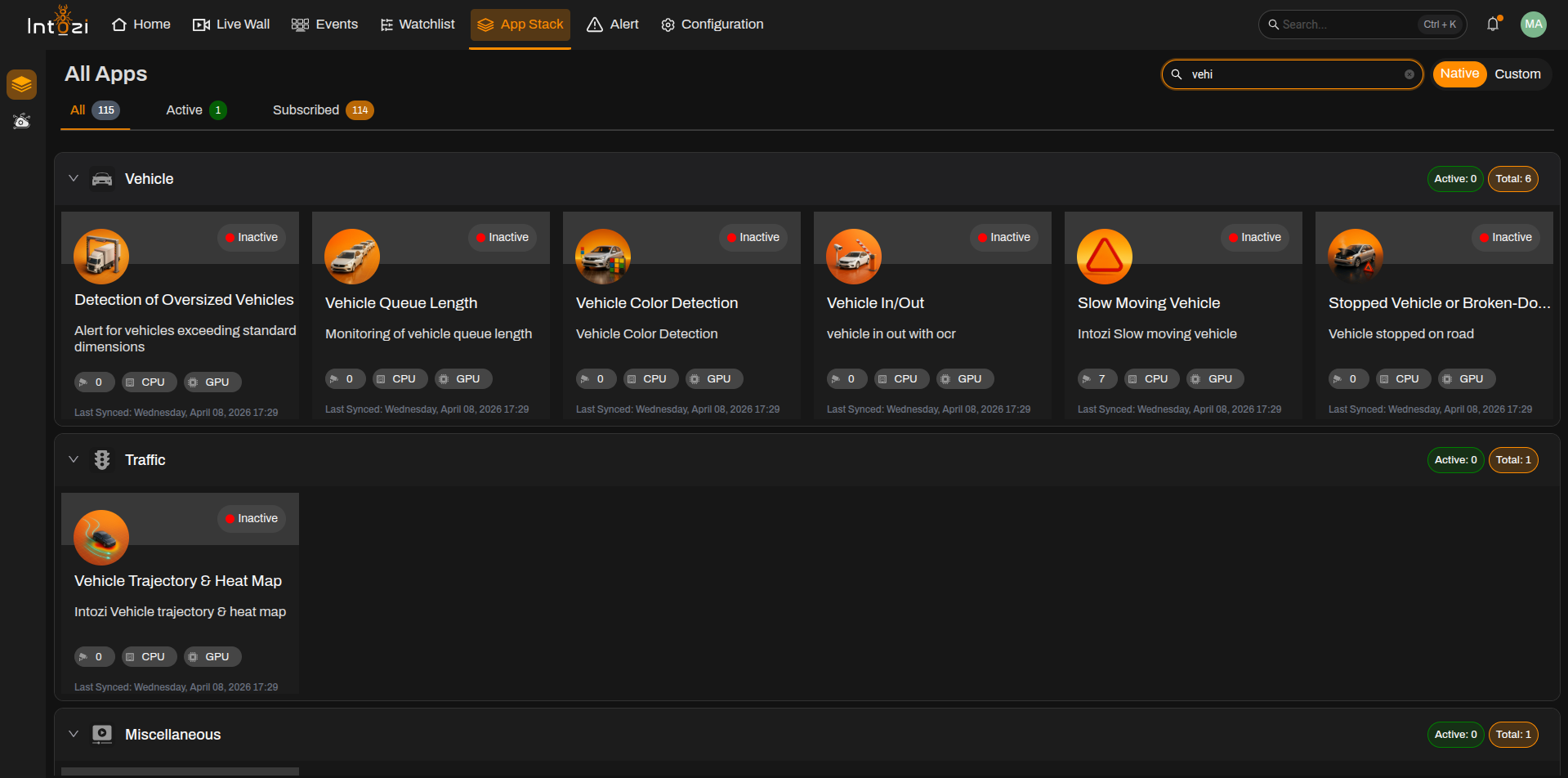
- Navigate to the App Stack section from the top menu.
- In the App Stack, you will see different categories such as Vehicle, People, Traffic, Face, Security, and Miscellaneous.
- Search for the required application using the search bar if needed.
- Click on the desired category and select the application you want to configure.
- Click on + Add Application to proceed.
2. Device Configuration

Once an application is selected, the next step is configuring the devices:
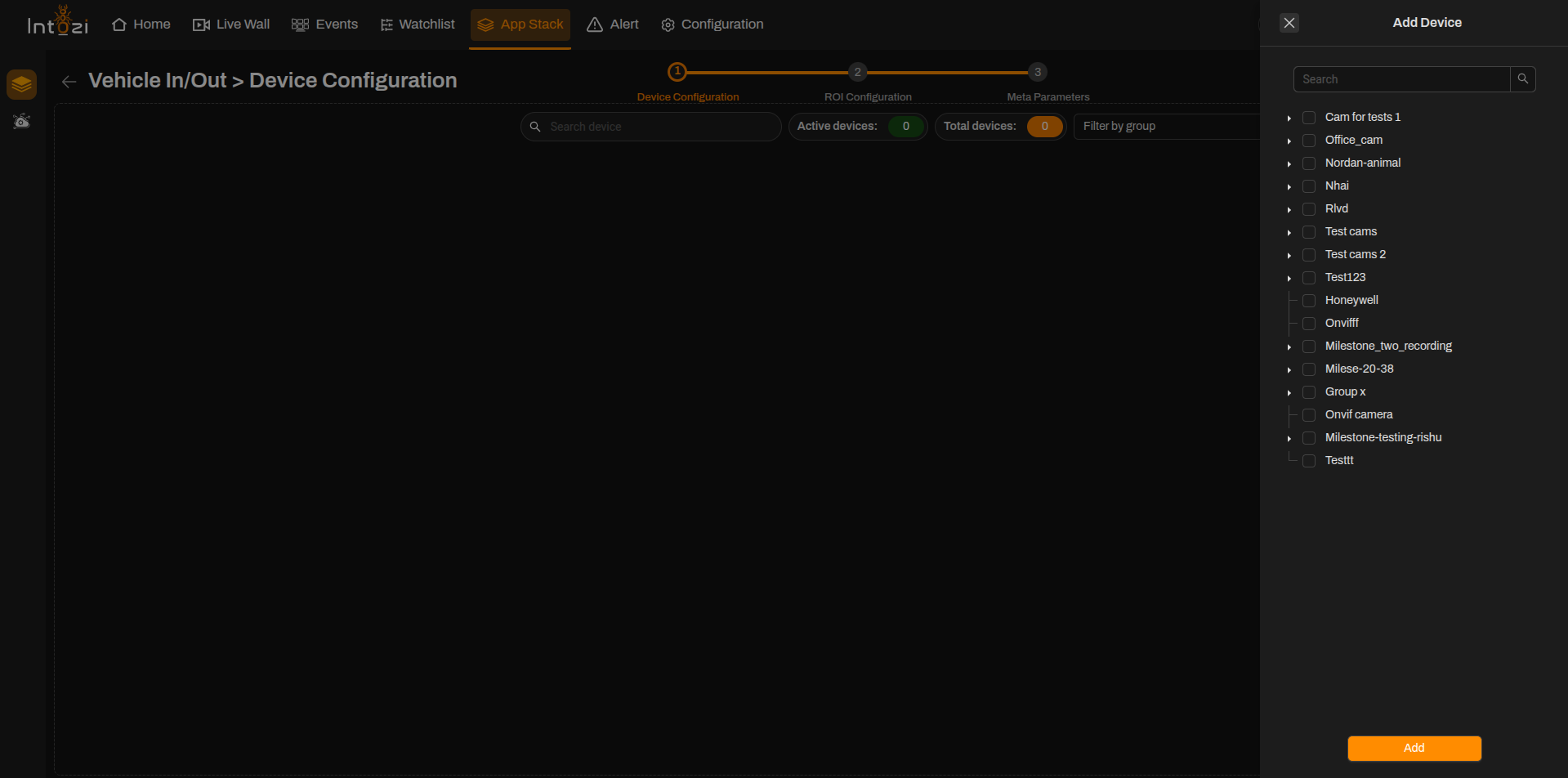
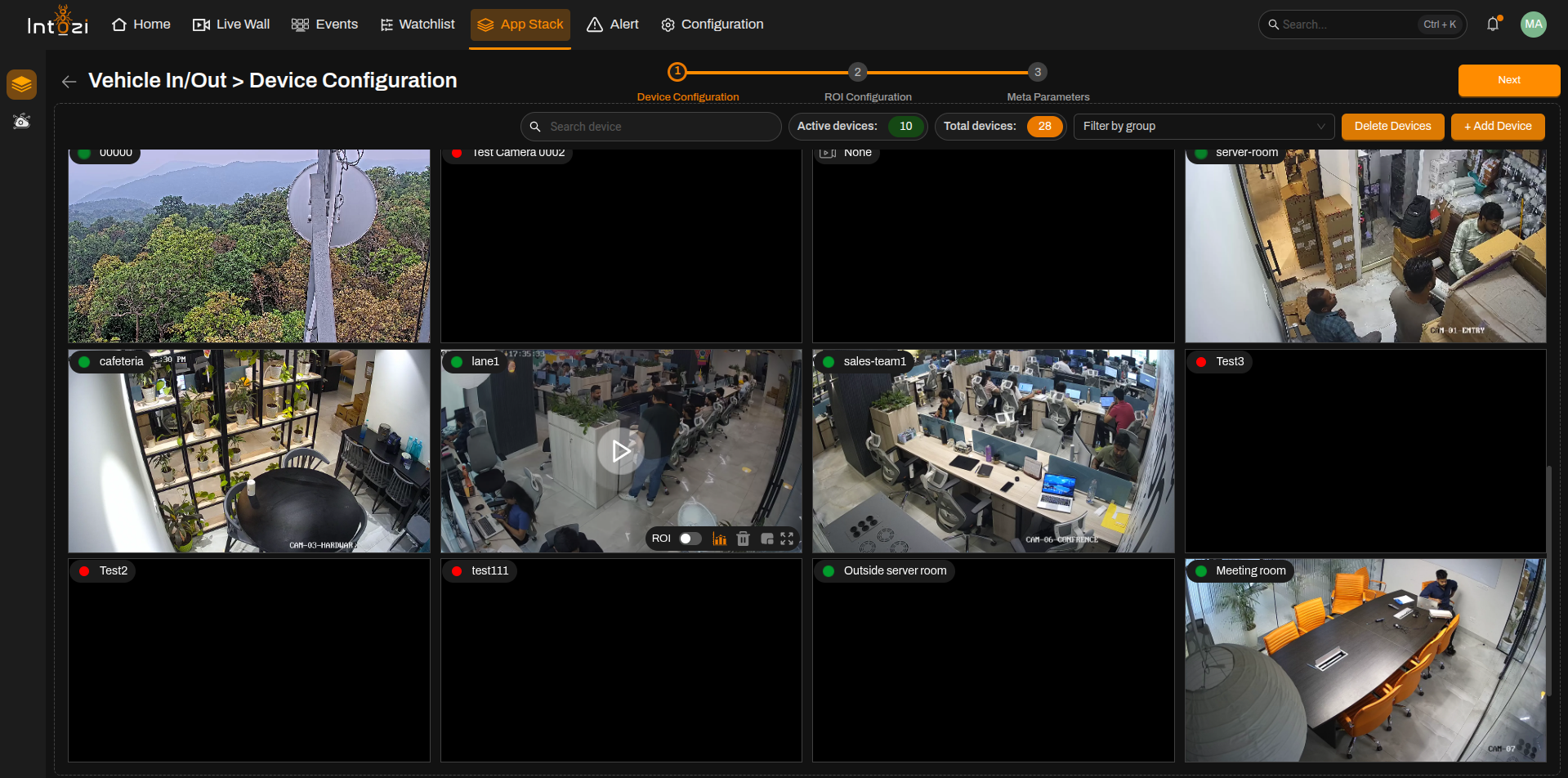
- The Device Configuration screen will show all available devices.
- If a device is already added to the Live Wall, it will appear here automatically.
- You can add a new device by clicking + Add Device.
- Once the devices are listed, verify that the live camera feed is working.
- Click Next to proceed.
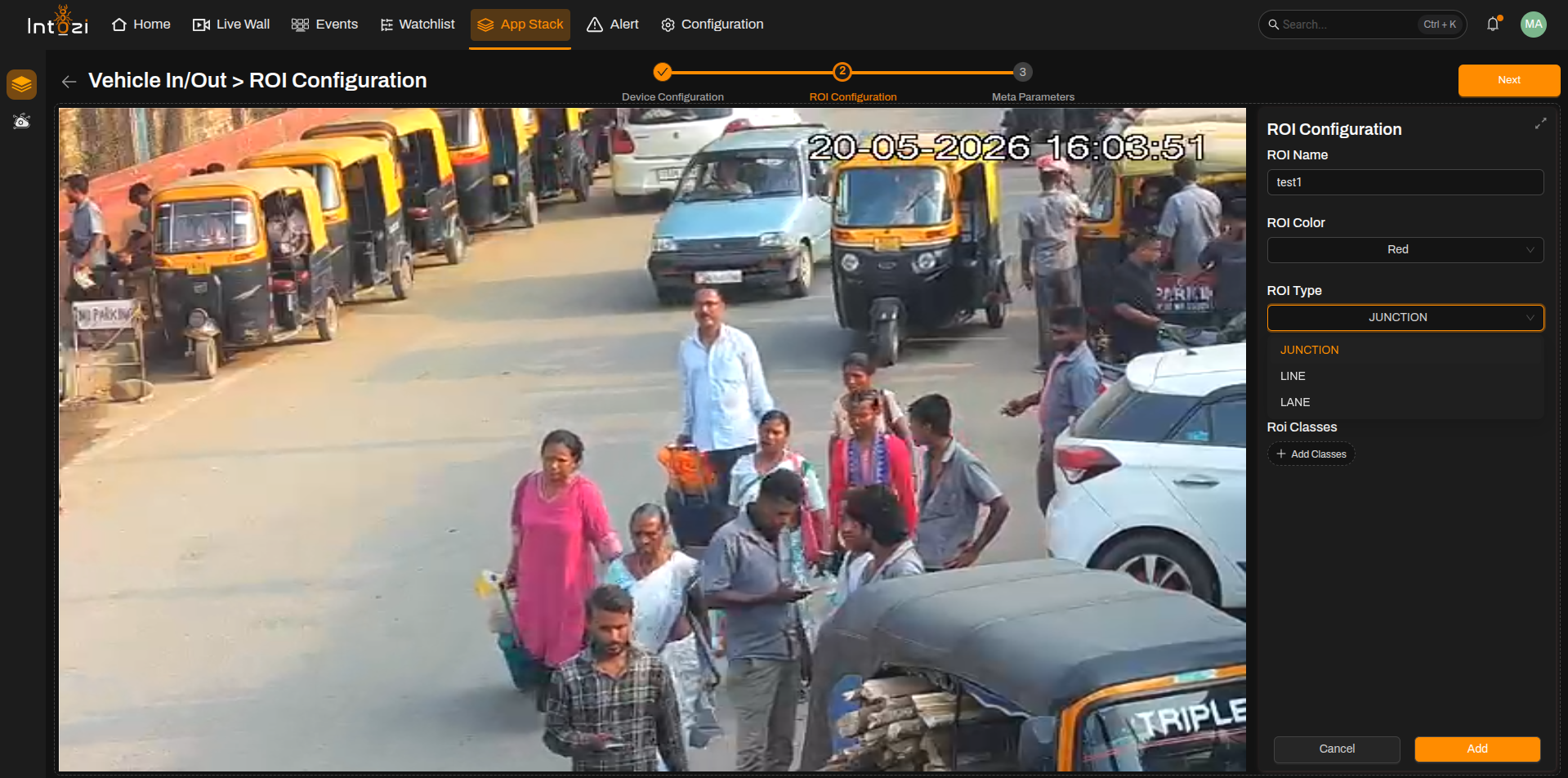
3. ROI (Region of Interest) Configuration

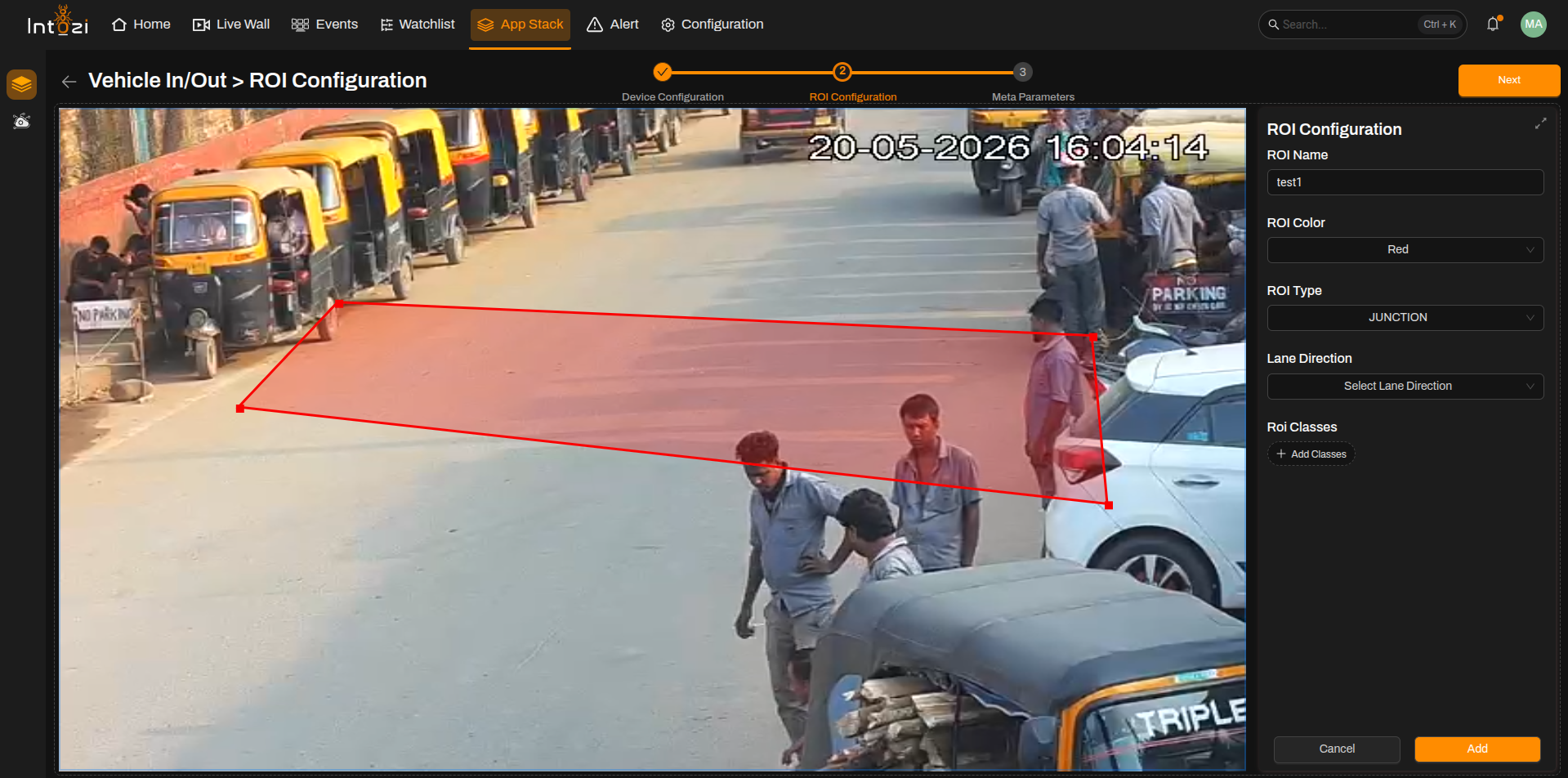
Defining the Region of Interest (ROI) ensures that relevant data is captured accurately:
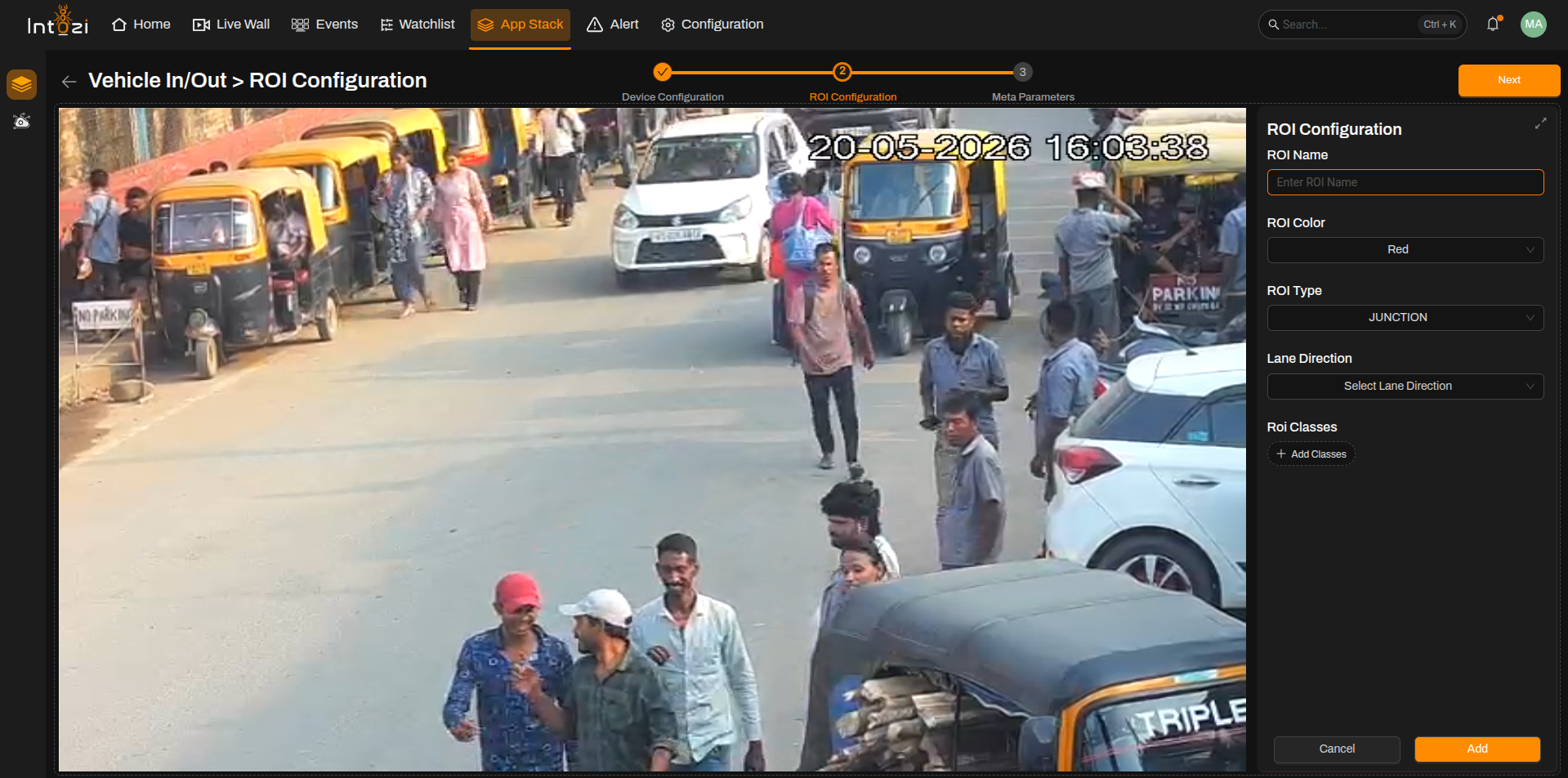
- On the ROI Configuration screen, select the camera feed where the vehicle or object will appear.
- Draw the ROI area by selecting the region where detection should occur.
- This helps the system focus only on the defined area for monitoring and event capture.
- Once completed, confirm the selection and proceed.
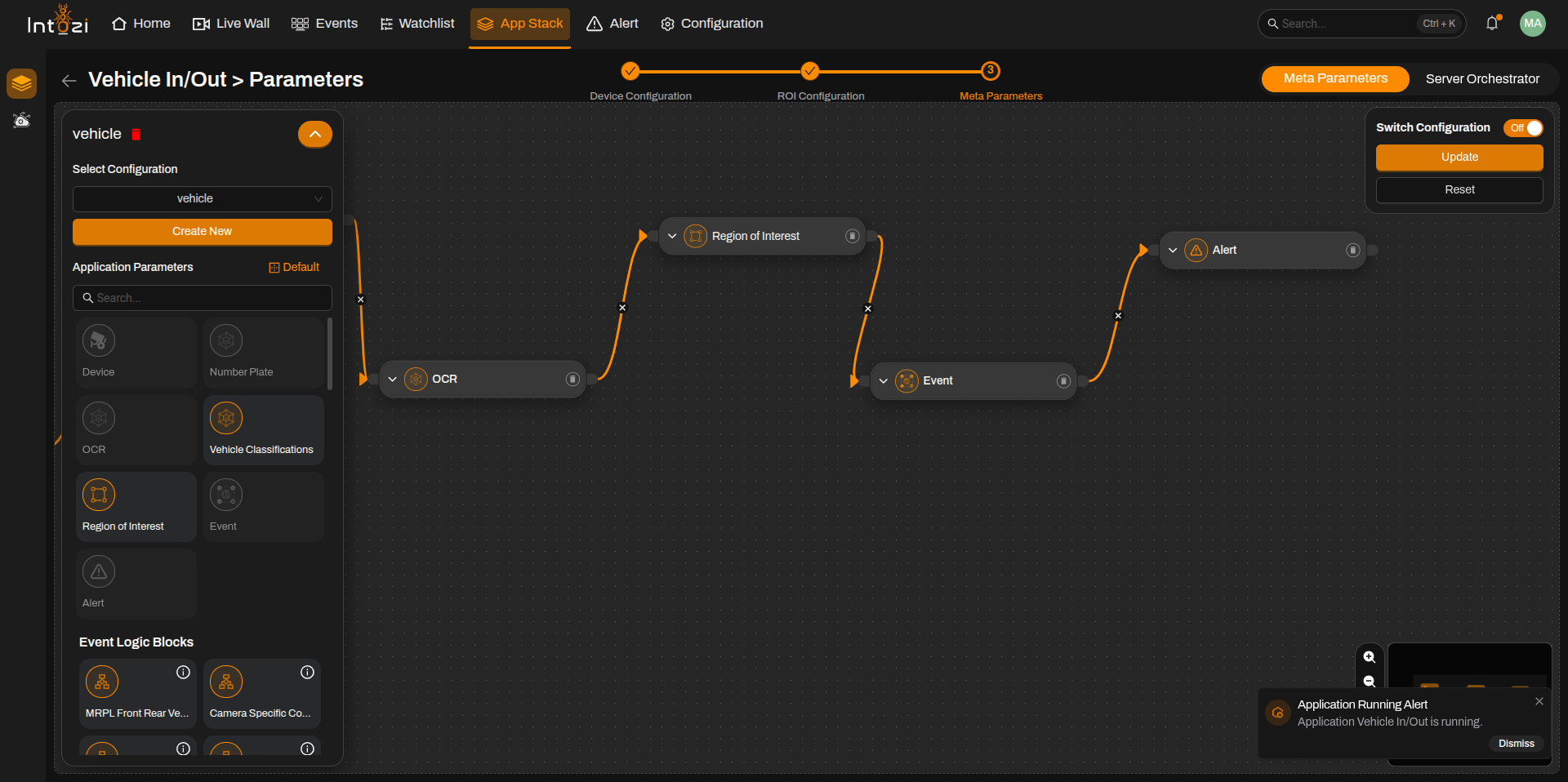
4. Configuring Meta Parameters in the ANPR System
Meta Parameters in the ANPR (Automatic Number Plate Recognition) system define essential settings that influence the detection and classification of traffic violations. These parameters enable fine-tuning of detection accuracy by setting confidence levels and selecting specific ROIs (Regions of Interest) for capturing violations.
Accessing the Meta Parameter Configuration
- Navigate to the App Stack section in the ANPR application.
- Follow the configuration workflow:
- Device Configuration
- ROI Configuration
- Meta Parameters
- In the Meta Parameters step, you will configure various parameters that determine how violations are detected and classified.
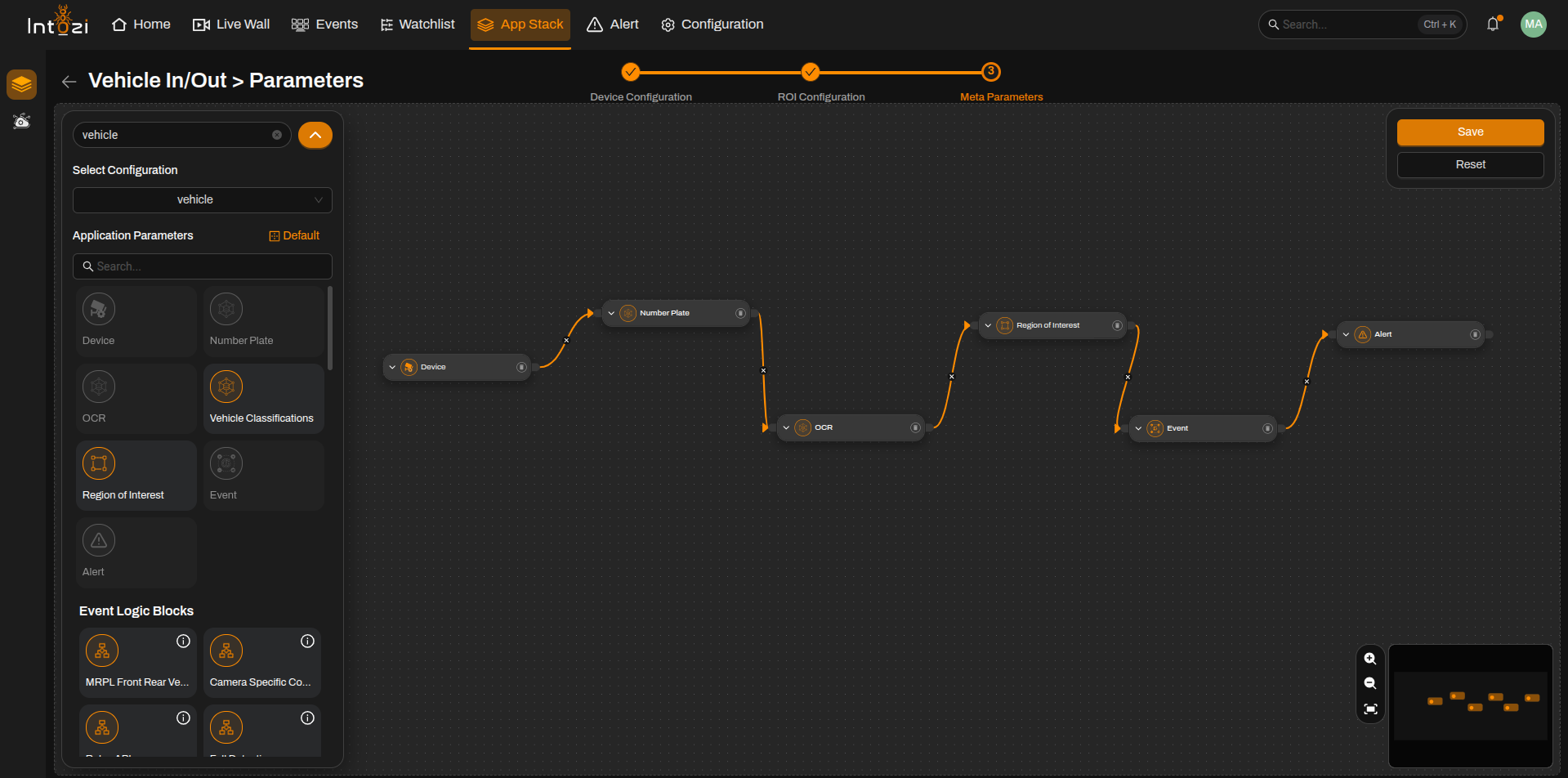
Understanding the Meta Parameter Flow
The Meta Parameter Configuration involves linking various detection modules in a visual flow. Each module represents a specific detection criterion, which contributes to overall ANPR accuracy.
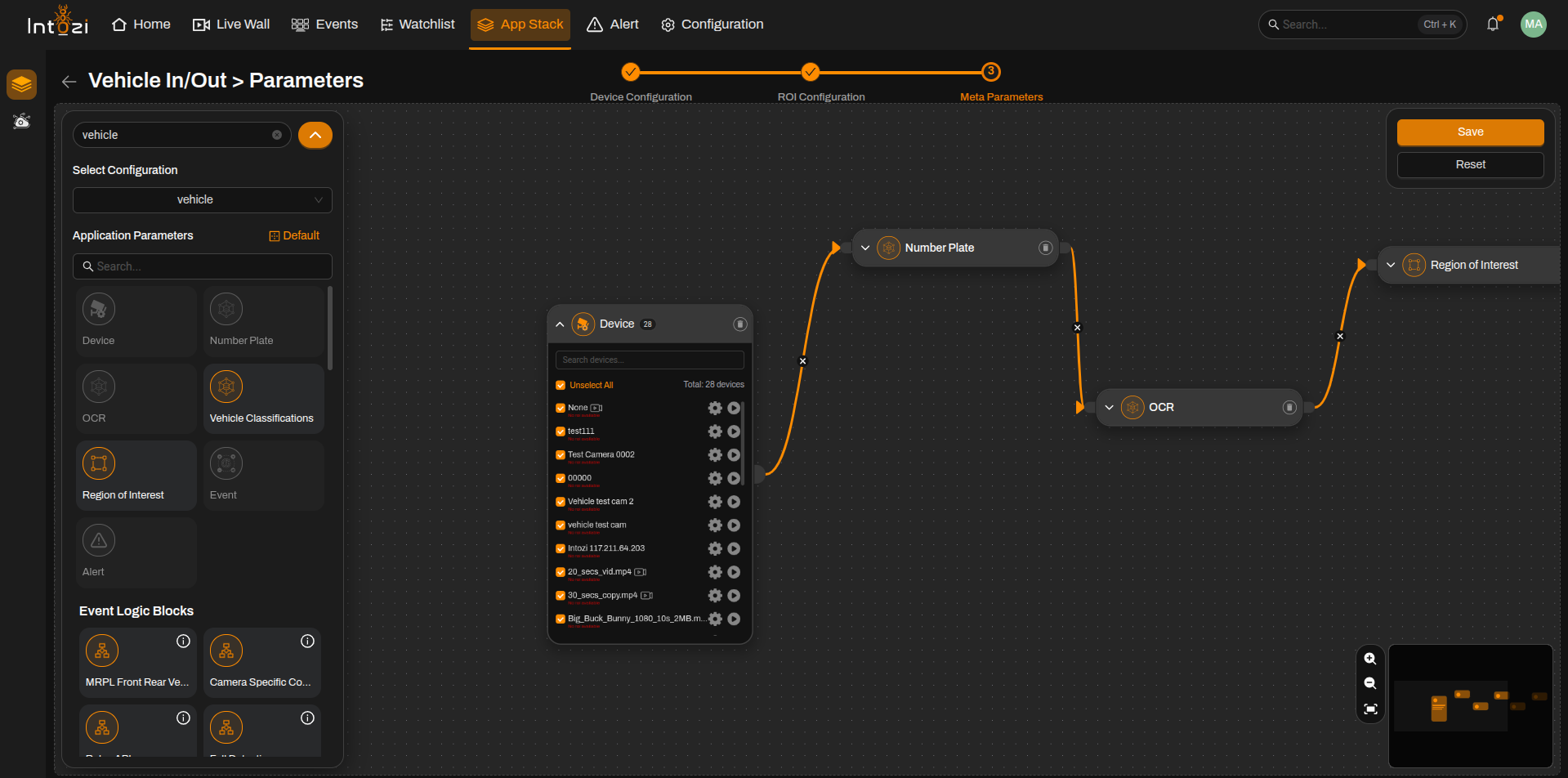
Step 1: Adding a Device

- A Device module is the first step in the flow. It represents the ANPR camera or sensor responsible for capturing vehicle violations.
- Select the connected device from the list (e.g., MRM-HC-02).
- The device can be linked to various detection parameters.
Step 2: Configuring Vehicle Classifications

- The Vehicle Classifications module categorizes detected vehicles into predefined types (e.g., car, truck, motorcycle). Users can select specific vehicle classes, such as CAR and TRUCK, ensuring relevant violation rules are applied accordingly.
- Confidence: Defines the minimum threshold for classification accuracy. For example, setting 0.45 ensures only detections with at least 45% confidence are considered, reducing false positives.
- Run Method: Determines how the system tracks and processes detected vehicles:
- Tracking: Monitors vehicles across multiple frames for improved accuracy.
- On ROI: Detects vehicles only within the specified Region of Interest (ROI), making it useful for focused surveillance.
- In ROI: Tracks vehicles once they enter the defined ROI, ensuring violations are only captured in the targeted area.
- Model Type: Defines the complexity of the classification model:
- Light: Recommended for real-time applications where faster processing is needed.
- Heavy: Provides higher accuracy but requires more computational resources.
- Model Update: Ensures the latest trained models are applied for improved detection accuracy.
For optimal performance, users can set the Run Method to Tracking for general monitoring or On ROI to focus on a designated area. If real-time processing is required, the Light model is ideal, while the Heavy model is suitable when higher accuracy is prioritized.
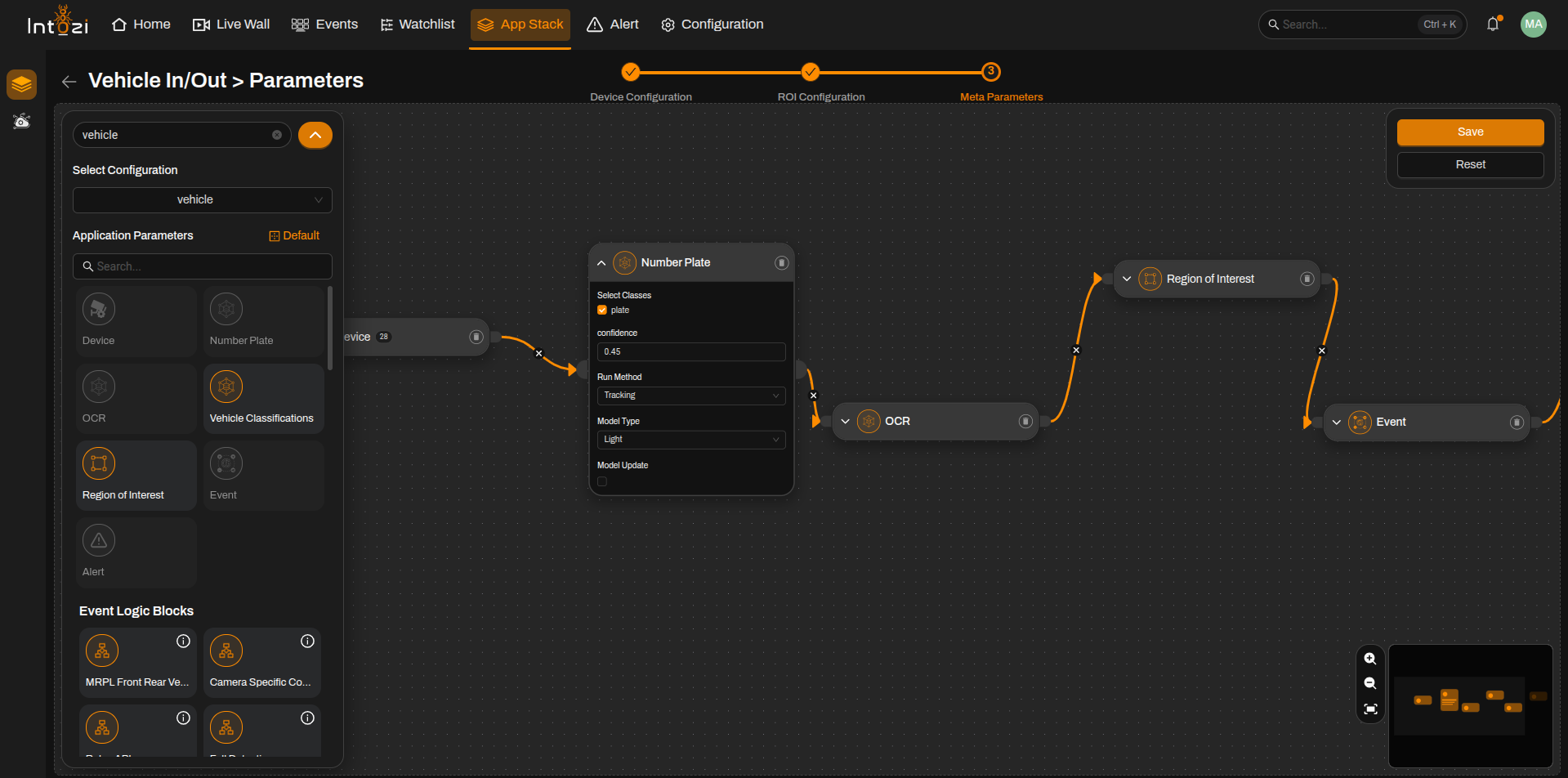
Step 3: Configuring Number Plate Detection

- The Number Plate module detects and processes vehicle license plates. It ensures that only recognized plates are used for violation detection and record-keeping.
- Select Classes: Defines the object to be detected. In this case, the system is set to detect plate.
- Confidence: Sets the minimum detection threshold. For example, a value of 0.45 ensures only number plates detected with at least 45% confidence are considered, reducing false positives.
- Run Method: Determines how the number plate detection is processed:
- Tracking: Follows detected plates across multiple frames for improved accuracy.
- Model Type: Defines the complexity of the detection model:
- Light: Optimized for faster processing, making it ideal for real-time applications.
- Model Update: Allows users to update the model for improved plate detection accuracy when a new version is available.
By configuring these parameters, users ensure accurate and efficient number plate detection, which is critical for capturing overspeed violations.
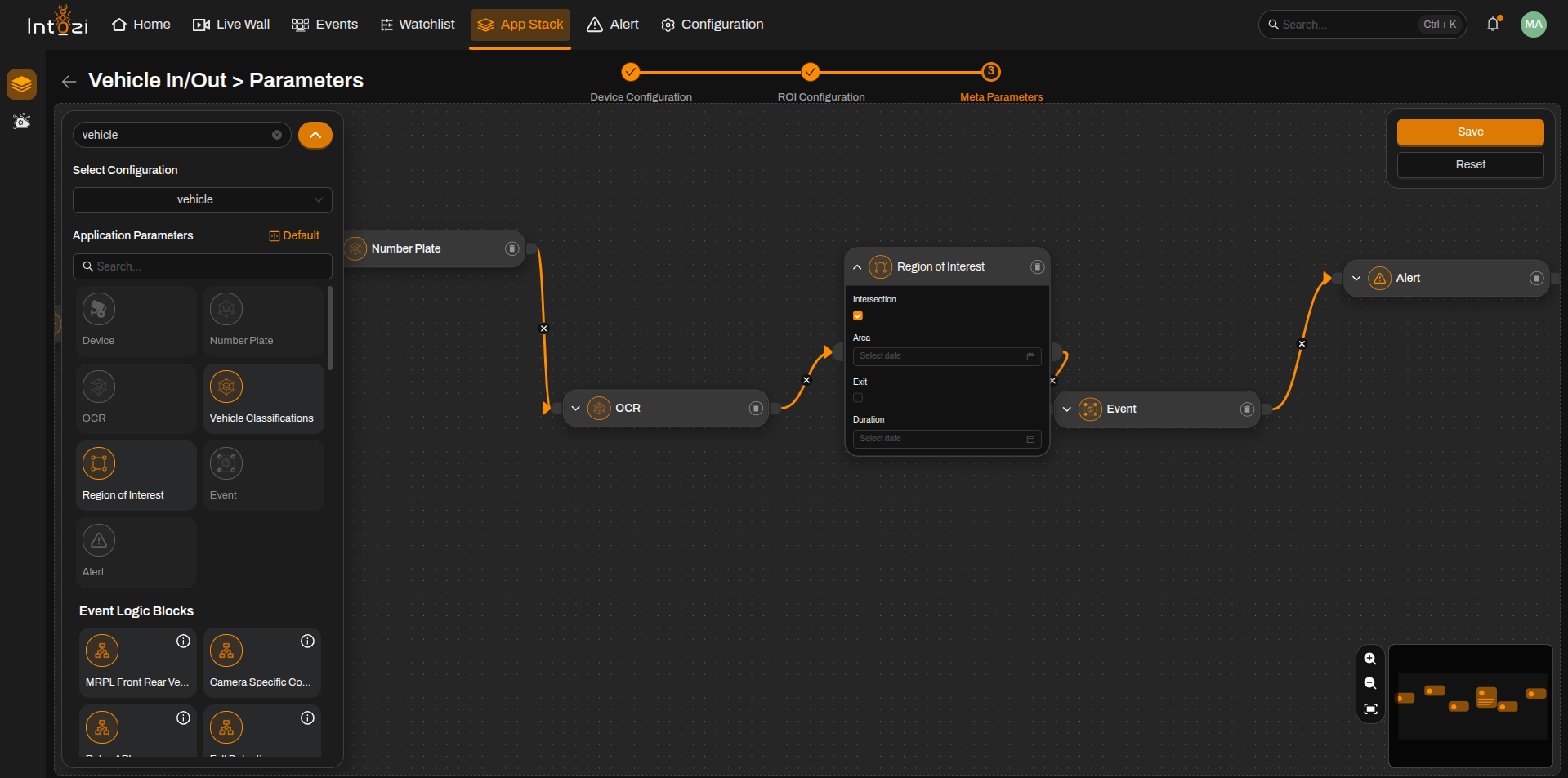
Step 4: Configuring Region of Interest (ROI)
The Region of Interest (ROI) module defines specific areas within the camera's field of view where vehicle detection and violation tracking will be performed. By configuring the ROI, users can focus on key areas to optimize system performance and improve accuracy in capturing traffic violations.
Types of ROI
When selecting the ROI, users can choose from the following three types:
-
Lane ROI
- Used for monitoring specific lanes in a roadway.
- Ideal for detecting speed violations, vehicle classification, and tracking lane-specific offenses.
-
Junction ROI
- Designed for monitoring intersections and crossroad areas.
- Useful for detecting violations such as red-light jumping, illegal turns, and intersection blocking.
-
Line ROI
- Allows users to define a single or multiple virtual lines for detection.
- Useful for monitoring entry/exit points, stop-line violations, and restricted area crossings.

4. ROI Parameters
- Intersection: Enables ROI detection at intersections to monitor traffic behavior, detect violations, or analyze vehicle movement patterns.
- Area: Allows users to define a custom area within the ROI for focused monitoring. This is useful for specific zones like pedestrian crossings, speed enforcement zones, or toll booths.
- Exit: Tracks when a vehicle leaves the defined ROI, helping in movement analysis and violation detection.
- Duration: Captures the amount of time a vehicle spends within the ROI, which can be used for traffic flow analysis or detecting violations like unauthorized parking.
By configuring ROI parameters effectively, users can ensure accurate violation detection and efficient traffic monitoring.
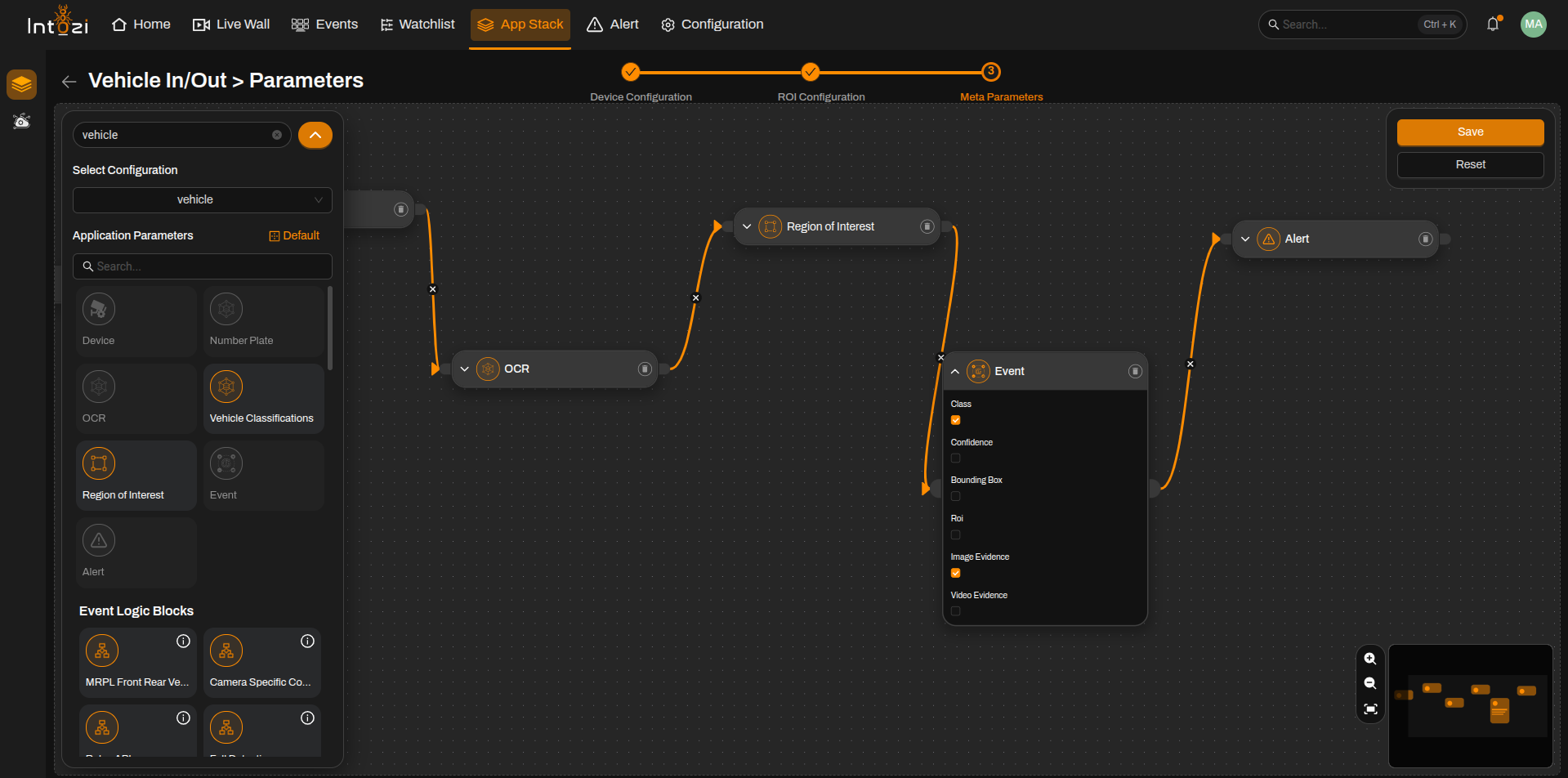
Step 5: Configuring Event Parameters

- The Event module defines how detected violations or important occurrences are recorded and stored for further analysis.
- Class: Enables classification of detected objects (e.g., vehicle type) to categorize violation events effectively.
- Confidence: Stores the confidence level of detections, ensuring that only reliable detections are logged.
- Bounding Box: Enables the storage of bounding box coordinates for detected objects, useful for post-event analysis and debugging.
- ROI (Region of Interest): Links the detected event to a predefined ROI, helping in location-based violation detection.
- Image Evidence: Captures and saves images of detected events for documentation and verification.
- Video Evidence: Records video footage of detected events, providing comprehensive proof for further investigation.
By configuring these event parameters, users can enhance the accuracy and reliability of captured violations, ensuring proper documentation and enforcement.
Step 7: Configuring Alert Parameters

- The Alert module is responsible for generating notifications when specific violations or events occur.
- Alerts can be configured to trigger based on predefined conditions, such as overspeeding, unauthorized vehicle entry, or other detected violations.
- These alerts help in real-time monitoring by notifying authorities or relevant personnel for immediate action.
- Alerts can be integrated with external systems like email notifications, SMS alerts, or API triggers for seamless communication.
By configuring alerts efficiently, users can enhance response times and ensure quick enforcement actions for detected violations.
Step 8: Saving Configuration
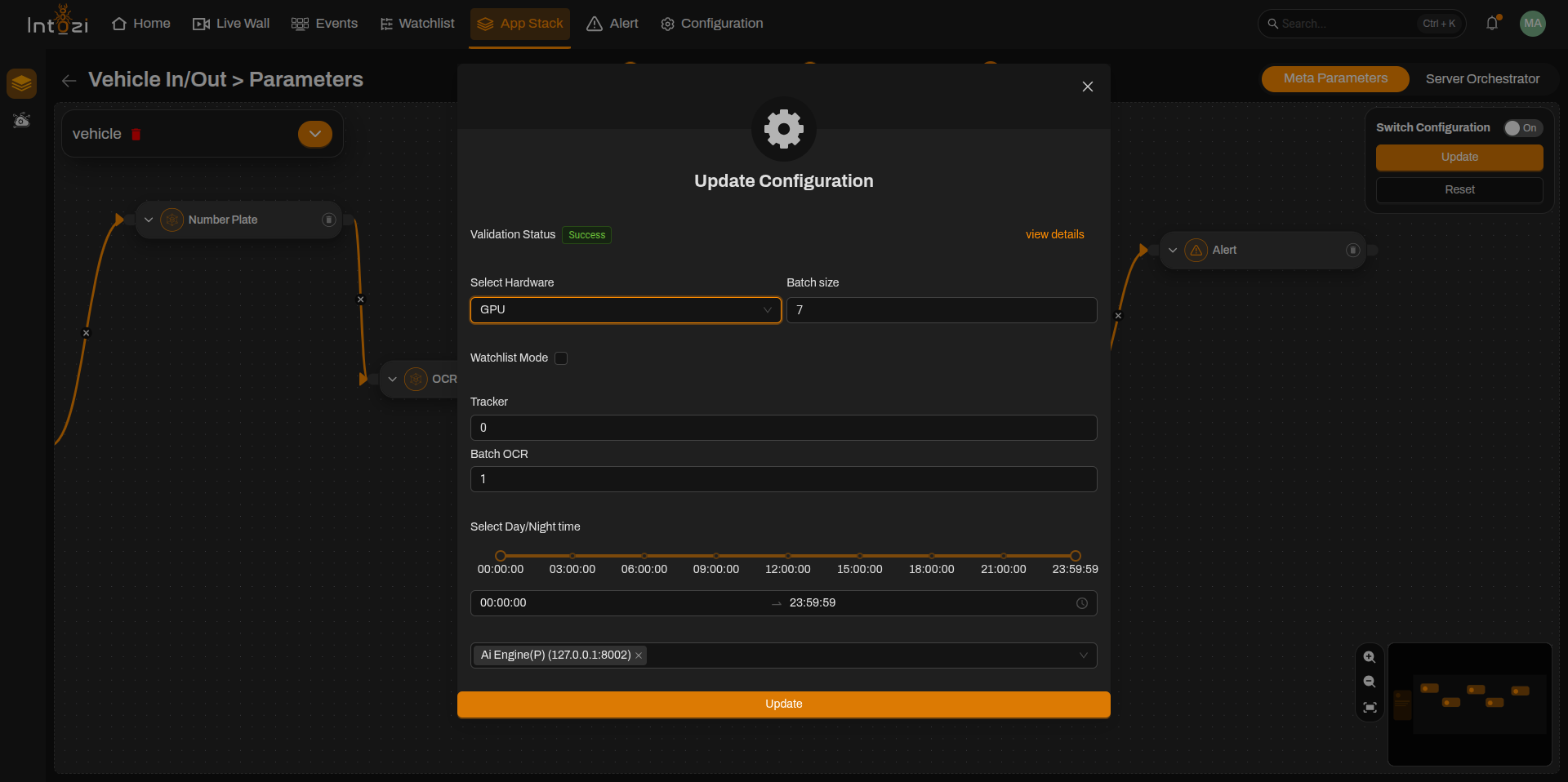
After configuring all the necessary parameters, the next step is to save the configuration. This ensures that all selected settings, including the hardware type, batch size, and time settings, are properly applied.
Save Configuration Popup

Once the Save button is clicked, a confirmation popup appears (as shown in the screenshot). The popup includes:
- Validation Status: Displays whether the configuration is successfully validated.
- Select Hardware: Choose between:
- GPU: For high-performance processing.
- CPU: For standard processing.
- Batch Size: Defines the number of frames processed in one batch.
- Country Selection: Ensures compliance with location-specific regulations.
- Day/Night Time Selection: Allows configuration of processing times based on operational needs.
Step 9: Activating the Configuration
After completing all configurations and saving the settings, the final step is to activate the configuration. This ensures that the ANPR system starts running and capturing events automatically.
Switch Configuration Panel
The Switch Configuration panel (as shown) includes:

-
Toggle Button (On/Off):
- Turning this On will activate the configured settings.
- The device will automatically start capturing overspeed violations and other defined events.
-
Update Button:
- If any changes are made to the configuration, clicking Update will apply the modifications.
-
Reset Button:
- Clicking Reset will discard any unsaved changes and revert to the last saved configuration.
This marks the completion of the setup process for the ANPR application. The system is now live and operational!
Finalizing the Process

- Ensure all configurations are properly set.
- Turn On the switch to activate the system.
- The device will start detecting vehicles and recording violations based on the selected parameters.
Application Compatibility Across Ikshana
While this guide covers the setup process for ANPR, the Ikshana platform supports multiple applications, including license plate recognition, facial recognition, and more. The basic configuration process remains the same across all applications, ensuring a seamless setup experience.
This marks the completion of the setup process for the Ikshana application. The system is now live and operational! 🚦
Key Benefits of Meta Parameter Configuration
✔️ Customizable Detection Rules – Configure detection based on specific enforcement needs.
✔️ Optimized Performance – Set confidence levels and refine detection accuracy.
✔️ Scalable Setup – Easily add or modify detection parameters in the flow.