User Guide: Heatmap Analytics
Introduction
The Heatmap Analytics feature provides a visual representation of traffic density and movement patterns using ANPR data. This helps users monitor vehicle activity, identify congestion zones, and analyze traffic trends efficiently.
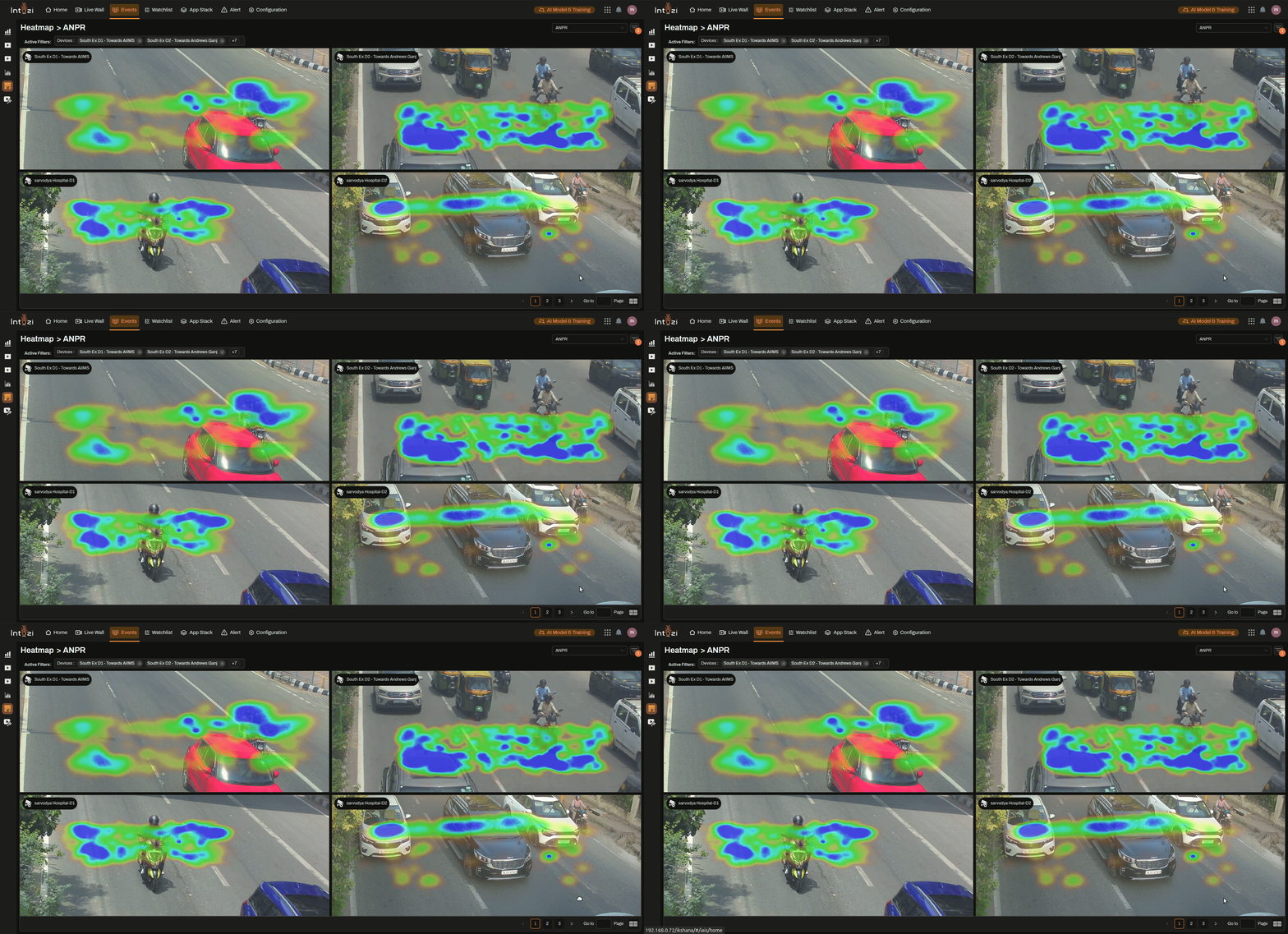
Accessing Heatmap Analytics
To access the Heatmap Analytics feature:
- Navigate to the Dashboard.
- Click on the Events tab.
- Select Heatmap > ANPR to view traffic density analysis.
Heatmap Visualization
The heatmap overlay is color-coded to indicate vehicle density in different areas:
- Blue/Green – Low traffic density.
- Yellow/Orange – Moderate traffic density.
- Red – High traffic congestion.
Key Features
1. Multi-Camera View
- Displays heatmap data from multiple ANPR cameras.
- Each feed is labeled with the camera name and location.
2. Real-Time & Historical Data
- View live traffic heatmaps and analyze historical data trends.
3. Filter & Customization Options
Users can refine their analysis using filters:
- Camera Selection – Choose specific cameras to monitor.
- Time Range – Select a specific timeframe for data analysis.
- Event Type – Filter heatmaps based on detected events (e.g., congestion, violations).
4. Navigation & Controls
- Pagination allows users to switch between multiple heatmap views.
- "Go to Page" enables quick access to specific data points.
How to Use Heatmap Analytics
- Apply filters to refine the displayed data.
- Analyze color variations to identify high and low-density areas.
- Compare historical data to track traffic pattern changes.
- Use insights for traffic management and resource deployment.
Conclusion
The Heatmap Analytics feature enables users to efficiently monitor traffic patterns, identify congestion zones, and optimize road management strategies. Use the filtering options to focus on relevant data and improve operational insights.
For further assistance, refer to the Help Section or contact Support.