Scheduler - User Guide
Overview
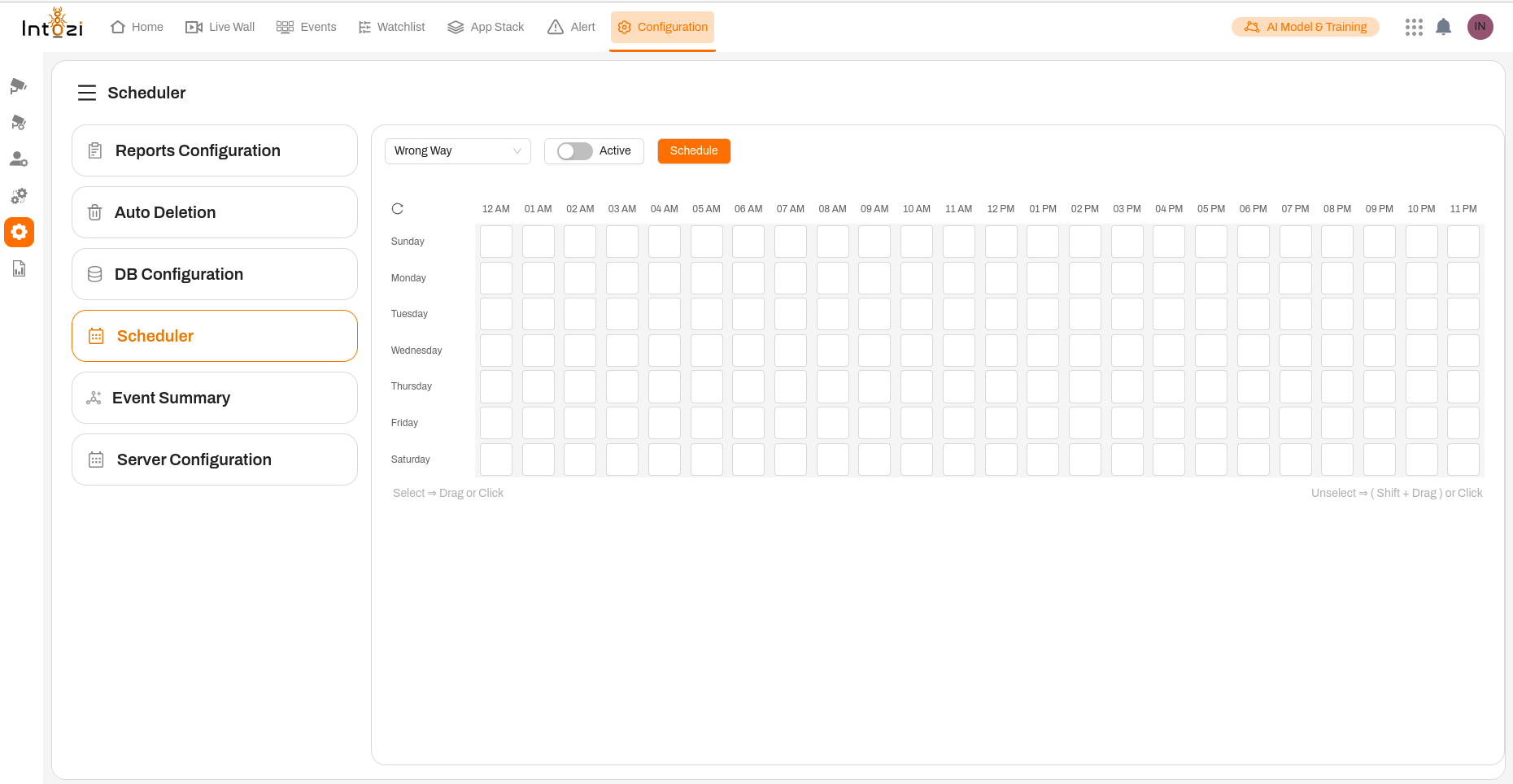
The Scheduler module is a powerful tool designed to automate the execution of specific applications at predefined time intervals. This feature enhances operational efficiency by ensuring tasks such as report generation, data analysis, and system monitoring are executed seamlessly, without manual intervention.
With the Scheduler, users can:
- Select an application from a predefined list.
- Configure the execution time and frequency.
- Activate and manage schedules effortlessly.
By leveraging this functionality, organizations can streamline workflows, optimize resource utilization, and ensure timely task execution.
Accessing the Scheduler
To access the Scheduler:
- Navigate to the Configuration tab in the top navigation bar.
- Click on Scheduler from the left-hand menu.
- The Scheduler interface will be displayed, featuring:
- A drop-down menu for application selection.
- A weekly scheduling grid to define time slots.
- A toggle switch to activate/deactivate the schedule.
- A Schedule button to confirm the configuration.
Configuring a Schedule
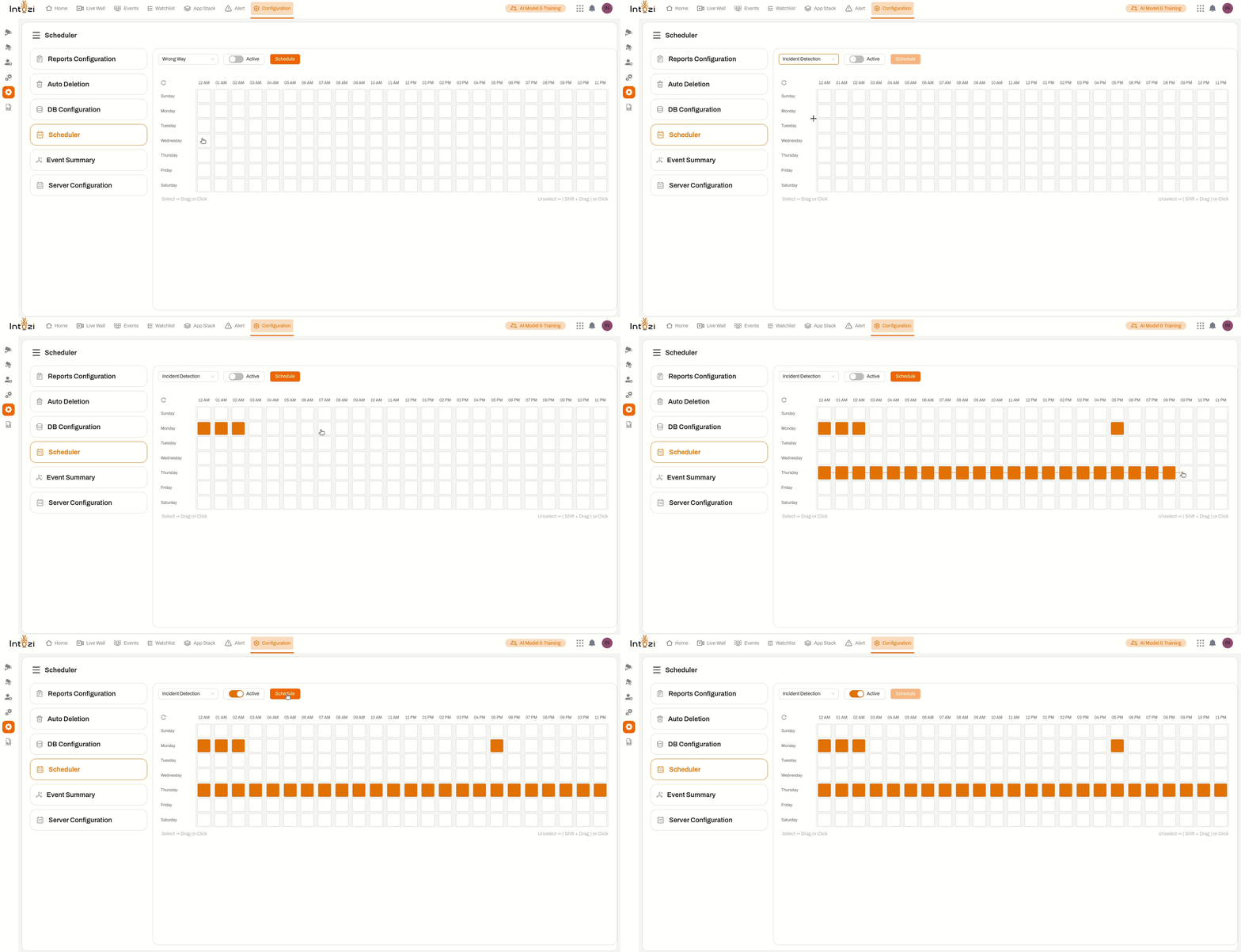
1. Select the Application
- Click the drop-down menu to view the list of available applications.
- Choose the required application (e.g., Face Recognition, Report Generator, Data Analysis, etc.).
2. Activate the Schedule
- Toggle the Active switch to enable scheduling for the selected application.
- This ensures the task runs automatically at the configured time slots.
3. Define the Execution Time
- The weekly scheduling grid provides an hourly time-based selection (12 AM - 11 PM).
- Click and drag to select the preferred time slots.
- To remove a selection, use Shift + Drag or click on the selected slot again.
4. Save the Configuration
- Click the "Schedule" button to finalize and save the setup.
- The system will now execute the scheduled application at the designated times.
Understanding the Scheduling Grid
- Horizontal Axis: Represents the hourly time slots (12 AM to 11 PM).
- Vertical Axis: Represents the days of the week (Sunday to Saturday).
- Highlighted slots indicate the selected execution times.
- Multiple applications can have different schedules configured independently.
Key Features
✔ Multi-Application Scheduling – Supports scheduling multiple applications with different execution times.
✔ Custom Time Configuration – Allows precise selection of execution hours and days.
✔ Automated Execution – Ensures scheduled applications run without manual intervention.
✔ User-Friendly Interface – Intuitive grid-based scheduling for easy management.
✔ Real-Time Updates – View and modify scheduled tasks at any time.
Conclusion
The Scheduler module is an essential tool for automating repetitive tasks, enhancing productivity, and ensuring operational efficiency. By allowing users to configure, manage, and modify execution schedules seamlessly, it transforms task management into a structured, reliable, and efficient process.
💡 Stay ahead with automated scheduling – optimize workflows, save time, and enhance system performance.