User Guide: Adding Devices to Intozi
Introduction
This guide provides a step-by-step explanation of how to add devices to the Intozi system. Before adding a device, you must first create a device group. Once the group is created, you have three options: Add Group, Add Device, and Add Video.
Step 1: Creating a Device Group
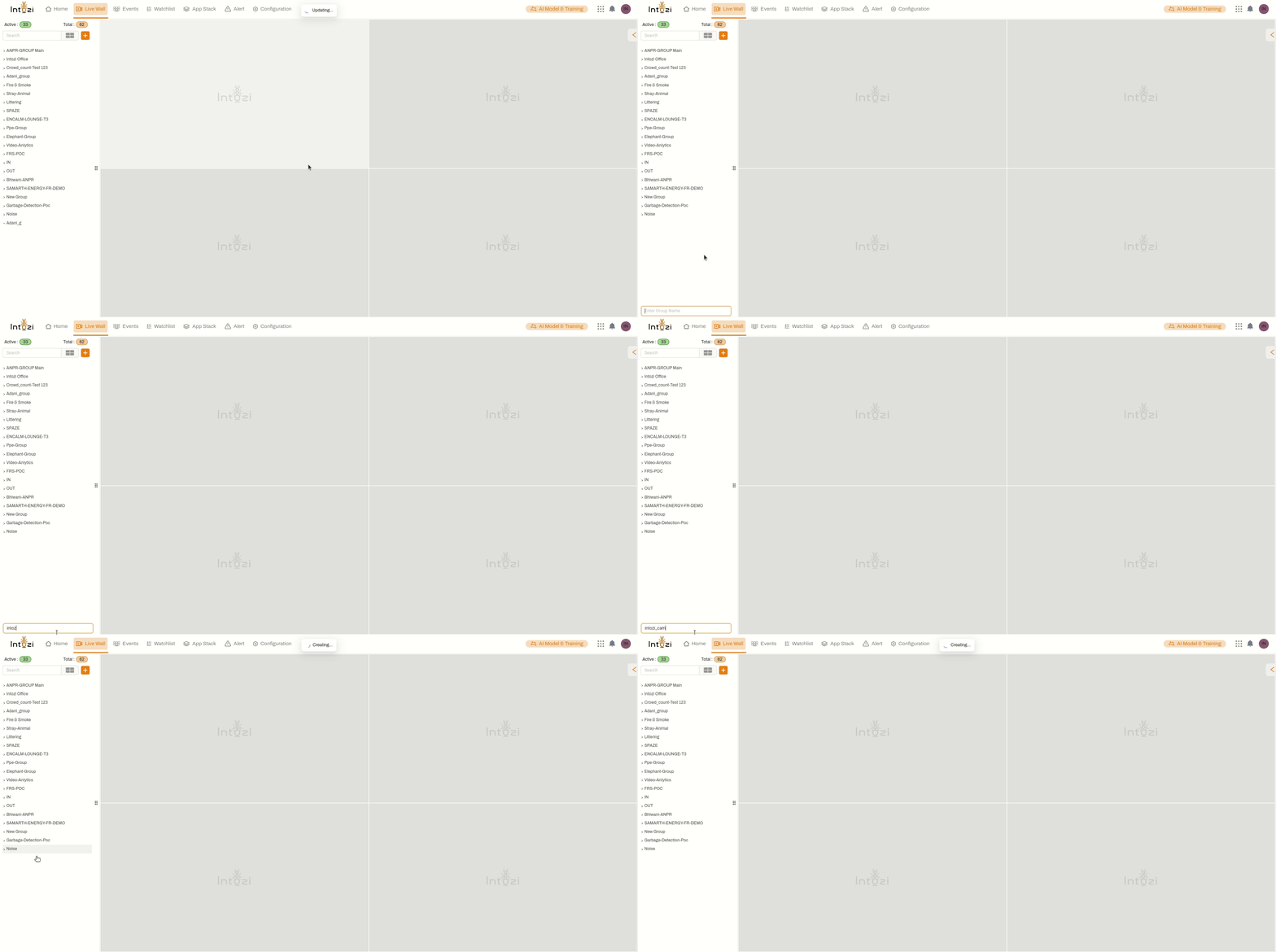
- Navigate to the Live Wall section in the Intozi dashboard.
- On the left panel, locate the Add (+) button and click on it.
- From the dropdown menu, select Add Group.
- Enter a suitable name for the group and save it.
Adding a Device in Live Wall
Step 2: Adding a Device
Single Device Addition
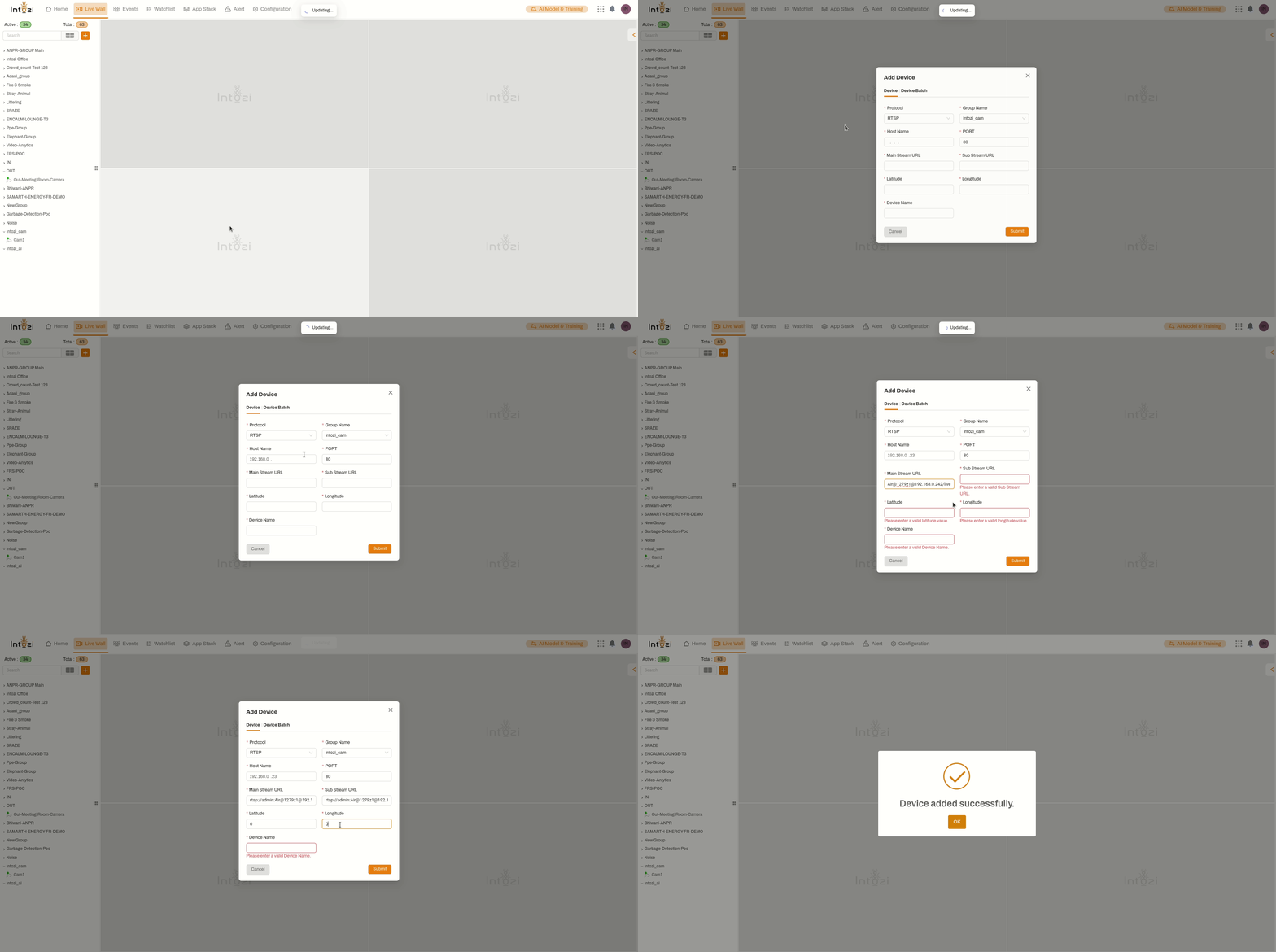
- Right-click on the newly created device group.
- In the dropdown menu, select Add > Add Device.
- Enter the required details such as:
- Protocol (e.g., ONVIF, RTSP)
- Group Name
- Host Name
- Port (default: 80)
- Main Stream URL
- Sub Stream URL
- Latitude
- Longitude
- Device Name
- Click Submit to successfully add the device.
Batch Device Addition
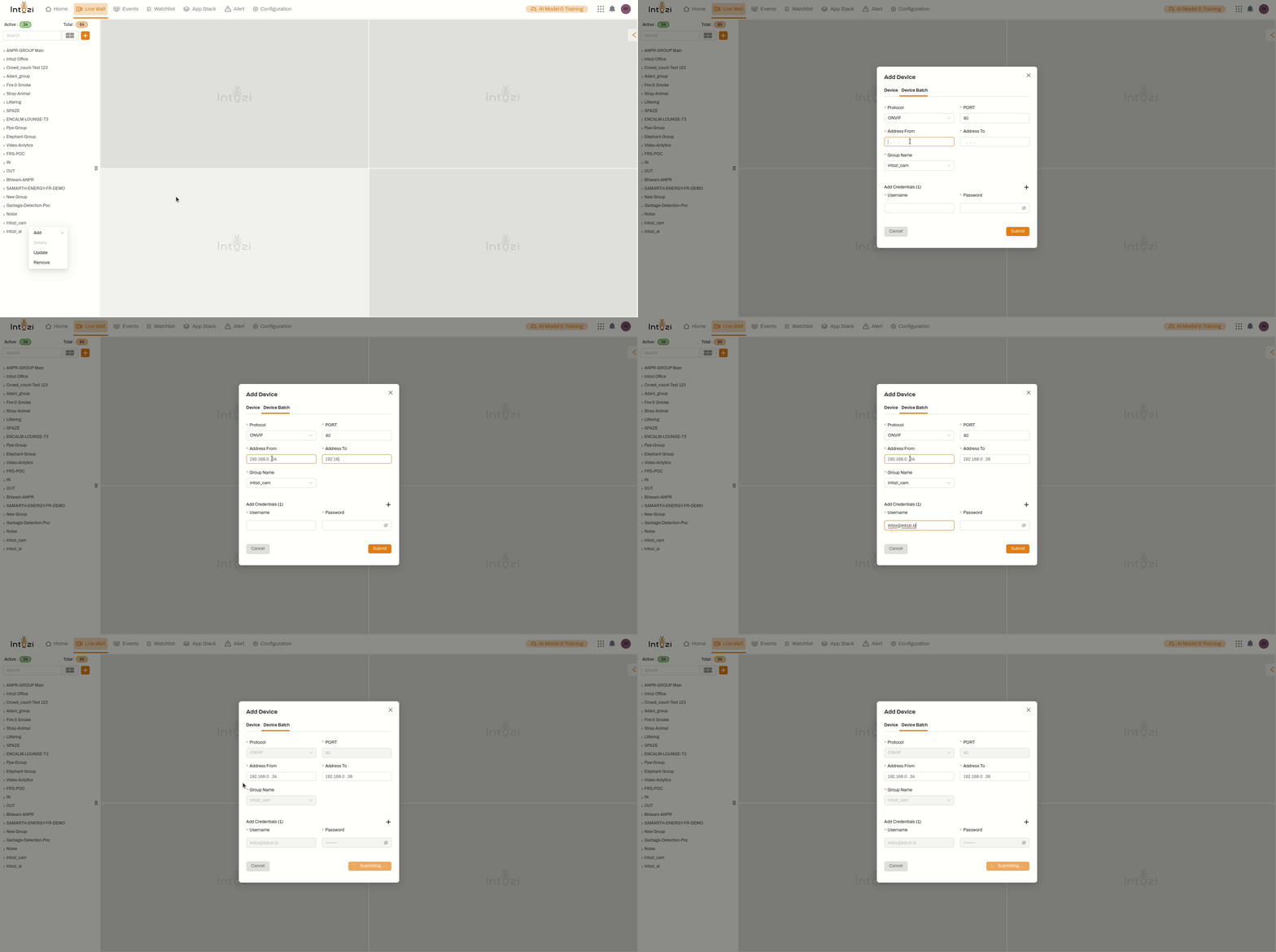
Live Wall also provides the option for batch device addition, allowing users to add multiple devices at once.
- Navigate to the Add Device dialog.
- Switch to the Device Batch tab at the top.
- Enter the required details for batch addition:
- Protocol
- Port
- Address Range (Starting and Ending IP addresses)
- Group Name
- Username and Password
- Click Submit to add all devices in the specified range automatically.
This feature is especially useful for large-scale deployments where multiple devices need to be integrated efficiently.
Step 3: Adding a Video
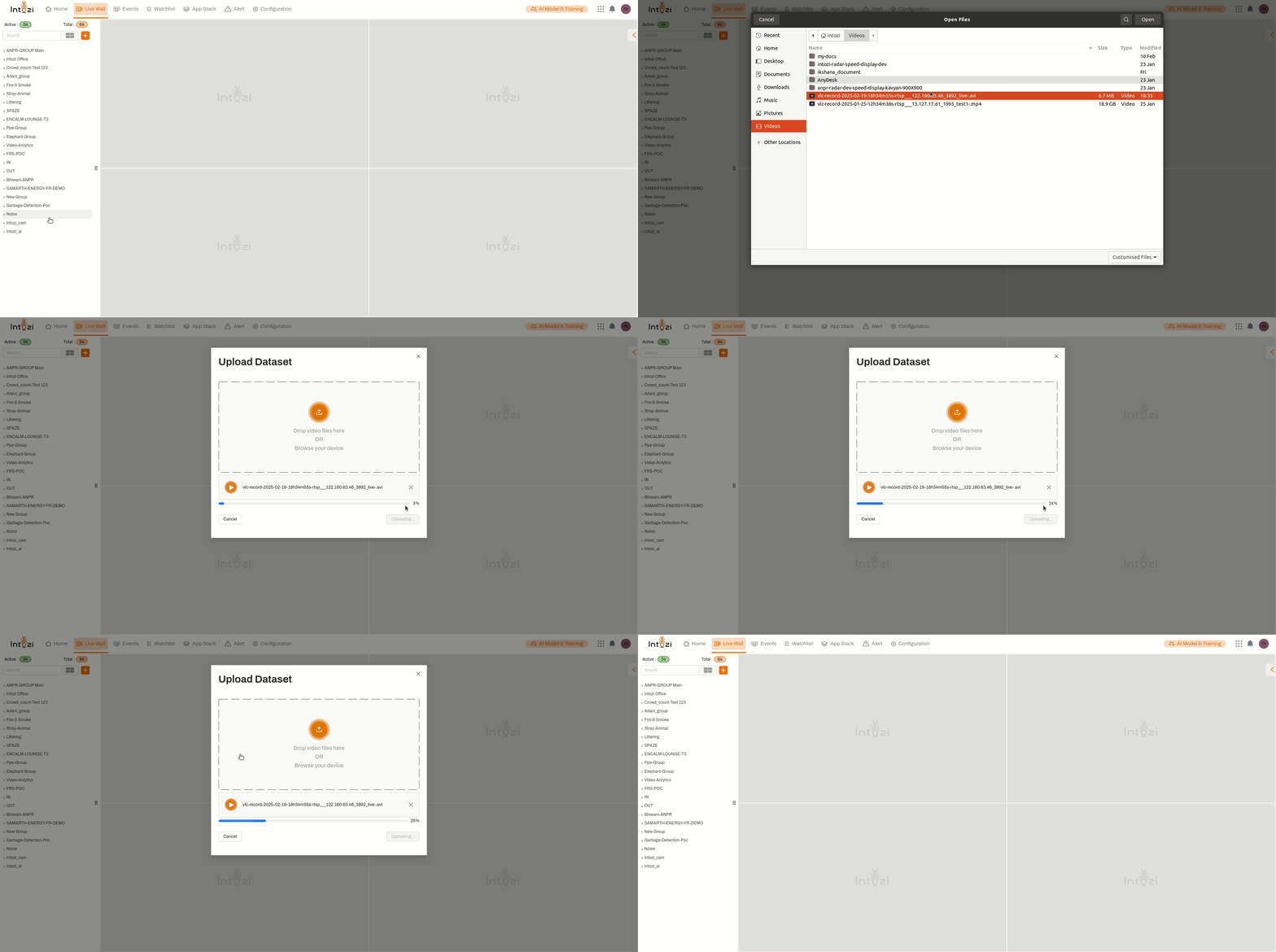
- Right-click on the device group.
- Select Add > Add Video.
- Upload the required video file or provide the video stream URL.
- Configure the settings as needed and click Save.
Additional Features
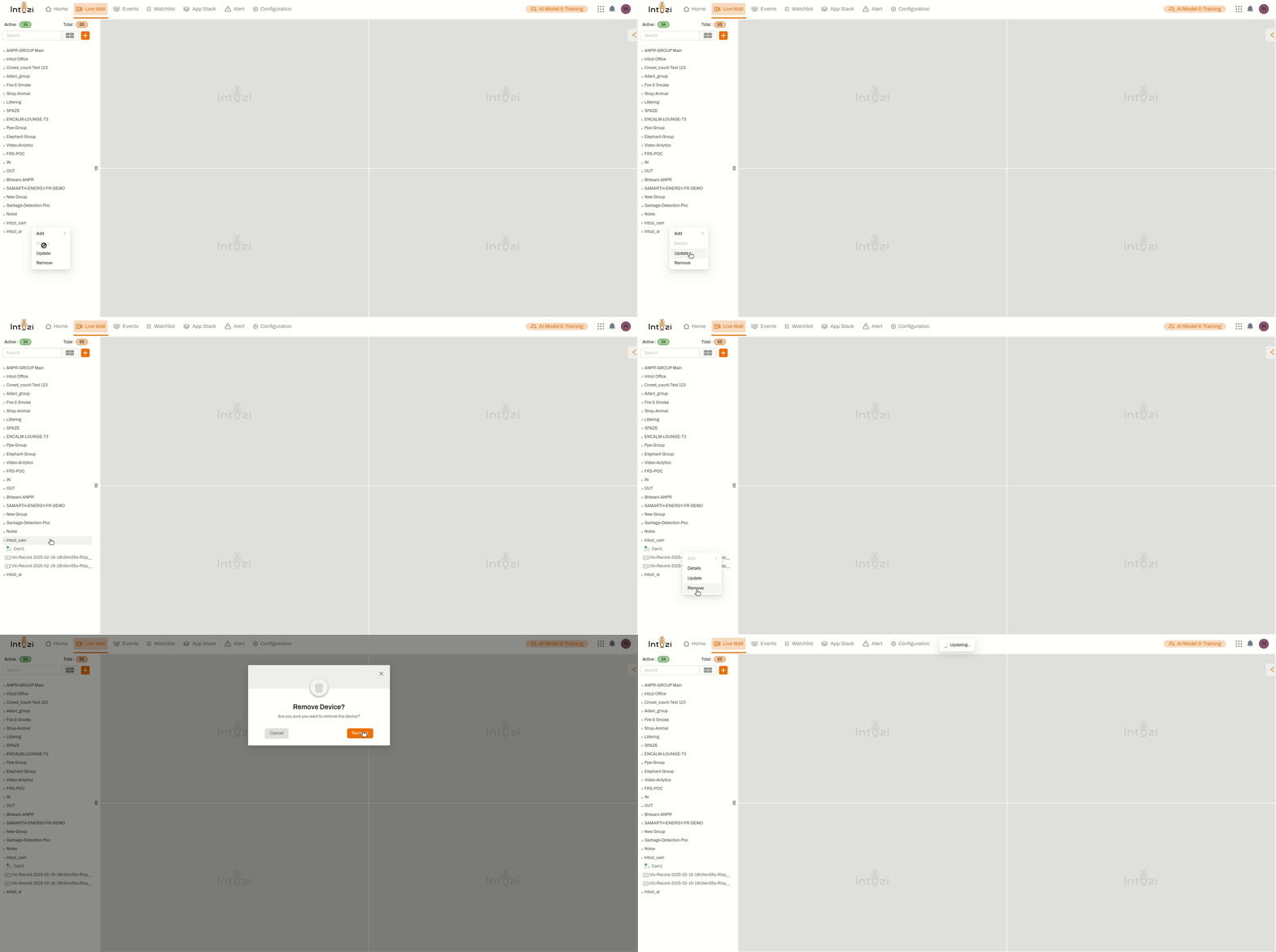
- Update: Modify an existing group or device by selecting the Update option.
- Remove: Delete a device or group using the Remove option.
- Details: View specific information about a group, device, or video by selecting Details.
Conclusion
By following these steps, you can efficiently organize and manage devices within the Intozi system. Ensure that each device is correctly configured for optimal performance. If you encounter any issues, refer to the Intozi support documentation or contact customer support.