PPE Detection
PPE (Personal Protective Equipment) Detection is used to monitor and ensure that individuals are wearing required safety equipment such as helmets, safety vests, masks, gloves, boots, etc. This guide walks through opening the PPE Detection application in App Stack, configuring devices and ROIs, and setting Meta Parameters for deployment.
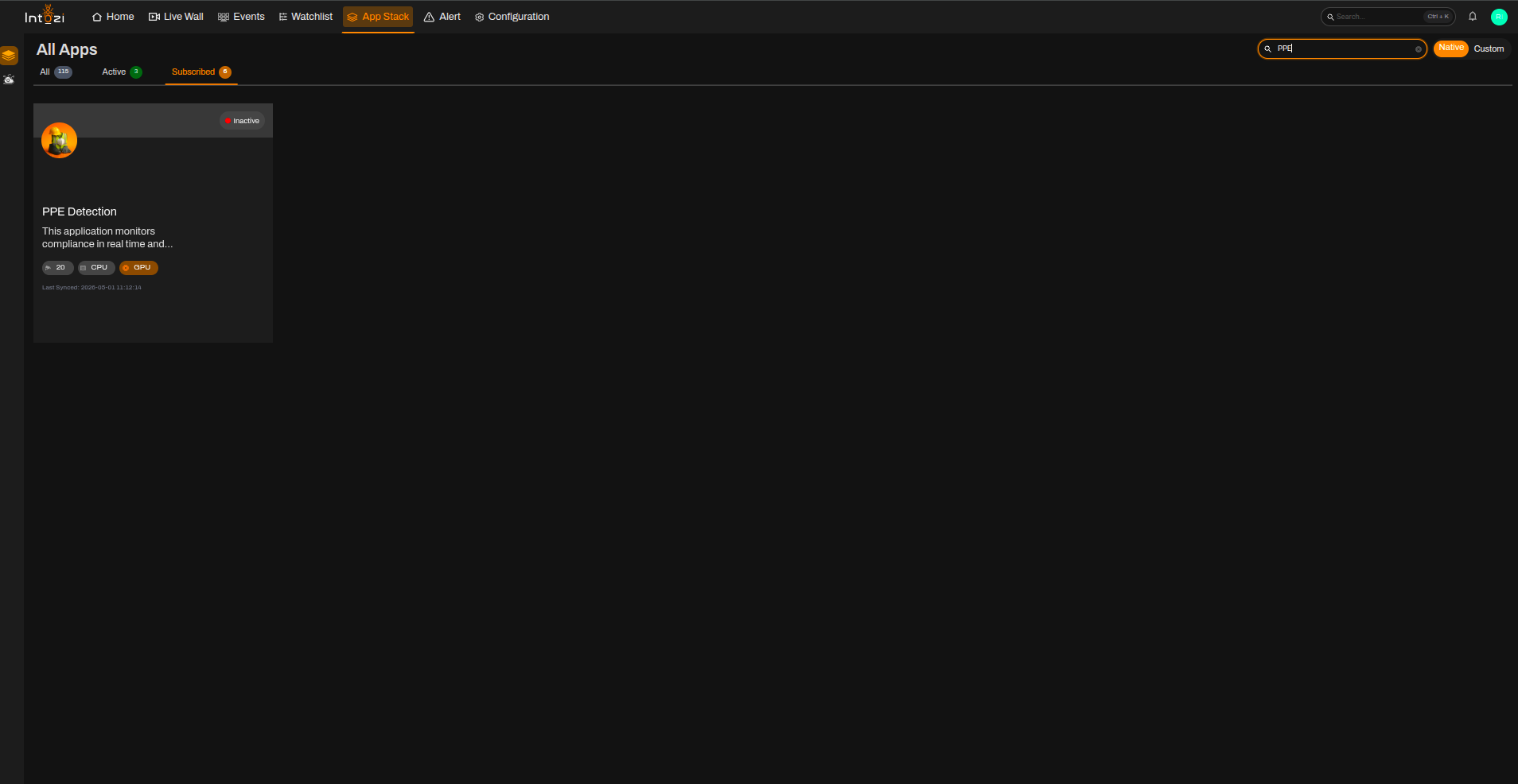
1. Finding the PPE Detection Application in App Stack
- Open App Stack on the platform.
- Use the search bar (usually at the top right of the dashboard).
- Enter PPE Detection.
- In the results, click once on the application to open it.
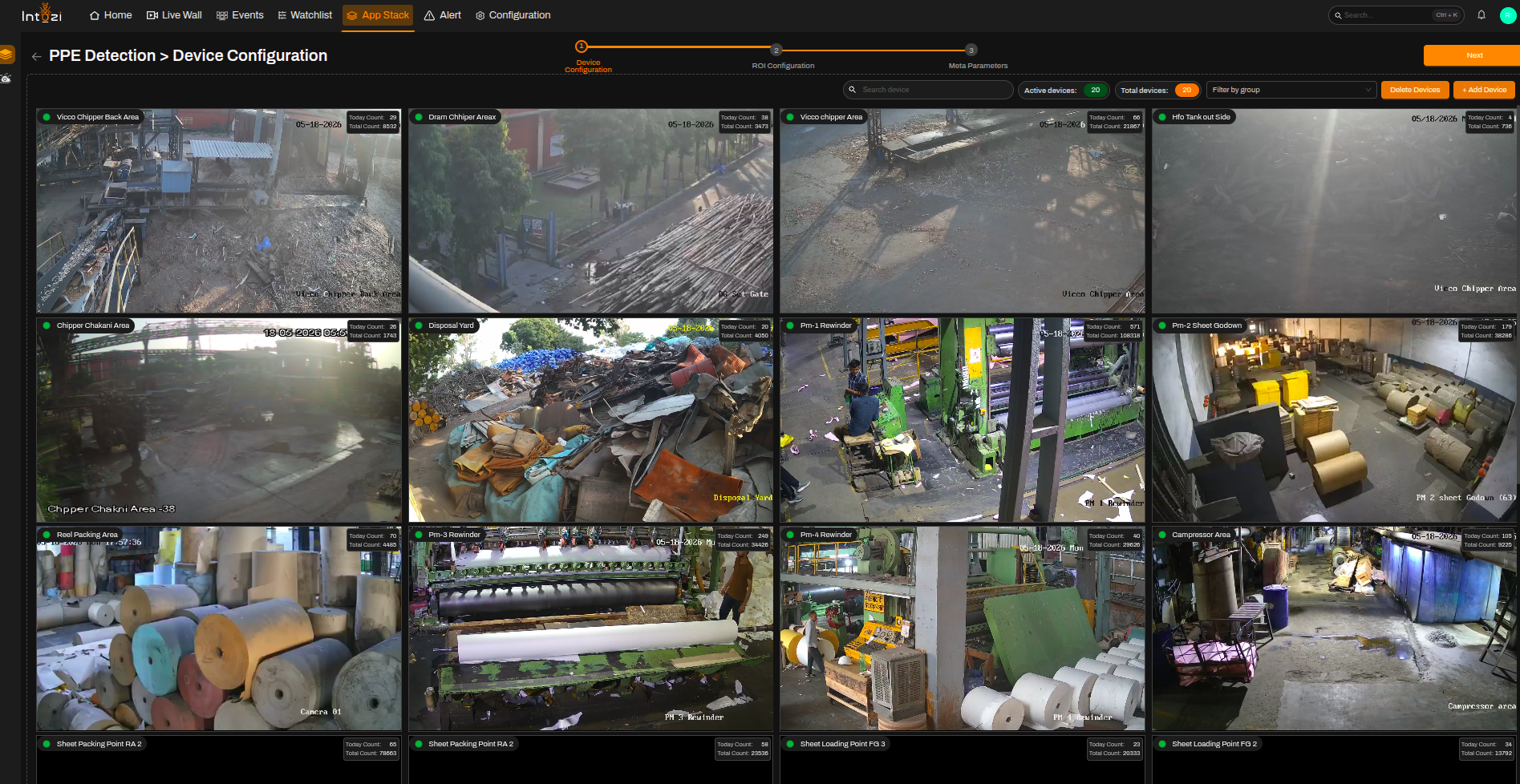
2. Device Configuration
After the application opens, you will be directed to the Device Configuration page.
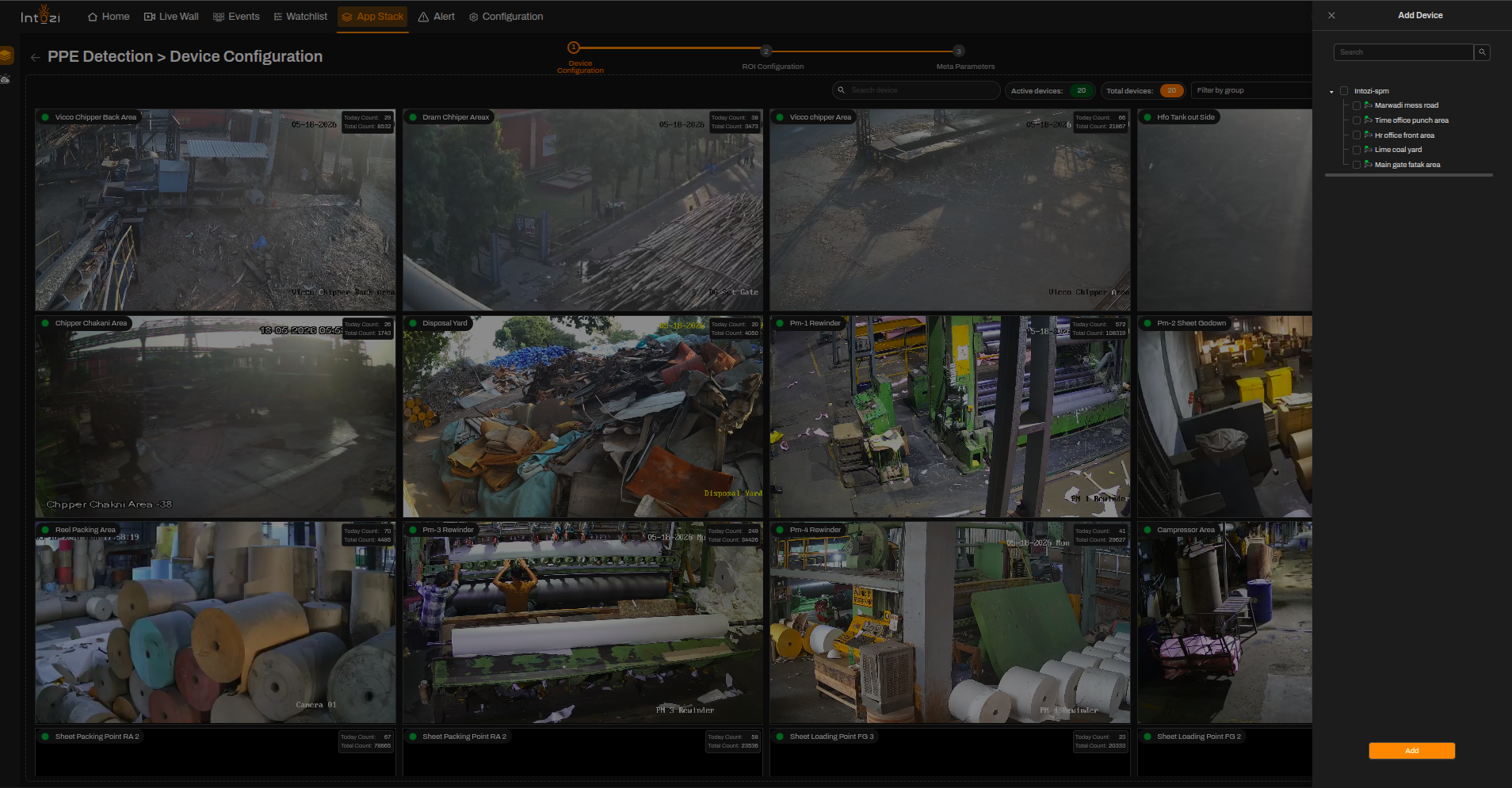
- On the right side of the page, click Add Device to connect cameras.
- Configure required device settings.
- Once devices are added, proceed to the next step (ROI Configuration).
Available Settings
| Parameter | Description |
|---|---|
| Duration | Defines the time interval (in seconds) after which a new event is generated for the same instance. Default is 0 (continuous detection). |
| Tracker Distance Threshold | Used for tracking consistency between frames. |
Note:
Set the duration only if required based on your use case.
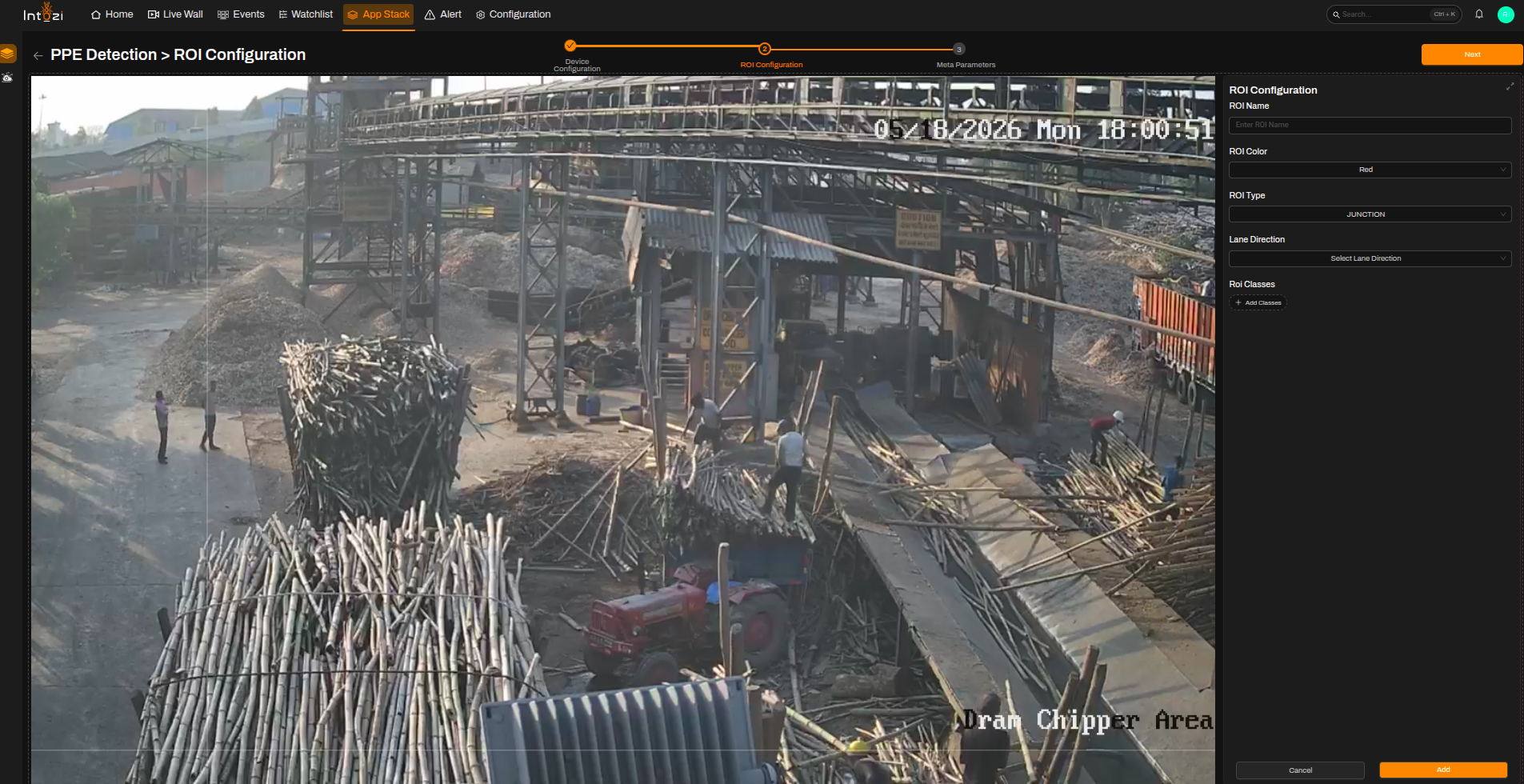
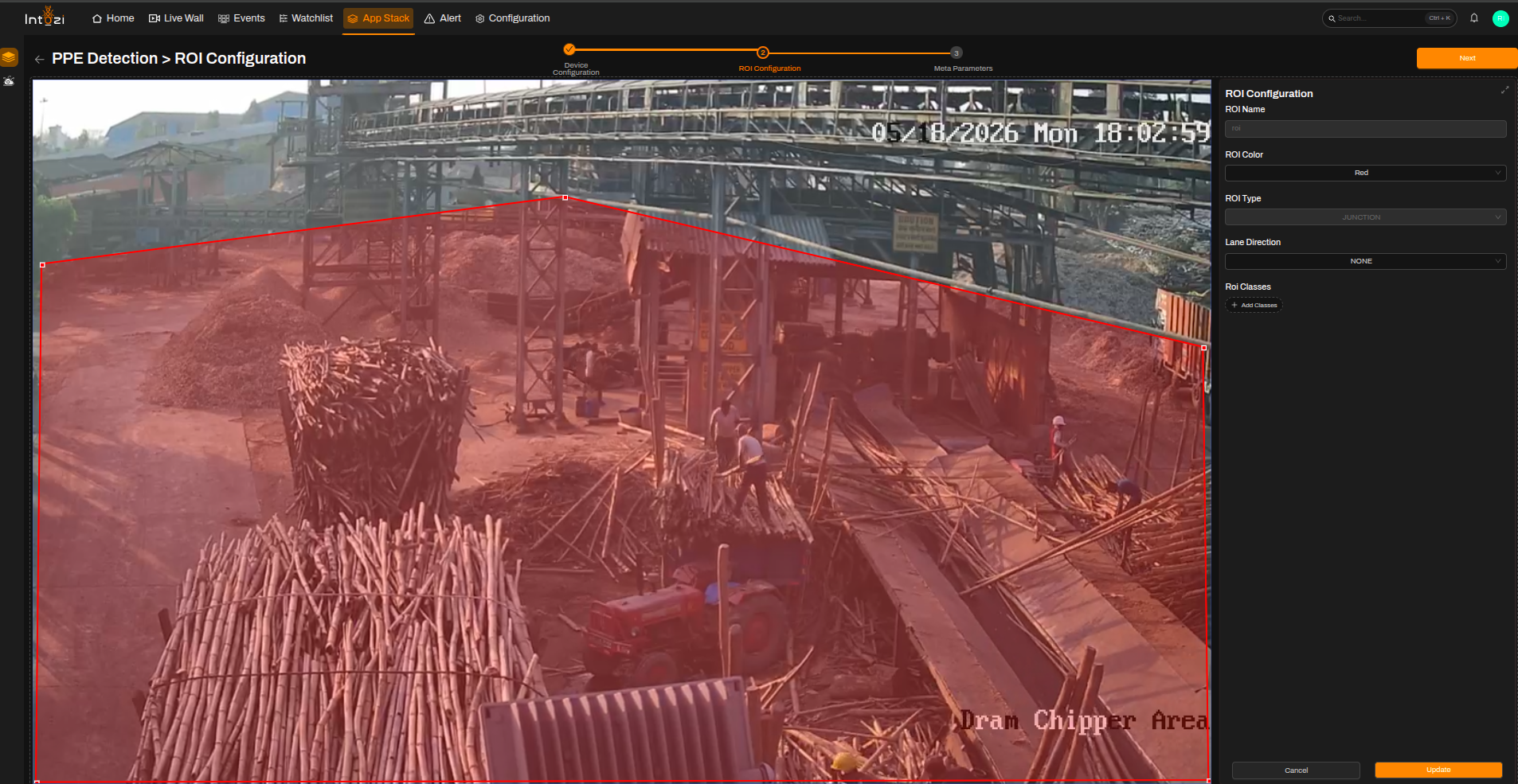
3. ROI (Region of Interest) Configuration
All added devices will be displayed here for ROI drawing.
- Select the desired device.
- Click Add ROI (top right of the page).
- Fill in the ROI details:
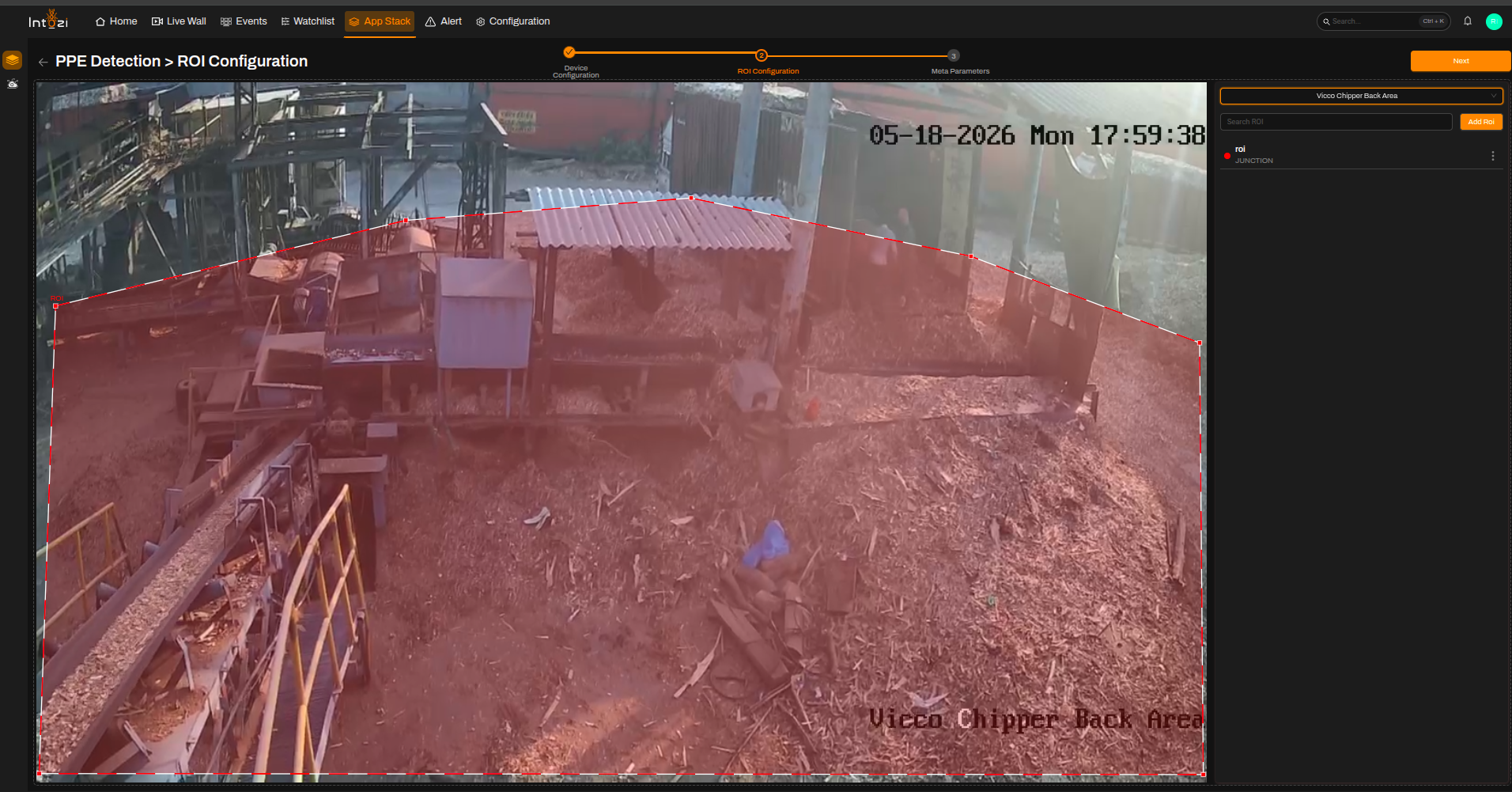
| Field | Guidance for PPE |
|---|---|
| ROI Name | Enter a meaningful name. |
| ROI Color | Choose a visible color. |
| ROI Type | Select Junction. |
| Lane Direction | Set to None. |
| ROI Classes | Not required. |
Note:
You can update or delete any ROI by selecting it and using the available options.
4. Meta Parameters Configuration
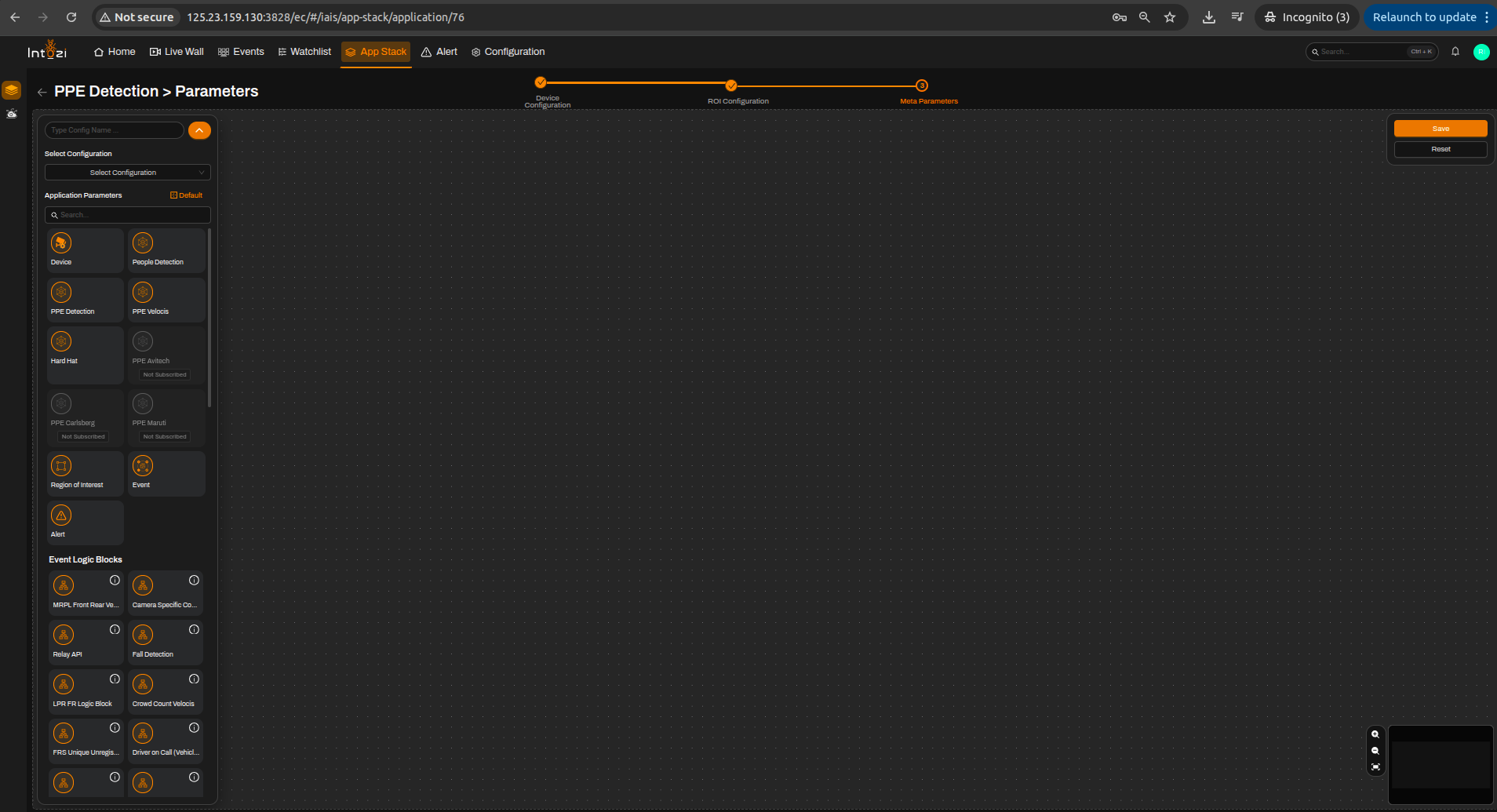
After ROI setup, navigate to the Meta Parameters page.
4.1 Default vs Custom Configuration
You can either:
- Use a default configuration, or
- Create a custom configuration.
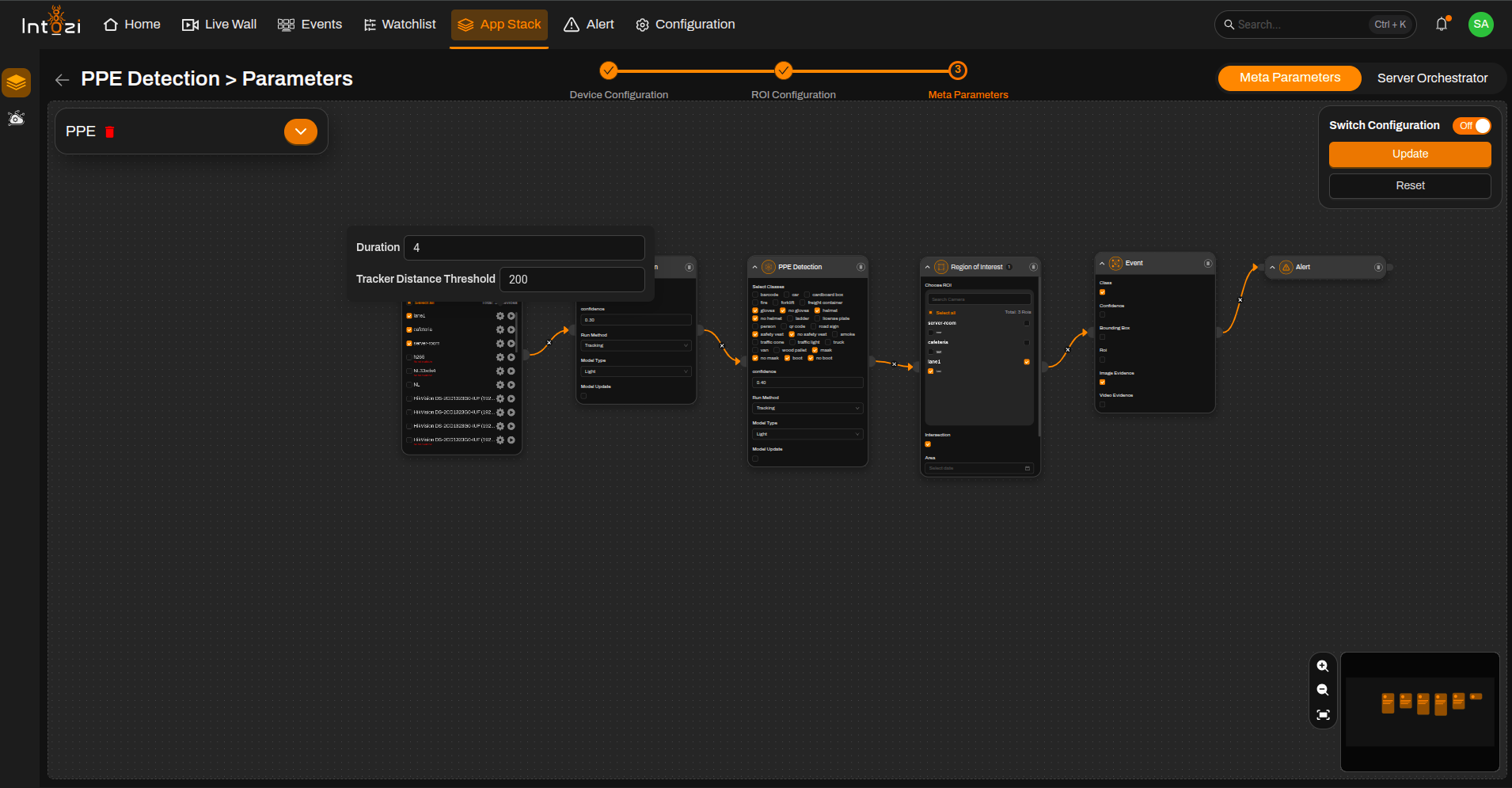
Default Configuration Flow
- Device
- People Detection
- PPE Detection
- Region of Interest (ROI)
- Event
- Alert
4.2 People Detection Node
- Confidence threshold is adjustable.
- Tune based on:
- Lighting conditions
- Camera angle
- Scene complexity
4.3 PPE Detection Node
- Select PPE classes based on requirements.
Examples:
-
Only No Helmet
-
Only No Safety Vest
-
Full compliance + non-compliance detection
-
Default confidence: 0.45
-
Can be adjusted based on environment and client requirements.
5. Final Configuration
- Select the device and associated ROI.
- Configure parameters if required.
- Enter a configuration name.
- Choose hardware type:
- CPU
- GPU
- Adjust batch size (based on CV team recommendation).
Click Save to complete the configuration.
Notes
- PPE detection behavior depends heavily on camera placement and clarity.
- Fine-tuning confidence thresholds improves accuracy.
- Use GPU for better performance in high-load environments.