User Guide: Live Wall Feature
Introduction
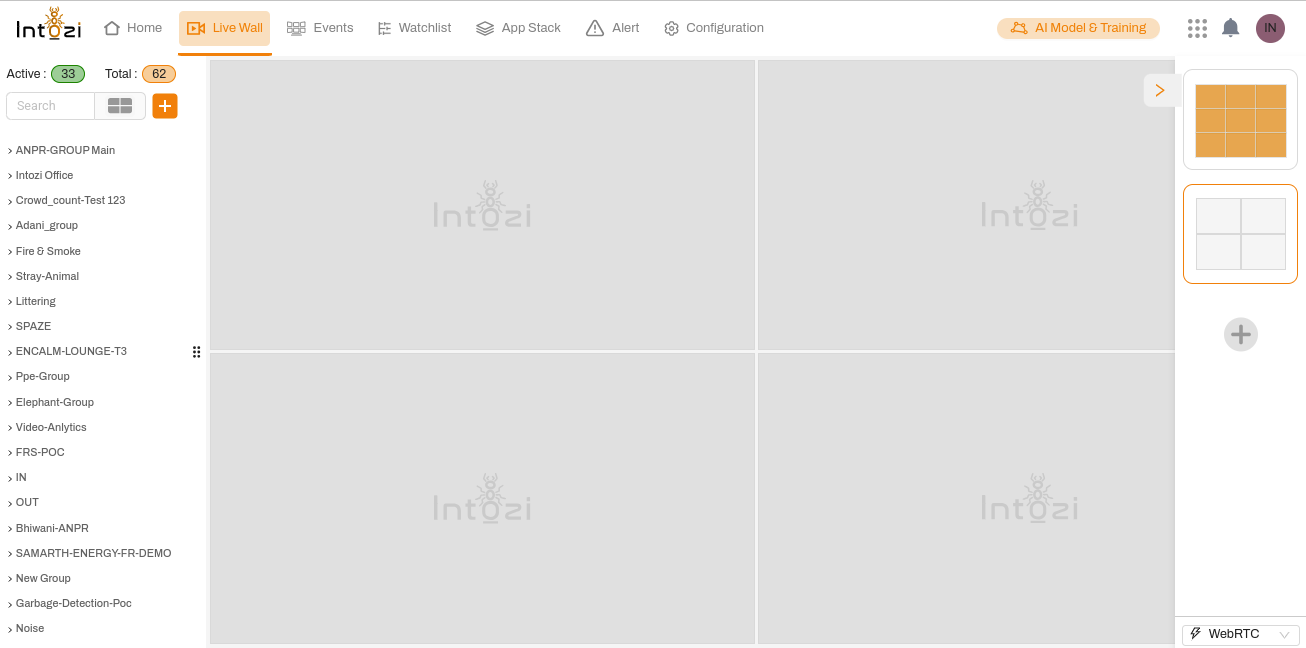
The Live Wall feature in Intozi provides a real-time monitoring dashboard that allows users to view multiple video streams simultaneously. This feature is designed for surveillance, analytics, and operational efficiency, ensuring that users can track live feeds and take necessary actions when needed.
Accessing the Live Wall
To access the Live Wall:
- Navigate to the top navigation bar.
- Click on the Live Wall button (highlighted in orange with a video camera icon).
- The Live Wall interface will open, displaying multiple video feeds.
Interface Overview
1. Left Sidebar (Camera & Group Selection)
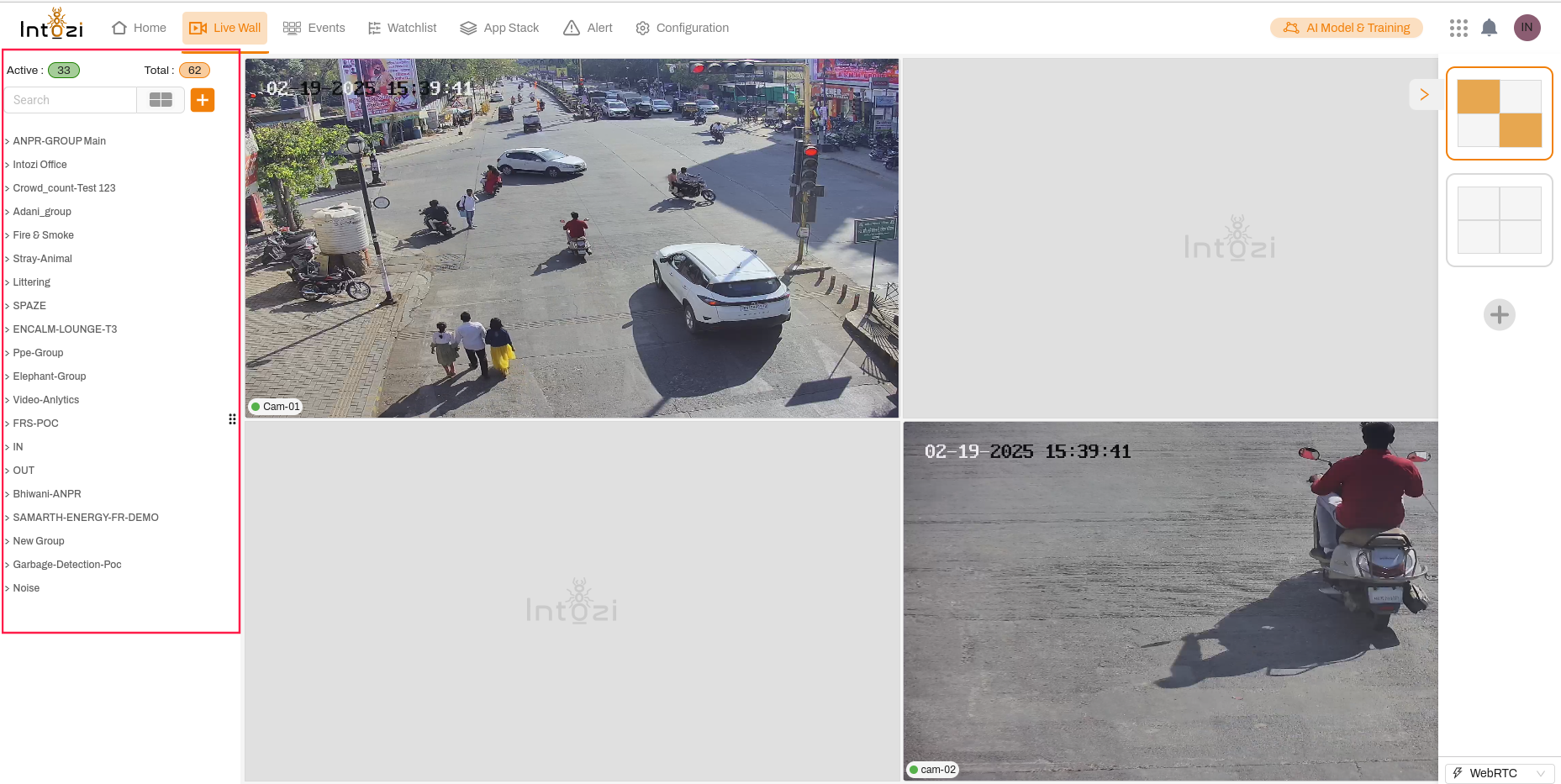
- Displays a list of available camera groups and locations.
- The total number of active feeds is shown at the top:
- Active (Green Circle) - Shows the number of currently active streams.
- Total (Orange Circle) - Displays the total number of available cameras.
- The search bar allows users to filter specific camera groups.
- The + button enables users to add new camera groups.
2. Main Viewing Area (Live Feeds Display)
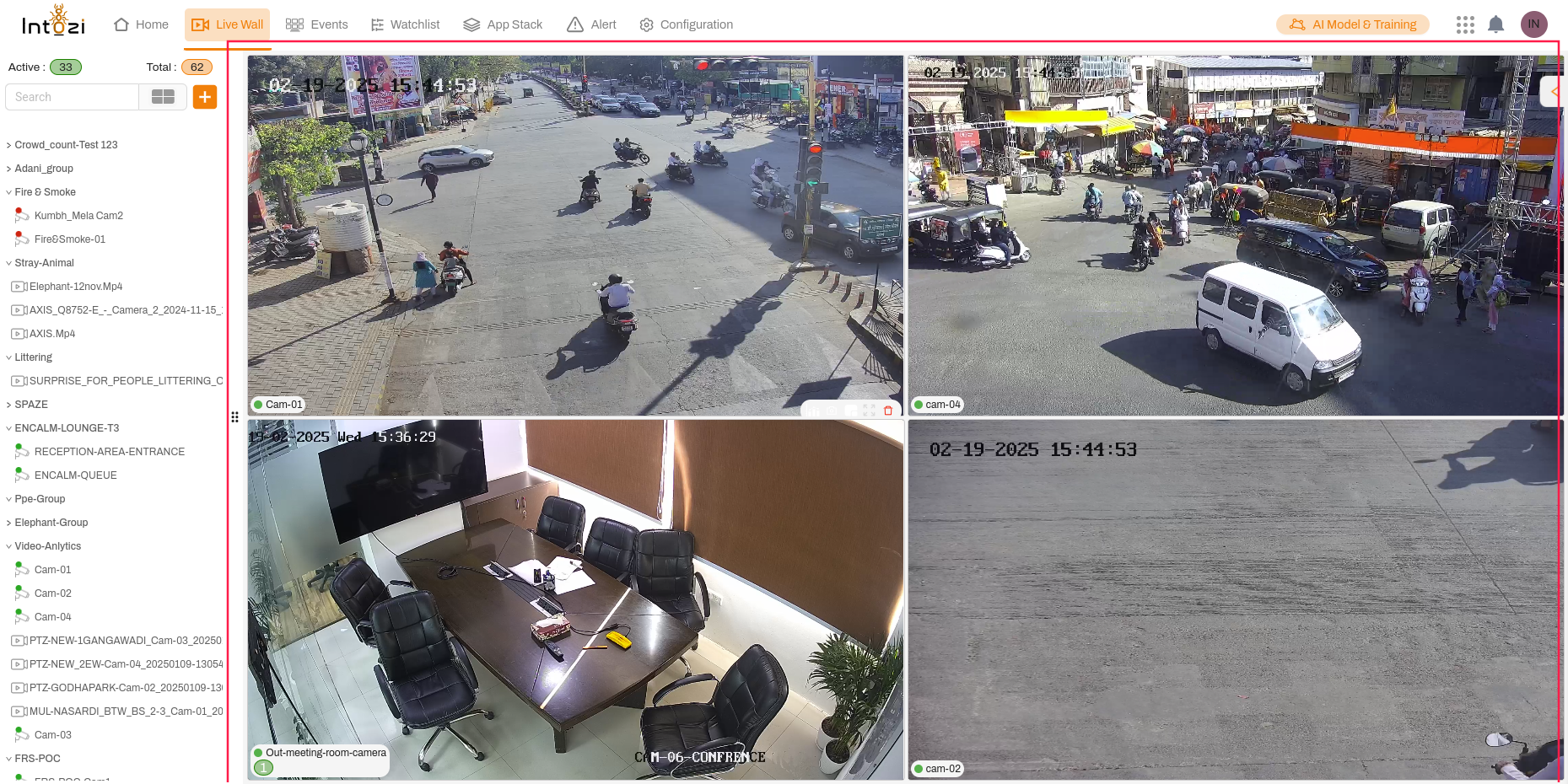
- The central area displays video feeds in a grid format.
- The feeds are labeled with the Intozi watermark.
- Users can customize the layout by selecting different grid options.
3. Grid Layout Selection (Right Panel)

- Users can create multiple grid layouts as per their requirements.
- Available grid options allow users to display feeds in different formats to optimize monitoring.
- A + button is available for adding additional camera feeds.
4. Top Navigation Bar
- Events - Provides access to recorded events and alerts.
- Watchlist - Enables users to mark specific feeds for priority viewing.
- App Stack - Opens additional applications integrated within the system.
- Alert - Displays real-time alerts and notifications.
- Configuration - Allows customization of settings and system preferences.
5. AI Model & Training (Top Right)
- Provides access to AI-based analytics and model training for advanced video analysis.
6. Streaming Options (Bottom Right Corner)

- Clicking on this option allows users to choose between WebRTC and WebSocket for real-time video streaming.
- WebRTC ensures low-latency, high-quality live video feeds.
- WebSocket provides an alternative streaming method for network adaptability.
How to Use Live Wall Effectively
- Select a Camera Group from the left panel to view specific video feeds.
- Customize Layout using the right panel to adjust the number of video streams displayed.
- Monitor Live Feeds in real time and take necessary actions based on observations.
- Use AI Model & Training to enhance detection and automation capabilities.
- Check Alerts & Events for notifications and recorded incidents.
- Select Streaming Method based on network conditions for optimized performance.
Conclusion
The Live Wall feature is a powerful tool for real-time monitoring and surveillance. By effectively utilizing its features, users can ensure efficient tracking and response to live events. For further customization or troubleshooting, refer to the Configuration section or contact support.