Downloading Device List as CSV
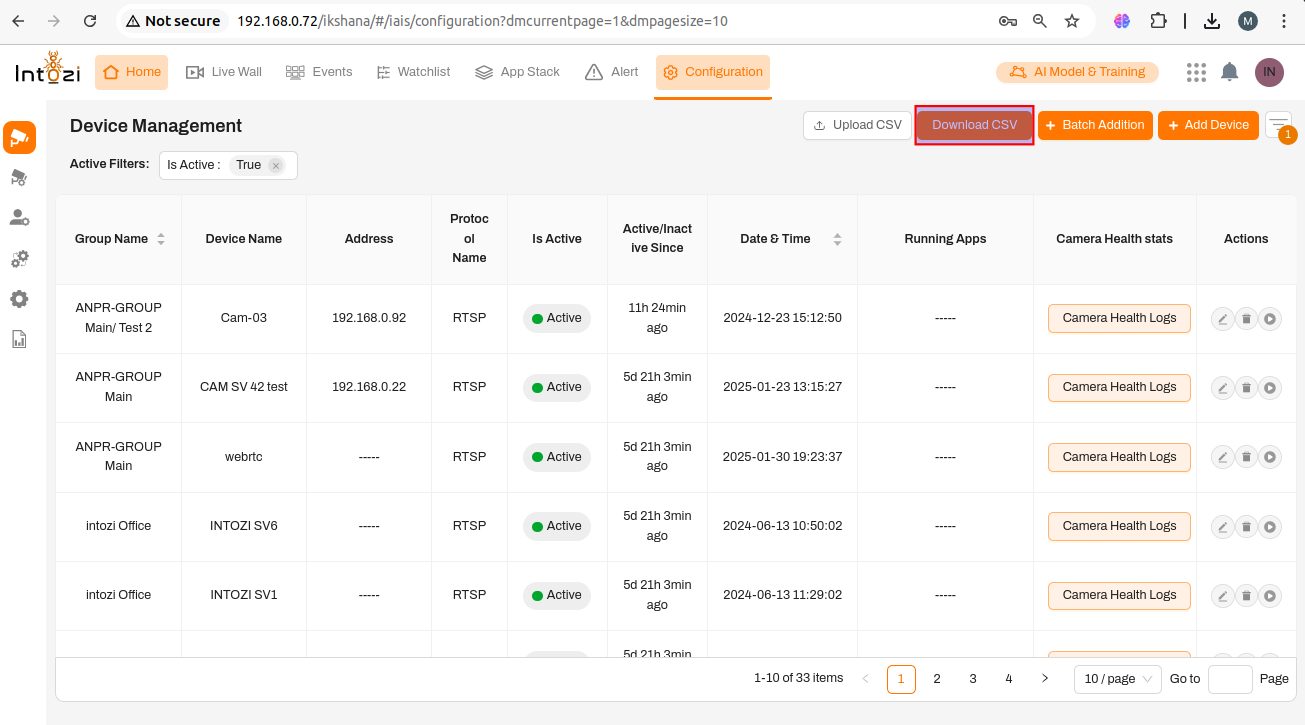
The Download CSV feature allows users to download a list of all devices along with their details in CSV format.
Steps to Download a CSV File:
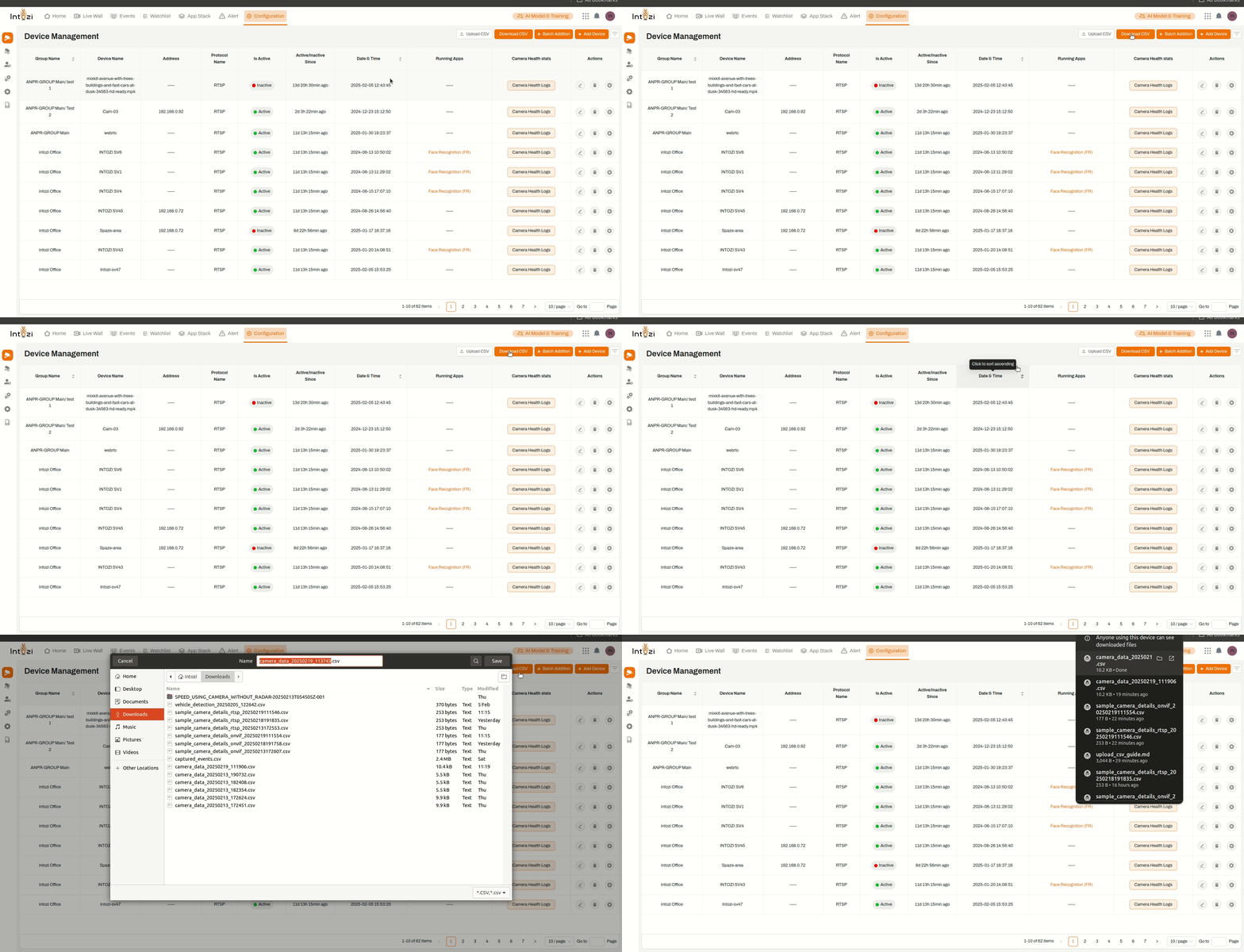
- Navigate to Configuration
- Click on the Configuration tab in the main menu.
- Click on Download CSV
- Locate the Download CSV button at the top right and click on it.
- CSV File Generation
- The system will generate and download a CSV file containing all registered device details.
Example of Downloaded CSV Data:
| Group Name | Device Name | Camera URL | Substream URL | Protocol Name | Date and Time | Latitude | Longitude | Running Applications |
|---|---|---|---|---|---|---|---|---|
| ANPR-GROUP Main | webrtc | rtsp://admin:Air@1279z1@192.168.0.242/live | rtsp://admin:Air@1279z1@192.168.0.242/live | RTSP | 2025-01-30 19:23:37 | 12 | 12 | None |
| Intozi Office | Intozi-sv47 | rtsp://admin:Air@1279z1@192.168.0.247/live | rtsp://admin:Air@1279z1@192.168.0.247/live1 | RTSP | 2025-02-05 15:53:25 | none | none | None |
| Intozi Office | INTOZI SV43 | rtsp://admin:Air@1279z1@192.168.0.242/live | rtsp://admin:Air@1279z1@192.168.0.242/live | RTSP | 2025-01-20 14:08:51 | 28.4494 | 77.0166 | Face Recognition (FR) |
This feature provides a structured overview of all registered devices and their configurations.
With this guide, users can efficiently download and manage their device list using the Intozi Device Management System.