Reports Configuration - User Guide
Overview
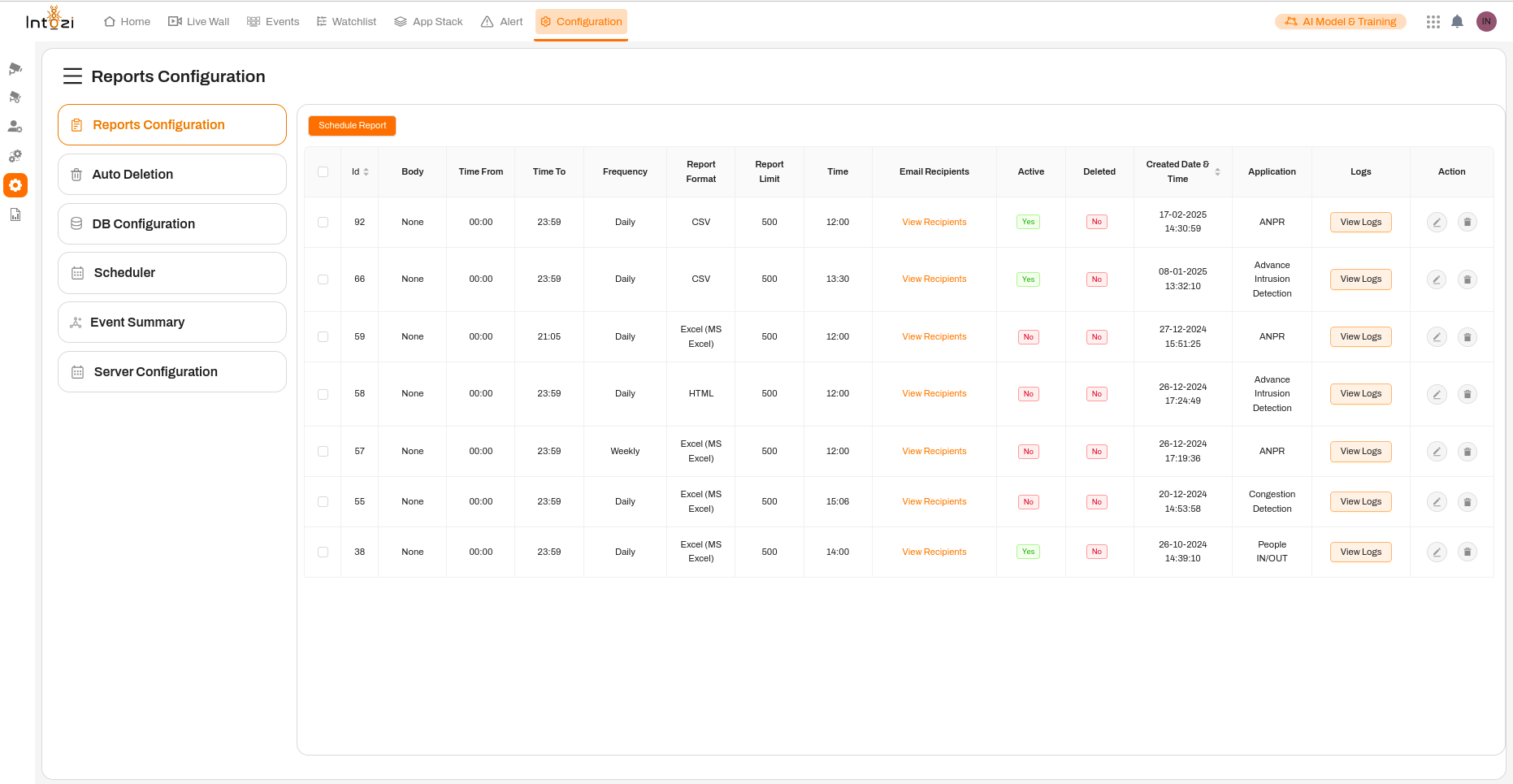
The Reports Configuration module allows users to schedule, manage, and monitor reports efficiently. Users can configure automated report generation, set report formats, define frequency, and manage recipients. Additionally, logs and email recipients can be accessed, ensuring streamlined report management.
Navigation
Left Panel - Configuration Menu
The left panel provides navigation options for different settings:
- Reports Configuration – Manage report scheduling and settings.
- Auto Deletion – Configure automatic deletion of old reports.
- DB Configuration – Set up database-related settings.
- Scheduler – Manage scheduled tasks.
- Event Summary – View a summary of recorded events.
- Server Configuration – Configure server-related settings.
Main Panel - Reports List
Header Section
- Schedule Report Button – Click to create a new report schedule.
Reports Table Details
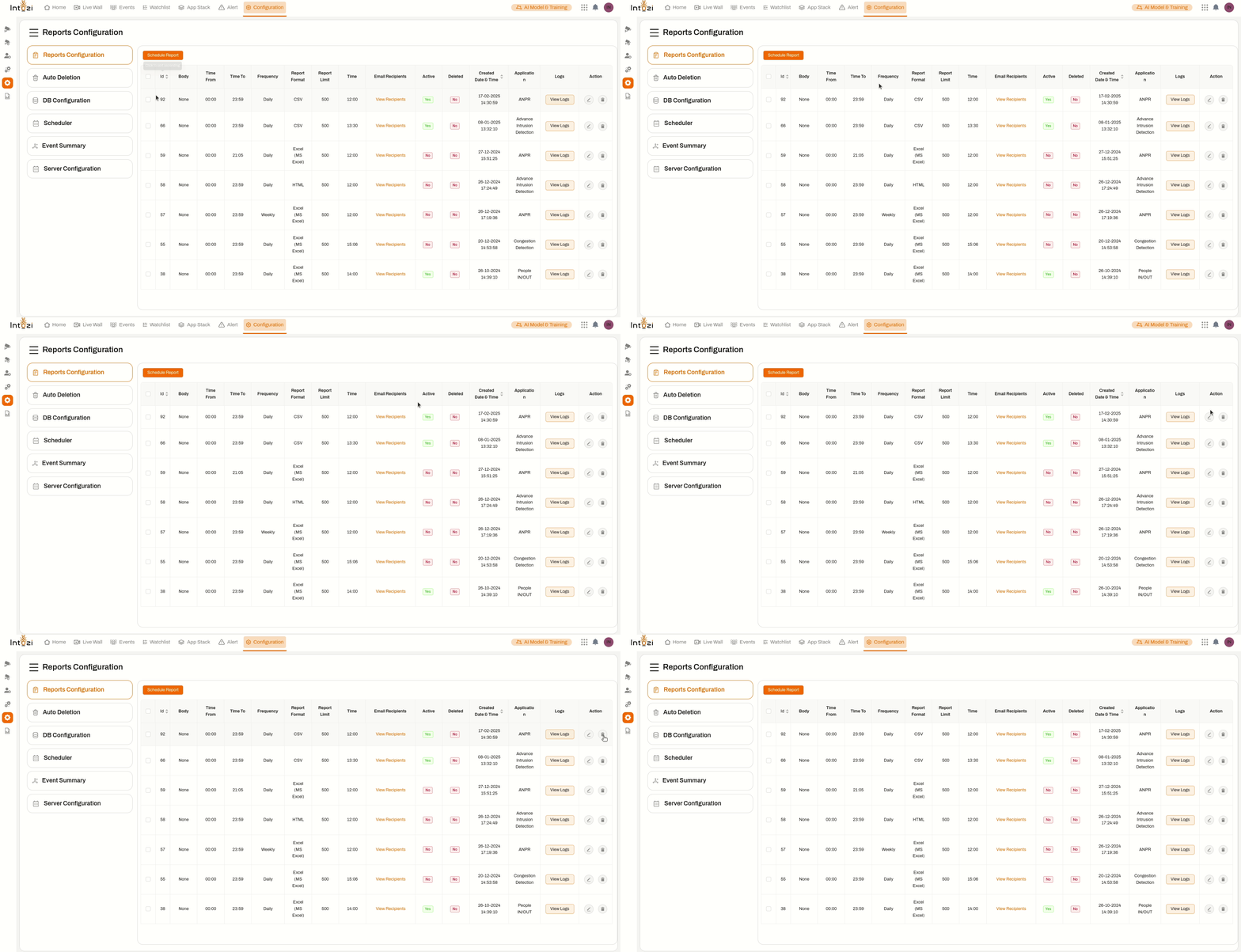
The main section displays a table containing all configured reports. Below are the column descriptions:
- Id – Unique identifier for each report.
- Body – Content type of the report (None, Summary, etc.).
- Time From - Time To – Defines the time range for the report data.
- Frequency – Specifies how often the report is generated (Daily, Weekly, etc.).
- Report Format – Defines the format of the report (CSV, Excel, HTML, etc.).
- Report Limit – The maximum number of records included in the report.
- Time – The exact time when the report is generated.
- Email Recipients – Provides a link to view and manage recipients who receive the report.
- Active – Indicates whether the report is currently active (Yes/No).
- Deleted – Shows if the report is marked for deletion.
- Created Date & Time – Displays the creation timestamp of the report.
- Application – Specifies the application module related to the report.
- Logs – Provides access to logs related to the report execution.
- Action – Includes options to edit or delete the report.
Scheduling a Report
Schedule Report Form

When the Schedule Report button is clicked, a form appears allowing users to configure report settings. The form includes the following fields:
- Application – Select the application for which the report is generated.
- Frequency – Choose the frequency of the report (e.g., Daily, Weekly).
- Time to Send – Define the exact time when the report should be sent.
- Time Range – Set the start and end time for data collection.
- Report Type – Choose the format of the report (CSV, Excel, HTML, etc.).
- Email Recipients – Enter the email addresses of the recipients who will receive the report.
- Configuration Enabled Toggle – Enable or disable the report configuration.
- Reset Button – Clears the form fields.
- Schedule Button – Saves and schedules the report as per the selected settings.
Logs Feature
Viewing Report Logs
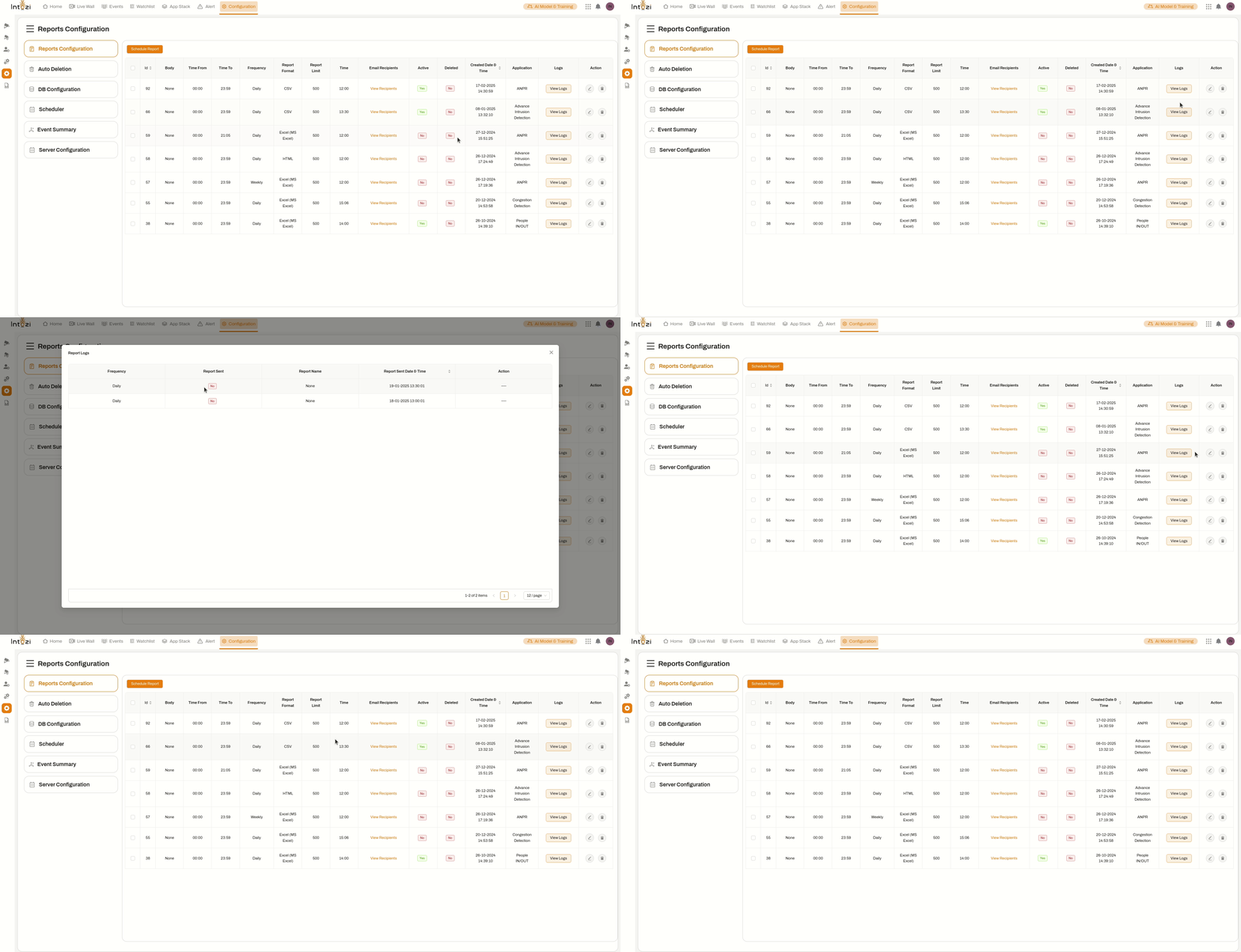
The Logs feature allows users to track report execution history, including:
- Report Generation Timestamp – Track when a report was created.
- Report Download History – Monitor when and by whom a report was downloaded.
- Error Logs – If a report fails to generate, detailed error logs will be available for troubleshooting.
Users can access logs by clicking the View Logs button next to each report entry.
Actions & Features
- View Recipients – Click to see a list of users receiving the report.
- View Logs – Click to check report execution logs.
- Edit (Pencil Icon) – Modify the existing report settings.
- Delete (Trash Icon) – Remove or disable the report.
Conclusion
The Reports Configuration module is a robust tool for automating and managing report generation. With flexible scheduling, multiple formats, and recipient management, users can efficiently streamline reporting processes in the application.