App Stack User Guide
Overview
The App Stack is an advanced platform for managing, organizing, and monitoring applications in real time. It features a dynamic workflow engine that optimizes database models for efficient data handling and scalability.
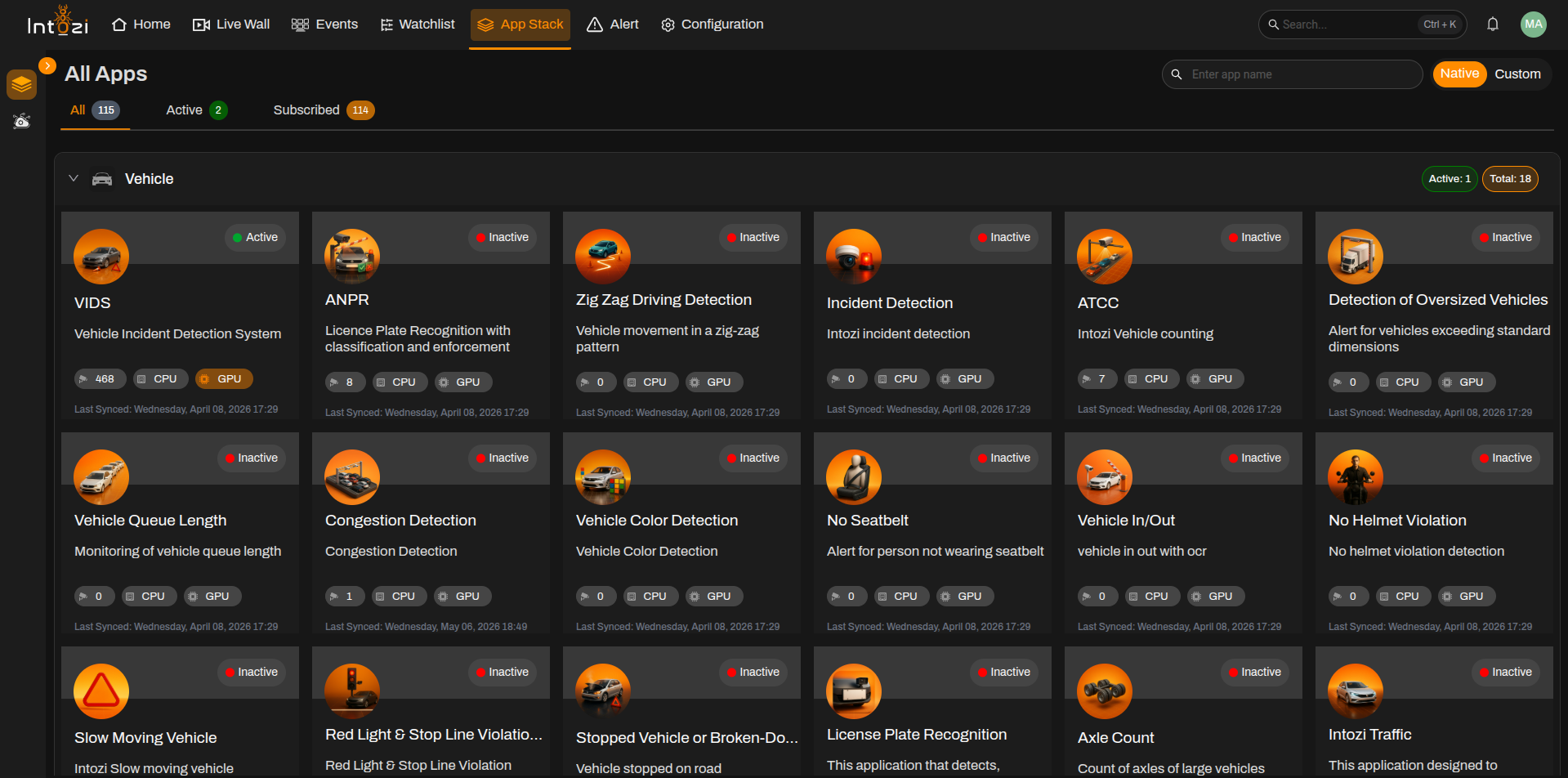 Designed for flexibility, it supports no-code workflows for processing vision-language models (VLMs) and large language models (LLMs) while adapting to various hardware setups. Users can customize workflows and parameters, ensuring seamless integration and high performance.
With its end-to-end, SDK-free architecture, the App Stack delivers a scalable and future-ready solution for modern applications.
Key Features
1. Active Applications
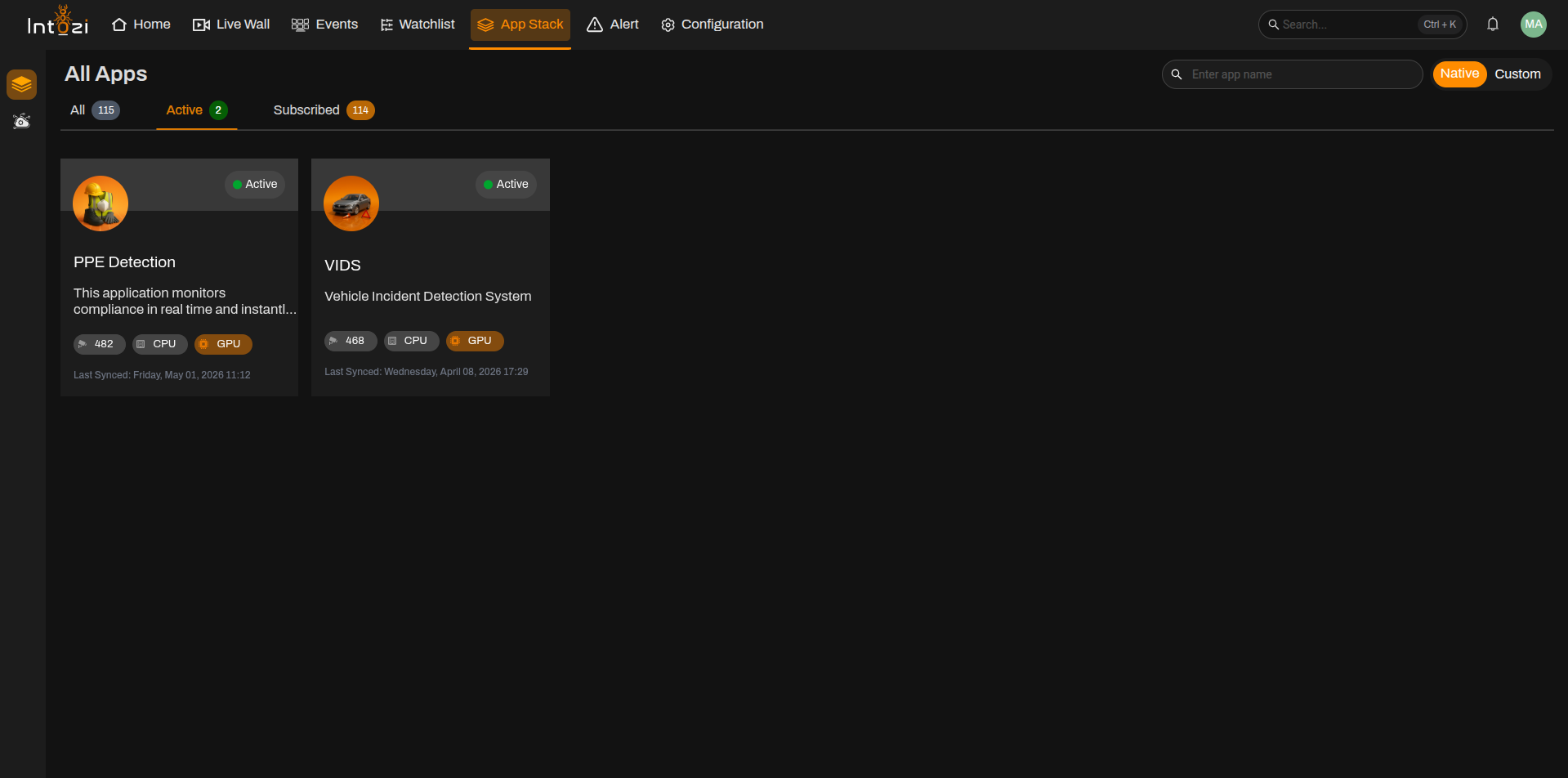
- Displays currently active applications in the system.
- Each application card provides the following details:
- Application Name – The official title of the application.
- Description – A brief summary of its functionality.
- Resource Consumption – Displays CPU and GPU usage for performance monitoring.
- Status Indicator – Indicates whether an application is active or inactive.
2. Categorized Applications
Applications are structured into various categories to streamline navigation and organization:
- Vehicle – Applications related to vehicle monitoring and recognition.
- People – Applications focused on human detection and identification.
- Traffic – Applications for traffic monitoring and regulation.
- Face – Face recognition and verification applications.
- Security – Applications designed for surveillance and security management.
- Miscellaneous – Applications that do not fall under the above categories.
Each category displays:
- Total Applications – The number of applications under this category.
- Active Applications – The number of currently active applications.
3. Application Search & Filtering
To facilitate ease of access, the App Stack offers:
- Search Bar – Enables users to locate applications quickly by entering a name or keyword.
- Filter Options – Allows sorting applications based on active or inactive status.
- Expandable Categories – Users can click on a category to expand and view all associated applications.
4. Application Management
- Adding Applications – Users can click the
+ Add Applicationbutton to integrate new applications. - Native vs. Custom Applications – A toggle feature enables users to switch between native and custom applications for better organization.
- Active Application Monitoring – A real-time counter provides an overview of currently running applications.
5. Status Indicators & Resource Utilization
- Active Status Indicator – Highlights applications that are currently active.
- Inactive Status Indicator – Identifies applications that are not in use.
- CPU/GPU Usage Display – Presents real-time computational resource requirements.
Navigation Guide
- Accessing the App Stack – Click the
App Stacktab in the top navigation menu. - Viewing Active Applications – The top section showcases all active applications.
- Expanding Categories – Click on a category to reveal all applications within it.
- Searching Applications – Use the search functionality to locate applications efficiently.
- Managing Applications – Add, monitor, and organize applications through an intuitive interface.
Related documentation
You can also open these pages directly, for example /AppStack/VIDS or /AppStack/People_fall when running locally.
Conclusion
The App Stack is designed to streamline application management by offering categorized organization, real-time monitoring, and structured filtering. Users can efficiently oversee active applications, allocate resources effectively, and optimize their workflows.