Camera Health Logs
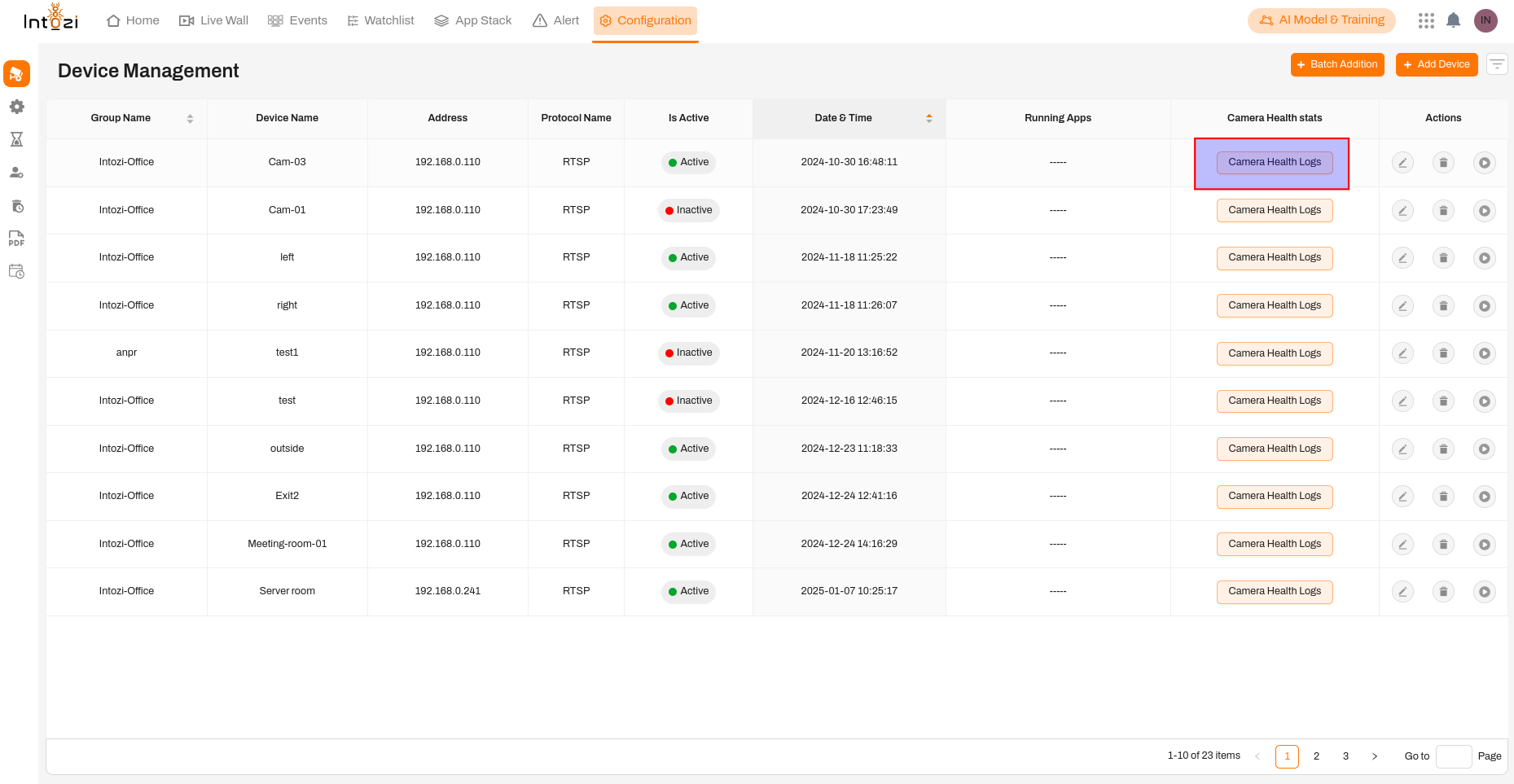
The Camera Health Logs feature provides a detailed history of each camera's operational status, including when it was active or inactive. This helps administrators monitor camera uptime, detect issues, and ensure seamless surveillance.
Accessing Camera Health Logs
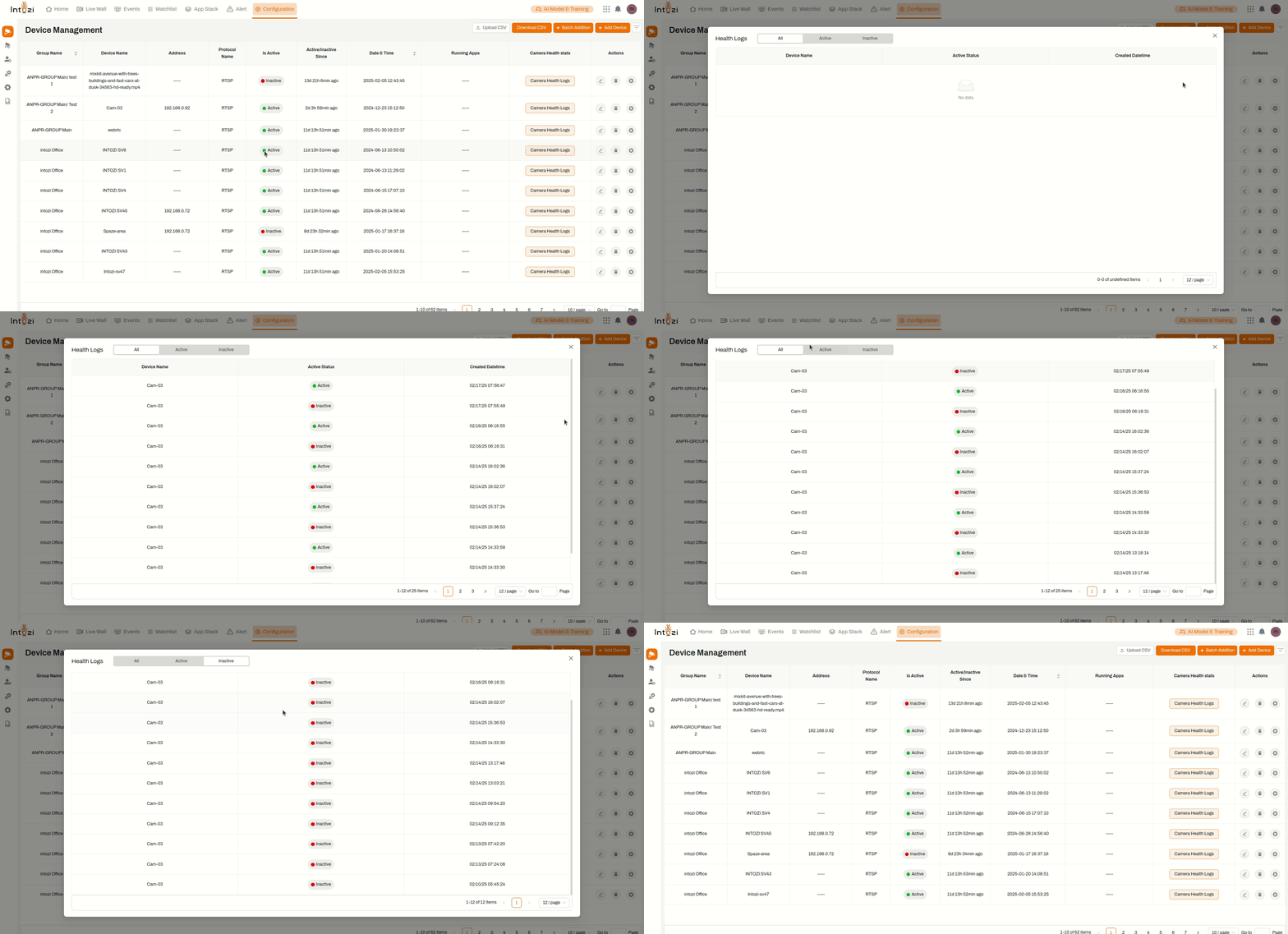 Follow these steps to view the health logs of a specific camera:
-
Navigate to Device Management
- Click on the Configuration tab in the main menu.
-
Locate the Camera Health Logs Button
- Find the Camera Health Logs button in the rightmost column of the device list.
-
View the Health Logs
- Click the Camera Health Logs button to open a pop-up window displaying historical activity for the selected camera.
Camera Health Logs Overview
The Camera Health Logs provide the following details:
| Device Name | Active Status | Created Datetime |
|---|---|---|
| INTOZI SV6 | 🟢 Active | 2025-02-07 22:03:47 |
| INTOZI SV6 | 🔴 Inactive | 2025-02-07 21:46:22 |
| INTOZI SV6 | 🟢 Active | 2024-11-23 16:44:48 |
| INTOZI SV6 | 🟢 Active | 2024-11-23 16:43:49 |
| INTOZI SV6 | 🟢 Active | 2024-11-23 16:42:48 |
| INTOZI SV6 | 🟢 Active | 2024-11-23 16:41:48 |
Key Features:
- Real-time Monitoring: Check when a camera is active or inactive.
- Historical Logs: View past activity to analyze downtime trends.
- Pagination & Filtering: Navigate large datasets using filters for All, Active, or Inactive cameras.
This feature helps administrators track camera reliability, detect failures, and optimize device management for uninterrupted security monitoring.