ATCC (Automatic Traffic Counter and Classifier)
ATCC (Automatic Traffic Counter and Classifier) is used to detect, count, and classify vehicles into different categories such as cars, bikes, buses, trucks, and other vehicle types. This guide explains how to configure the ATCC application in App Stack.
1. Finding the ATCC Application in App Stack
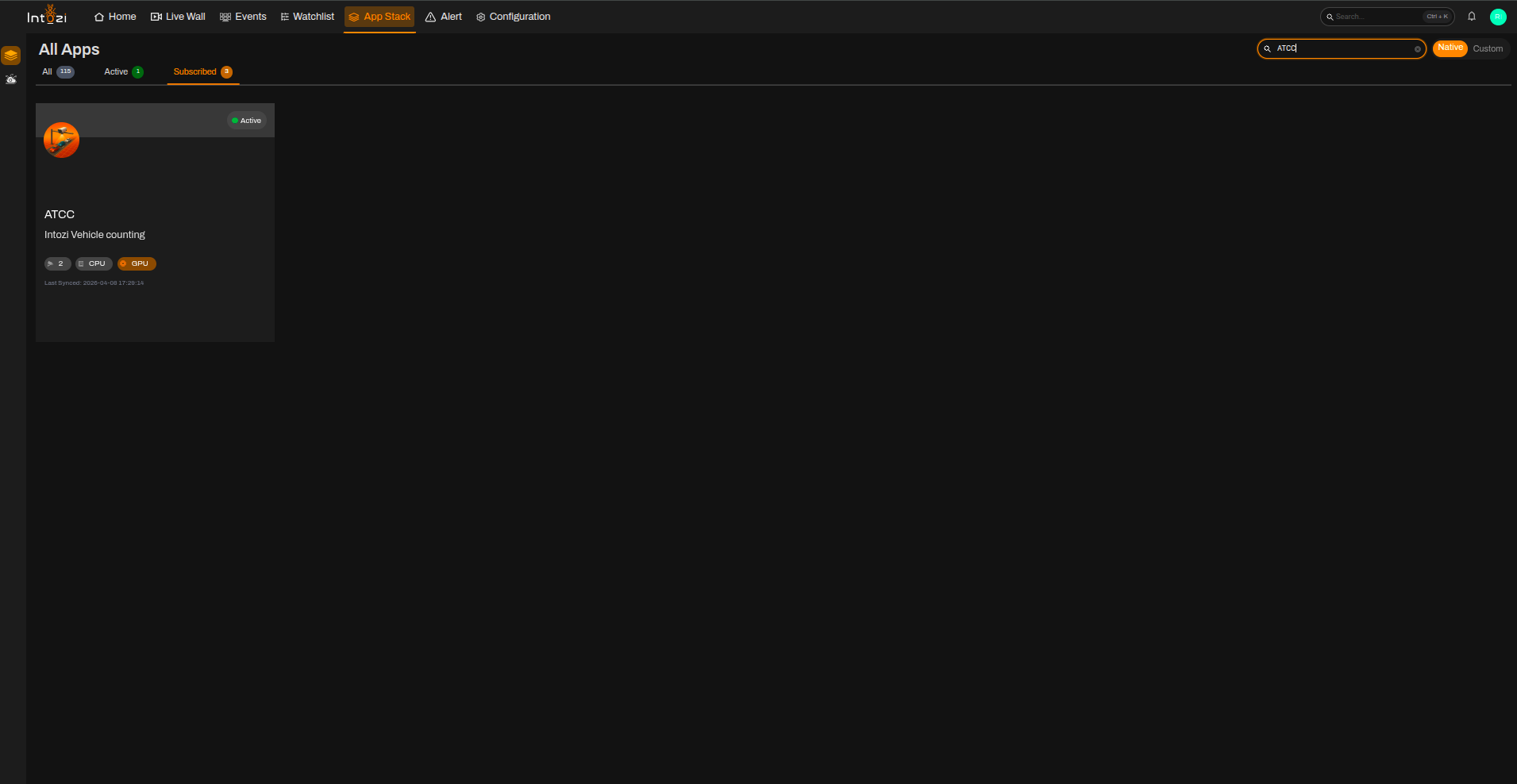
- Open App Stack on the platform.
- Use the search bar (usually at the top right of the dashboard).
- Enter ATCC.
- In the results, click once on the application to open it.
2. Device Configuration
After the application opens, you will be directed to the Device Configuration page.
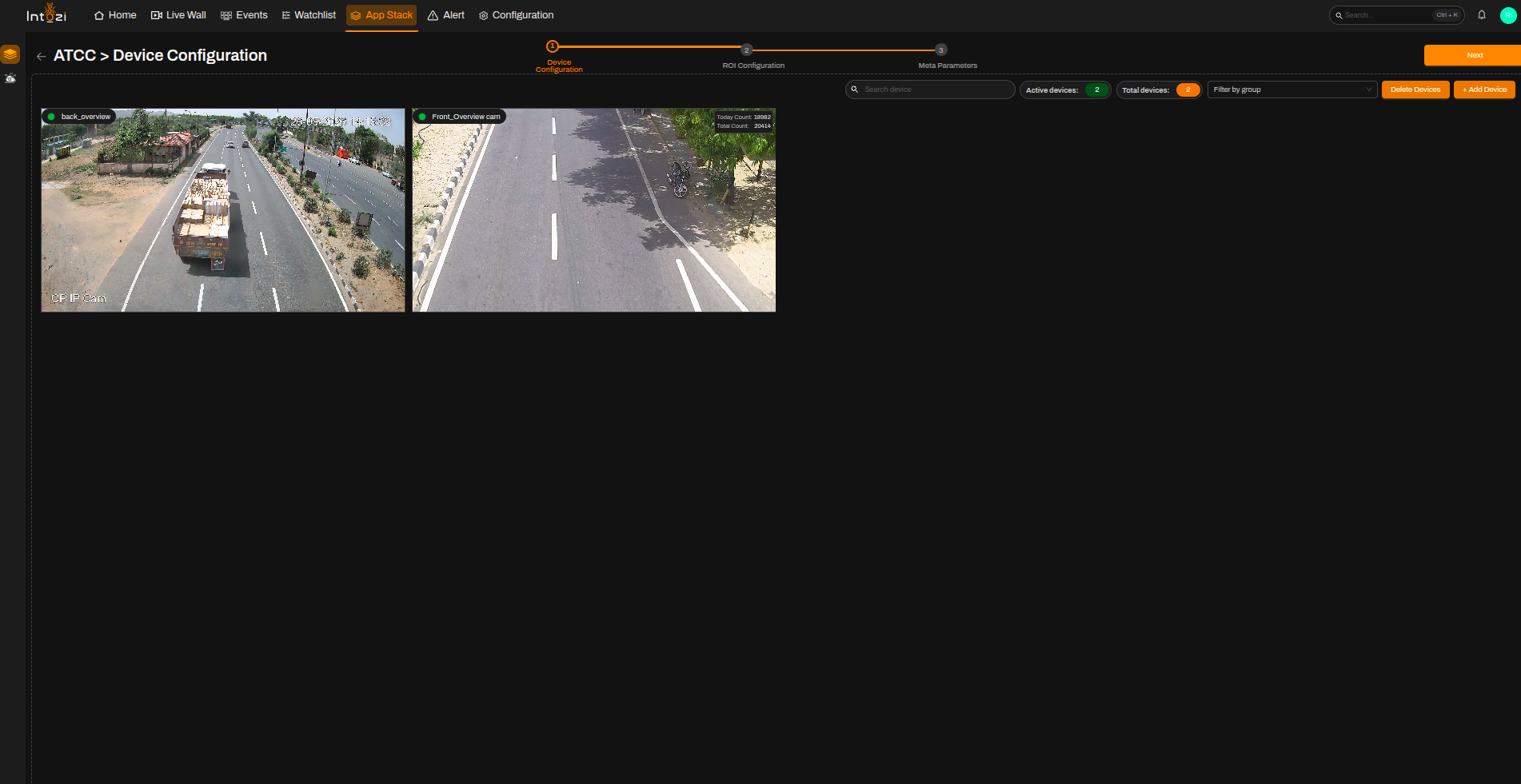
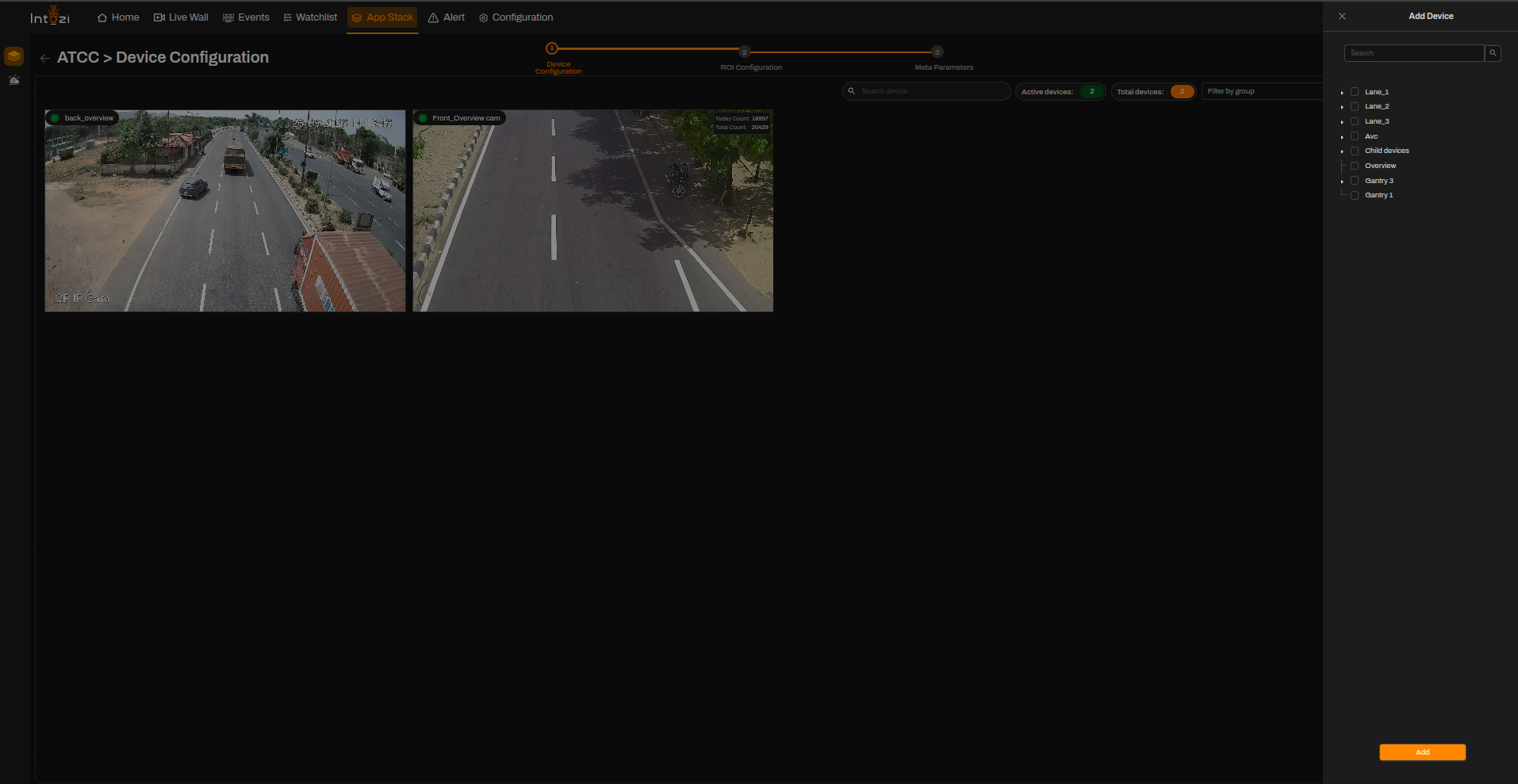
- On the right side of the page, click Add Device to add the required camera(s).
- Configure the required device settings.
- Once the devices are added, proceed to the ROI Configuration page.
3. ROI (Region of Interest) Configuration
All added devices will be displayed on this page for ROI configuration.
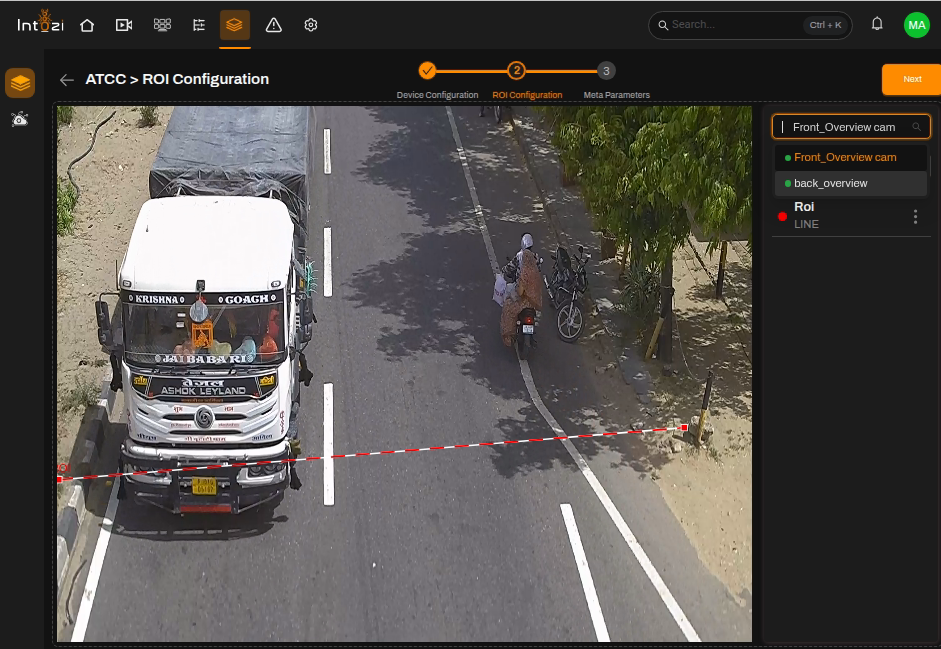
- Select the desired device.
- Click Add ROI (top right of the page).
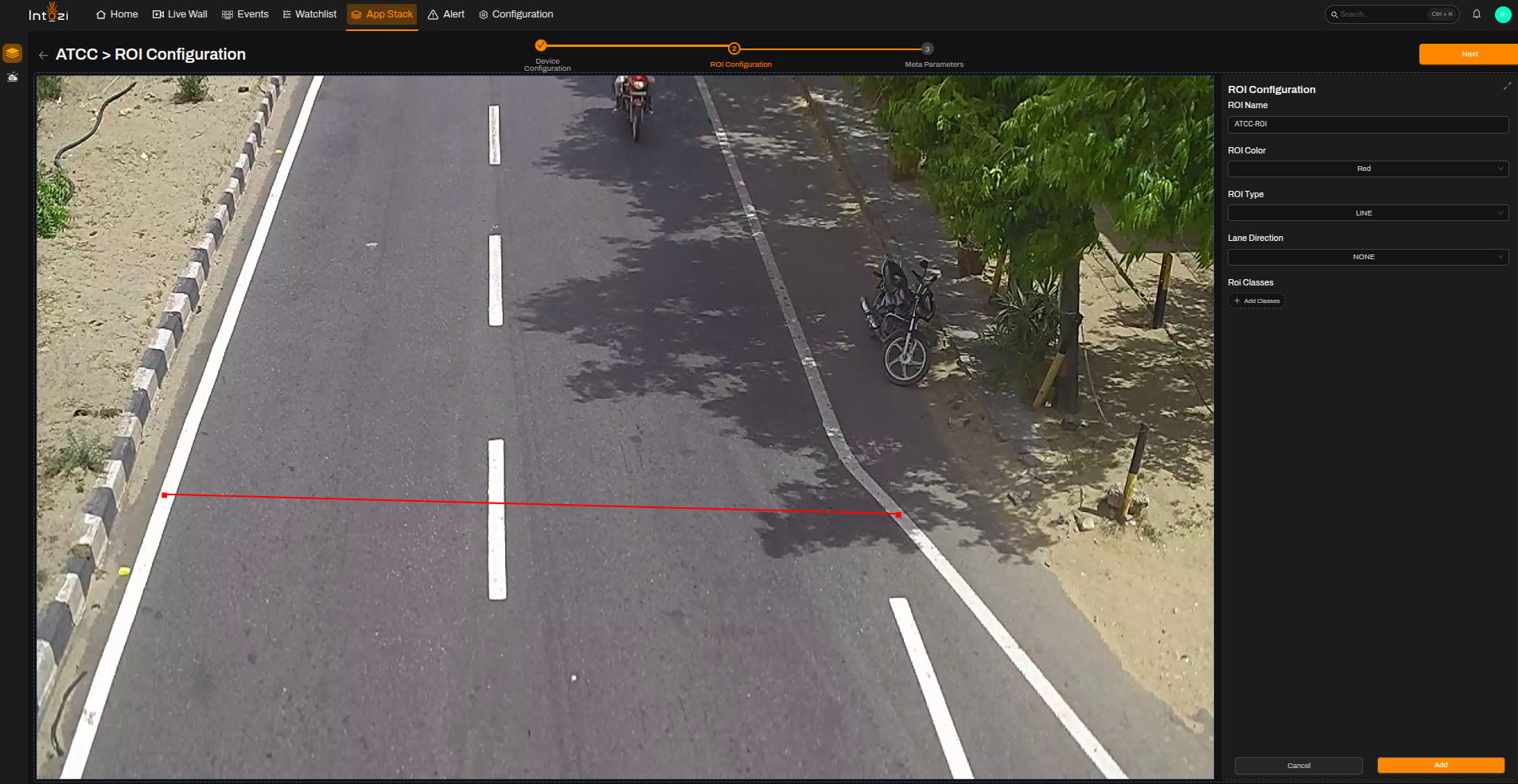
- Fill in the ROI details:
| Field | Guidance for ATCC |
|---|---|
| ROI Name | Enter a meaningful name for the ROI. |
| ROI Color | Select a color for visualization. |
| ROI Type | Select LINE. |
| Lane Direction | Set to None. |
| ROI Classes | Not required. |
Note: You can update or delete an ROI by selecting it and using the available options.
4. Meta Parameters Configuration
After ROI setup, navigate to the Meta Parameters page.
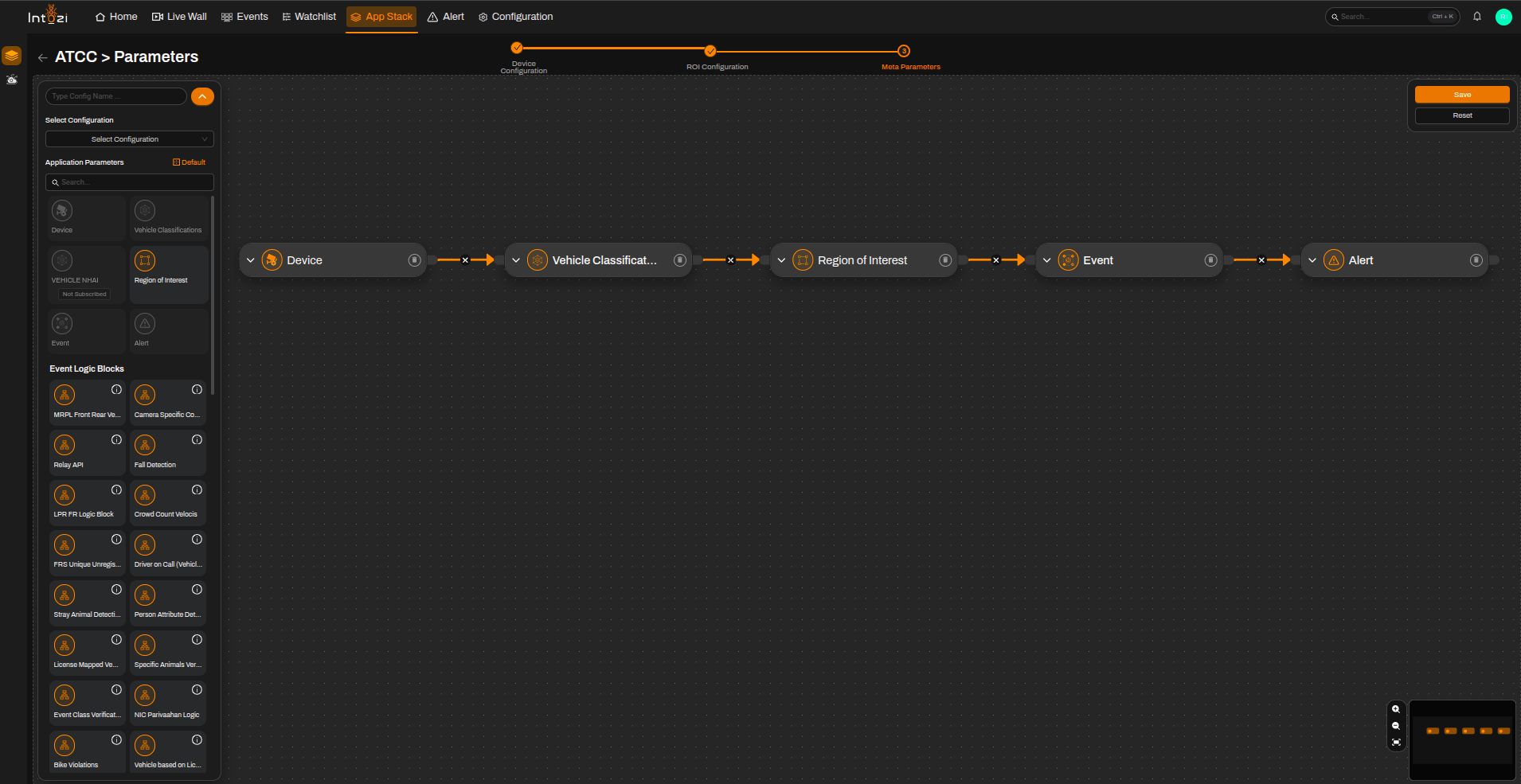
4.1 Default vs Custom Configuration
You can either:
- Use a default configuration, or
- Create a custom configuration.
A default configuration typically contains the following modules:
- Device
- Vehicle Classification
- Region of Interest (ROI)
- Event
- Alert
4.2 Device Settings
Select the required device and configure the following parameters.
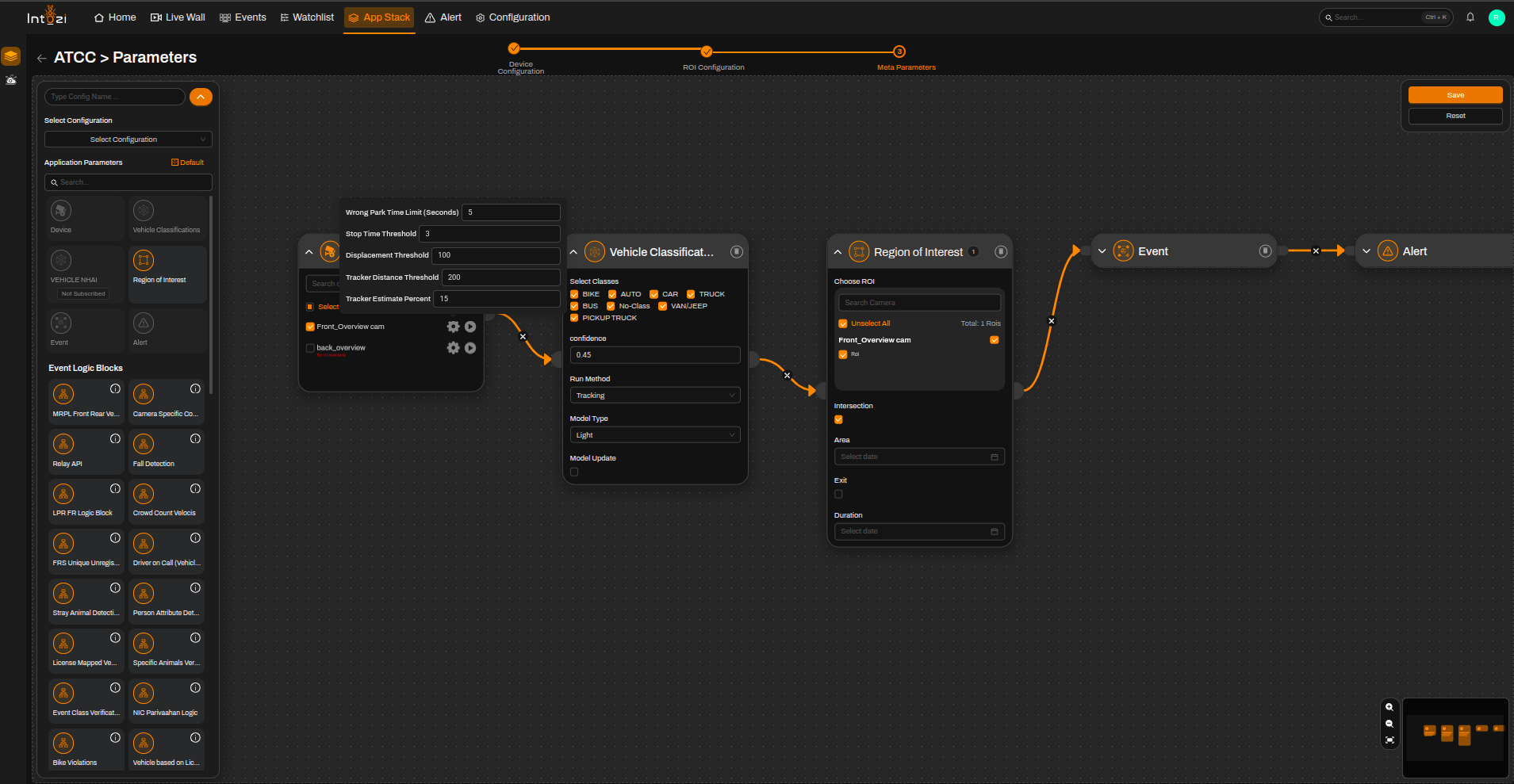
| Parameter | Recommended Setting |
|---|---|
| Wrong Park Time Limit (Seconds) | Keep default value |
| Stop Time Threshold | Keep default value |
| Displacement Threshold | Keep default value |
| Tracker Distance Threshold | Keep default value |
| Tracker Estimate Percent | Keep default value |
4.3 Vehicle Classification Confidence
- The default confidence value is 0.45.
- This can be adjusted based on:
- Camera field of view
- Lighting conditions
- Scene complexity
- Required detection accuracy
5. Final Configuration
- Select all required devices.
- Configure the necessary device parameters.
- Select the corresponding ROIs.
- Enter a configuration name.
- Select the hardware type:
- CPU
- GPU
- Configure the batch size if required.
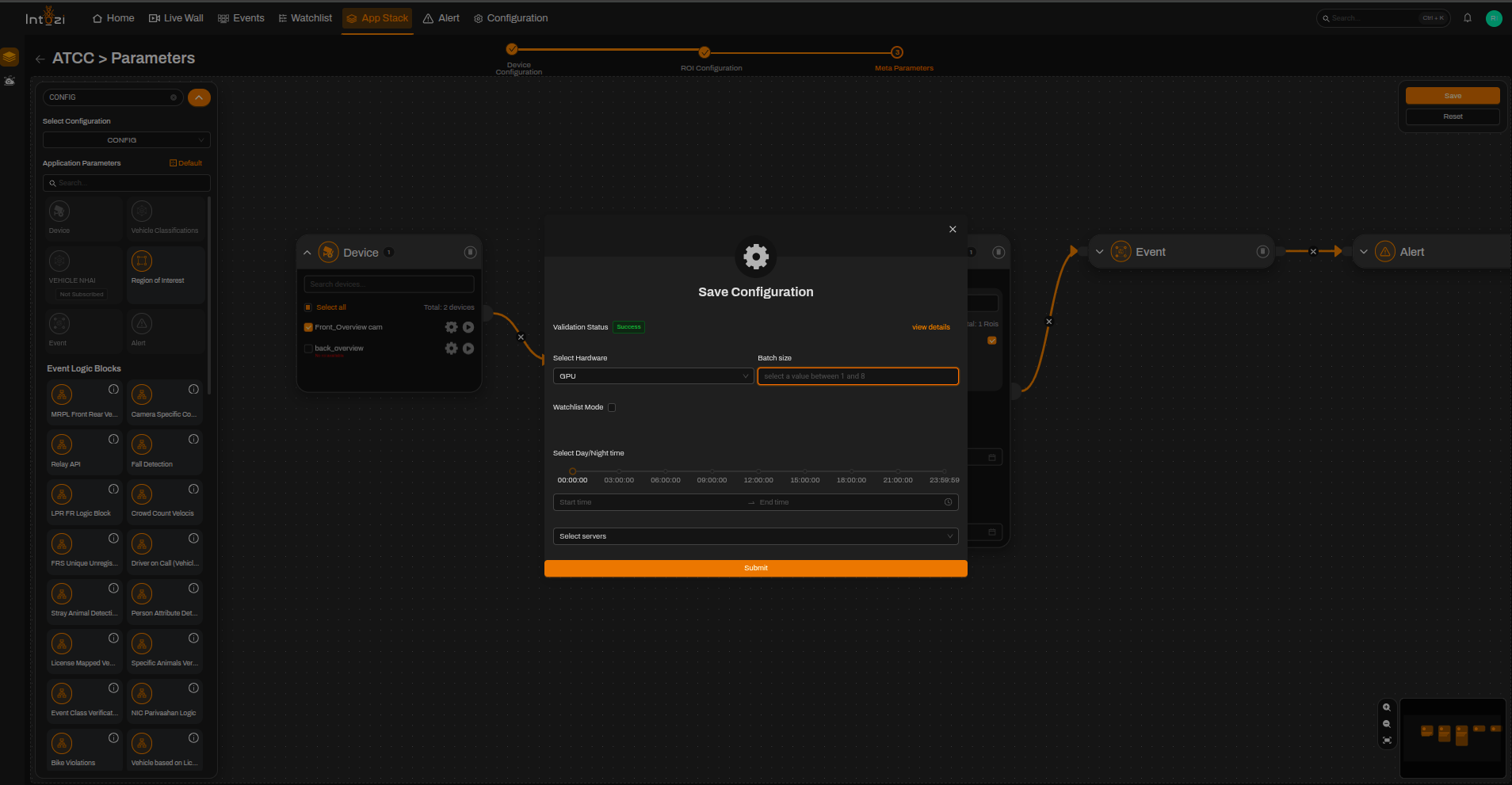
When all settings are configured, click Save.
Your ATCC configuration is now ready to use.
Notes
- Ensure the ROI line is positioned correctly across the traffic flow for accurate counting.
- Adjust confidence values if false detections or missed detections are observed.
- GPU deployment is recommended for higher camera counts and better performance.