People IN/OUT
People IN/OUT is used to track and count people crossing a defined line, identifying whether they are entering (IN) or exiting (OUT) a specific area.
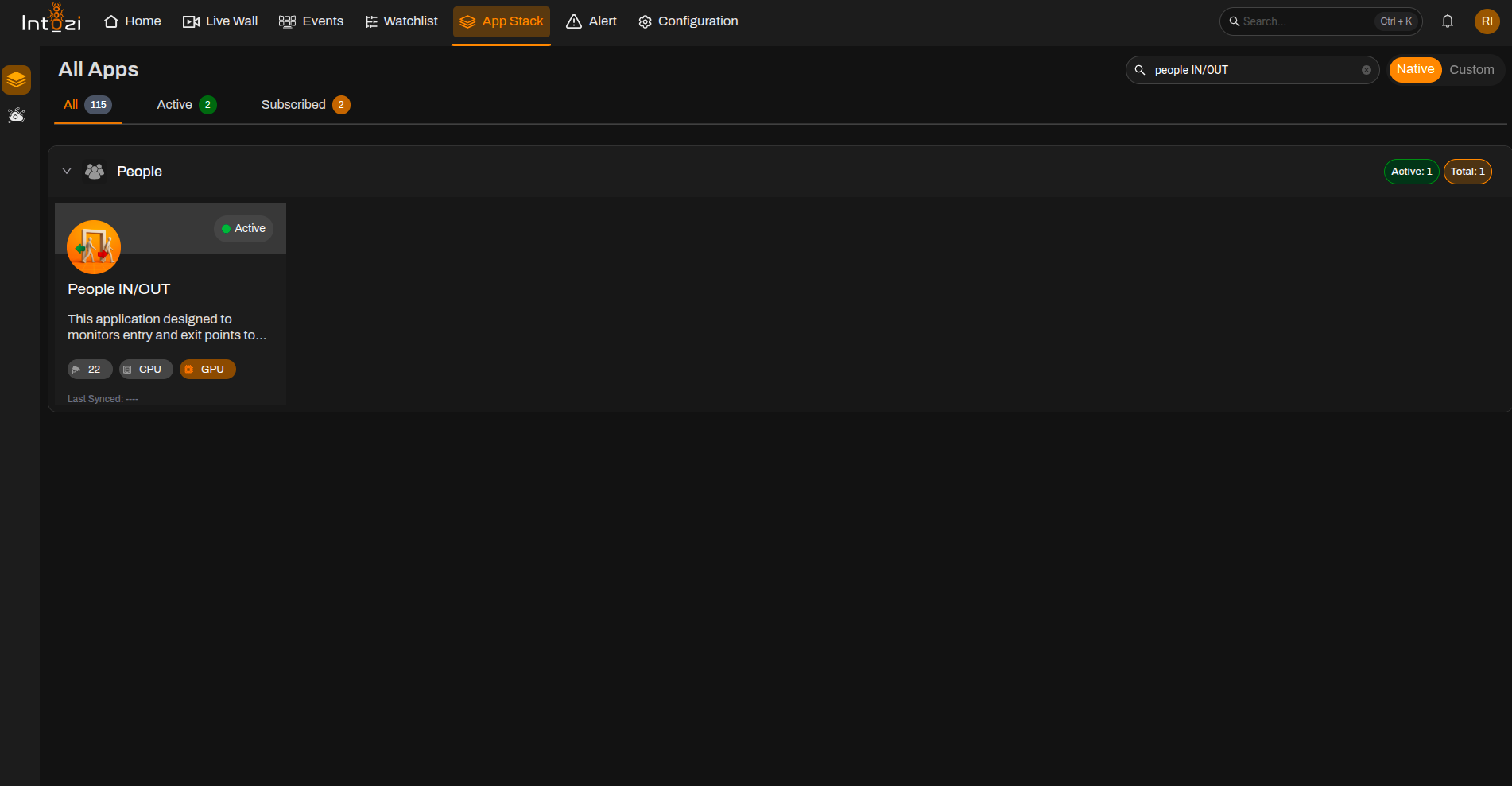
1. Finding the People IN/OUT Application in App Stack
- Open App Stack on the platform.
- Use the search bar (usually at the top right of the dashboard).
- Enter People IN/OUT.
- In the results, click once on the application to open it.
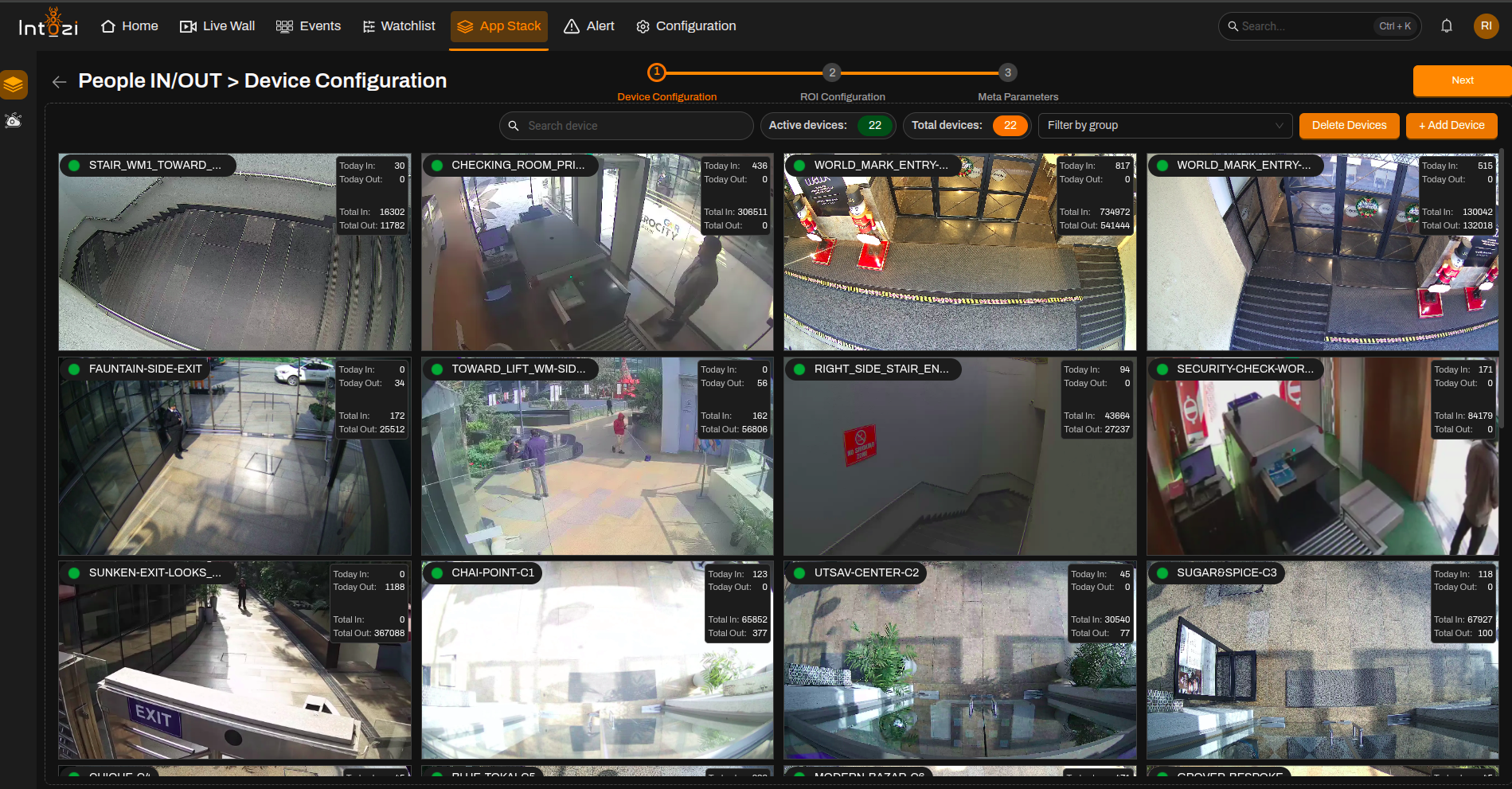
2. Device Configuration
After the application opens, you are taken to the Device Configuration page.
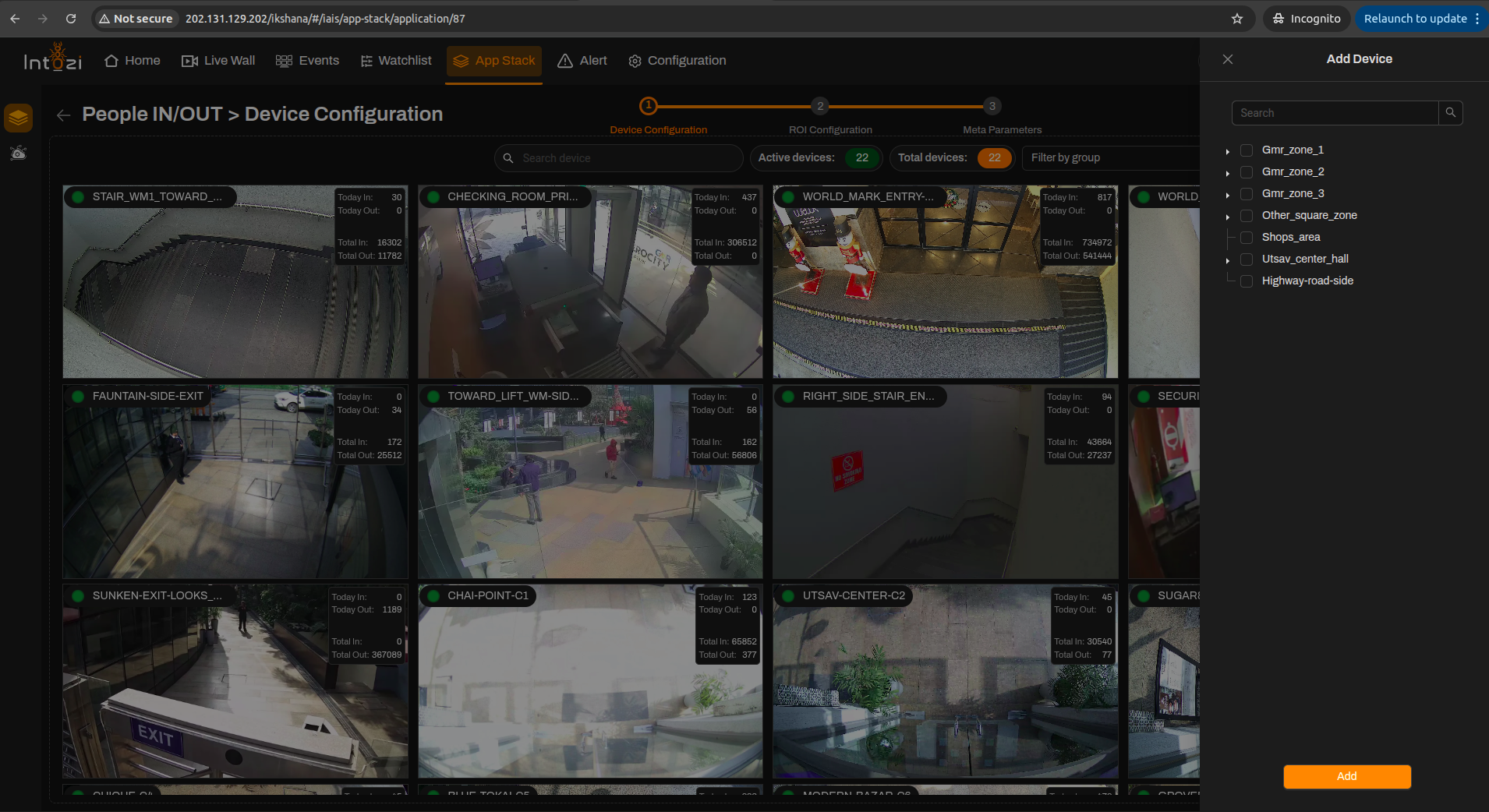
- On the right side of the page, use the option to add a device and connect the cameras you need.
- When finished, continue to the next step (ROI Configuration).
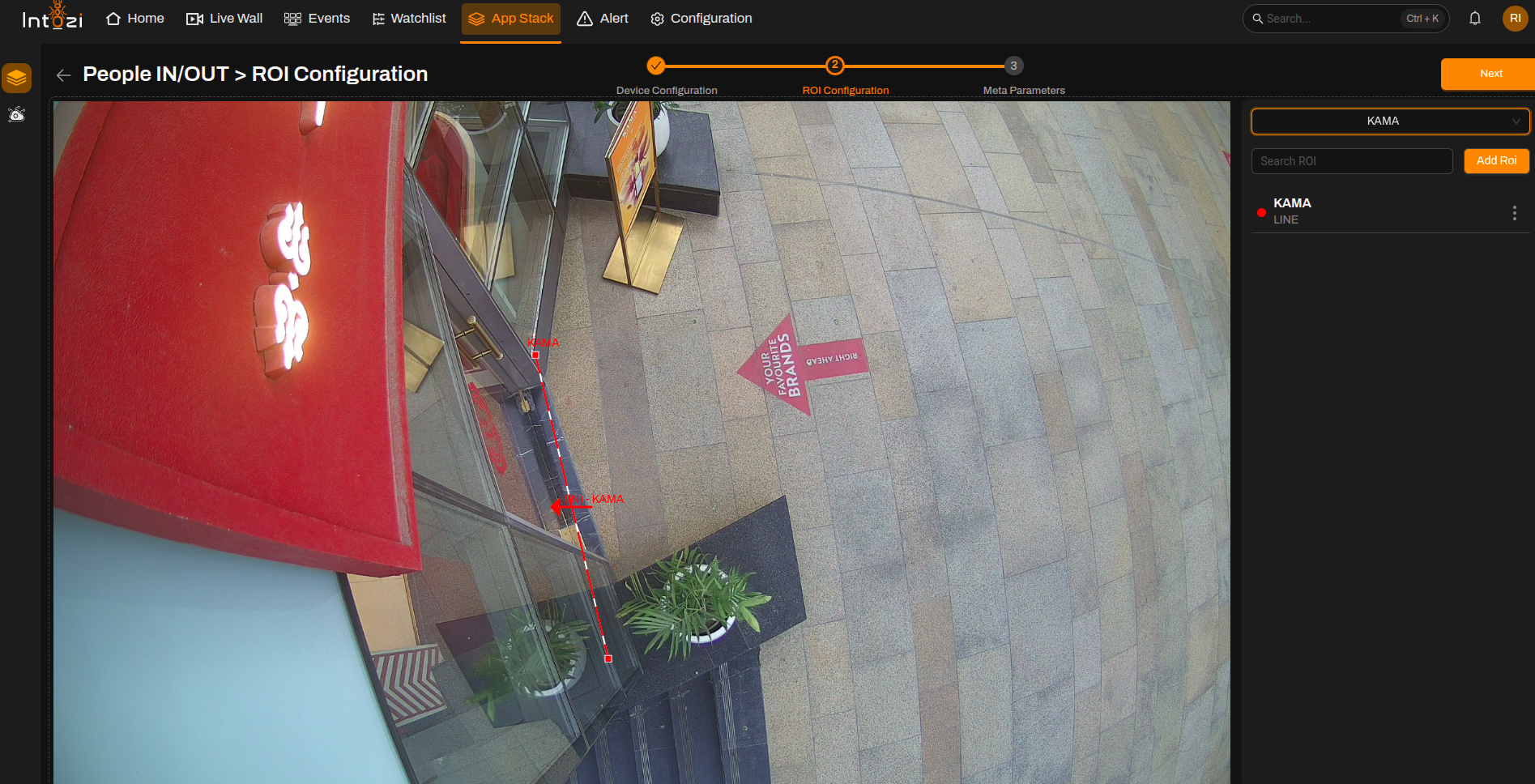
3. ROI (Region of Interest) Configuration
All devices you added on the device configuration step appear here so you can draw ROIs on the correct feeds.
- Select the device you want to configure.
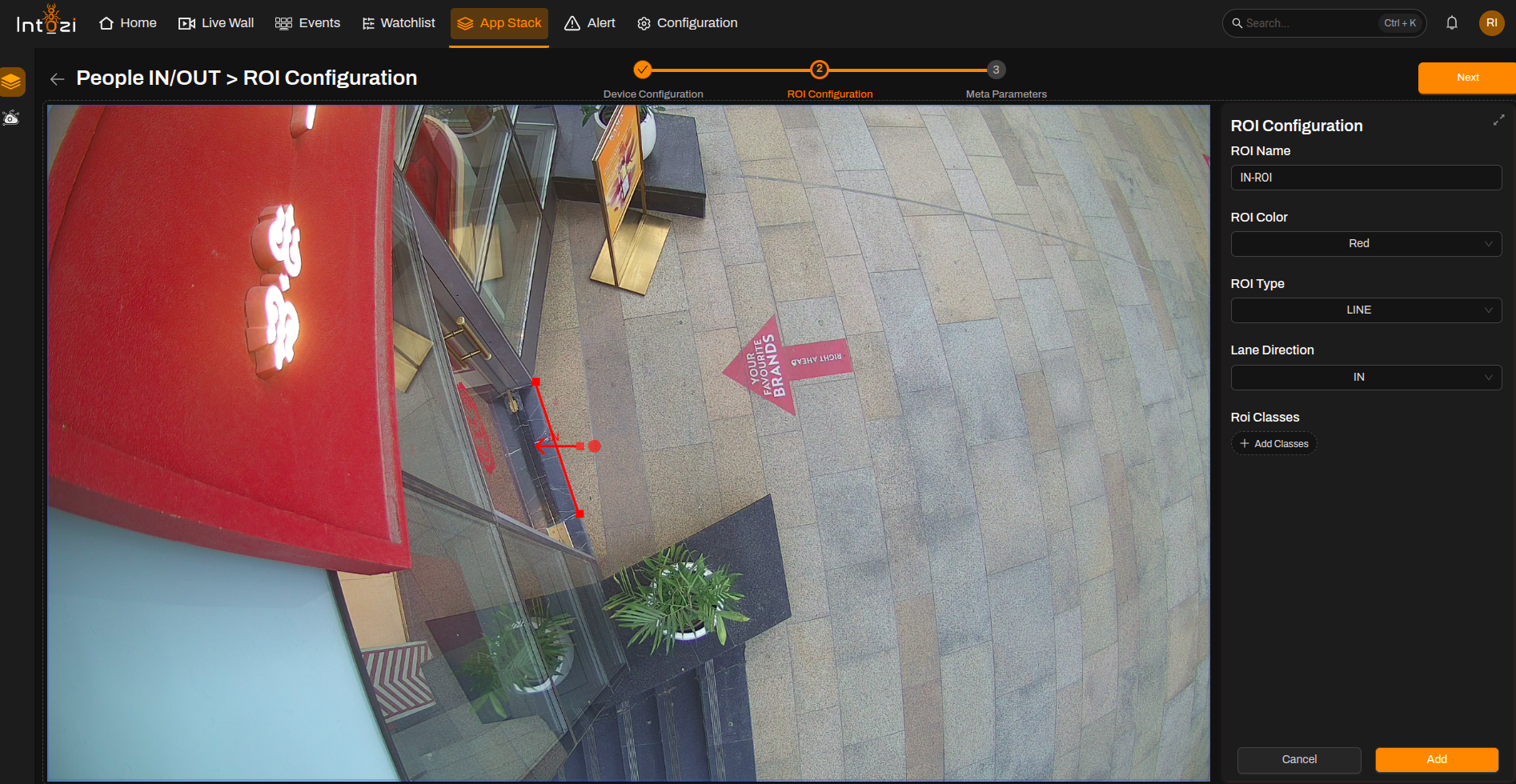
- Click Add ROI (top right of the ROI Configuration page).
- Fill in the ROI details:
| Field | Guidance for People IN/OUT |
|---|---|
| ROI Name | Enter a clear name for the region. |
| ROI Color | Pick a color to distinguish this ROI on the video. |
| ROI Type | Select Line as the ROI type. |
| Lane Direction | Set to IN or OUT — defines whether a person crossing the line is counted as entering or exiting. The selected direction is reflected in the event output. |
| ROI Classes | Not required. |
Note: You can update or delete an ROI by selecting it and using the corresponding actions.
4. Meta Parameters Configuration
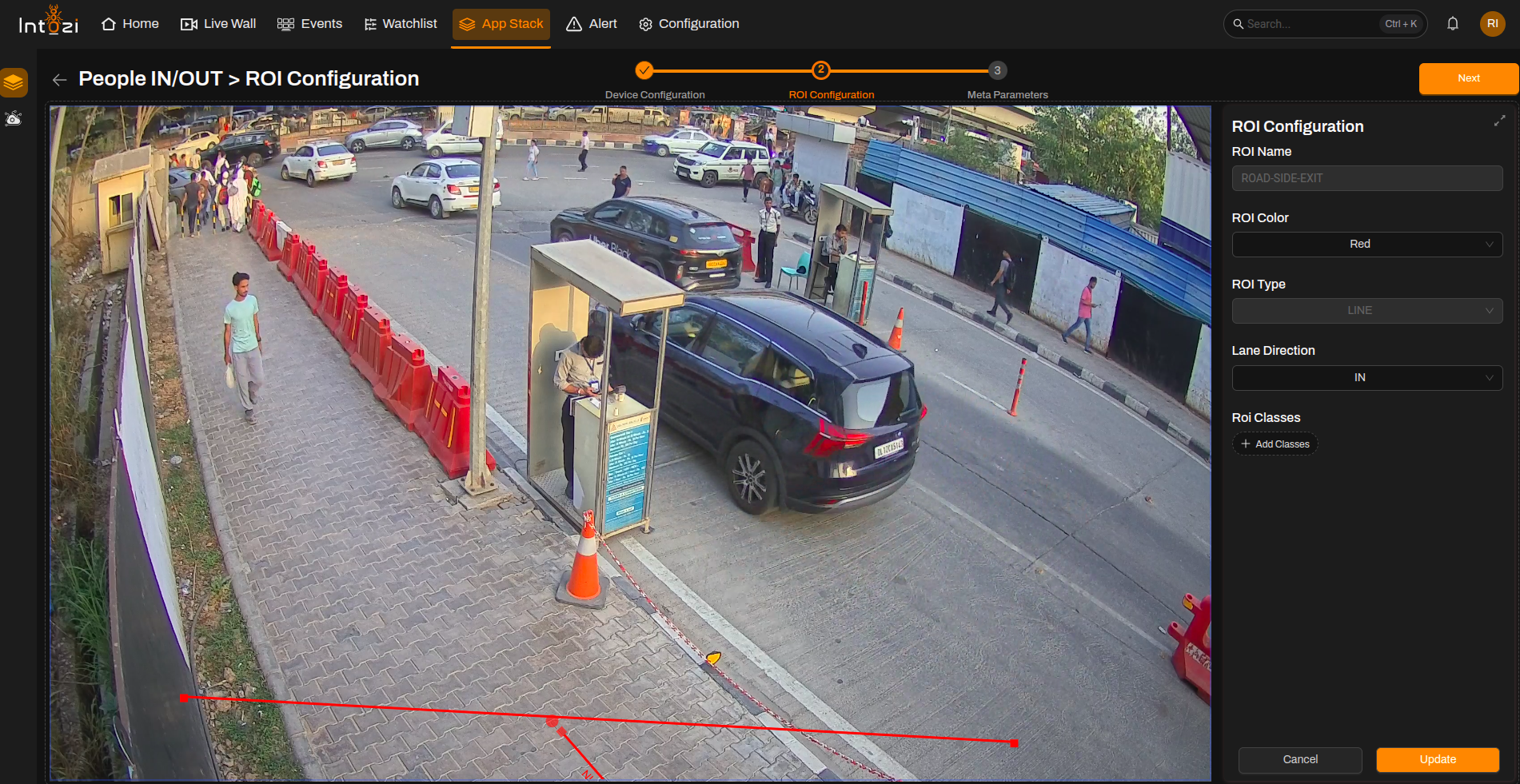
After ROI setup, open the Meta Parameters page.
4.1 Default vs. custom configuration
You can either:
- Use a default configuration, or
- Create a new custom configuration.
A default configuration typically includes these modules in the flow:
- Device
- People Detection
- Region of Interest (ROI)
- Event
- Alert
4.2 Device module
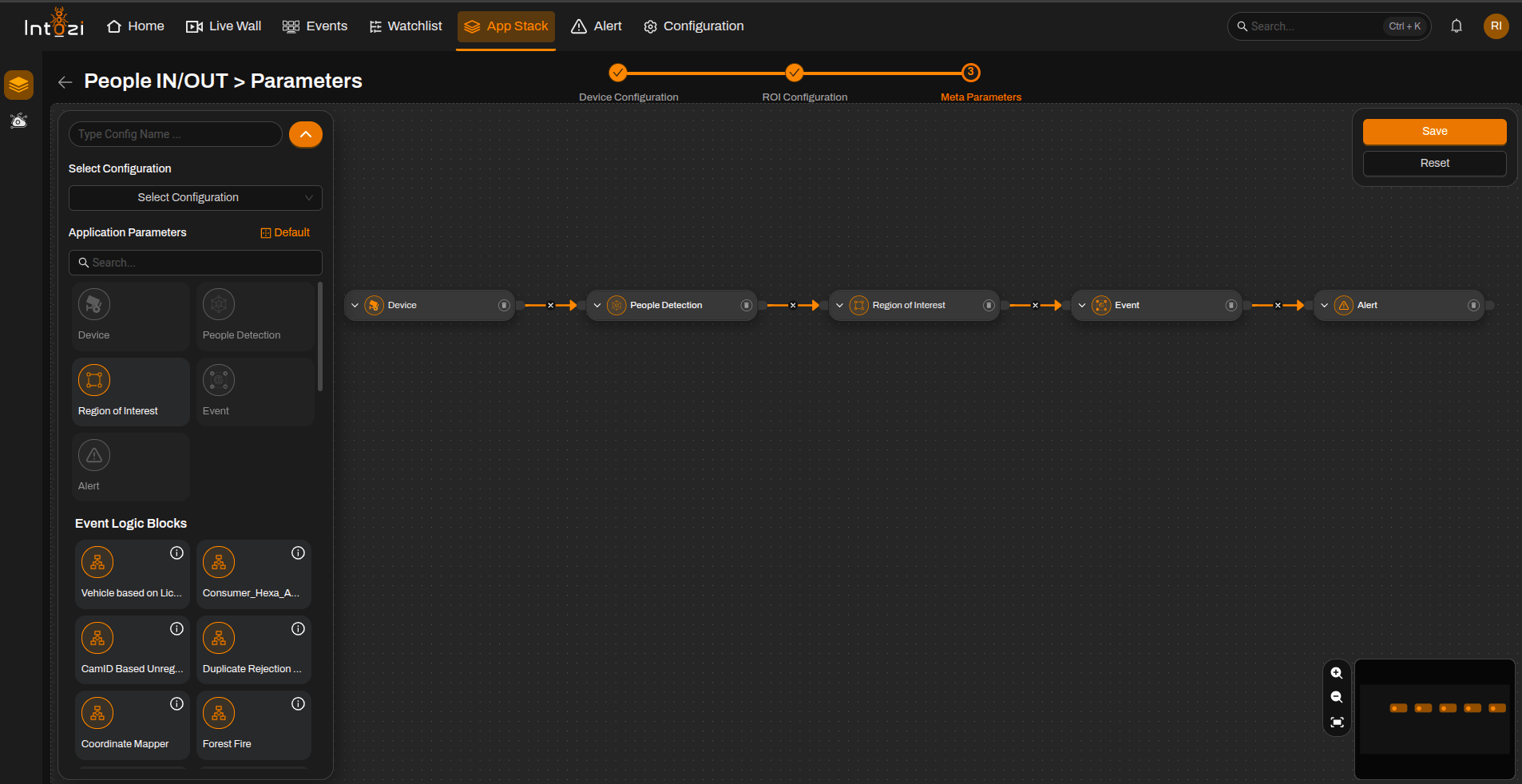
- Click on the device node.
- Select the desired devices.
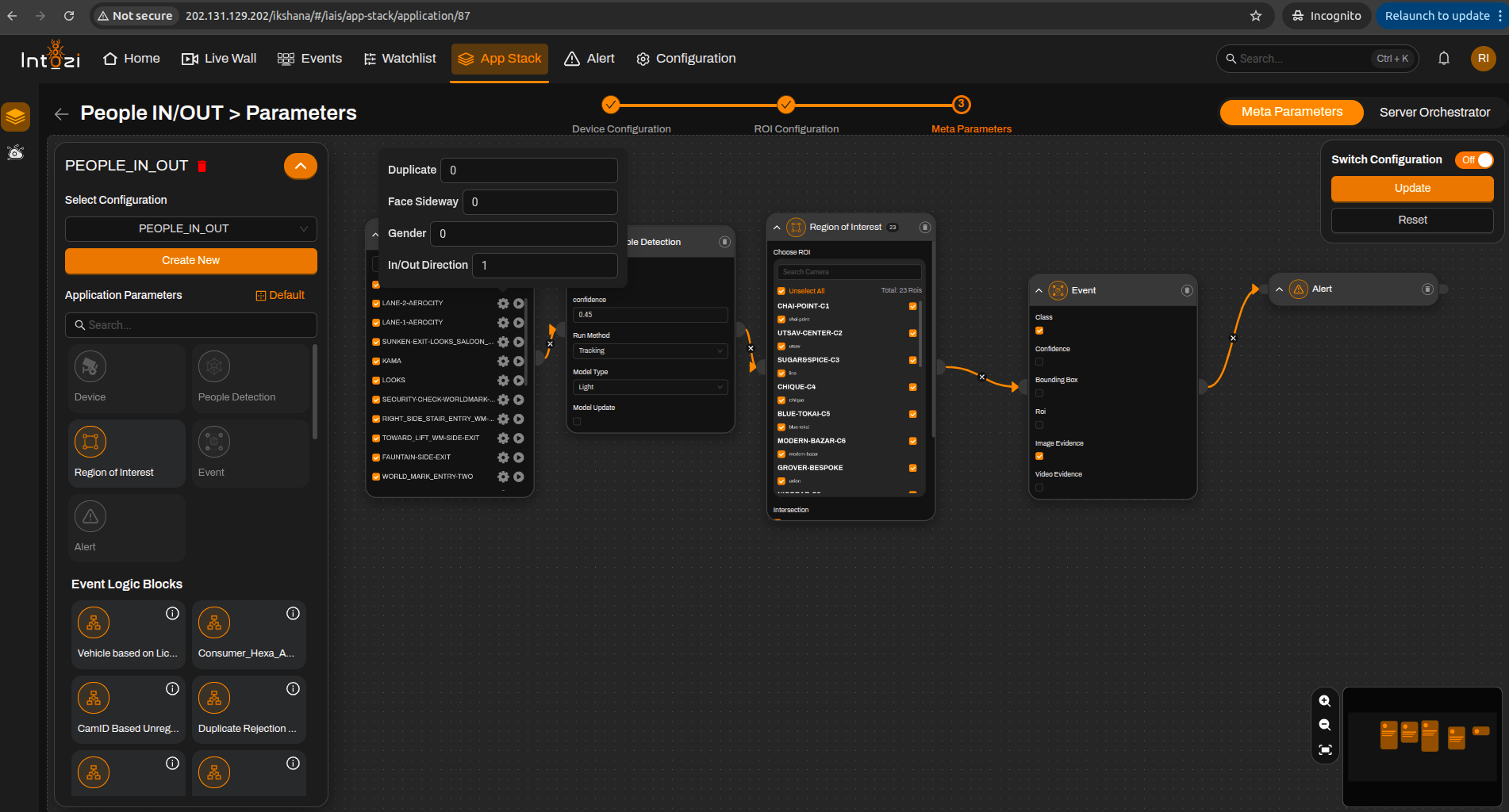
Available settings include:
Duplicate
| Value | Behavior |
|---|---|
| 0 | No duplicate events — recommended for zig-zag movement scenarios |
| 1 | Allows duplicate event generation |
Face Sideway
| Value | Behavior |
|---|---|
| 0 | Disabled — use when gender detection is not required |
| 1 | Enabled — use when gender detection is required |
Gender
| Value | Behavior |
|---|---|
| 0 | Gender detection disabled |
| 1 | Gender detection enabled |
IN/OUT Direction
| Value | Behavior |
|---|---|
| 0 | All events |
| 1 | IN events only |
| 2 | OUT events only |
4.3 People Detection node
- Confidence Threshold
- The default value is 0.45.
- Can be adjusted based on the deployment scenario and camera conditions.
4.4 Final configuration
- Select the required device and associated ROI.
- Configure parameters if needed.
- Enter a name for this configuration.
- Choose hardware type (CPU or GPU) to match your server.
- Adjust batch size if required (as per development/CV team recommendation).
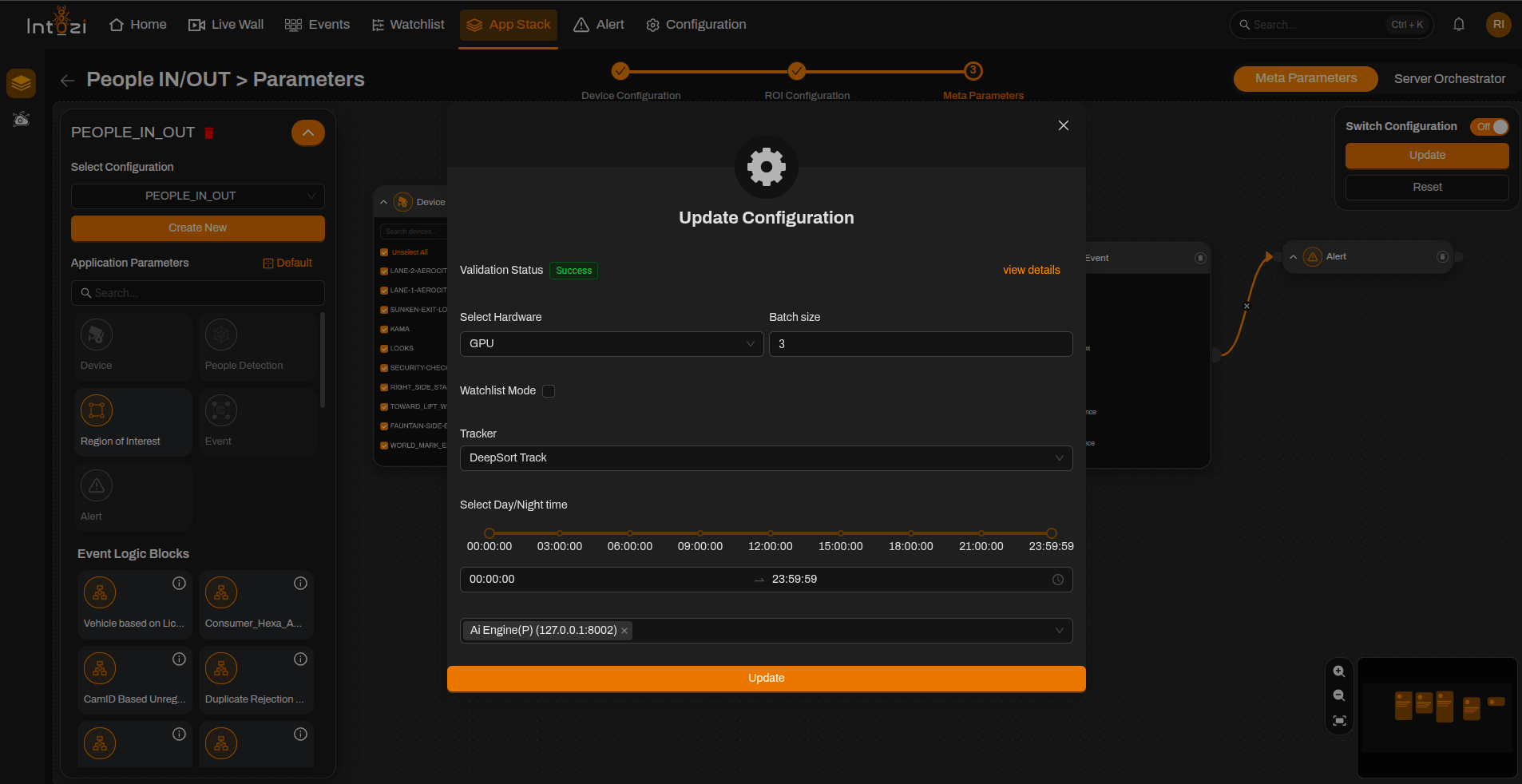
Tracker configuration
Two tracking options are available:
| Tracker | Description |
|---|---|
| DeepSORT | Provides better tracking accuracy using re-identification. Recommended for scenarios requiring higher accuracy. Note: consumes more system resources. |
| ByteTracker | Lightweight and efficient. Suitable for systems with limited resources. |
Recommendation: Select the tracker type after confirming with the development/CV team based on system capability and requirements.
When everything is set, click Save.
Your People IN/OUT configuration is now ready to use.