Advance Intrusion
Advance Intrusion is used to detect and monitor unauthorized or restricted person entry within a defined area or frame. This guide walks through opening the Advance Intrusion application in App Stack, configuring devices and ROIs, and setting Meta Parameters for a typical deployment.
1. Finding the Advance Intrusion Application in App Stack
- Open App Stack on the platform.
- Use the search bar (usually at the top right of the dashboard).
- Enter Advance Intrusion.
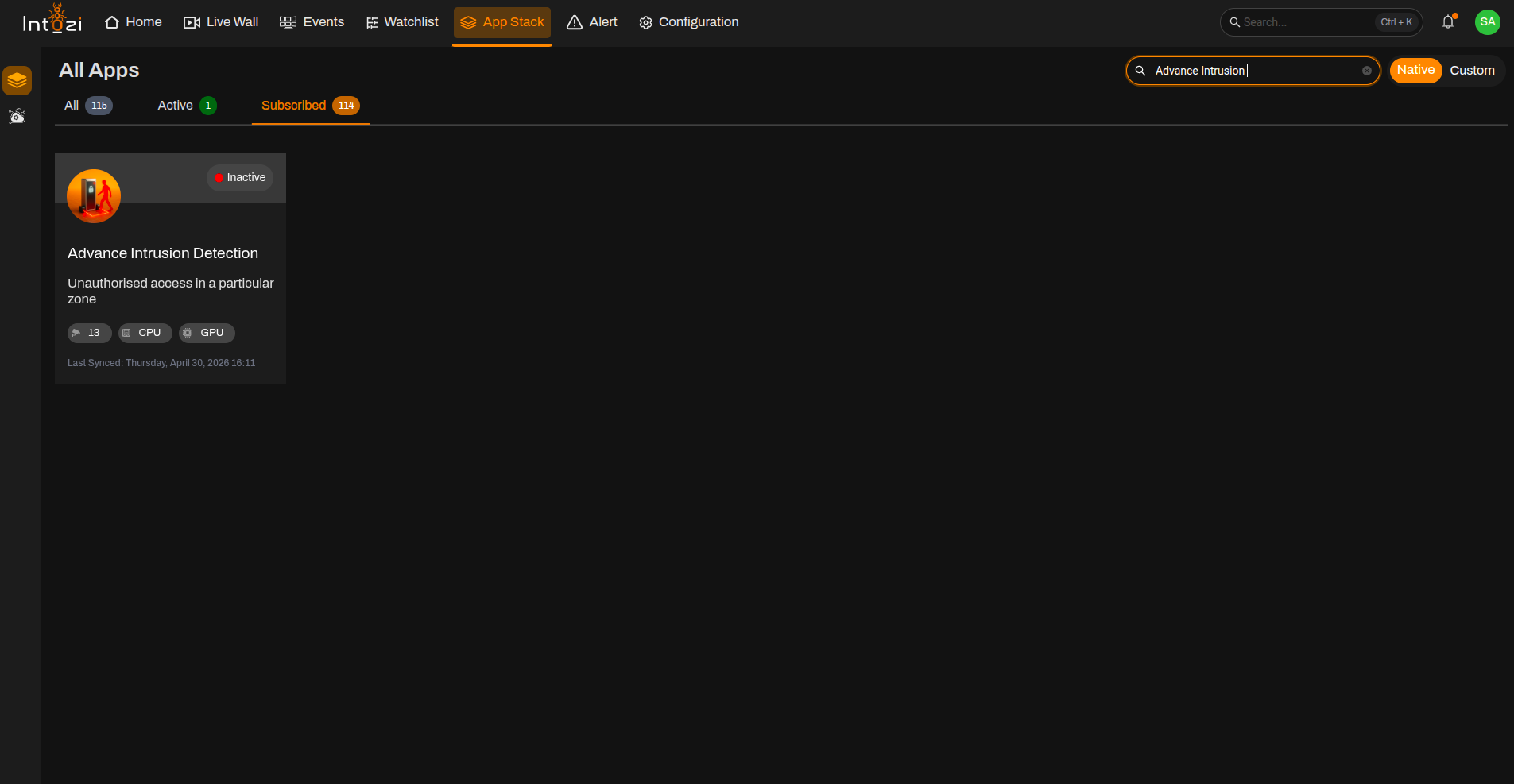
- In the results, click once on the application to open it.
2. Device Configuration
After the application opens, you are taken to the Device Configuration page.
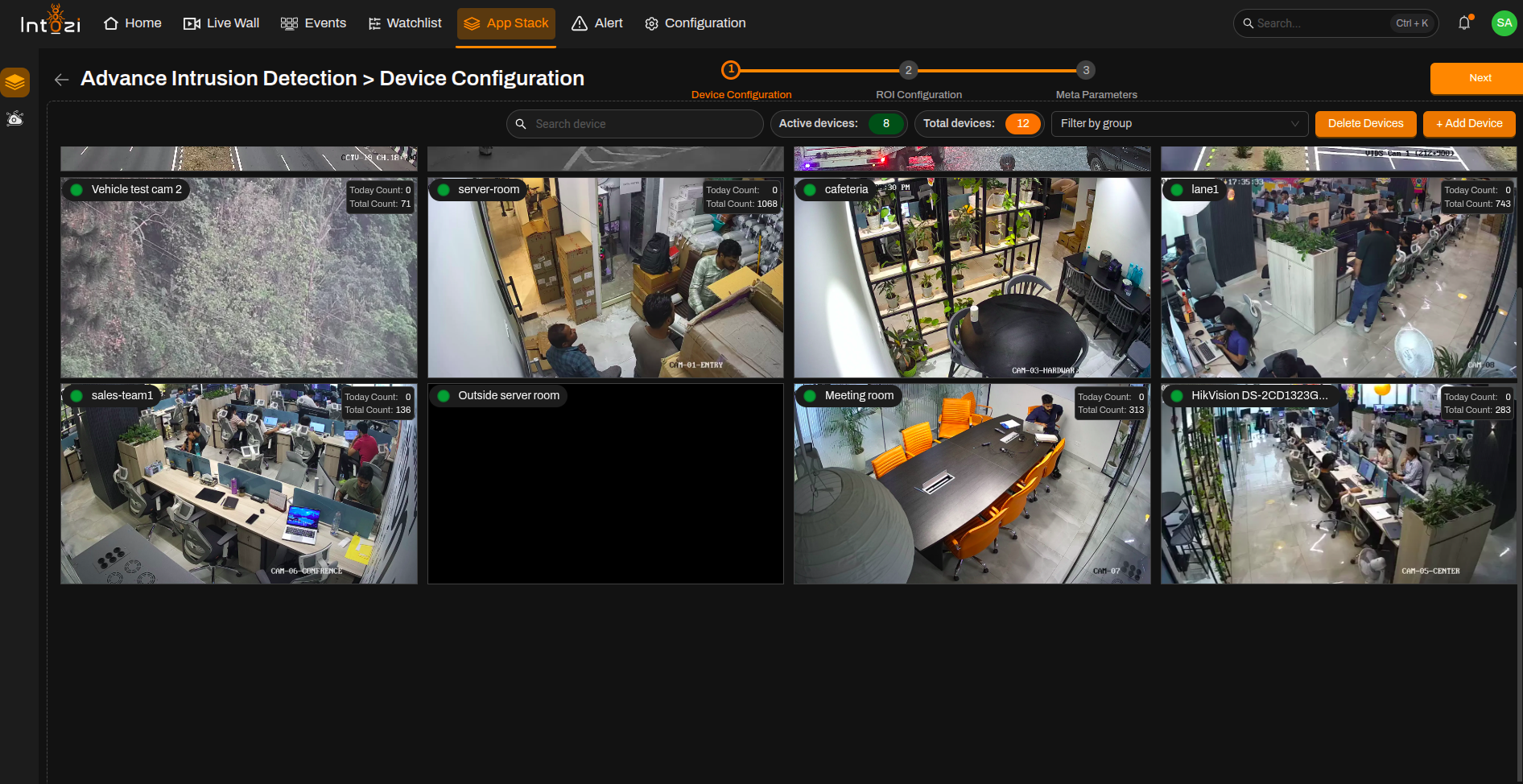
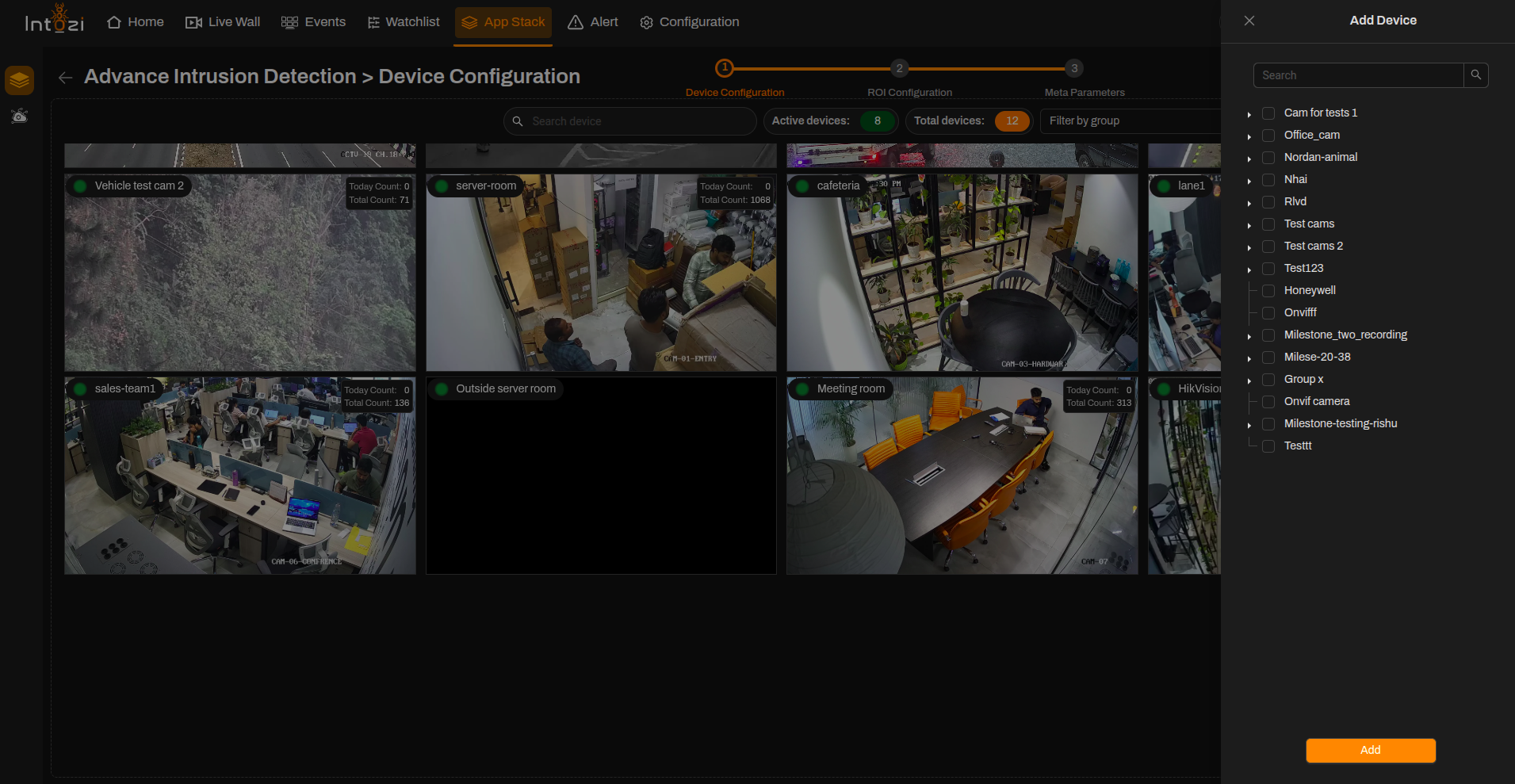
- On the right side of the page, use the option to add a device and connect the cameras you need.
- When finished, continue to the next step (ROI Configuration).
Ensure all required cameras are connected properly before proceeding to ROI configuration.
3. ROI (Region of Interest) Configuration
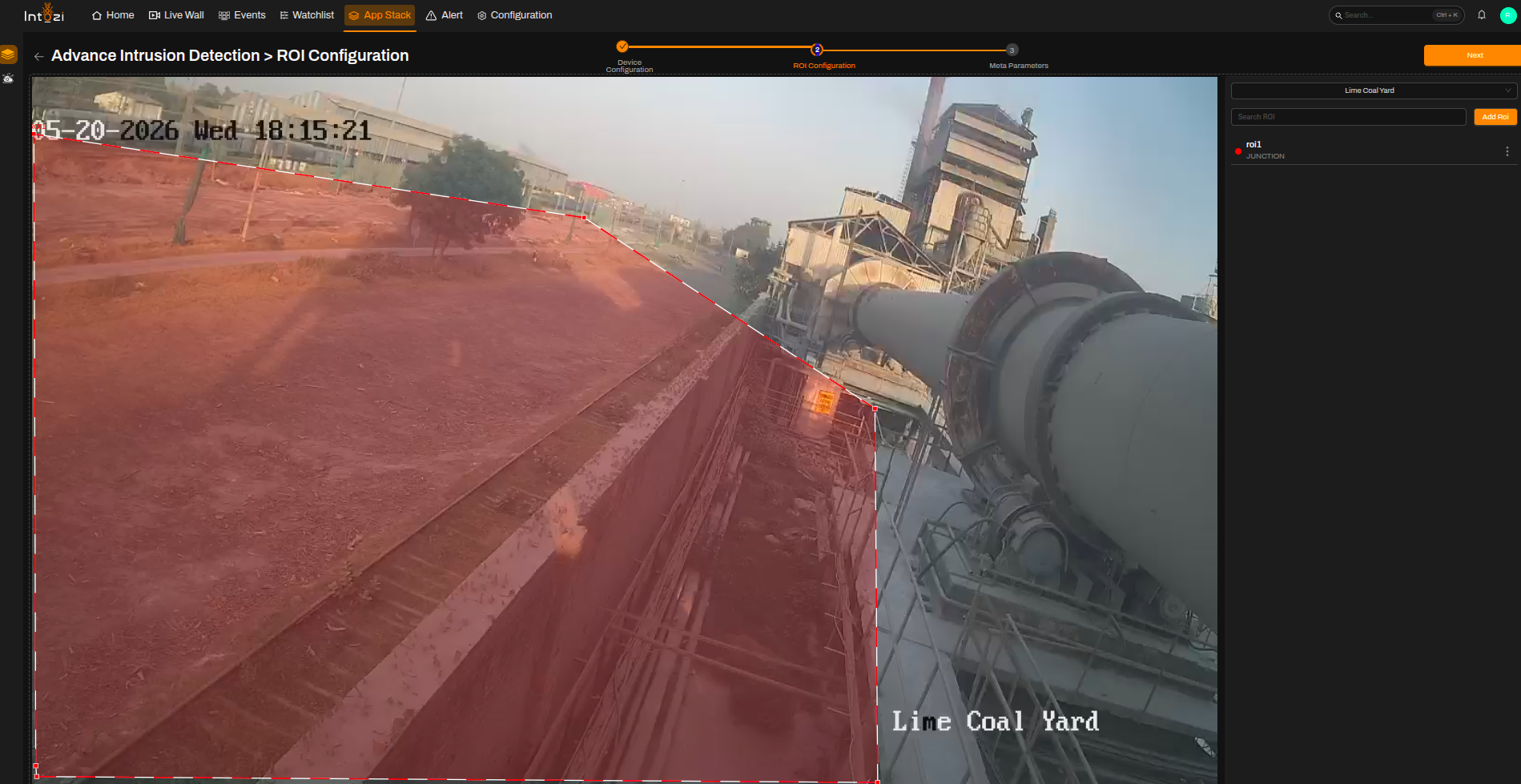
All devices you added during the device configuration step appear here so you can draw ROIs on the correct feeds.
- Select the device you want to configure.
- Click Add ROI (top right of the ROI Configuration page).
- Fill in the ROI details:
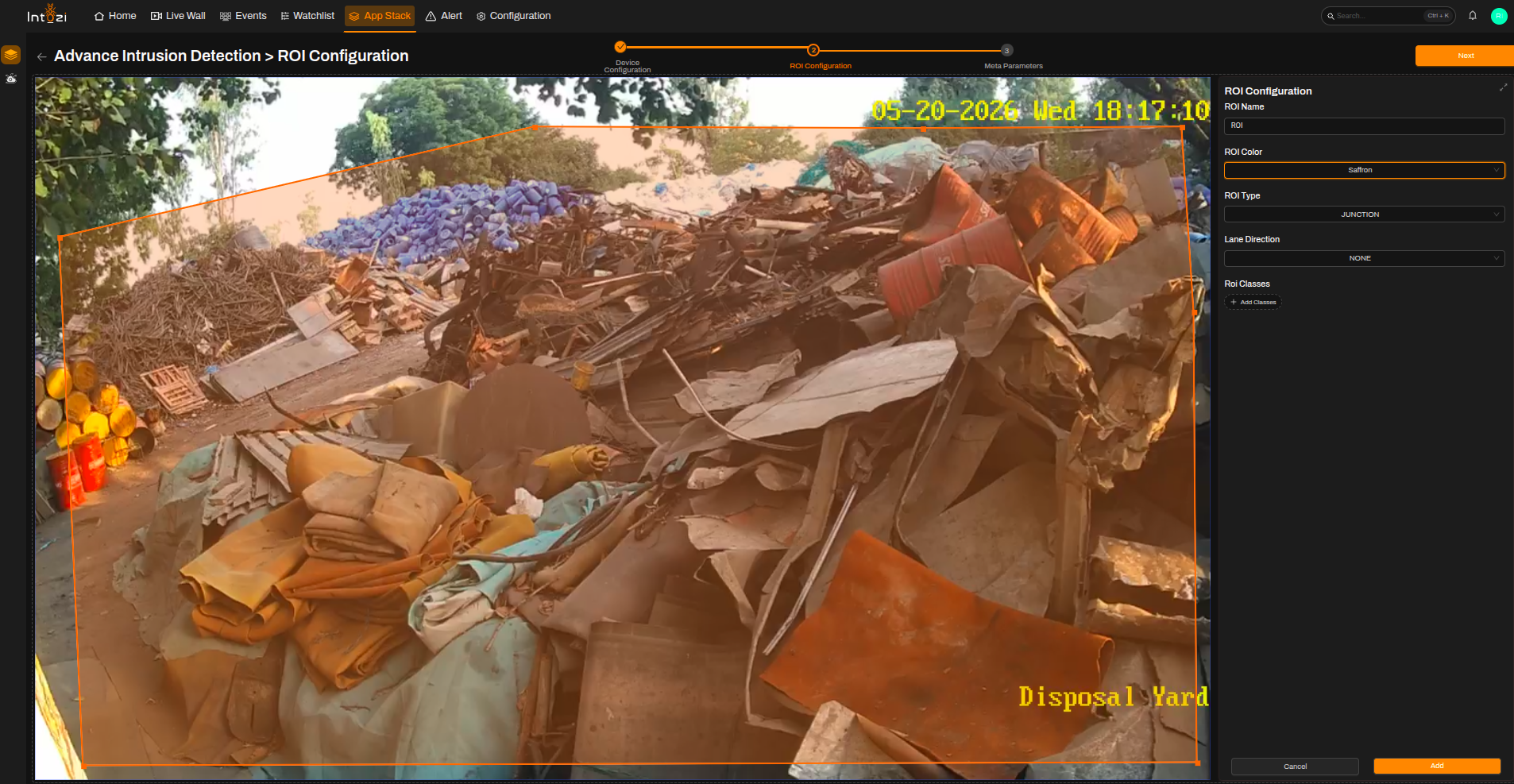
| Field | Guidance for Advance Intrusion |
|---|---|
| ROI Name | Enter a clear name for the region. |
| ROI Color | Pick a color to distinguish this ROI on the video. |
| ROI Type | Select Junction. |
| Lane Direction | Set to None. |
| ROI Classes | Not required. |
Note: You can update or delete an ROI by selecting it and using the corresponding actions.
4. Meta Parameters Configuration
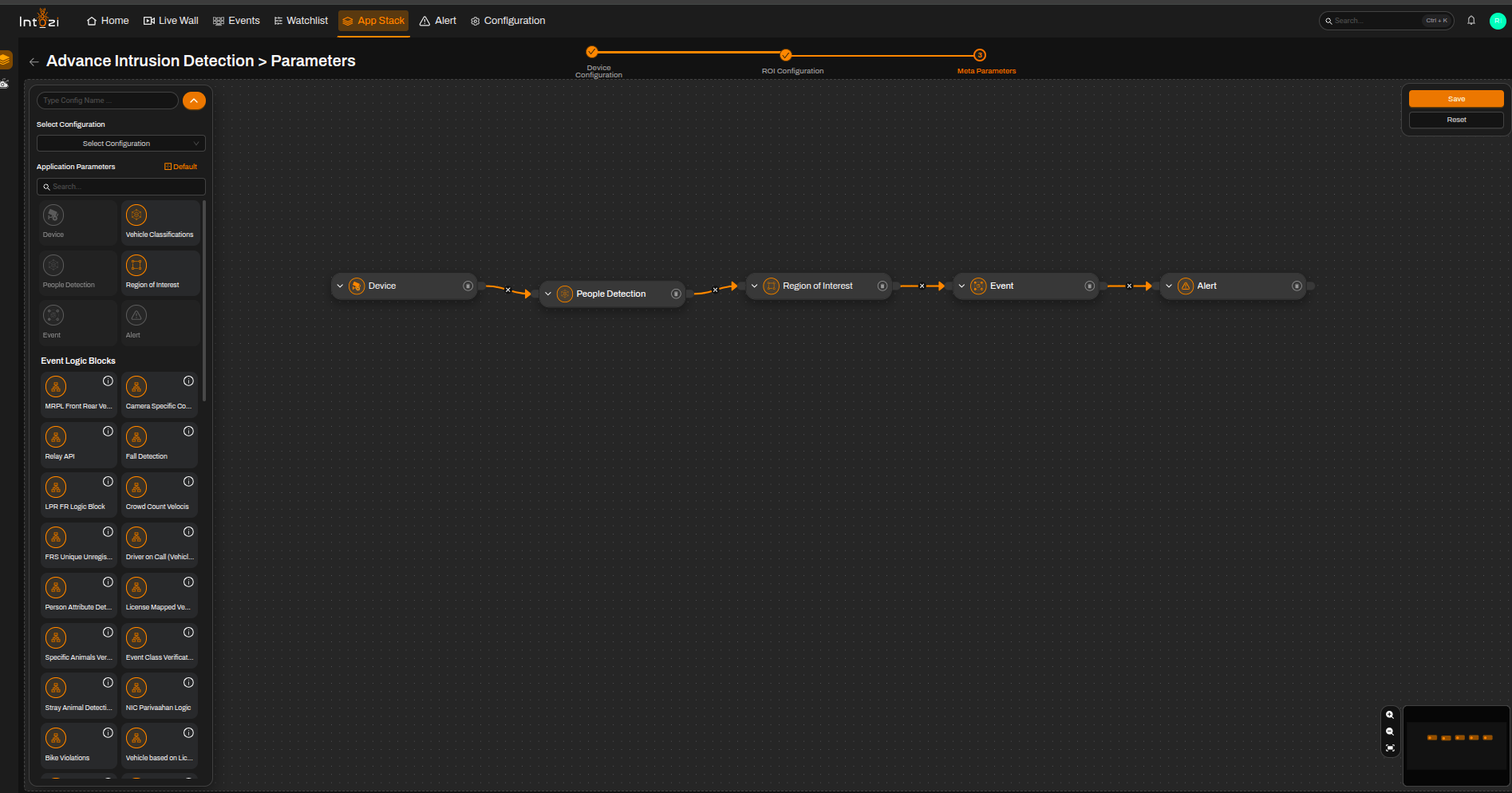
After ROI setup, open the Meta Parameters page.
4.1 Default vs. Custom Configuration
You can either:
- Use a default configuration, or
- Create a new custom configuration.
A default configuration typically includes these modules in the flow:
- Device
- People Detection
- Region of Interest (ROI)
- Event
- Alert
4.2 Device Module
Click on the Device node to configure it.
Duration
- Defines after how many seconds a new event will again be captured on that camera.
- The value is configured in seconds.
- Helps control repeated event generation for the same intrusion activity.
- If set to 0, only one event will be generated.
- Set the duration value based on your deployment requirement.
Tracker Distance Threshold
- This setting is configured by default.
- No changes are required.
4.3 People Detection Confidence
- The default confidence value is 0.45.
- Adjust if needed based on the camera angle, lighting conditions, and deployment scenario.
4.4 Final Configuration
- Select the required device and associated ROI.
- Configure parameters if needed.
- Enter a name for this configuration.
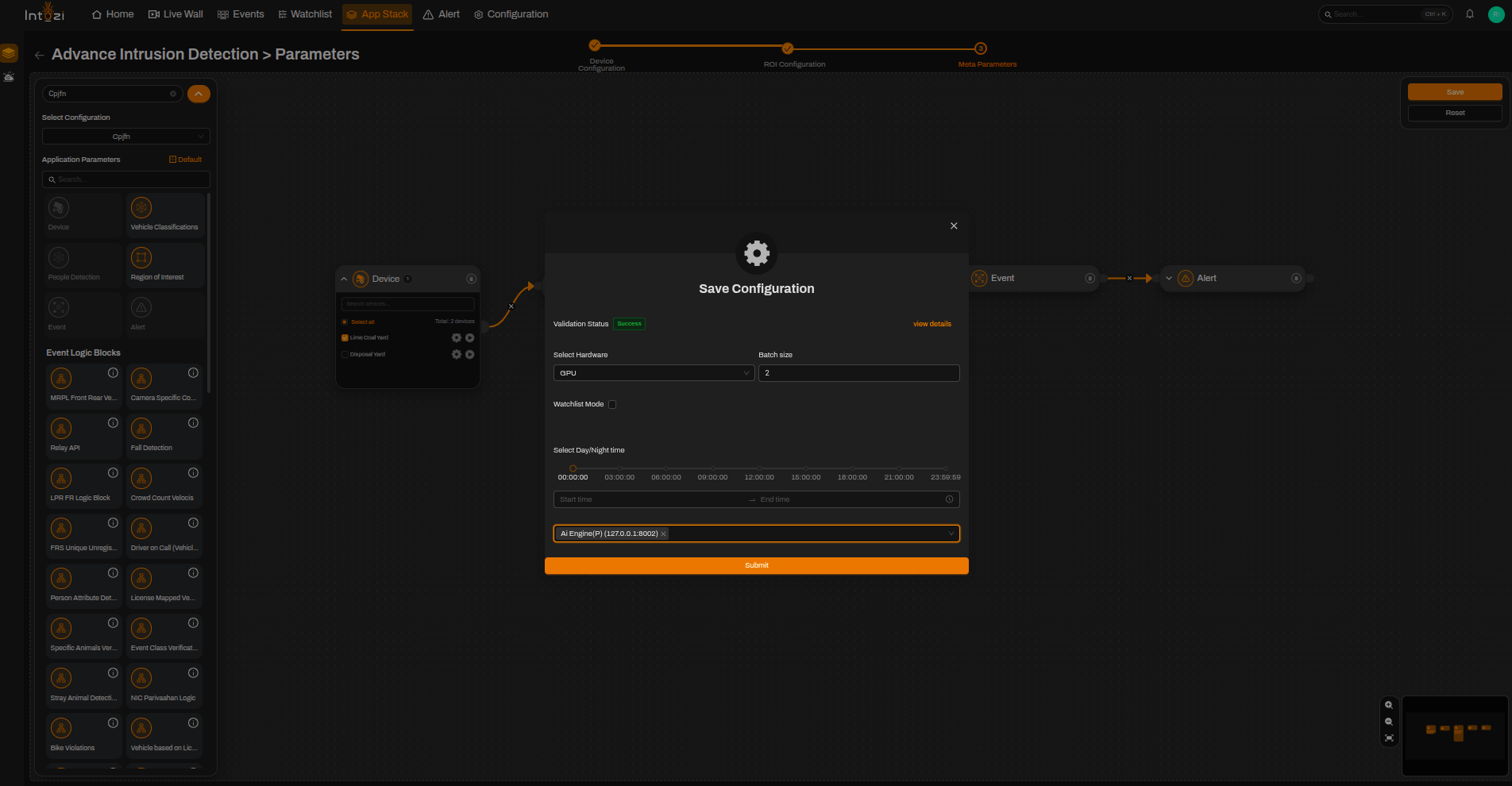
- Choose the hardware type (CPU or GPU) to match your server.
- Adjust the batch size if your Operations or CV team recommends it.
When everything is set, click Save.
Conclusion
The Advance Intrusion application helps automate unauthorized entry detection with configurable ROI settings, people detection confidence tuning, and hardware options.
By properly configuring devices, ROIs, and meta parameters, users can achieve accurate and efficient intrusion detection for real-time monitoring applications.