Server Configuration - User Guide
Overview
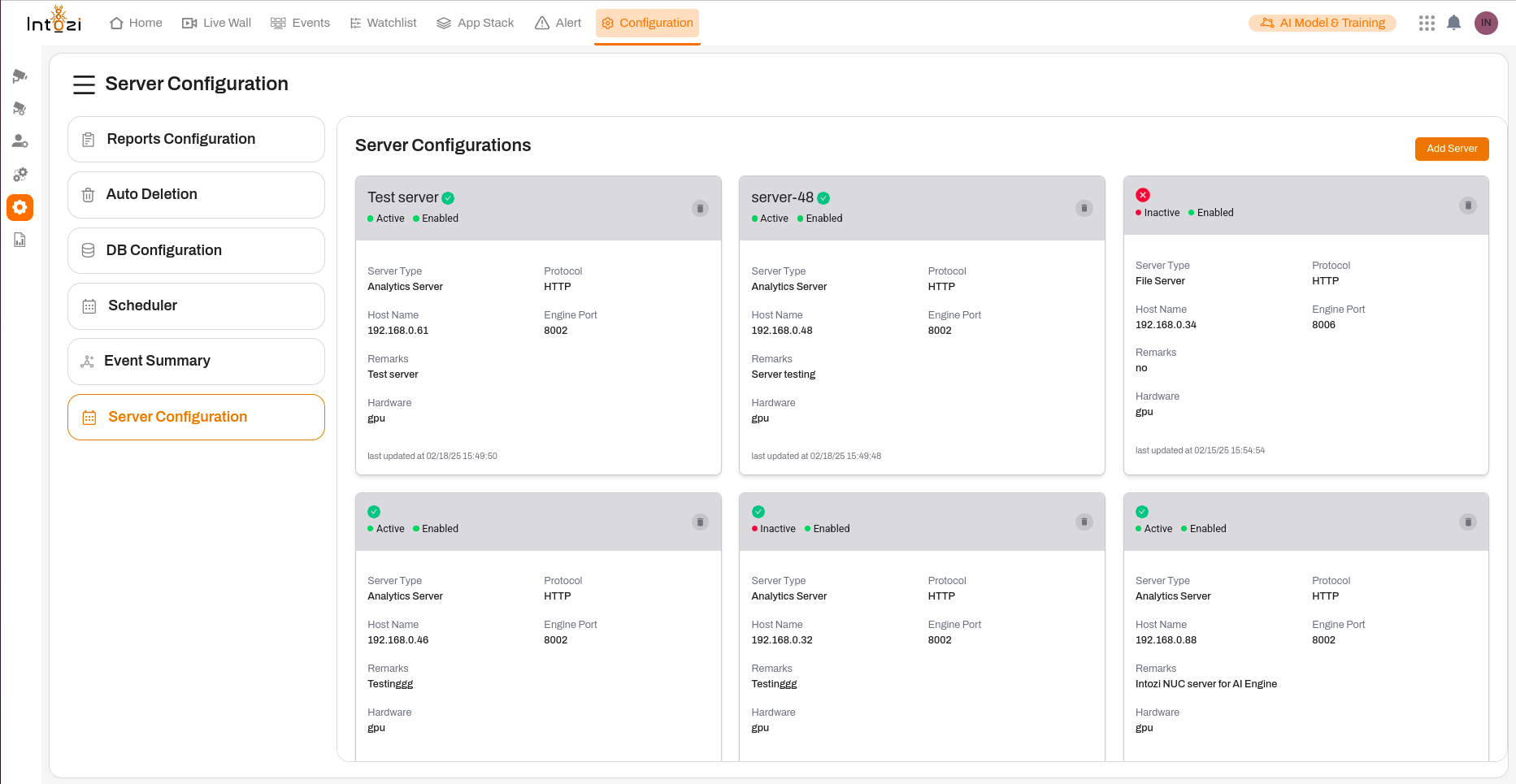
The Server Configuration module in our application allows users to manage and configure servers efficiently. This feature enables users to add, edit, and monitor server statuses while ensuring optimal performance.
Navigating to Server Configuration
- Click on the Configuration tab from the top navigation bar.
- Select Server Configuration from the left-hand menu.
- You will be directed to the Server Configurations page, where you can view all existing servers and manage their settings.
Adding a New Server
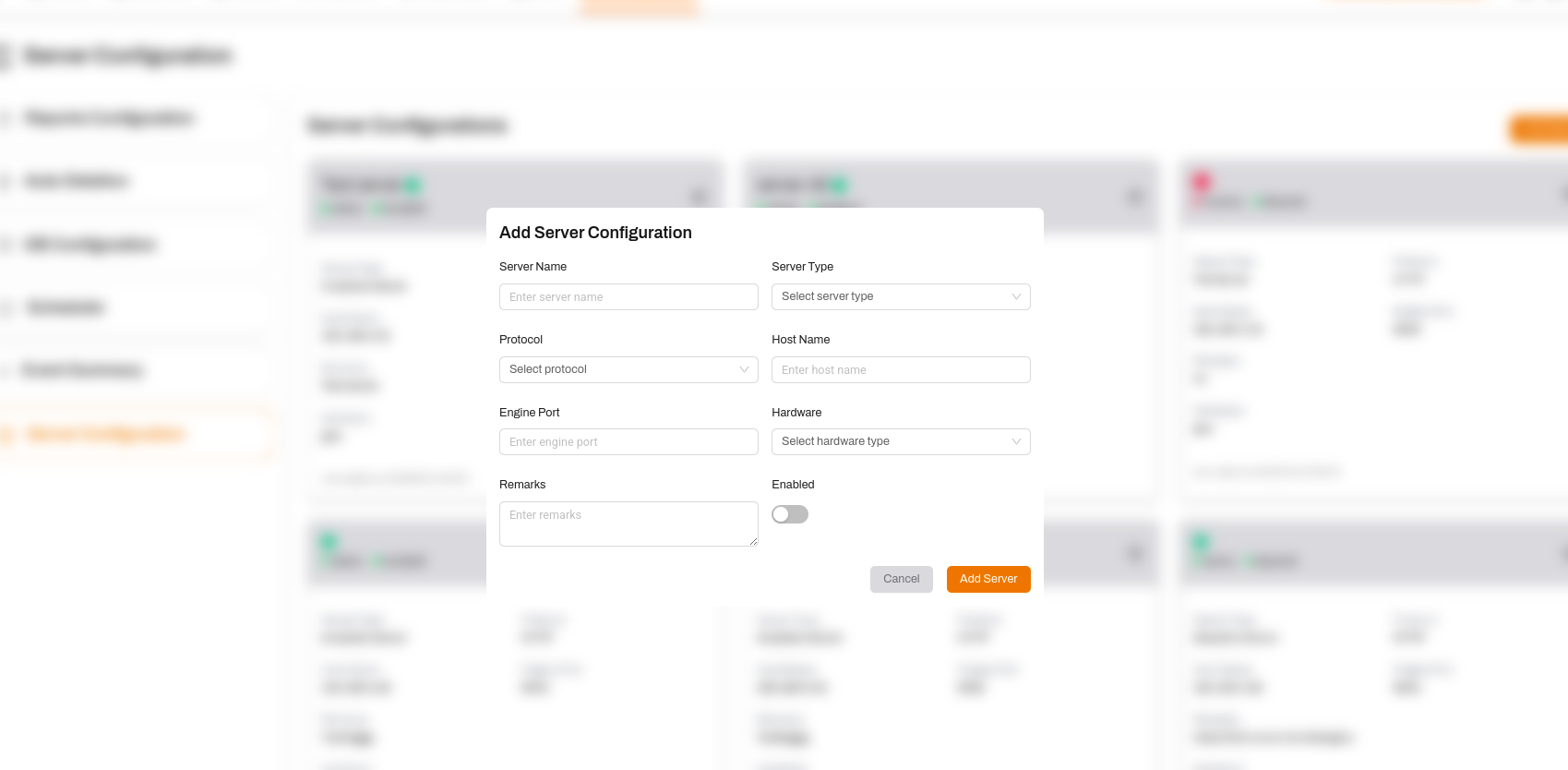
To add a new server, follow these steps:
- Click the "Add Server" button in the top-right corner.
- A popup form titled "Add Server Configuration" will appear.
- Fill in the required details:
- Server Name: Enter a unique name for the server.
- Server Type: Choose from the available server types (e.g., Analytics Server, File Server).
- Protocol: Select the protocol (e.g., HTTP).
- Host Name: Enter the server's host address (e.g., 192.168.0.48).
- Engine Port: Specify the port number the server will use.
- Hardware: Select the hardware type (e.g., GPU).
- Remarks: Enter additional notes for reference.
- Enabled: Toggle this option to activate or deactivate the server.
- Click "Add Server" to save the configuration or "Cancel" to discard changes.
Viewing Server Configurations
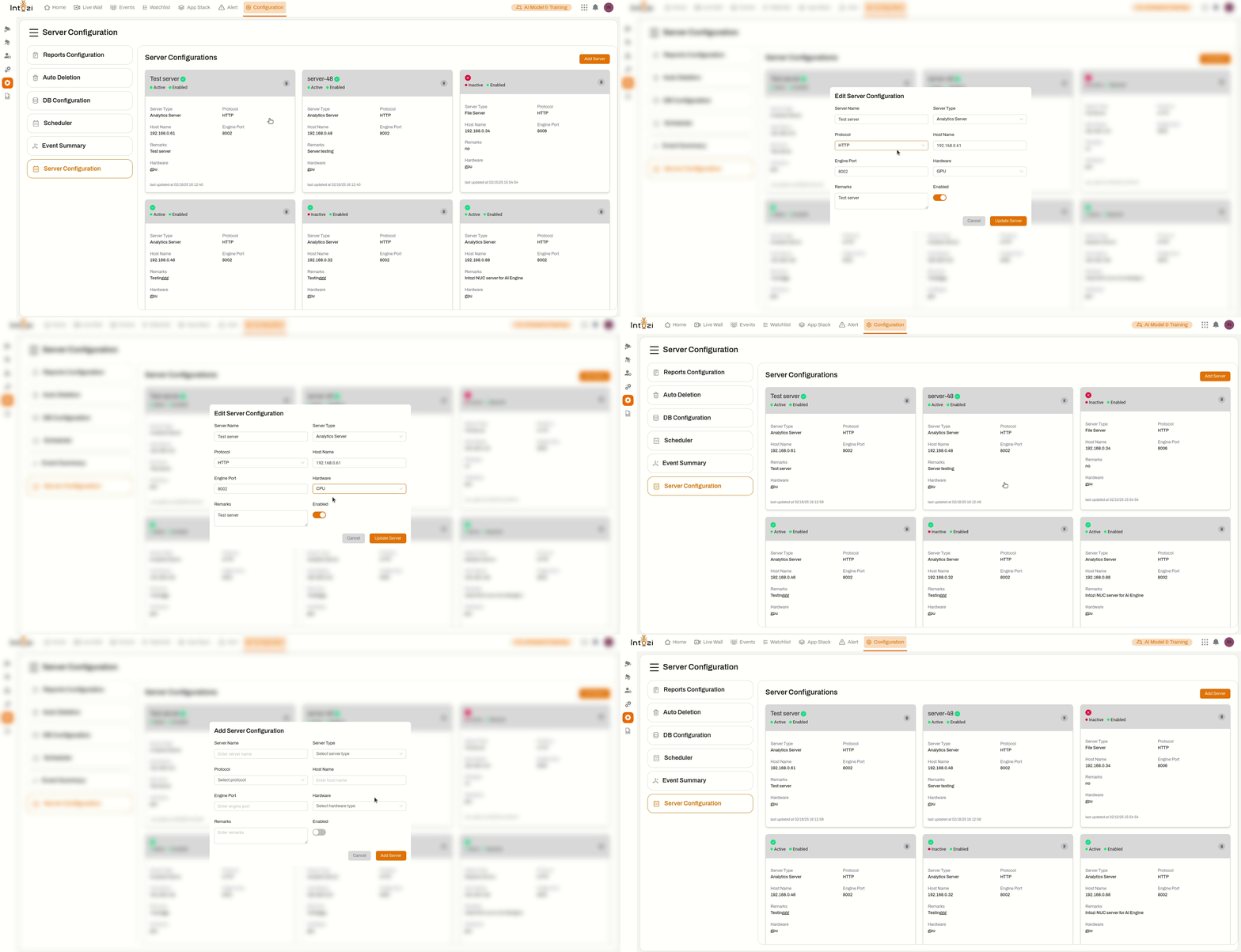
The main Server Configurations page displays a list of configured servers with the following details:
- Server Name: Identifies the server.
- Status: Indicates if the server is Active or Inactive.
- Enabled/Disabled: Shows whether the server is enabled.
- Server Type: Specifies the function of the server (e.g., Analytics Server, File Server).
- Protocol: Displays the communication protocol (e.g., HTTP).
- Host Name: Shows the IP address or hostname.
- Engine Port: Displays the assigned port.
- Remarks: Includes any additional notes.
- Hardware: Indicates the type of hardware used.
- Last Updated: Displays the last modification timestamp.
Understanding Server Status Indicators
- ✅ Active: The server is running and operational.
- ❌ Inactive: The server is not currently running.
- 🟢 Enabled: The server is allowed to function within the system.
- 🔴 Disabled: The server is inactive and restricted from operation.
Conclusion
The Server Configuration module simplifies server management by providing a structured and user-friendly interface. It ensures seamless server addition, configuration, and monitoring to maintain efficiency and uptime.
This guide serves as a reference to help users navigate and manage their server configurations effectively.