Device Configuration Guide
After logging into IKSHANA, you will be directed to the Dashboard or Front Page. From here, you can start configuring your devices. Follow the steps below to set up and configure your devices successfully.
Accessing the Device Configuration Section
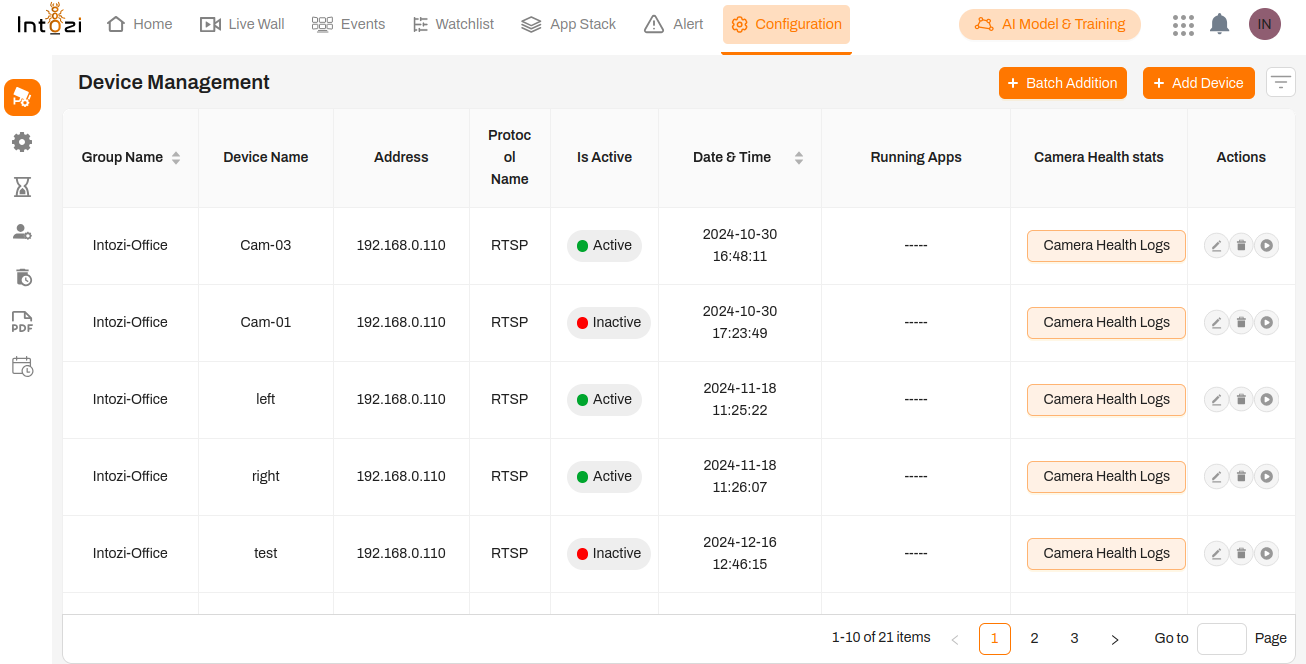
- Navigate to the Device Section:
- On the dashboard, locate and click on the Devices tab or Configure Devices button.
- This will open the Device Configuration page.
Adding a Device
This section provides step-by-step instructions on how to add a new device to the system.
Step 1: Access the Device Management Panel
- Navigate to the Configuration tab in the top menu.
- Click on the Add Device button located in the top-right corner of the Device Management page.
- A pop-up form titled "Add Device" will appear.
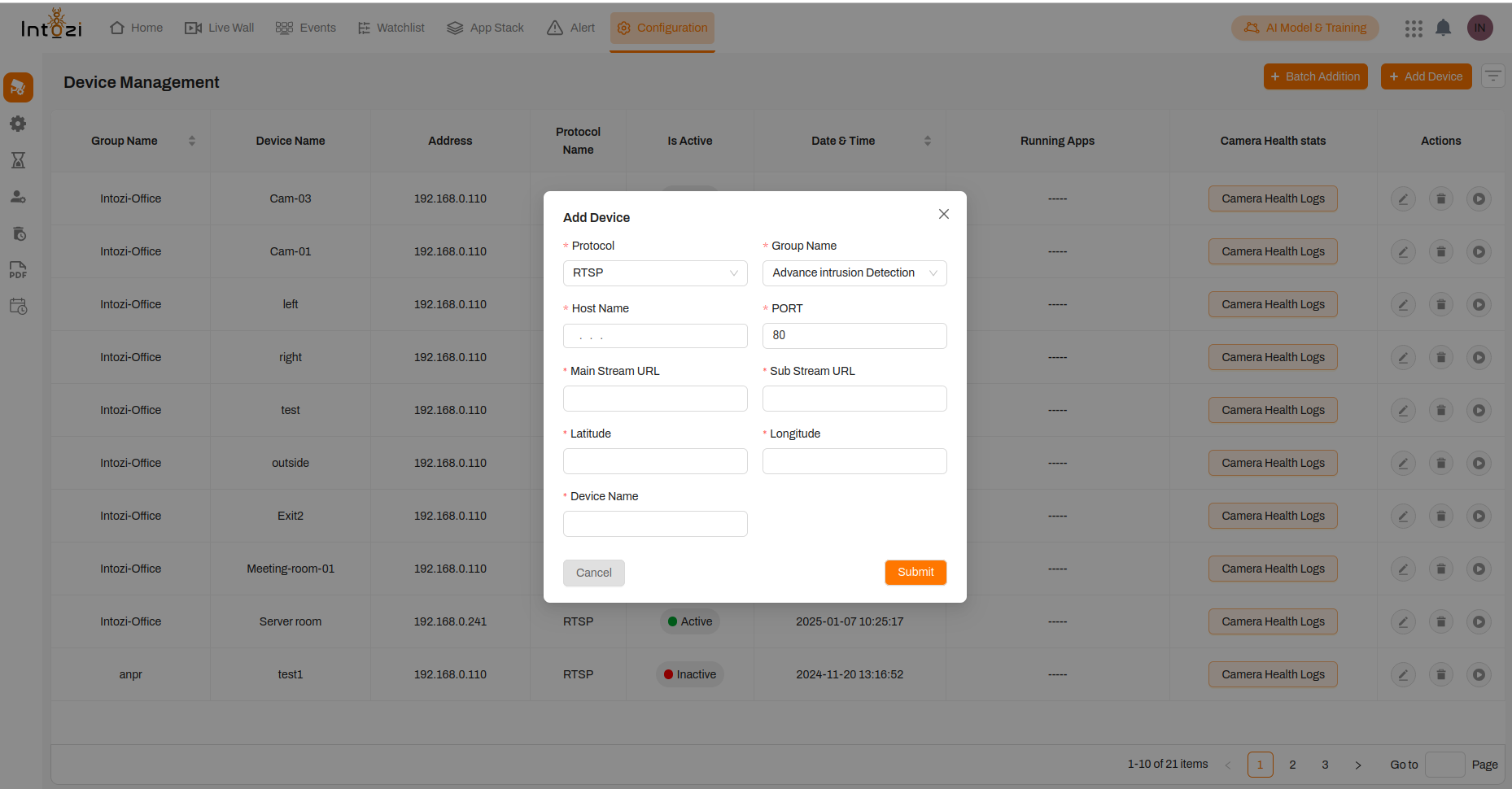
Step 2: Fill in Device Details
In the Add Device form, enter the required information:
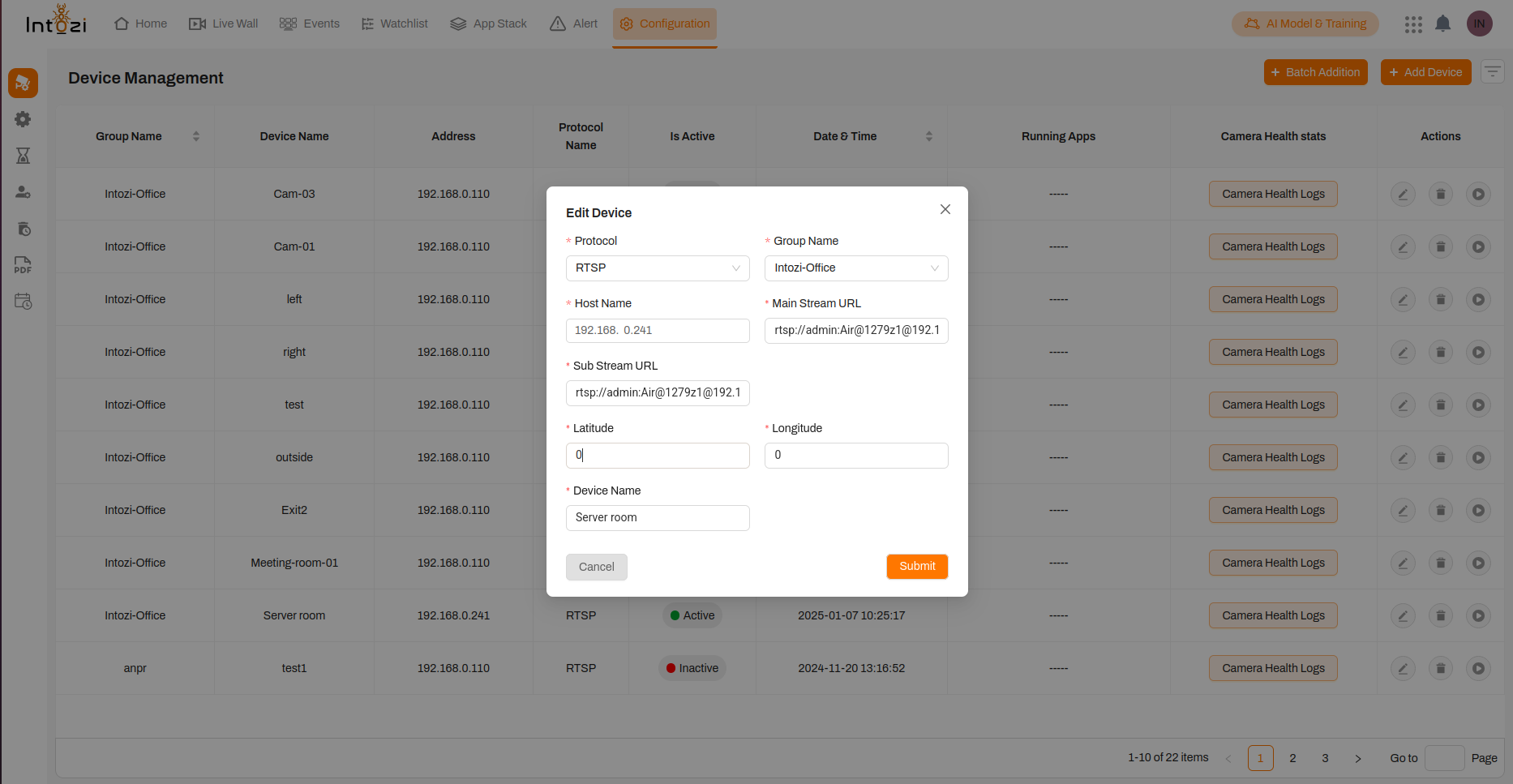
- Protocol: Select the protocol type from the available options:
- ONVIF: A standardized protocol for IP-based security products, allowing seamless integration with various Video Management Systems (VMS).
- RTSP (Real-Time Streaming Protocol): A protocol used for controlling streaming media servers, primarily for video surveillance and real-time video streaming.
- Luxriot: A VMS software solution designed for managing and analyzing video surveillance data efficiently.
- Milestone: A robust and scalable VMS software providing high-performance video management and analytics.
- RTSP – Selects the streaming protocol (e.g., RTSP).
- Group Name – Assigns the device to a predefined group (e.g., "Intozi-Office").
- Host Name – The IP address or hostname of the device (e.g., 192.168.0.241).
- Main Stream URL – The primary RTSP URL for the device stream (e.g.,
rtsp://admin:Air@1279z1@192.1). - Sub Stream URL – A secondary URL for lower-resolution streaming (if applicable).
- Latitude & Longitude – Allows users to input the device’s physical location coordinates (default values: 0, 0).
- Device Name – A user-defined identifier for the device (e.g., "Server room").
ONVIF Device Configuration & Setup
Introduction
ONVIF (Open Network Video Interface Forum) is a global standard for IP-based security products, allowing seamless integration of surveillance devices. This section provides a step-by-step guide to adding and configuring an ONVIF device in the system.
Adding an ONVIF Device
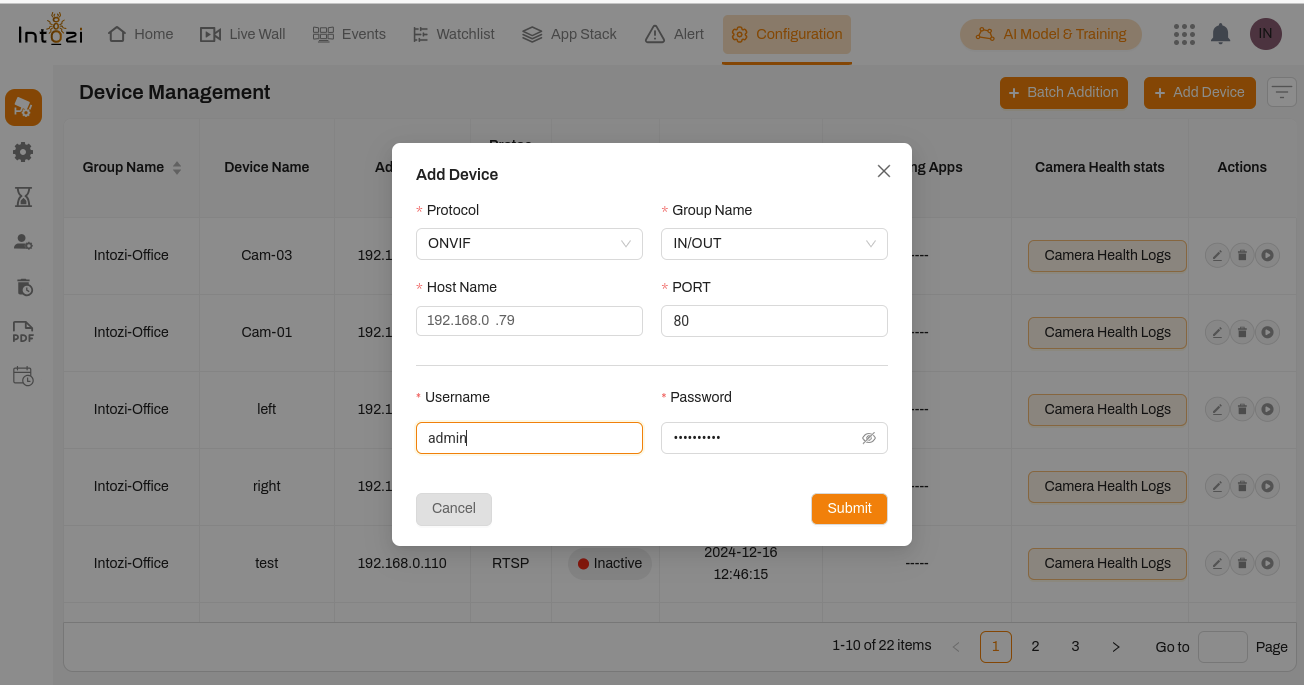
To integrate an ONVIF-compatible camera into the system, follow these steps:
-
Navigate to Configuration:
- Go to the
Device Managementsection. - Click on the
Add Devicebutton.
- Go to the
-
Fill in Device Details:
- Protocol: Select
ONVIFfrom the dropdown menu. - Group Name: Assign the device to an appropriate group (e.g.,
IN/OUT). - Host Name: Enter the device’s IP address (e.g.,
192.168.0.79). - PORT: Specify the ONVIF port (default is
80, but it may vary by manufacturer). - Username & Password: Enter the camera’s login credentials to authenticate the connection.
- Protocol: Select
-
Save the Configuration:
- Click the
Submitbutton to add the device. - The system will attempt to connect to the device using the provided details.
- Click the
Configuring ONVIF Device Settings
Once the ONVIF device is added, further configuration ensures optimal performance. The following settings are available:
- Protocol: Defines the streaming protocol used (ONVIF ensures interoperability with different cameras).
- Group Name: Helps in organizing devices within logical groups.
- Host Name: Specifies the IP address or hostname of the device for network communication.
- Main Stream URL: Provides the primary video stream URL for high-quality surveillance.
- Sub Stream URL: Allows an alternative lower-resolution stream for efficient bandwidth usage.
- Latitude & Longitude: Used to map the device’s physical location (default values:
0,0). - Device Name: A customizable identifier (e.g.,
Server Room Camera).
Finalizing Configuration
- Once all settings are correctly filled, click
Submitto save changes. - The system will verify the connection and begin streaming if the credentials and settings are correct.
Milestone Device Configuration & Setup
Adding a Milestone-Compatible Device
A robust and scalable VMS software providing high-performance video management and analytics. To add a Milestone-compatible camera, follow these steps:
1. Navigate to Configuration:
- Go to the
Device Managementsection. - Click on
Add Device.
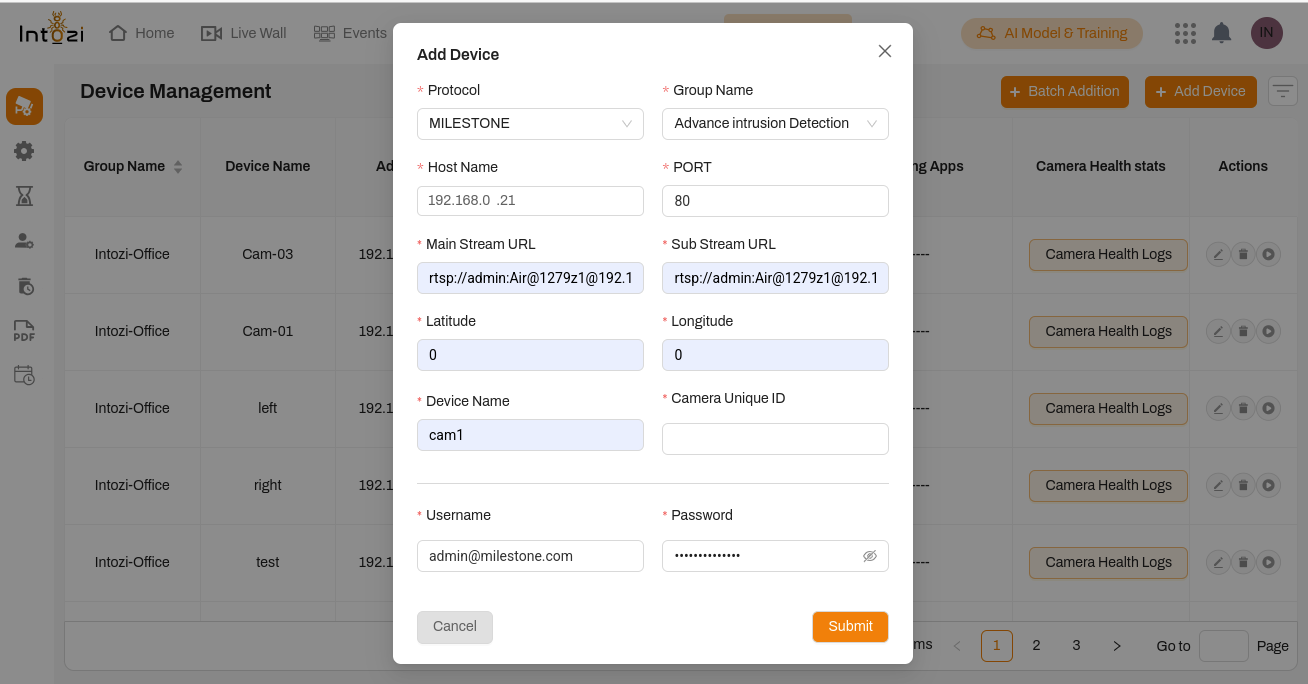
2. Fill in Device Details:
- Protocol: Select
MILESTONEfrom the dropdown. - Group Name: Assign the camera to a relevant group (e.g.,
Advance Intrusion Detection). - Host Name: Enter the camera’s IP address (e.g.,
192.168.0.21). - PORT: Default is
80but may vary. - Main Stream URL: Enter the primary RTSP stream URL.
- Sub Stream URL: Enter an alternative RTSP URL for lower-resolution streaming.
3. Additional Configuration:
- Latitude & Longitude: Default is
0,0, used for mapping. - Device Name: Enter a custom identifier for the camera.
- Camera Unique ID: This is auto-assigned by the system to uniquely identify the device.
4. Authentication:
- Username & Password: Use your Milestone server credentials for authentication.
5. Save & Apply:
- Click
Submitto add the device. - The system verifies and connects the device.
Luxriot Configuration & Setup
Adding a Luxriot-Compatible Device
To add a device using the Luxriot VMS protocol, follow these steps:
1. Navigate to Configuration:
- Go to the
Device Managementsection. - Click on
Add Device.
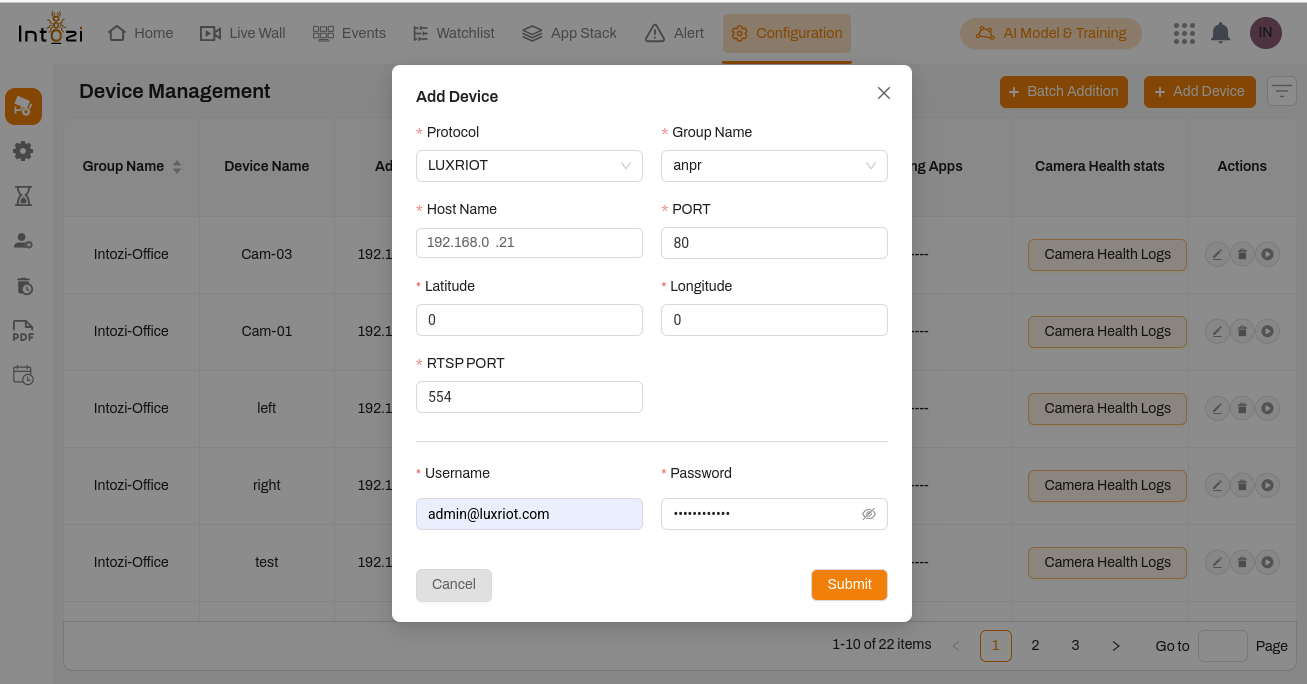
2. Fill in Device Details:
- Protocol: Select
LUXRIOTfrom the dropdown. - Group Name: Assign the device to a group (e.g.,
Advance Intrusion Detection). - Host Name: Enter the device’s IP address (e.g.,
192.168.0.23). - PORT: Default is
80, but this may vary. - RTSP PORT: Enter the RTSP streaming port (default is
554).
3. Additional Configuration:
- Latitude & Longitude: Default values are
0,0for mapping purposes.
4. Authentication:
- Username & Password: Use your Luxriot server credentials for authentication.
5. Save & Apply:
- Click
Submitto add the device. - The system will verify and establish the connection.
Step 3: Submit the Details
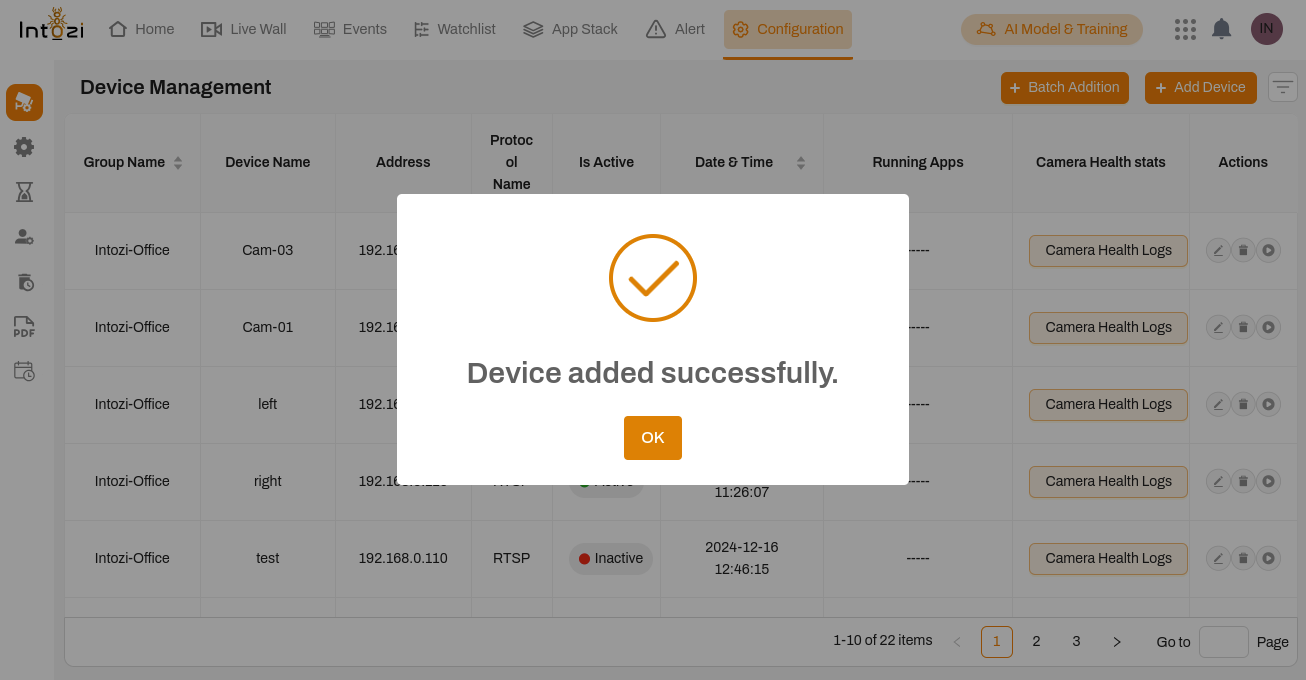
- After filling in all the necessary fields, click the Submit button.
- If the information is valid, the device will be successfully added to the system.
- The newly added device will now be visible in the Device Management table.
Step 4: Verify Device Status
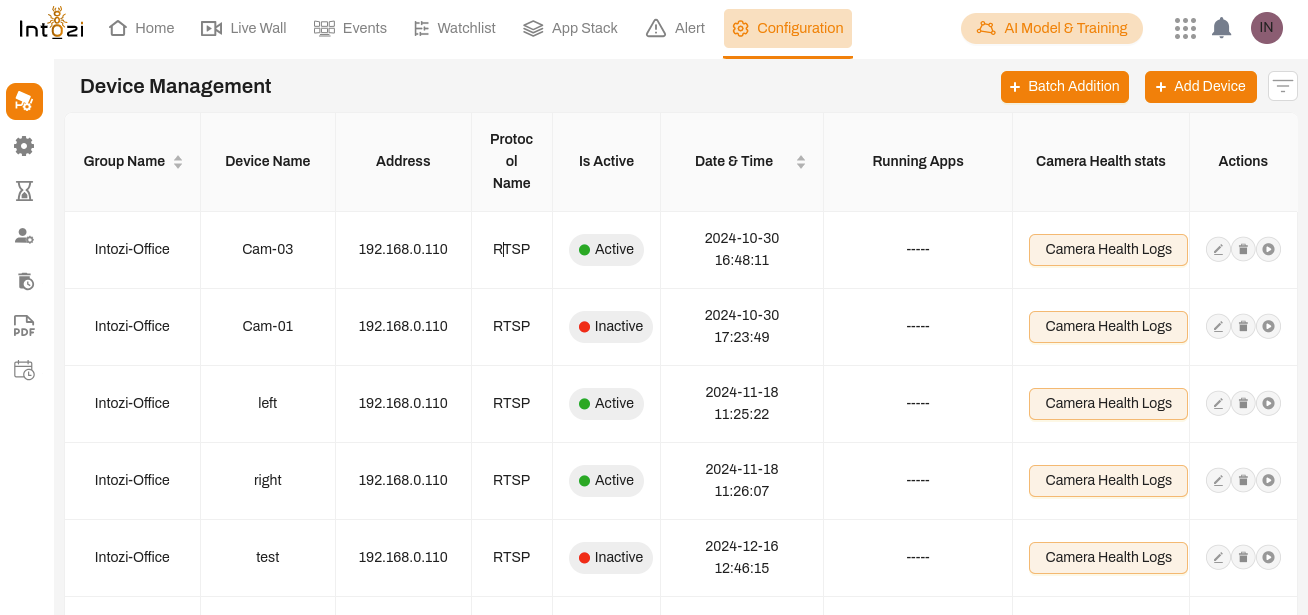
- The device status will appear under the "Is Active" column.
- A Green (Active) status indicates a successful connection.
- A Red (Inactive) status suggests a connection issue. Verify the hostname, port, and streaming URLs if the device remains inactive.