User Guide for License Installation and Management
1. Introduction
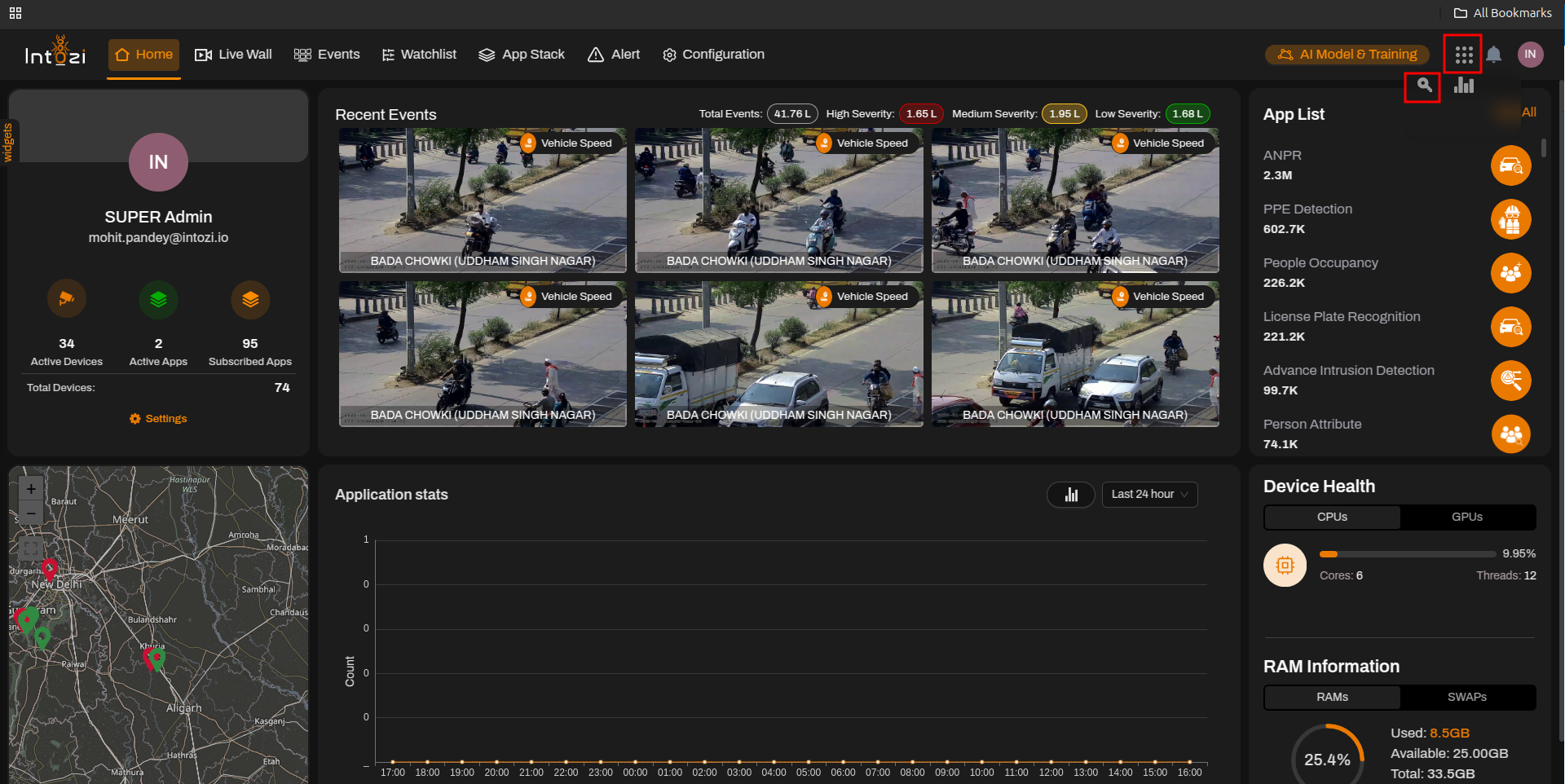
This guide provides step-by-step instructions for installing, activating, and managing licenses for the application. It ensures that users can effectively utilize the software with the appropriate licensing.
2. License Overview
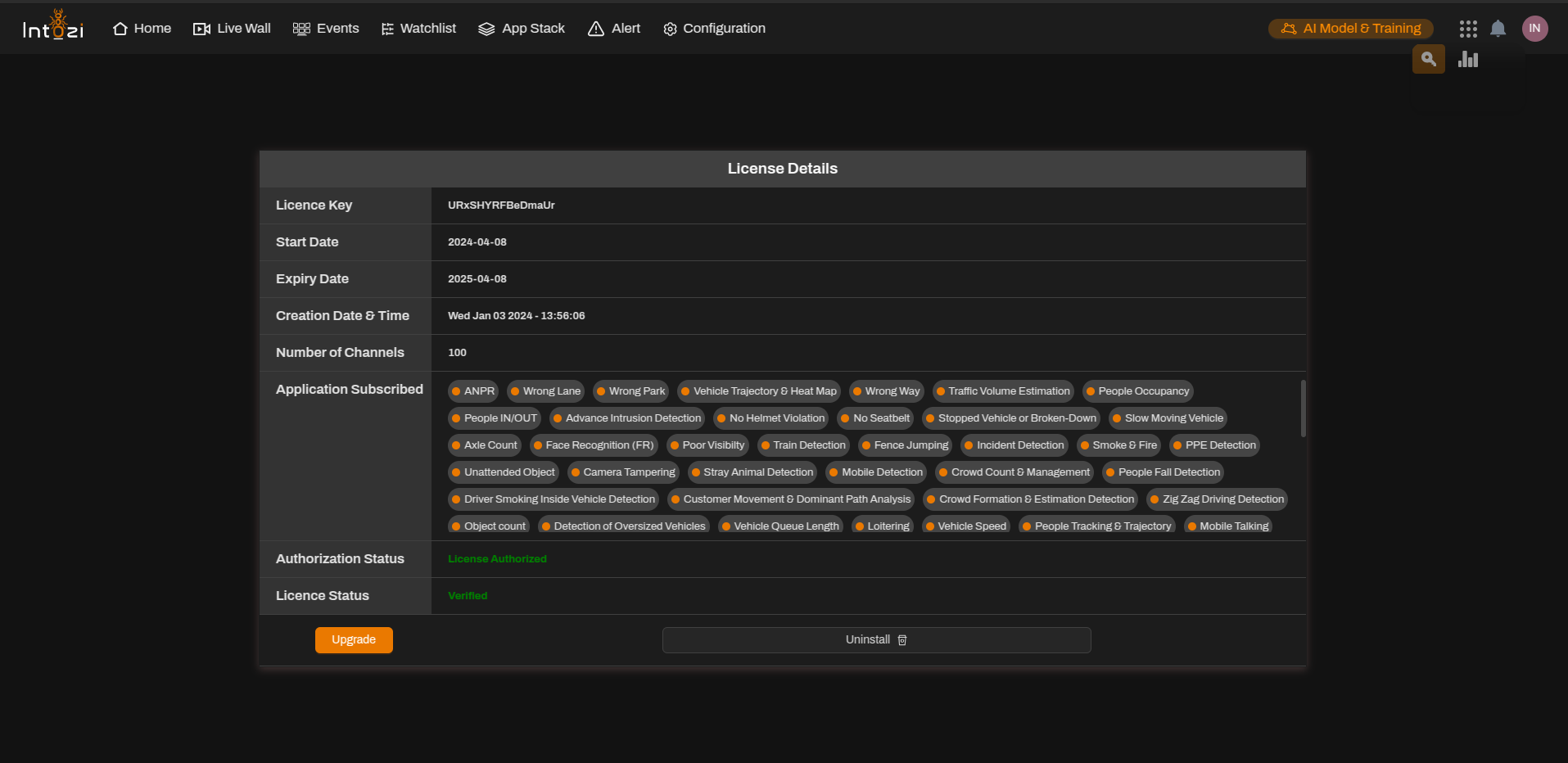
The license details page provides essential information about the current license, including:
- License Key – A unique identifier for the license.
- Start Date – The activation date of the license.
- Expiry Date – The date when the license will expire.
- Creation Date & Time – The timestamp when the license was generated.
- Number of Channels – The total number of channels supported under the license.
- Application Subscribed – The list of features enabled under the license.
- Authorization Status – Indicates if the license is authorized.
- License Status – Confirms whether the license is verified.
3. License Installation Process
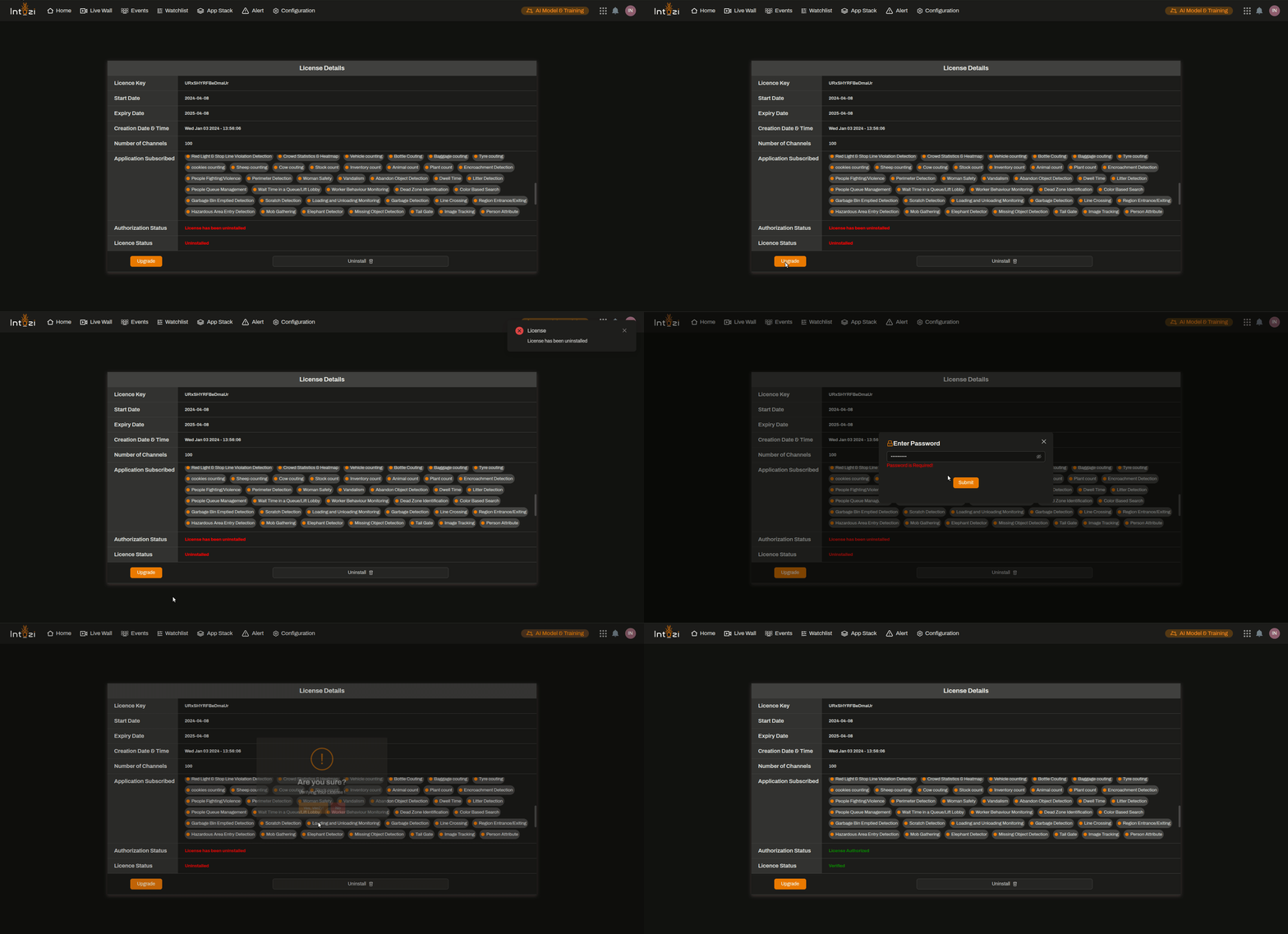
Follow these steps to install the license:
Step 1: Navigate to the License Management Section
- Open the application dashboard.
- Click on Configuration in the top menu.
- Select License Management from the available options.
Step 2: Enter the License Key
- Copy the provided License Key.
- Paste it into the designated input field.
Step 3: Activate the License
- Click on the Verify button.
- If the license key is valid, the status will update to Verified.
- If there is an issue, check the key and try again or contact support.
4. Managing the License
4.1 Checking License Status
- Navigate to the License Details section.
- Verify the Authorization Status and License Status.
- Ensure the license is Authorized and Verified.
4.2 Upgrading the License
- Click on the Upgrade button if additional features or extended validity is needed.
- Follow the prompts to upgrade.
4.3 Uninstalling the License
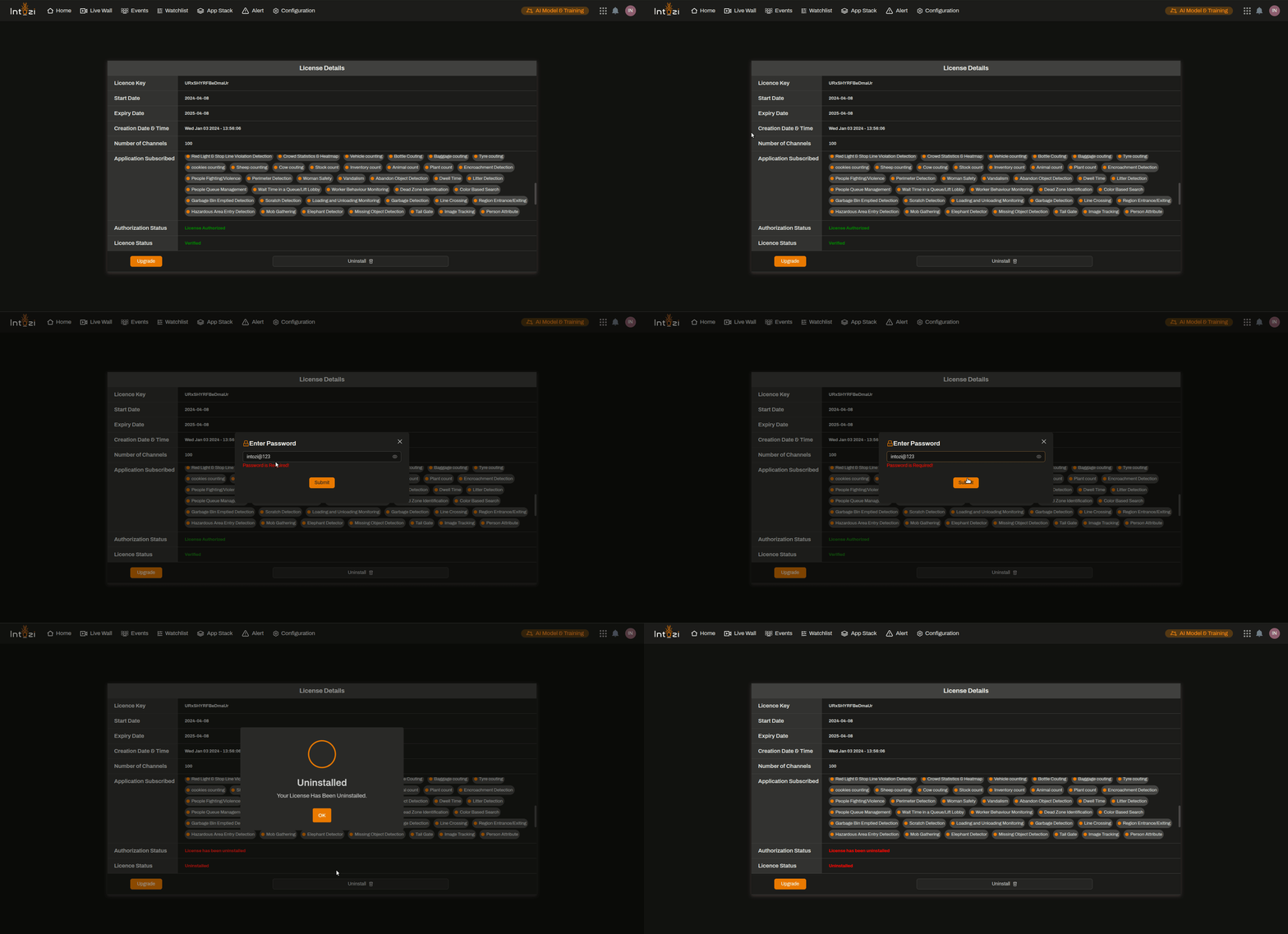
- If you need to remove the license, click Uninstall.
- Confirm the uninstallation when prompted.
- The application will revert to a restricted mode until a new license is installed.
5. Subscribed Applications
The license includes multiple features, such as:
- ANPR (Automatic Number Plate Recognition)
- Wrong Lane & Wrong Park Detection
- Vehicle Trajectory & Heat Map Analysis
- Traffic Volume Estimation
- People Occupancy & IN/OUT Detection
- Intrusion Detection & Safety Violations (No Helmet, No Seatbelt, etc.)
- Axle Count & Face Recognition
- Train Detection & Fence Jumping Alerts
- Crowd & Object Detection
6. Troubleshooting
If you encounter issues with license installation or activation:
- Ensure the license key is correctly entered.
- Check the Expiry Date to confirm the license is valid.
- Verify the Authorization Status.
- Contact support for further assistance if needed.
7. Conclusion
This guide helps users install, activate, and manage their application licenses seamlessly. Proper licensing ensures access to all subscribed features, enabling optimal application performance.
For further assistance, contact customer support.