Face Recognition (FR)
Face Recognition (FR) is used to recognize human faces and categorize them as Registered or Unregistered.
- If a detected face matches a person available in the watchlist, a Registered Event is generated.
- If a detected face does not match any person in the watchlist, it is categorized as an Unregistered Event.
This guide explains how to configure the Face Recognition application in App Stack.
1. Finding the FR Application in App Stack
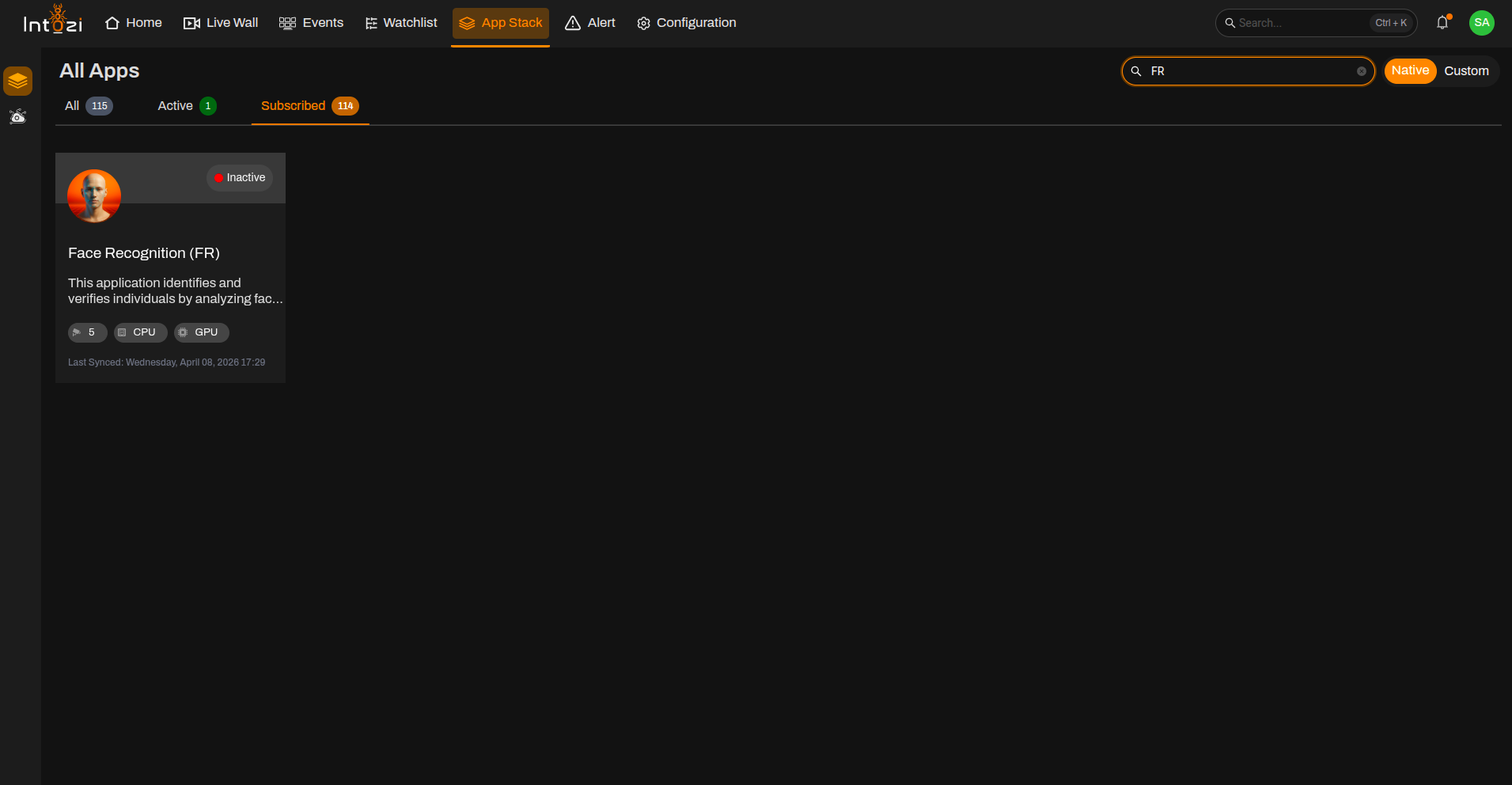
- Open App Stack on the platform.
- Use the search bar (usually at the top right of the dashboard).
- Enter FR.
- In the results, click once on the application to open it.
2. Device Configuration
After the application opens, you will be directed to the Device Configuration page.
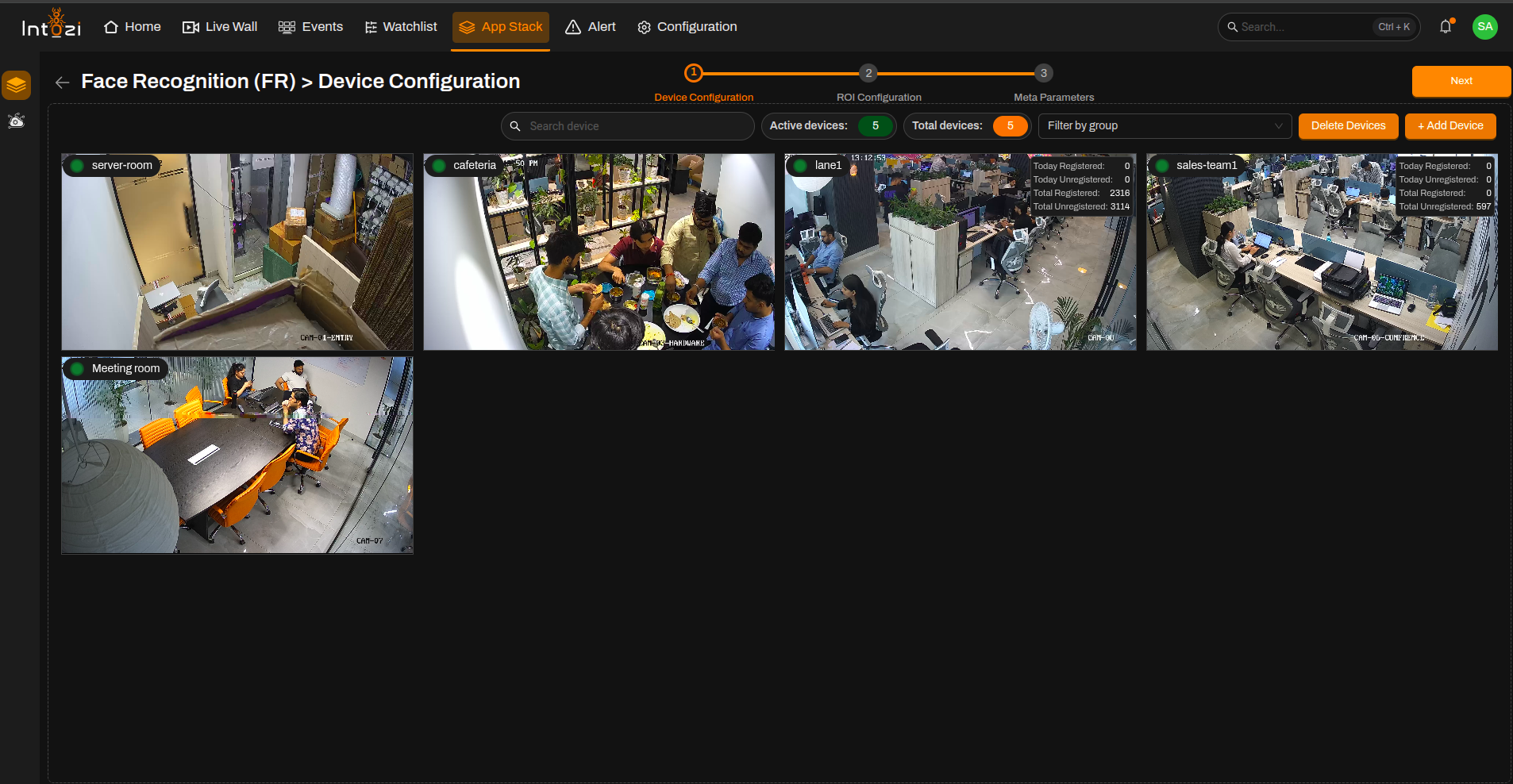
- On the right side of the page, click Add Device to add the required camera(s).
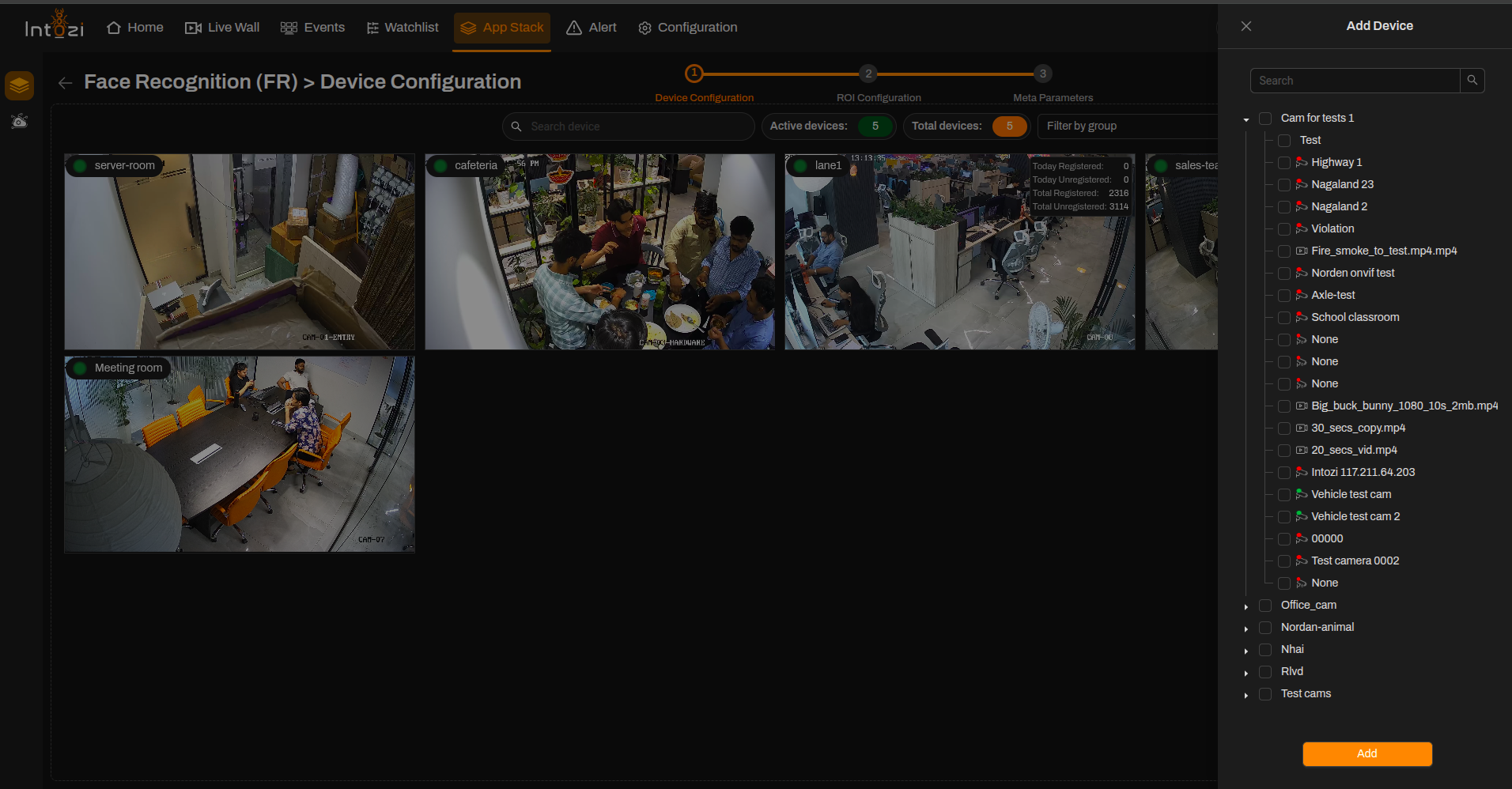
- Configure the required device settings.
- Once the devices are added, proceed to the ROI Configuration page.
Ensure all required cameras are added before proceeding to ROI configuration.
3. ROI (Region of Interest) Configuration
All added devices will be displayed on this page for ROI configuration.
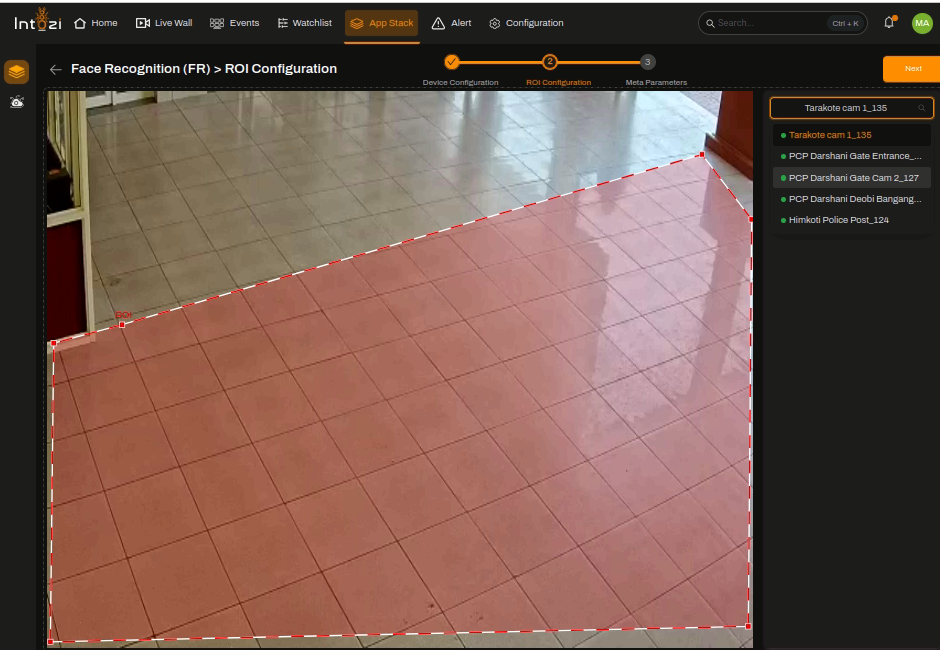
- Select the desired device.
- Click Add ROI (top right of the page).
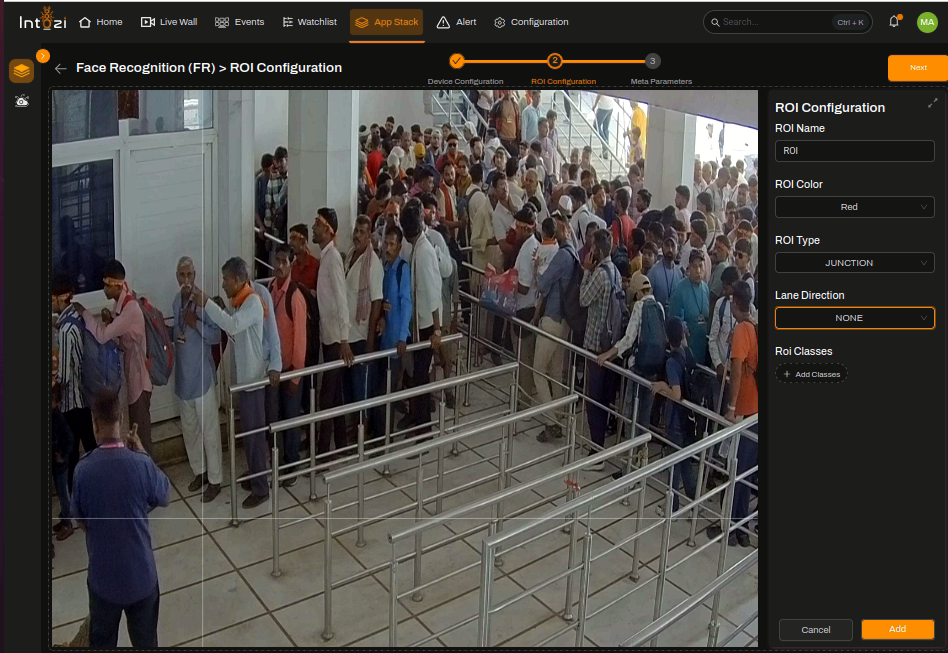
Fill in ROI Details
| Field | Guidance for FR |
|---|---|
| ROI Name | Enter a meaningful name for the ROI. |
| ROI Color | Select a color for visualization. |
| ROI Type | Select Junction. |
| Lane Direction | Set to None. |
| ROI Classes | Not required. |
You can update or delete any ROI by selecting it and using the available options.
4. Meta Parameters Configuration
After ROI setup, navigate to the Meta Parameters page.
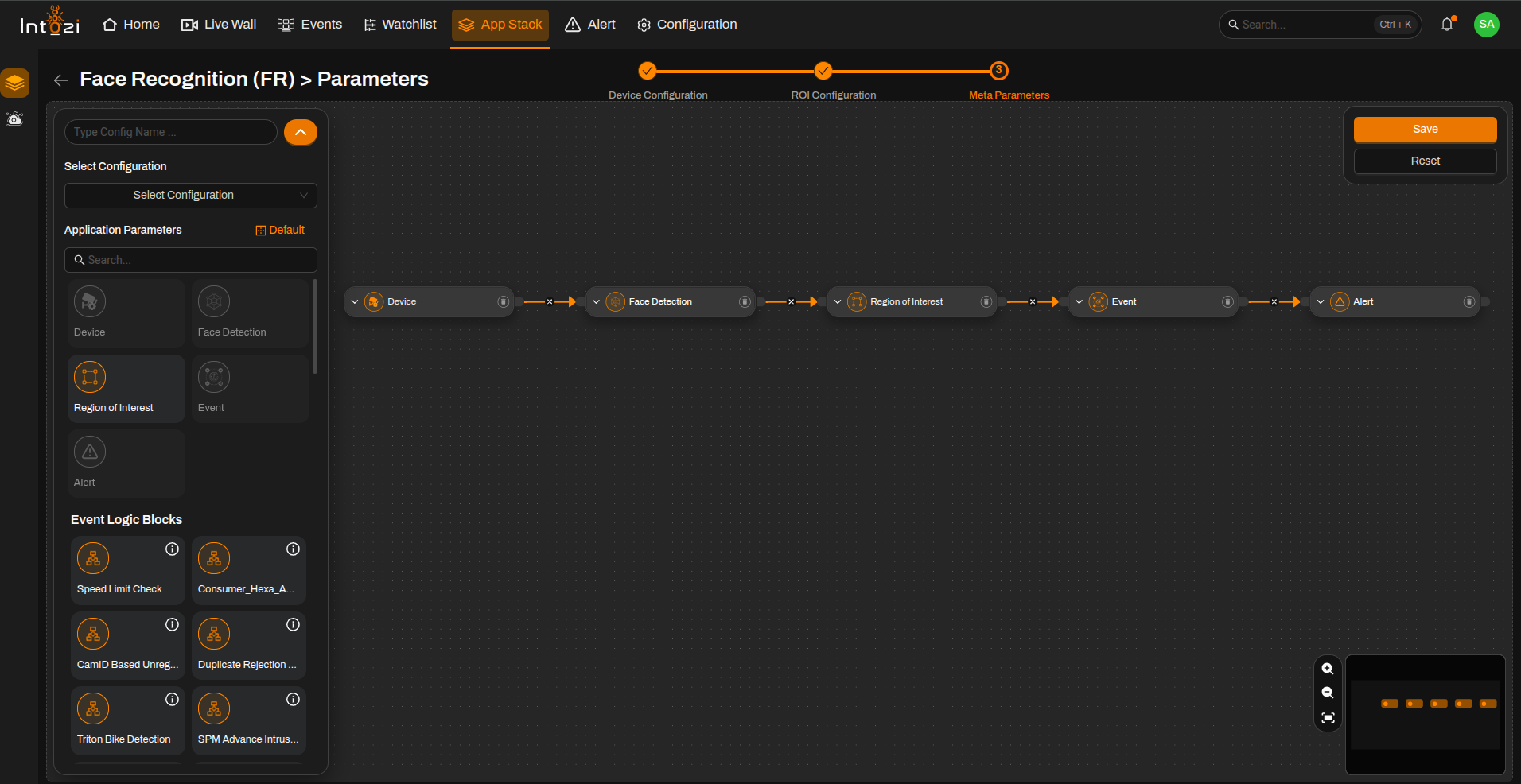
4.1 Default vs Custom Configuration
You can either:
- Use a default configuration, or
- Create a custom configuration.
A default configuration typically contains the following modules:
- Device
- Face Detection
- Region of Interest (ROI)
- Event
- Alert
5. Device Node Settings
Select the required device and configure the following settings.
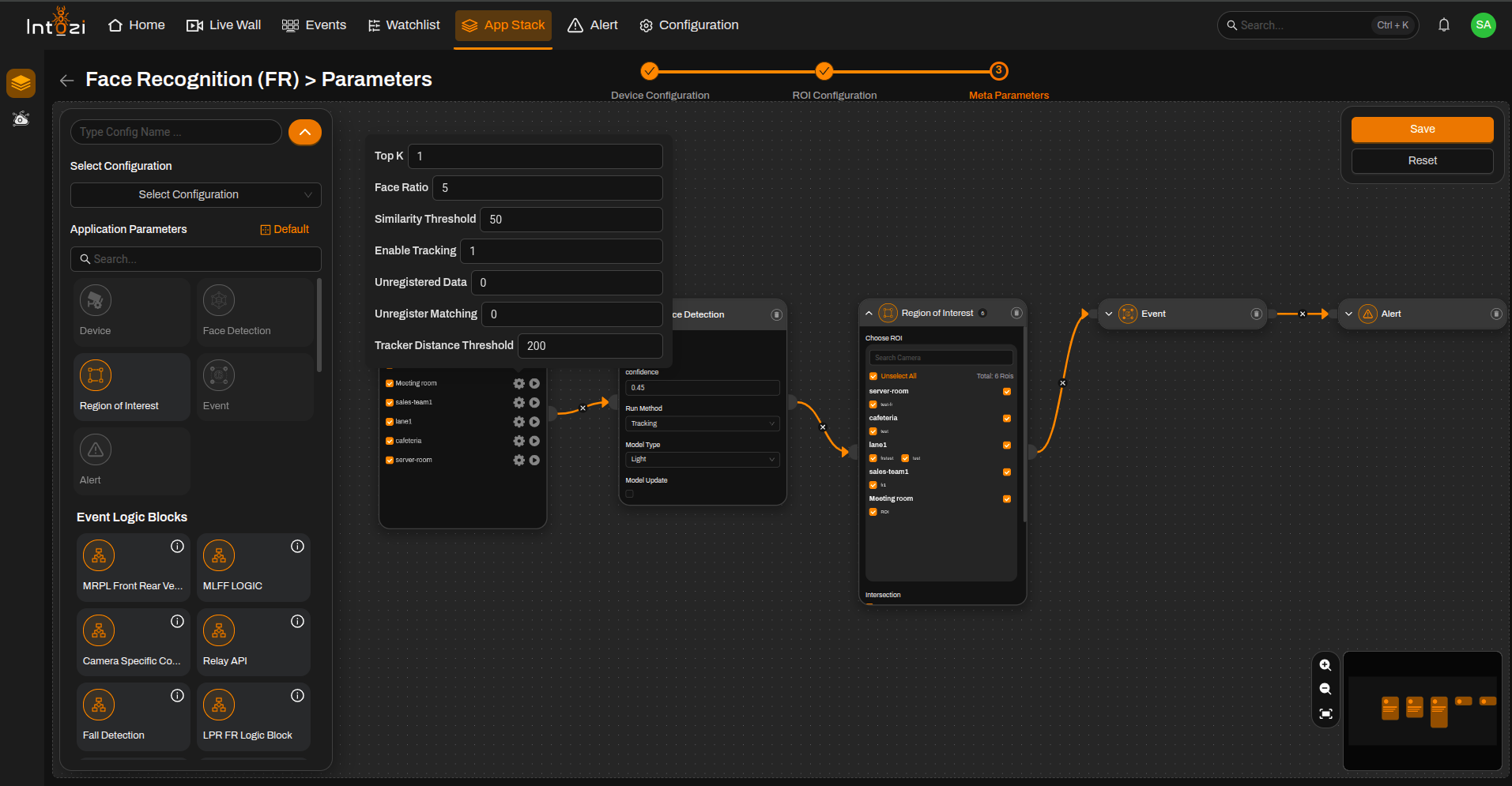
Available Settings
| Parameter | Description |
|---|---|
| Top K | Defines the number of top face captures to be considered as events. Supported range: 1–5. Default: 1. |
| Face Ratio | Defines the minimum face size required for processing. Recommended to keep the default value. |
| Similarity Threshold | Used for matching detected faces against the watchlist. Default: 50. Higher values provide stricter matching, while lower values increase match sensitivity. |
| Enable Tracking | 1 = Enable face tracking, 0 = Disable face tracking. |
| Unregistered Data | 0 = Capture only registered face events, 1 = Capture both registered and unregistered face events. |
| Unregistered Matching | Applicable only when Unregistered Data = 1. 0 = Generate unregistered face events, 1 = Do not generate unregistered face events. |
| Tracker Distance Threshold | Controls tracking distance for face association. Default: 200. |
It is recommended to keep default values unless specific project requirements require changes.
Model Confidence Threshold
- Default value: 0.45
- Can be adjusted based on:
- Camera view
- Lighting conditions
- Face size
- Deployment requirements
Model Type
Two model types are available:
| Model Type | Description |
|---|---|
| Light | Lower resource consumption and faster processing. |
| Heavy | Better accuracy with higher resource utilization. |
Select the model type according to server capability and project requirements.
7. Final Configuration Settings
After selecting the device and associated ROI:
- Enter a Configuration Name.
- Select the hardware type:
- CPU
- GPU
- Configure the Batch Size as recommended by the Development/CV Team.
Additional Settings
Face Blob Size
- Defines the face crop size used during processing.
- Larger values may improve accuracy but require additional resources.
- Select based on server capability.
Person Tracker
| Value | Description |
|---|---|
| 1 | Enable person tracking |
| 0 | Disable person tracking |
Unique Unregistered
| Value | Description |
|---|---|
| 1 | Generate only unique unregistered events |
| 0 | Generate all unregistered events |
Unmatched Threshold
- Defines the threshold used for handling unmatched faces.
- Configure as recommended by the Development/CV Team.
Detection Type
Select the model type used during watchlist training:
| Type | Usage |
|---|---|
| Heavy | Select if watchlist faces were trained using the Heavy model. |
| Light | Select if watchlist faces were trained using the Light model. |
Analytic Server Selection
- Select the required Analytic Server for deployment.
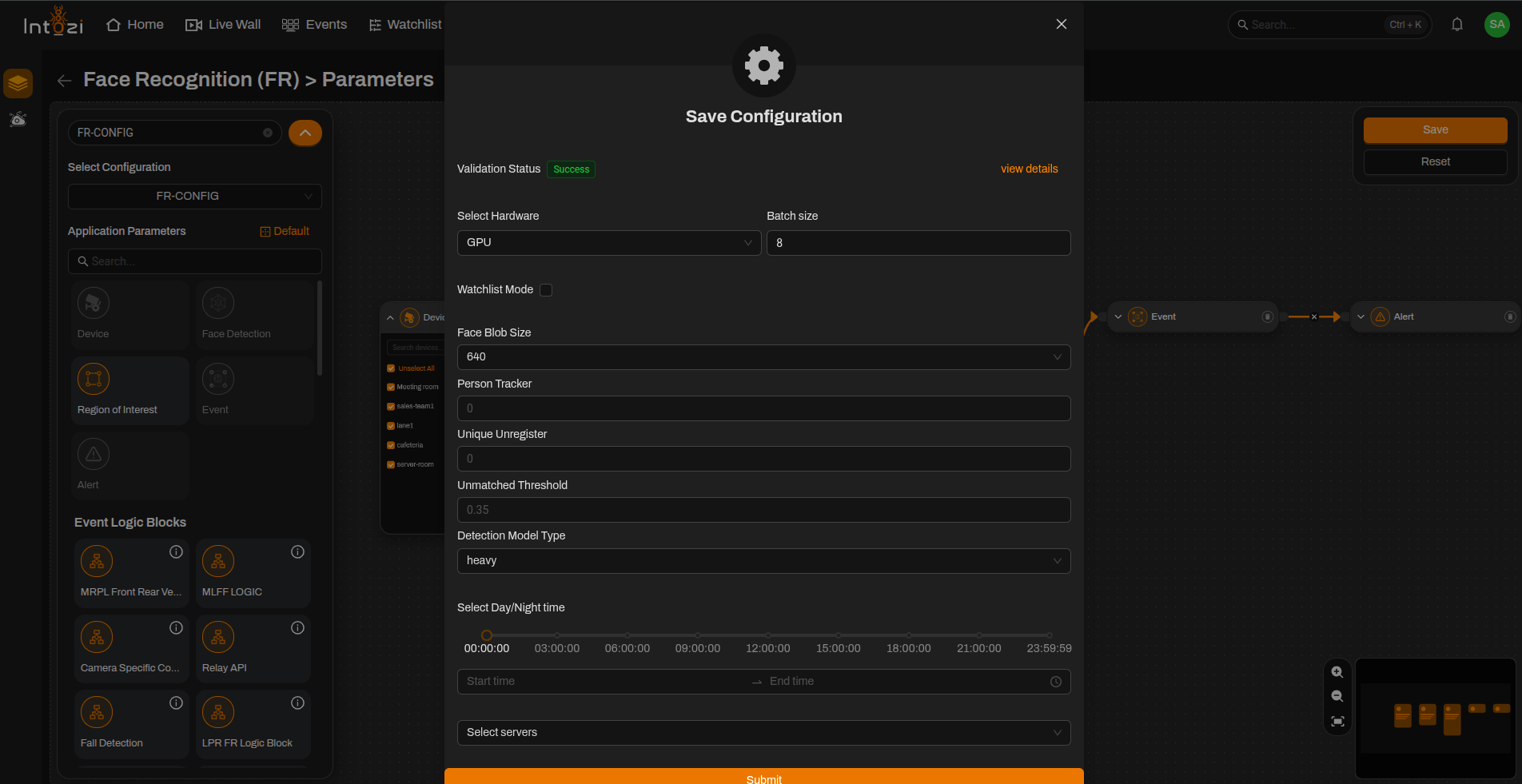
8. Saving the Configuration
After verifying all settings:
- Confirm device selection.
- Verify ROI placement.
- Review similarity threshold settings.
- Check model type selection.
- Verify analytic server selection.
- Review hardware and batch size configuration.
Click Save to activate the configuration.
Conclusion
The Face Recognition (FR) application provides real-time face recognition by comparing detected faces against a configured watchlist and categorizing events as Registered or Unregistered.
By properly configuring device settings, detection thresholds, tracking options, and watchlist matching parameters, users can achieve accurate face recognition and event generation across different deployment environments.