User Guide - Events Page
Overview
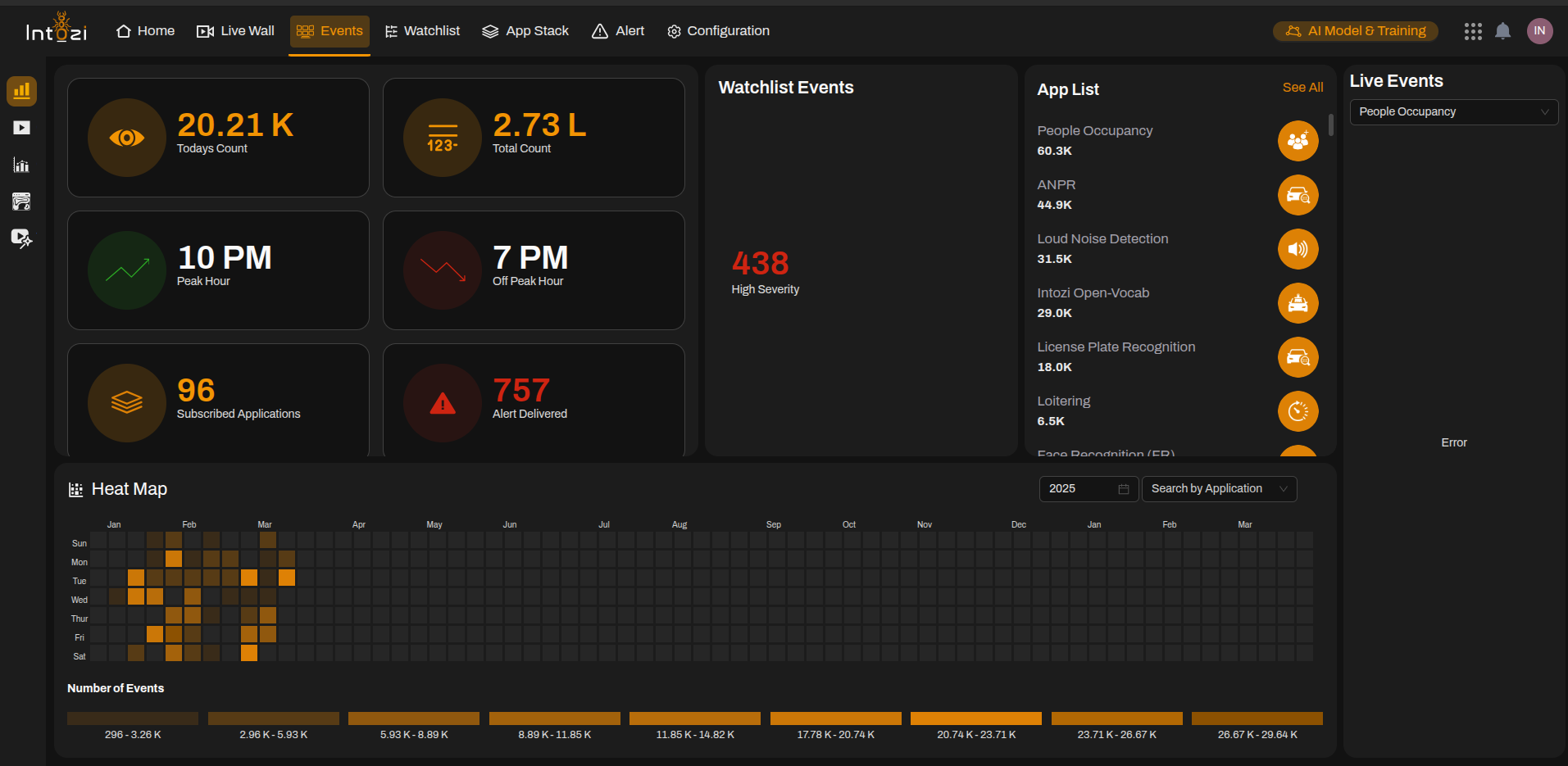
The Events Page is designed to monitor and track various events occurring within the system. It provides real-time insights into event counts, peak activity times, alert notifications, and application-specific event logs. Additionally, users can access a heat map for visual trend analysis and monitor live event feeds for immediate updates.
1. Key Metrics (Top Section)
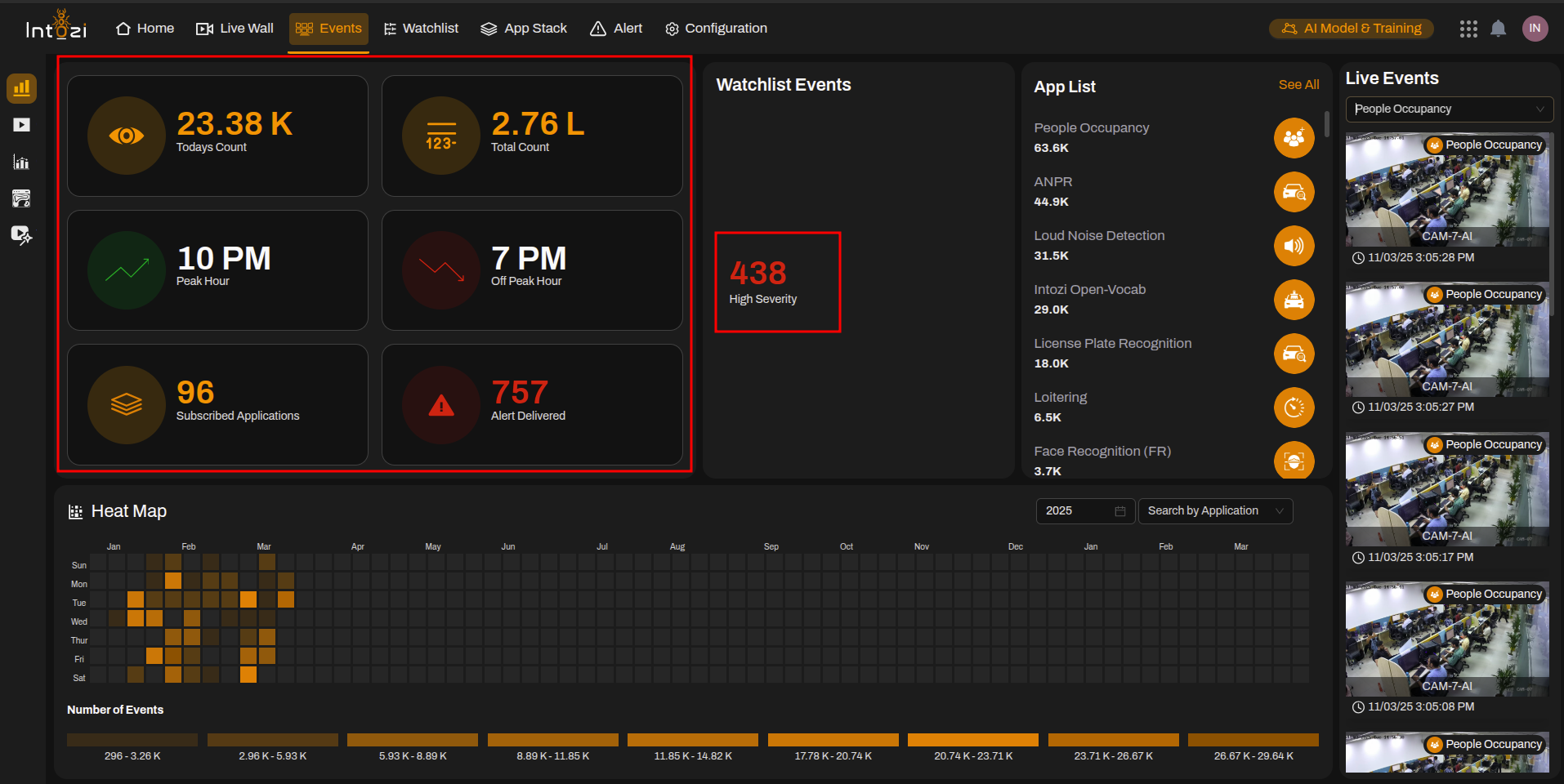
This section provides essential statistics about event activity:
- Today's Count (21.11K) – Displays the total number of events recorded today.
- Total Count (2.74L) – The cumulative number of events recorded over time.
- Peak Hour (10 PM) – The time when the maximum number of events occur.
- Off-Peak Hour (7 PM) – The time when the least number of events occur.
- Subscribed Applications (96) – Total number of applications integrated into the system.
- Alerts Delivered (757) – Number of alerts that have been sent based on event triggers.
- Watchlist Events (High Severity: 438) – Highlights the number of critical events requiring immediate attention.
2. App List (Right Panel)
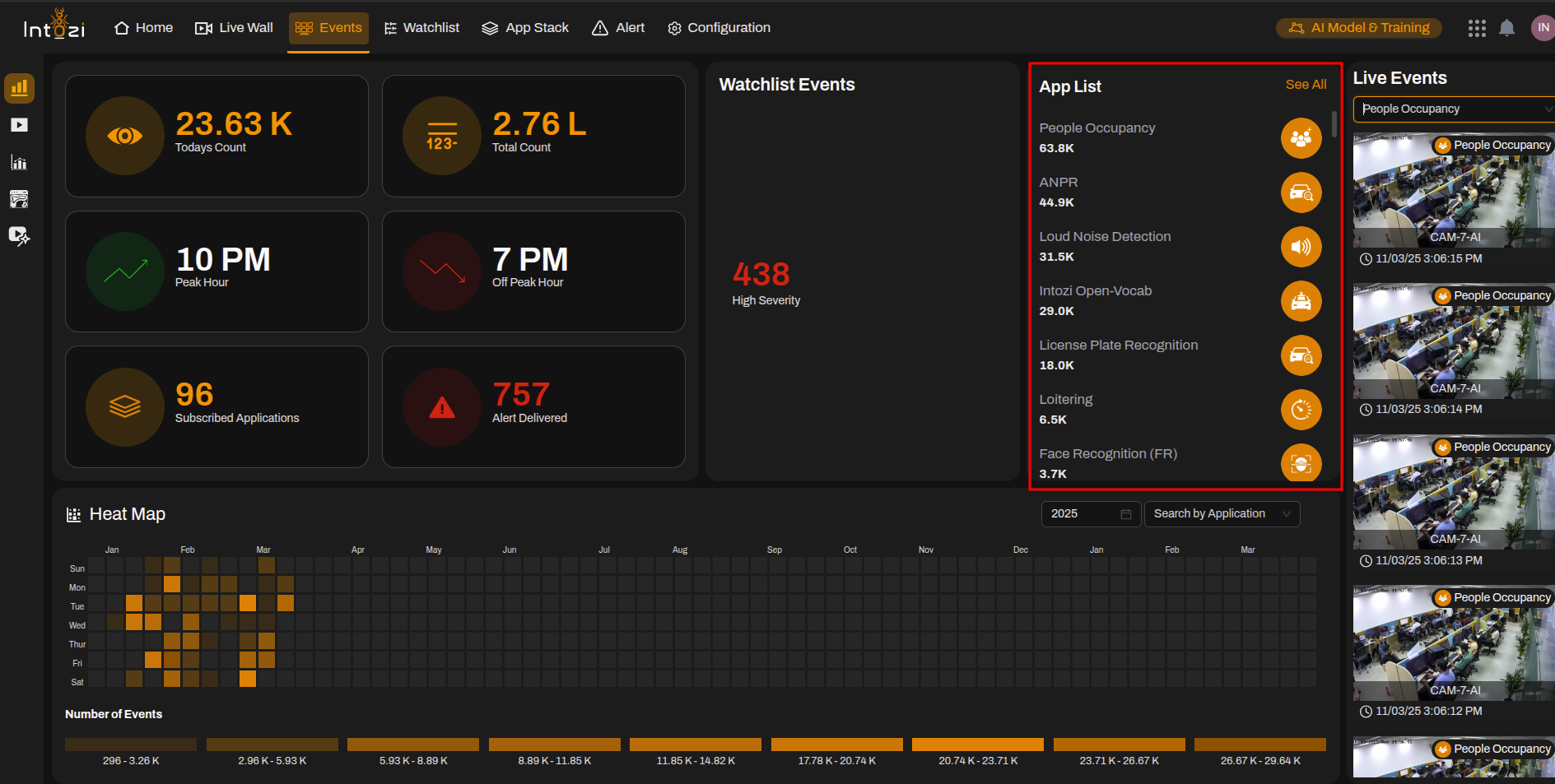
This section displays all the applications integrated into the system along with event counts:
- People Occupancy – 60.3K
- ANPR (Automatic Number Plate Recognition) – 44.9K
- Loud Noise Detection – 31.5K
- Intozi Open-Vocab – 29.0K
- License Plate Recognition – 18.0K
- Loitering – 6.5K
Each application has an icon representing its functionality.
3. Live Events (Right Panel)
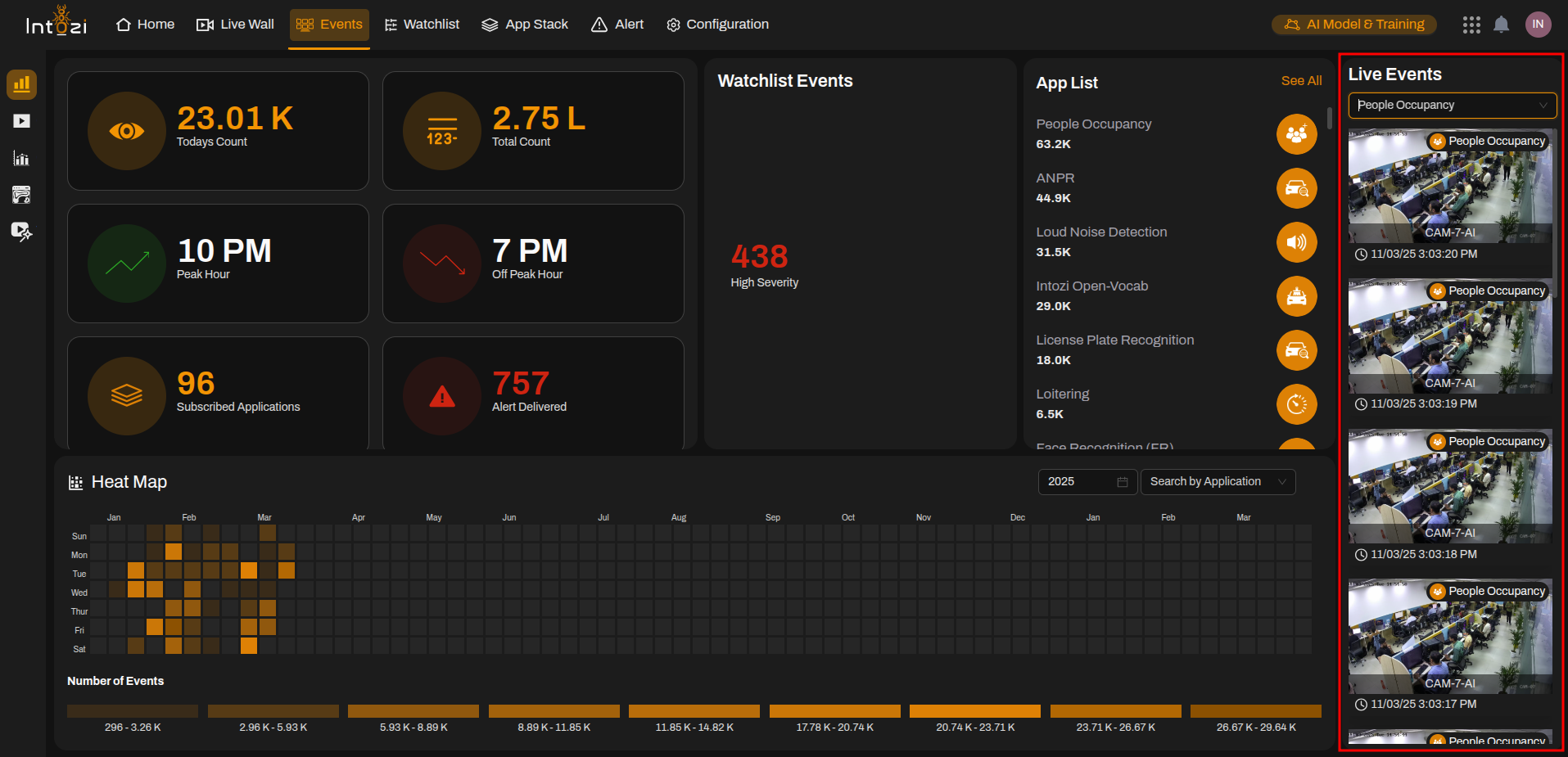
The Live Events section provides real-time event monitoring with video feed snapshots and timestamps. Users can:
- Select an application from the dropdown menu (e.g., People Occupancy).
- View live event snapshots from surveillance cameras with timestamps.
- Monitor activity in real-time to detect unusual behavior or security threats.
Why Use Live Events?
- Instant Event Tracking: Provides real-time visual evidence of events as they happen.
- Enhanced Security: Enables quick response to critical incidents.
- Operational Efficiency: Helps in monitoring occupancy, detecting anomalies, and improving decision-making.
4. Heat Map (Bottom Section)
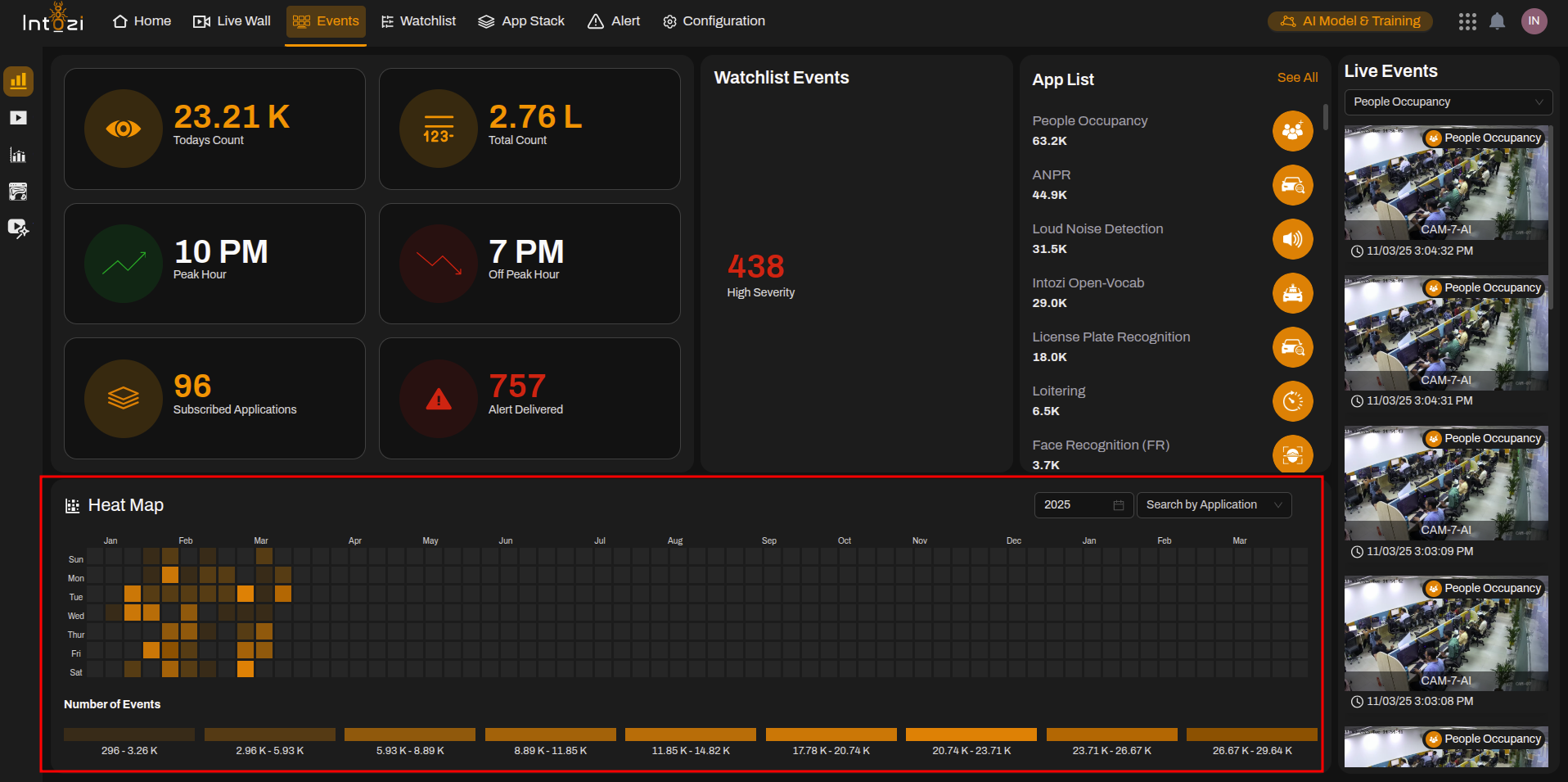
The Heat Map visually represents the number of events occurring over time:
- Darker colors indicate higher event activity.
- The scale categorizes event numbers into different ranges for better trend analysis.
- Users can filter events by year and application to analyze specific data.
5. Navigation Menu (Top Bar)
The navigation menu provides easy access to other sections of the system:
- Home – Returns to the main dashboard.
- Live Wall – Provides real-time monitoring of all active events.
- Events – The current page showing event analytics.
- Watchlist – Displays flagged or high-severity events.
- App Stack – Lists all integrated applications.
- Alert – Displays alerts generated by the system.
- Configuration – Allows system settings adjustments.
- AI Model & Training – Manages AI-related settings and training models.
Conclusion
The Events Page is a powerful tool for monitoring and analyzing system events. It helps users track real-time events, identify trends, and take necessary actions based on alerts, heat map trends, and live event feeds.
By leveraging these features, users can improve security monitoring, operational efficiency, and decision-making.
For further assistance, refer to the detailed application documentation or contact support.