User Guide: Device Management - Batch Addition
Overview
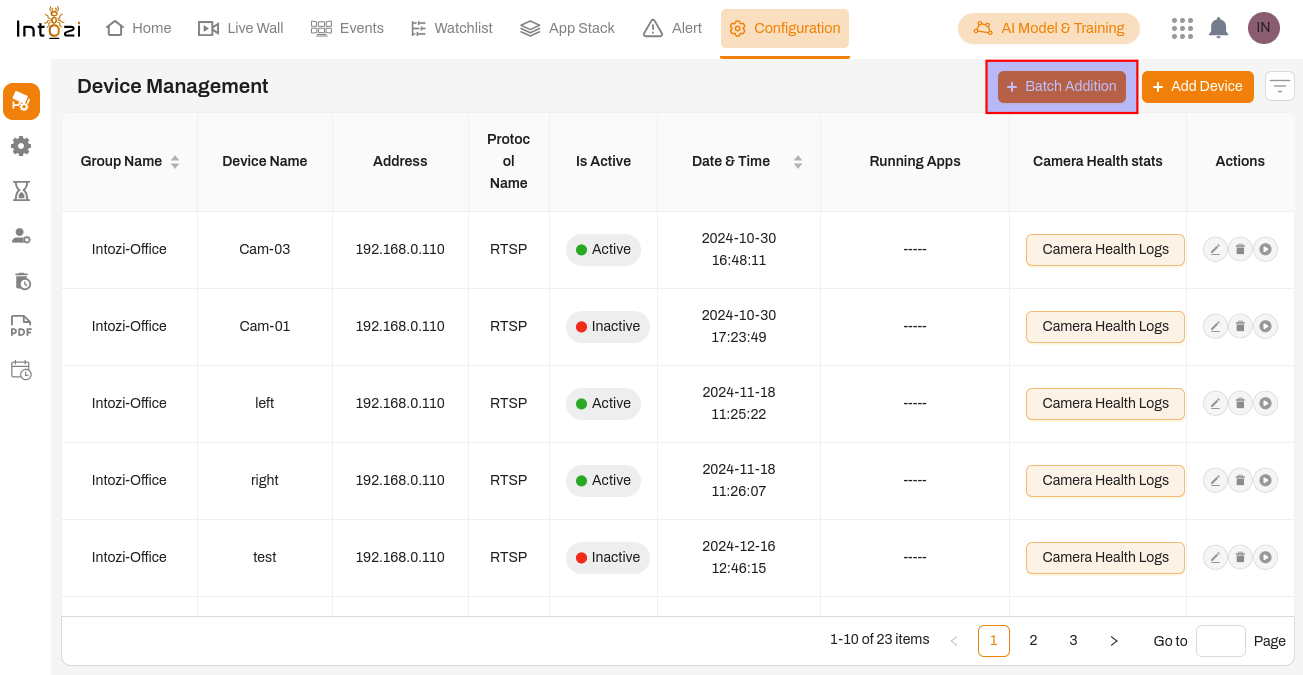 The Batch Addition feature in the Device Management module allows users to add multiple devices simultaneously, ensuring efficiency and ease of configuration. This feature is particularly useful when integrating multiple cameras or servers into the system.
Accessing the Batch Addition Feature
- Navigate to the Configuration tab in the application.
- Click on the Batch Addition button at the top-right corner.
- A form will appear, allowing you to enter multiple device details at once.
Configuring Devices
When adding devices, users need to provide specific details based on the selected protocol.
1. ONVIF Cameras
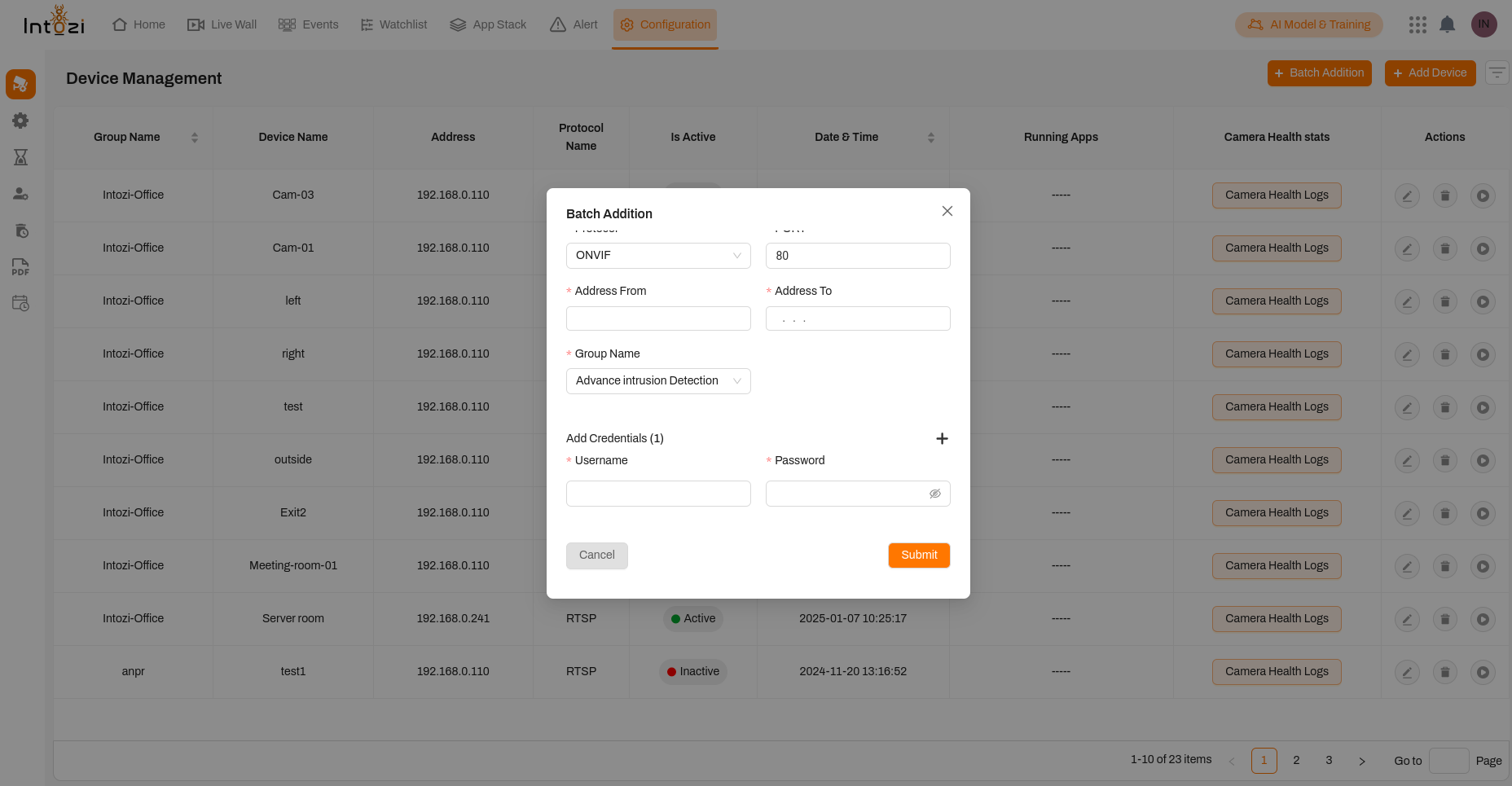
ONVIF is a standard protocol used for IP cameras, allowing seamless integration into the system.
- Protocol: Select ONVIF from the dropdown.
- Port: Default is
80, but it can be changed if required. - Address Range: Specify the starting (Address From) and ending (Address To) IP addresses for batch addition.
- Group Name: Select the appropriate group for device categorization.
- Credentials: Enter the username and password for the ONVIF camera.
🔹 Example: Adding multiple ONVIF cameras from IP range 192.168.0.100 - 192.168.0.110 in the Advance Intrusion Detection group.
2. Milestone Video Management System (VMS)
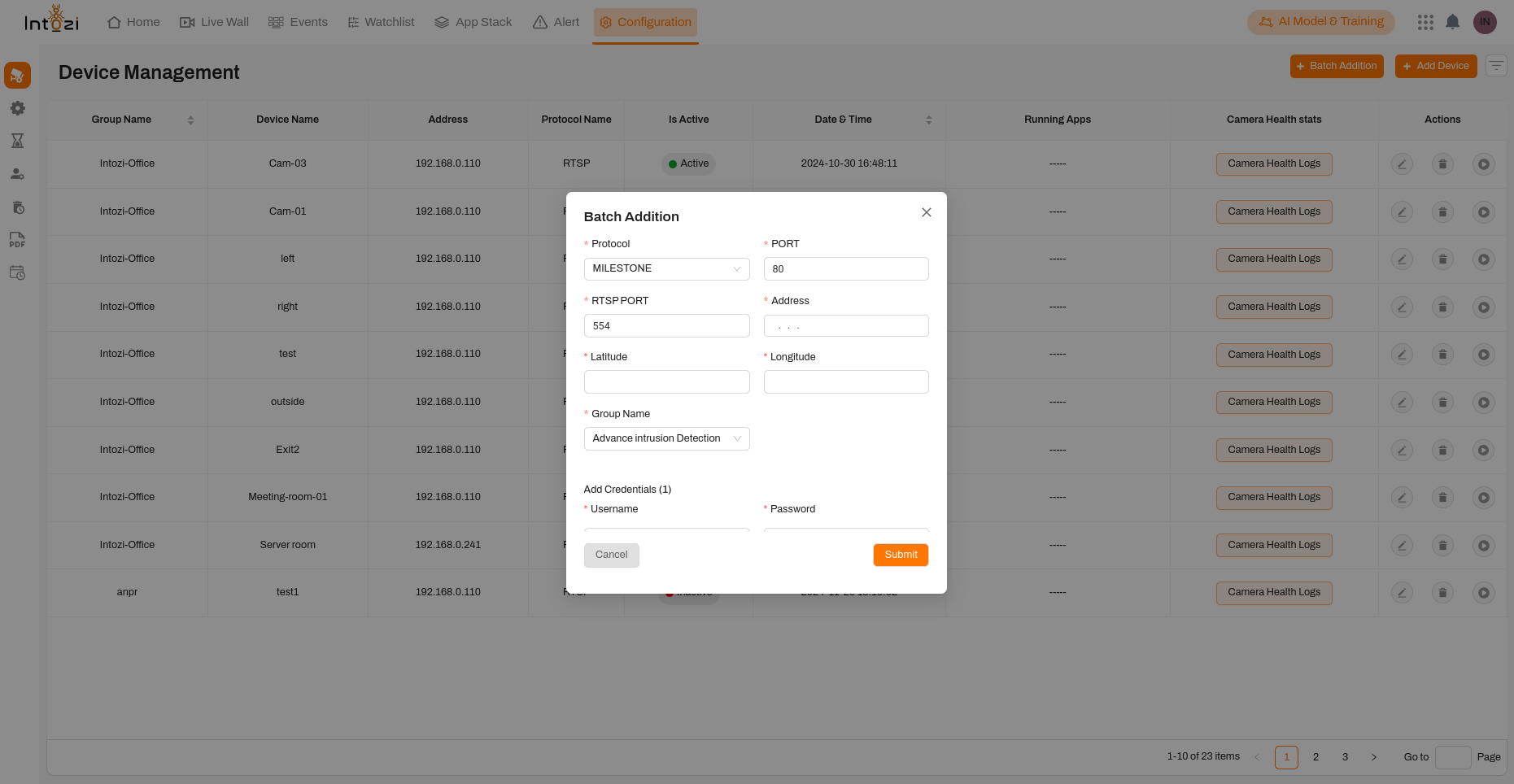
Milestone VMS allows centralized management of video streams.
- Protocol: Select MILESTONE from the dropdown.
- Port: Default is
80. - RTSP Port: Default is
554, used for video streaming. - Address: Enter the IP address of the Milestone VMS server.
- Latitude & Longitude: (Optional) Used for location-based identification.
- Group Name: Assign devices to a relevant group.
- Credentials: Use the Milestone user credentials.
🔹 Example: Adding a Milestone server at 192.168.0.200 under the Advance Intrusion Detection group.
3. Luxriot Video Management System (VMS)
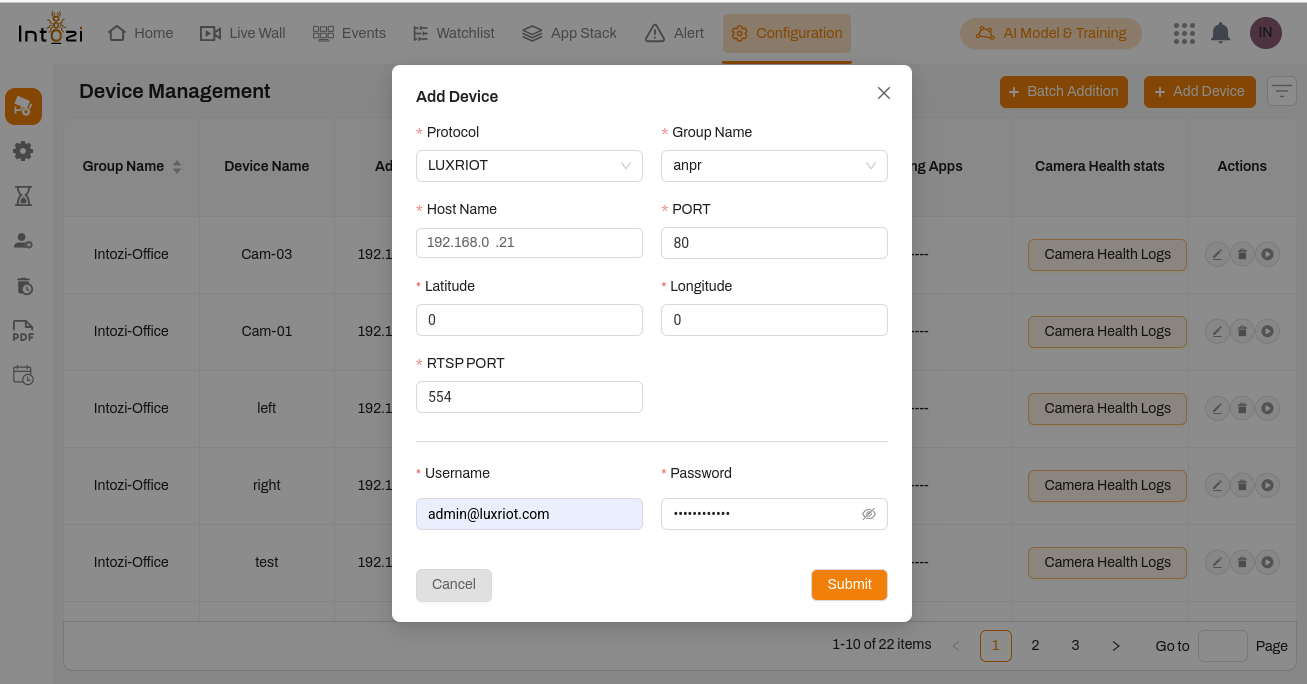
Luxriot is another VMS used for video recording and management.
- Protocol: Select LUXRIOT from the dropdown.
- Host Name: Enter the Luxriot server IP (e.g.,
192.168.0.21). - Port: Default is
80. - RTSP Port: Default is
554. - Latitude & Longitude: (Optional) Used for location tracking.
- Group Name: Assign to the appropriate category.
- Credentials: Enter the Luxriot admin credentials (e.g.,
admin@luxriot.com).
🔹 Example: Adding a Luxriot server at 192.168.0.21 with admin credentials.
Finalizing the Batch Addition
- Fill in the required details for all devices.
- Click Submit to complete the batch addition process.
- The system will validate and add the devices.