Consumer/API Integration Guide
Overview
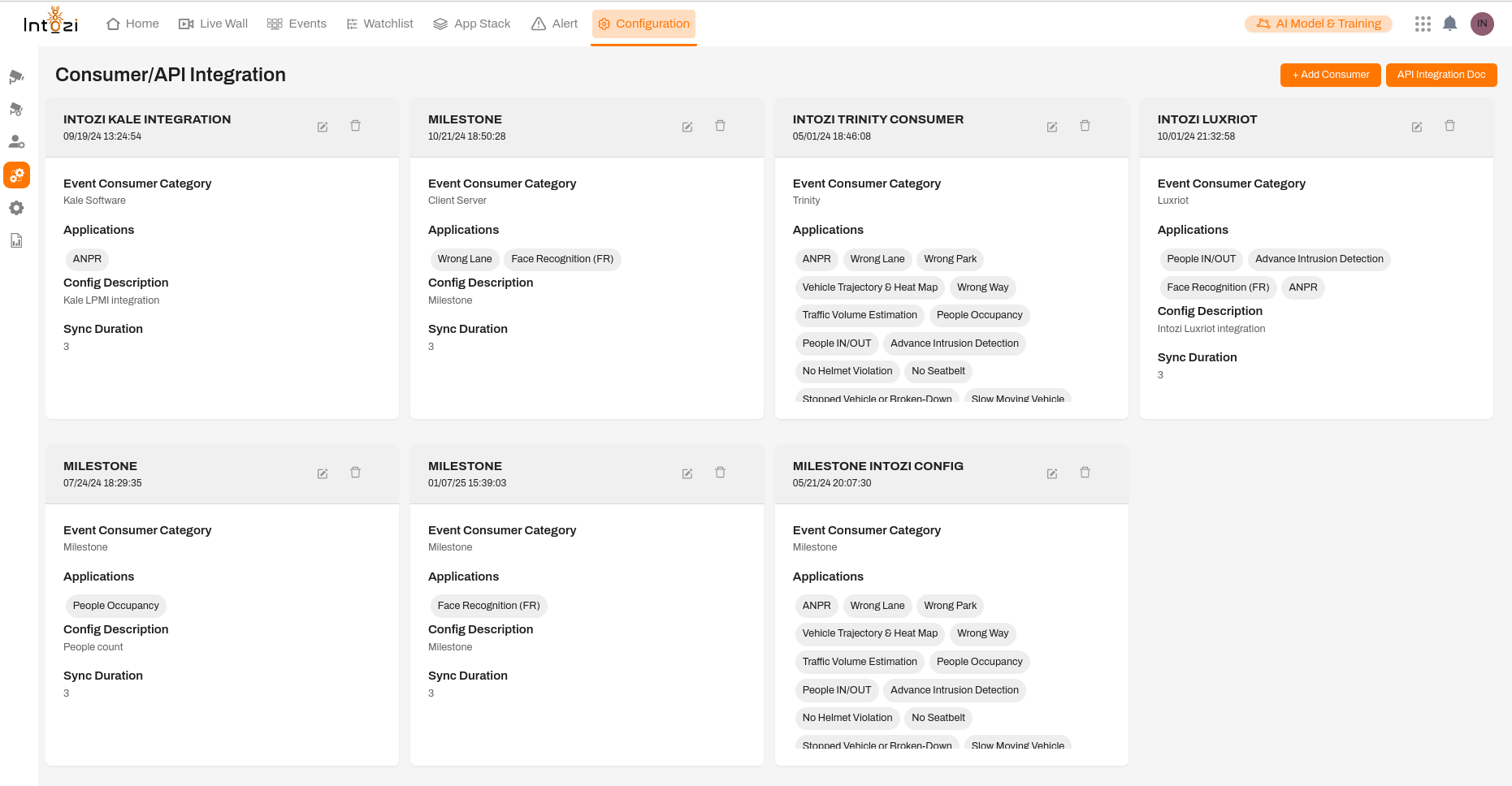
The Consumer/API Integration page provides a user-friendly interface for configuring and managing integrations between third-party VMS (Video Management Software) platforms and the system’s API. Users can view, add, and manage integrations seamlessly.
Features
- View and manage existing consumer integrations.
- Add new consumer integrations with detailed configurations.
- Access API integration documentation for seamless setup.
- Generate API documentation in PDF format.
Navigation
To access the Consumer/API Integration page:
- Click on the Configuration tab in the top navigation bar.
- Select Consumer/API Integration from the configuration options.
Consumer Integration Layout
The page is structured into integration cards, each representing a configured consumer. Each card contains for example:
- Consumer Name: The name of the integrated software (e.g., INTOZI KALE INTEGRATION, INTOZI TRINITY CONSUMER).
- Timestamp: Date and time of the last update.
- Event Consumer Category: The type of integration (e.g., Milestone, Luxriot, Trinity, Kale Software).
- Applications: The specific applications enabled for this integration (e.g., ANPR, Face Recognition, Traffic Volume Estimation, People Occupancy, etc.).
- Config Description: A brief summary of the integration’s configuration.
- Sync Duration: The synchronization interval for data exchange.
- Edit & Delete Options: Buttons to modify or remove an integration.
Adding a New Consumer Integration
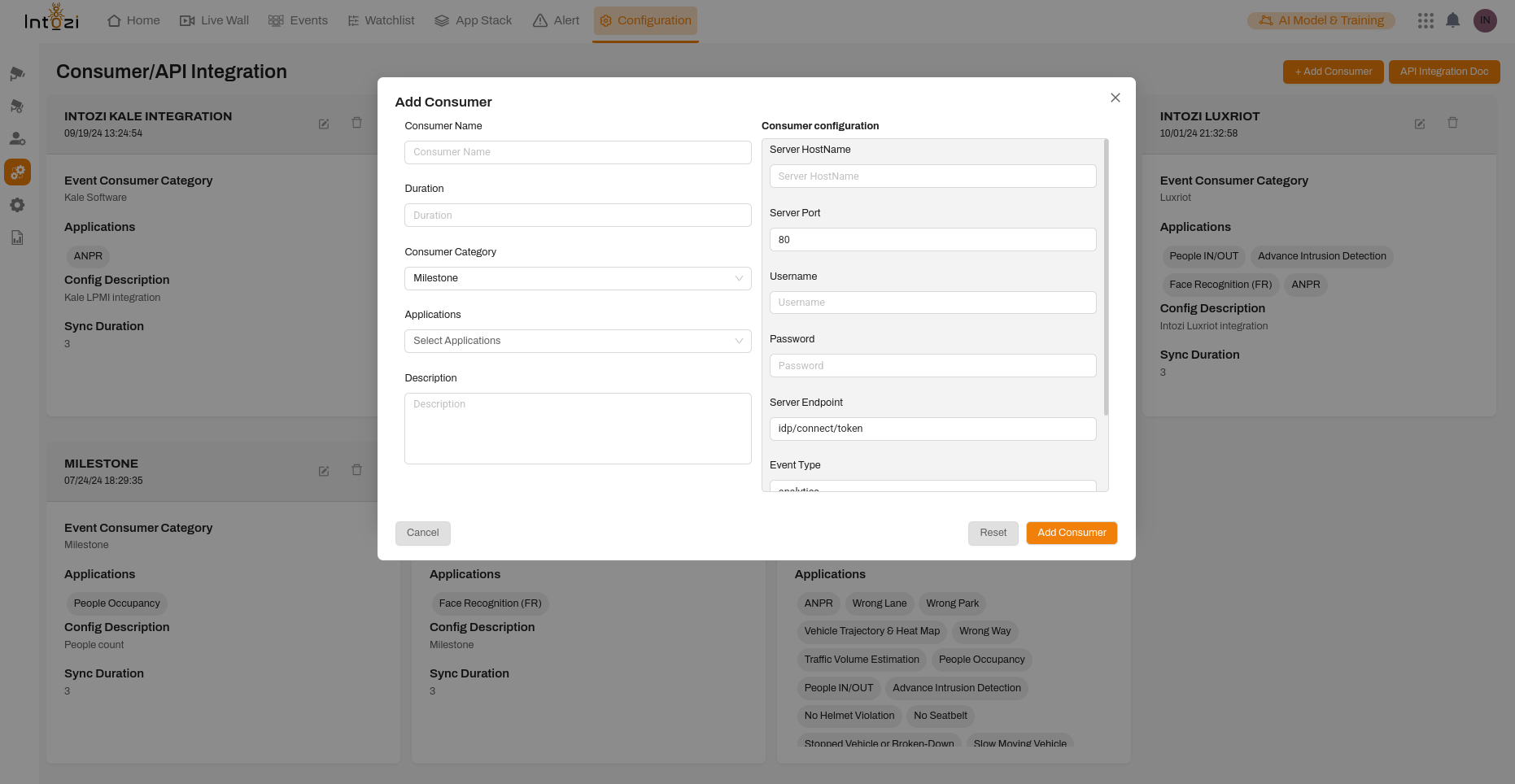
To add a new integration:
- Click on the + Add Consumer button at the top-right corner of the page.
- A popup form will appear with the following fields:
- Consumer Name: Enter the name of the consumer.
- Duration: Define the sync duration.
- Consumer Category: Select the category (e.g., Milestone, Trinity, Luxriot).
- Applications: Choose relevant applications from the list.
- Description: Provide a brief description of the integration.
- Server Hostname: Enter the hostname for API communication.
- Server Port: Define the port (default: 80).
- Username & Password: Input authentication credentials.
- Server Endpoint: Specify the API endpoint.
- Event Type: Select the event type.
- Click Add Consumer to save the integration.
Accessing API Integration Documentation
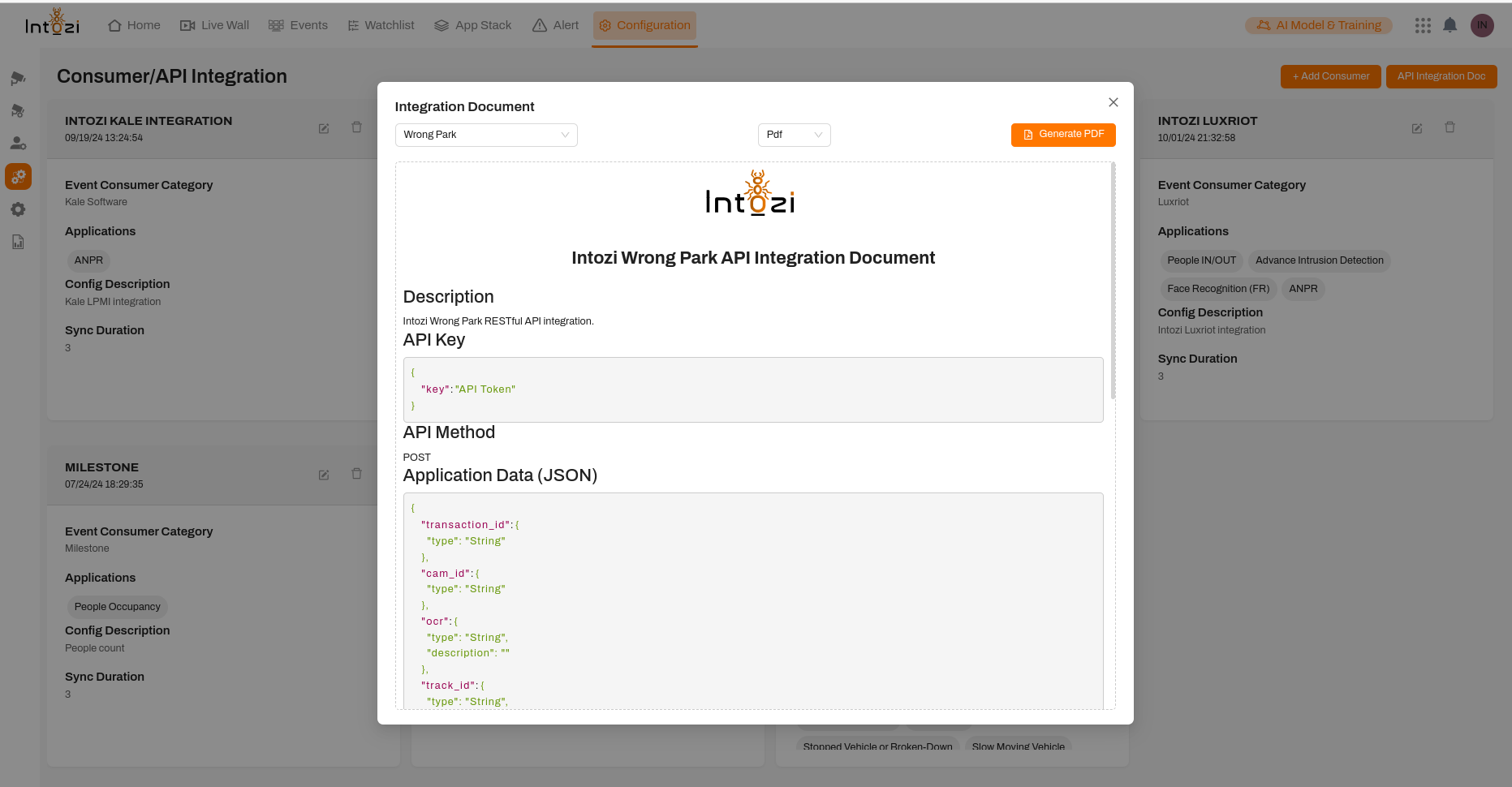
To access the API integration guide:
- Click on the API Integration Doc button at the top-right corner.
- A popup will appear displaying the API documentation, including:
- Description: Overview of the API integration.
- API Key: Authentication key required for API access.
- API Method: HTTP method (e.g., POST).
- Application Data (JSON): Example request payload for API integration.
- Click Generate PDF to download the documentation.
Managing Existing Integrations
- Editing an Integration: Click the edit (pencil) icon on the respective consumer card to modify details.
- Deleting an Integration: Click the delete (trash) icon to remove an integration permanently.
This guide ensures a structured and professional approach to managing API integrations efficiently. The addition of consumer integrations and access to API documentation is streamlined for better user experience.