User Guide - Live Event Monitoring
Overview
The Live Event Monitoring section allows users to track real-time events with visual evidence. This feature is especially useful for security, surveillance, and operational monitoring.
1. Live Event Dashboard Overview
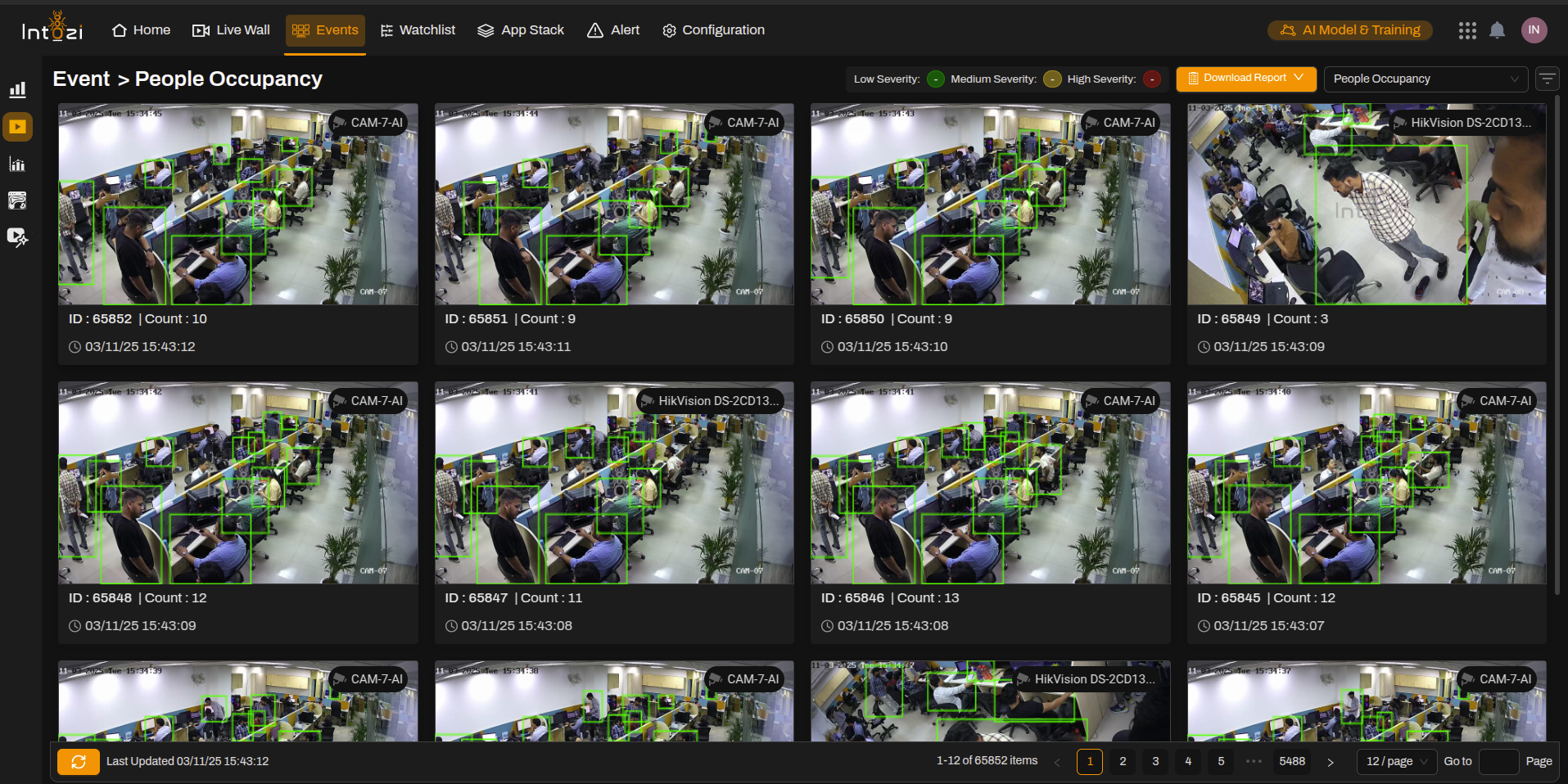
When users access the Live Events section, they can:
- View real-time event footage captured by AI-powered cameras.
- See event IDs and timestamps for better tracking.
- Detect people occupancy trends using AI-based detection (green bounding boxes).
- Access multiple camera feeds simultaneously.
The GIF demonstrates how the system updates in real-time, ensuring accurate and continuous monitoring.
2. Understanding the Live Event Panel
Each event is displayed in a grid format, with key information:
- Camera Name (e.g., CAM-7-AI, HikVision DS-2CD...)
- Event ID (Unique identifier for each recorded event)
- People Count (Number of detected individuals)
- Timestamp (Exact date and time of event capture)
This enables users to quickly assess occupancy, detect anomalies, and ensure security compliance.
The new filtering feature allows users to quickly locate specific events, improving security monitoring and compliance tracking.
3. How to Use the Filtering Functionality
The filtering function enhances search efficiency by allowing users to refine event data.
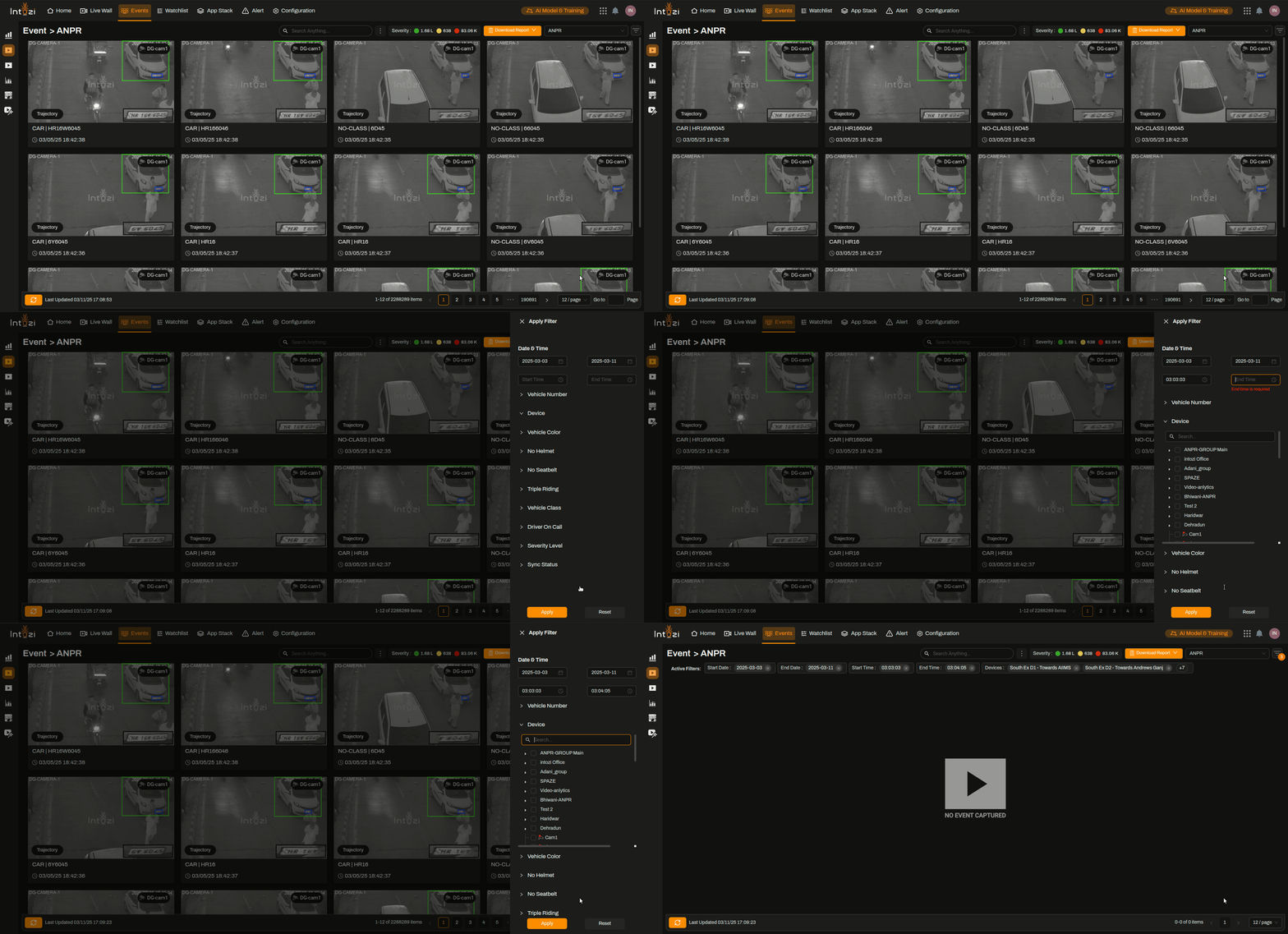
Step-by-Step Filtering Process:
-
Locate the Search Bar:
- At the top-right corner, find the search bar labeled "Search Anything...".
-
Apply Filters Based on Event Type:
- Use the dropdown beside the search bar to select event categories such as ANPR, People Occupancy, or Specific Vehicle Types.
-
Filter Based on Severity:
- Select Low (🟢), Medium (🟠), or High (🔴) Severity Levels to focus on priority cases.
-
Sort Data by Time & Date Range:
- Retrieve events based on specific timestamps for historical data analysis.
-
Pagination Control for Large Data Sets:
- Navigate through millions of records (e.g., 2.2M+ ANPR events) using pagination at the bottom of the dashboard.
4. Navigating Between Events
- Pagination Controls (Users can navigate across thousands of event logs)
- Sorting & Filtering Options (E.g., Filter by People Occupancy to focus on crowd density)
- Camera Selection (Monitor specific areas by choosing different cameras)
This ensures seamless navigation and focused monitoring.
5. Downloading Event Reports
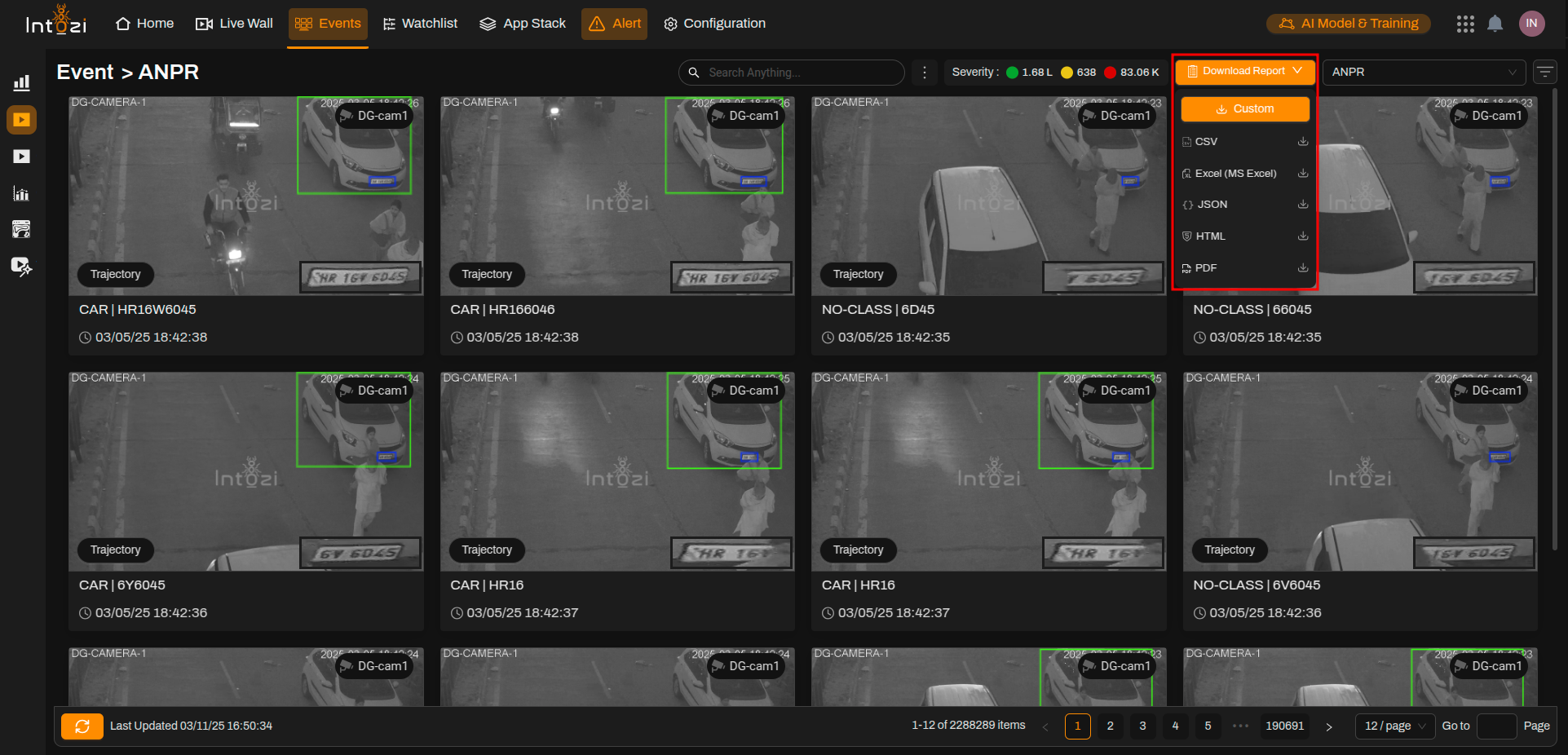
Users can export event data for analysis and record-keeping:
- Click on "Download Report" (Orange button at the top).
- Select a format (CSV, PDF, or Excel).
- Choose a date range and event type (e.g., People Occupancy).
- Download the report for auditing or security purposes.
This feature is crucial for compliance tracking, security audits, and business intelligence.
6. Auto-Refresh & Last Updated Timestamp
- The dashboard automatically refreshes to show the latest events.
- The "Last Updated" timestamp at the bottom confirms when data was last refreshed.
- This ensures users always see the most recent event logs.
Conclusion
The Live Event Monitoring system provides a comprehensive, real-time surveillance solution. By utilizing:
✅ AI-based detection
✅ Live tracking & historical event logs
✅ Severity-based prioritization
✅ Easy navigation & report downloads
Users can ensure better security, operational efficiency, and data-driven decision-making.
For additional guidance, refer to the application’s help section or contact support.