User Guide: Counting Analytics Dashboard
Introduction
Welcome to the Counting Analytics Dashboard user guide. This document provides a comprehensive overview of the dashboard’s functionalities, helping users efficiently analyze counting data, monitor trends, and assess key metrics.
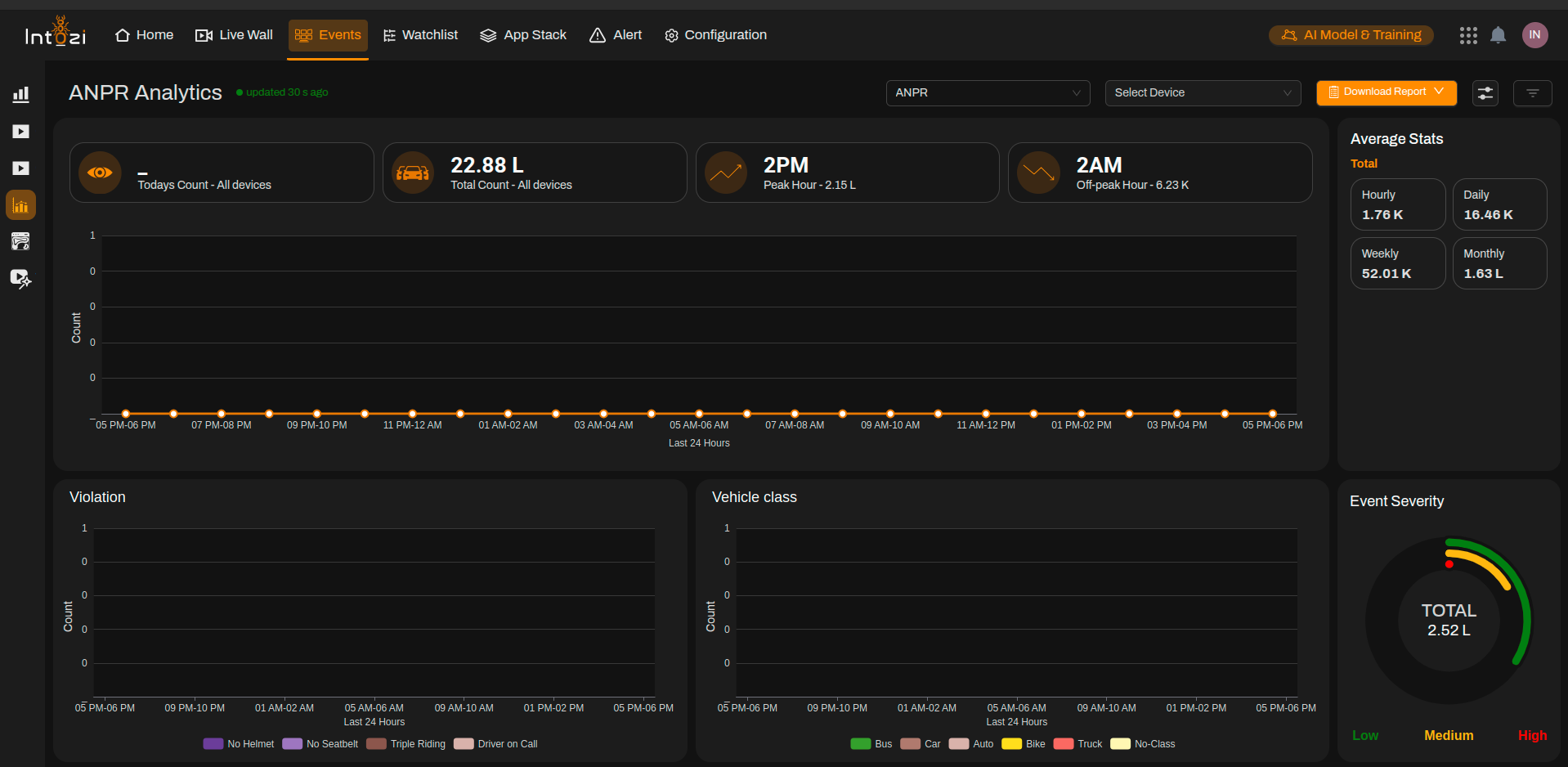
Dashboard Overview
The Counting Analytics Dashboard consists of multiple sections designed to provide clear insights into counting data and event trends. Below is a detailed breakdown of each component:
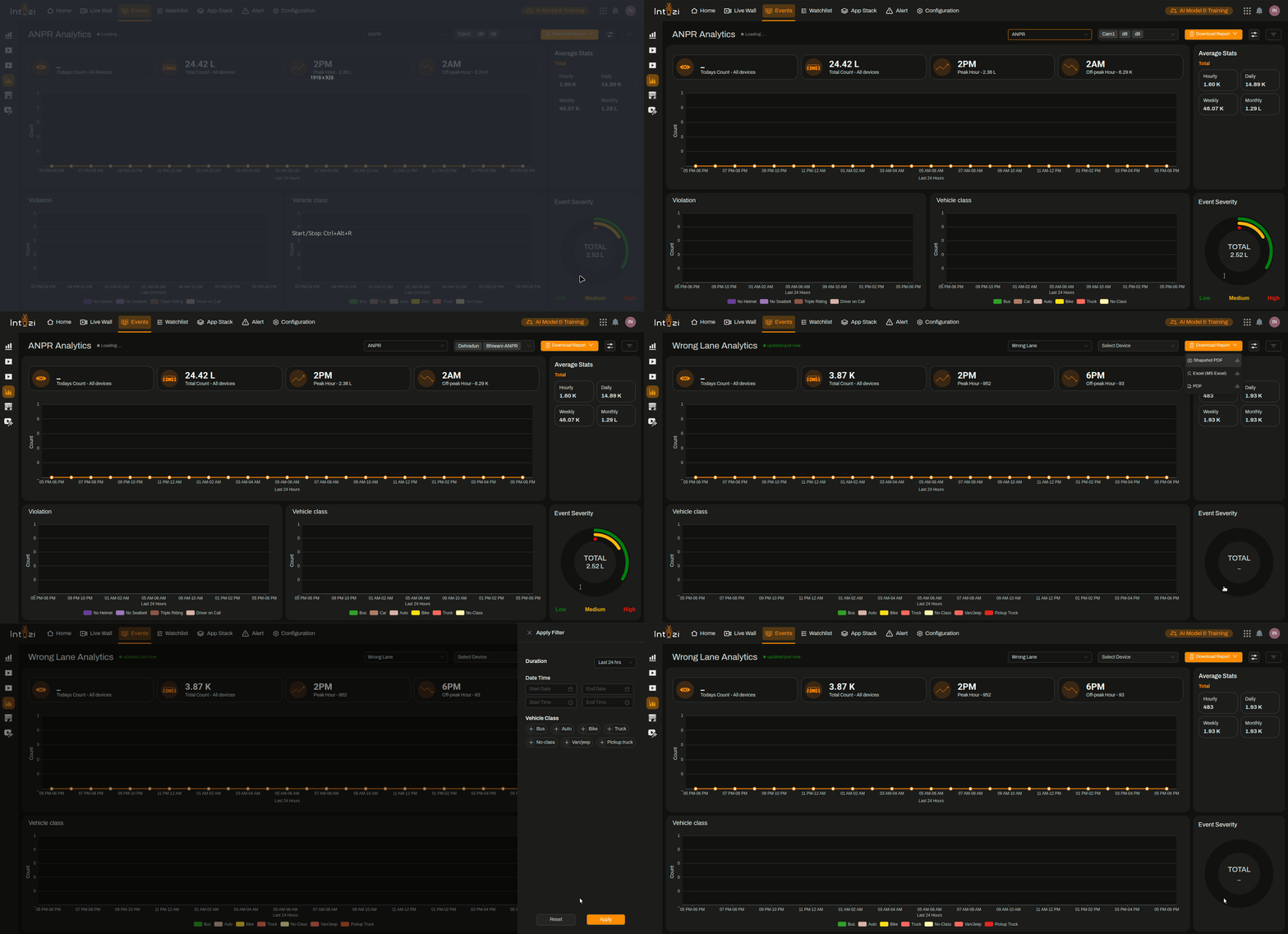
1. Navigation Bar
The navigation bar at the top of the dashboard provides quick access to various features:
- Home – Redirects to the main dashboard.
- Live Wall – Provides real-time monitoring of counting data.
- Events – Displays a historical log of all counted events.
- Watchlist – Lists flagged data points for focused monitoring.
- App Stack – Access additional applications integrated within the system.
- Alert – View critical notifications and alerts.
- Configuration – Modify system settings and user preferences.
- AI Model & Training – Manage and train AI-based counting models.
2. Counting Analytics Overview
This section presents key insights into counting trends and data visualization:
- Today's Count – Displays the total count for the current day.
- Total Count – The cumulative count from all counting devices.
- Peak Hour – Identifies the hour with the highest counting activity.
- Off-Peak Hour – Highlights the hour with the lowest recorded activity.
3. Data Visualization & Trends
To enhance data interpretation, the dashboard offers visual analytics:
- Count Over Time – A line graph showing detections over the last 24 hours.
- Category Breakdown – A categorized display of detected data points, including:
- Different categories based on configured parameters.
- Detailed visualization for easy analysis.
- Classification Overview – Displays different categories of counted items:
- Group A
- Group B
- Group C
- Uncategorized
4. Event Severity Indicator
A visual gauge categorizes events based on severity levels:
- Low (Green) – Minimal variations or concerns.
- Medium (Yellow) – Moderate fluctuations detected.
- High (Red) – High severity requiring immediate attention.
5. Statistical Summaries
The Average Stats panel provides a numerical summary of counting trends:
- Hourly Count – Number of items recorded per hour.
- Daily Count – Total counts for the day.
- Weekly Count – Aggregated count over the past seven days.
- Monthly Count – Overall detection statistics for the month.
6. Controls & Filters
The dashboard includes interactive filters for customized data analysis:
- Device Selection – Choose specific counting devices for focused monitoring.
- Event Selection – Filter specific counting events.
- Report Download – Export analytical reports in preferred formats.
How to Use the Dashboard
- Navigate through different tabs using the navigation bar.
- Analyze key metrics in the Counting Analytics Overview.
- Review graphical data for insights into trends and patterns.
- Use filters to refine displayed information based on specific needs.
- Download reports for documentation and further evaluation.
Conclusion
The Counting Analytics Dashboard is a powerful tool designed to provide real-time insights into counting activity, detect trends, and analyze variations. By utilizing the available features, users can improve monitoring efficiency and make data-driven decisions with ease.
For further assistance, please refer to the help section or contact support.