User Management - IKSHANA
The User Management module in IKSHANA is designed to control and manage user access across the system. Administrators can assign different levels of permissions to users, ensuring they have access only to the features relevant to their roles.
1. Purpose of User Management
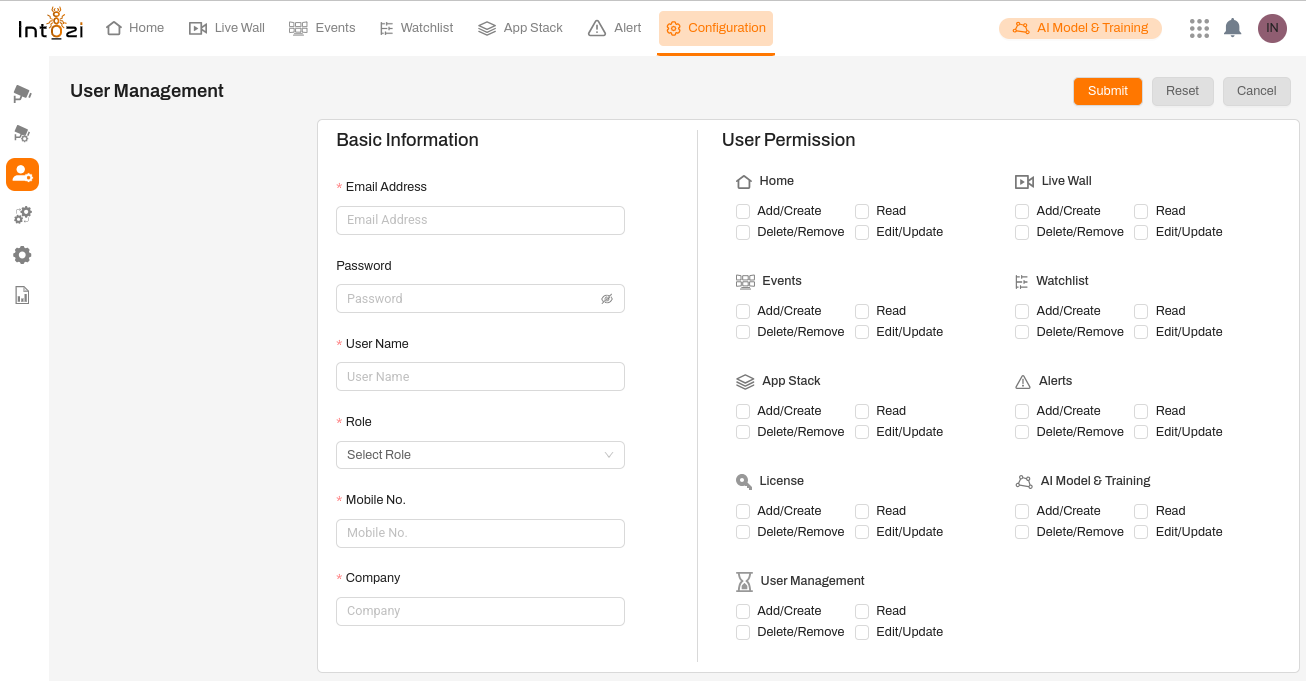
The User Management module allows administrators to:
✅ Create and manage user accounts.
✅ Define user roles and permissions.
✅ Control access to different sections of the system.
✅ Ensure data security by restricting unauthorized access.
2. Components of User Management
Basic Information
This section is used to add or modify user details. The key fields include:
- Email Address – User’s login email.
- Password – Secure login password.
- User Name – Full name of the user.
- Role – Defines the level of access (e.g., Admin, Viewer, Operator).
- Mobile No. – User’s contact number.
- Company – Organization the user belongs to.
Note: The administrator must fill in all required fields before granting access.
3. User Permissions
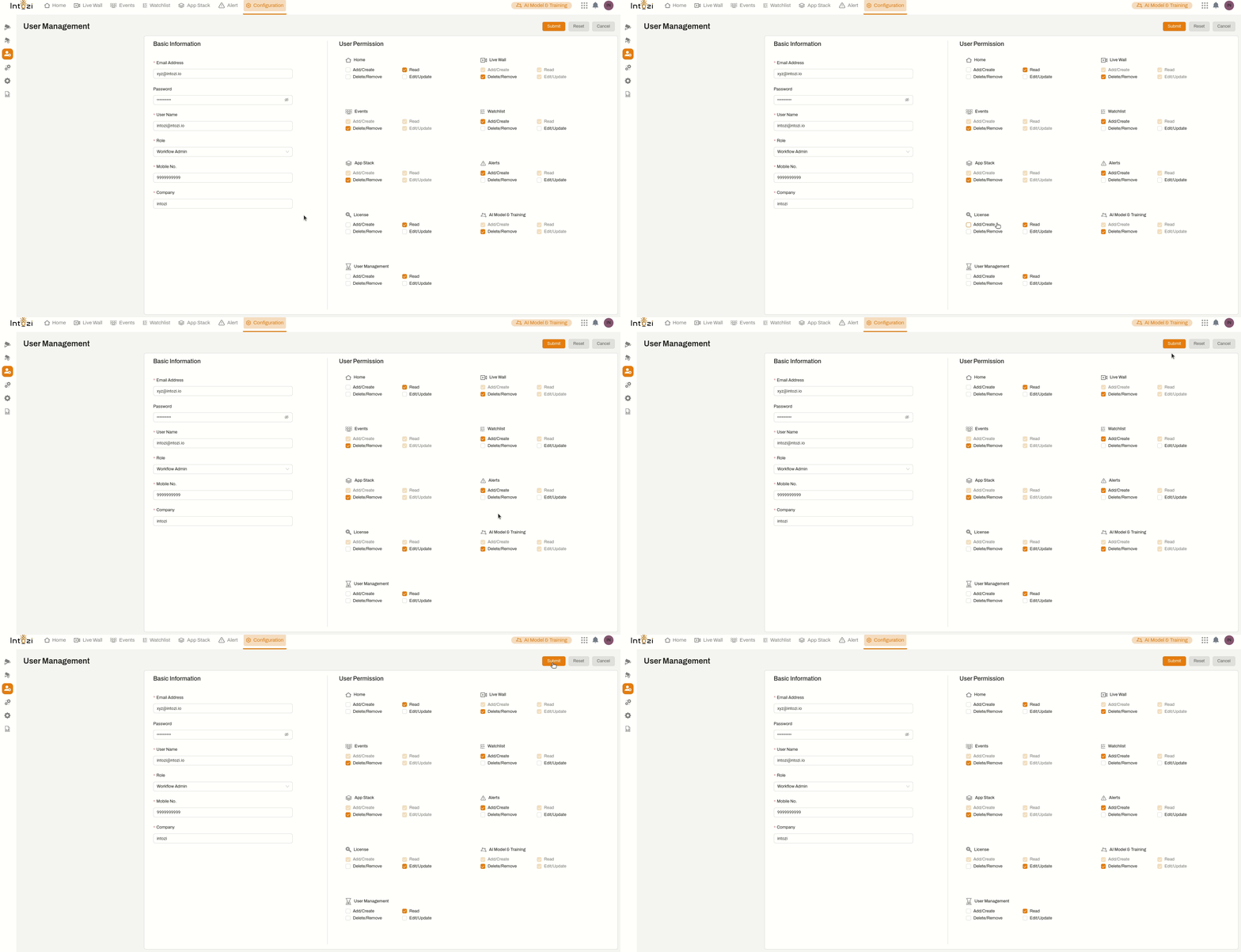
This section allows the administrator to grant specific access to users. Each feature has four types of permissions:
✔ Add/Create – Allows the user to create new data.
✔ Read – Grants viewing access.
✔ Delete/Remove – Enables data deletion.
✔ Edit/Update – Allows modification of existing data.
4. Available Sections for Permission Control:
- Home – Access to the home dashboard.
- Live Wall – Access to live monitoring.
- Events – Control over event creation and management.
- Watchlist – Permission to manage watchlists.
- App Stack – Access to manage installed applications.
- Alerts – Control over system notifications and alerts.
- License – Manage system licenses.
- AI Model & Training – Access to AI training modules.
- User Management – Control over adding/editing/removing users.
Example Use Case: A user with "Read" permission for Live Wall can view live monitoring but cannot edit or delete anything.
5. OTP Verification Process
Once the administrator fills in the user details and assigns permissions, they must follow an additional security step:
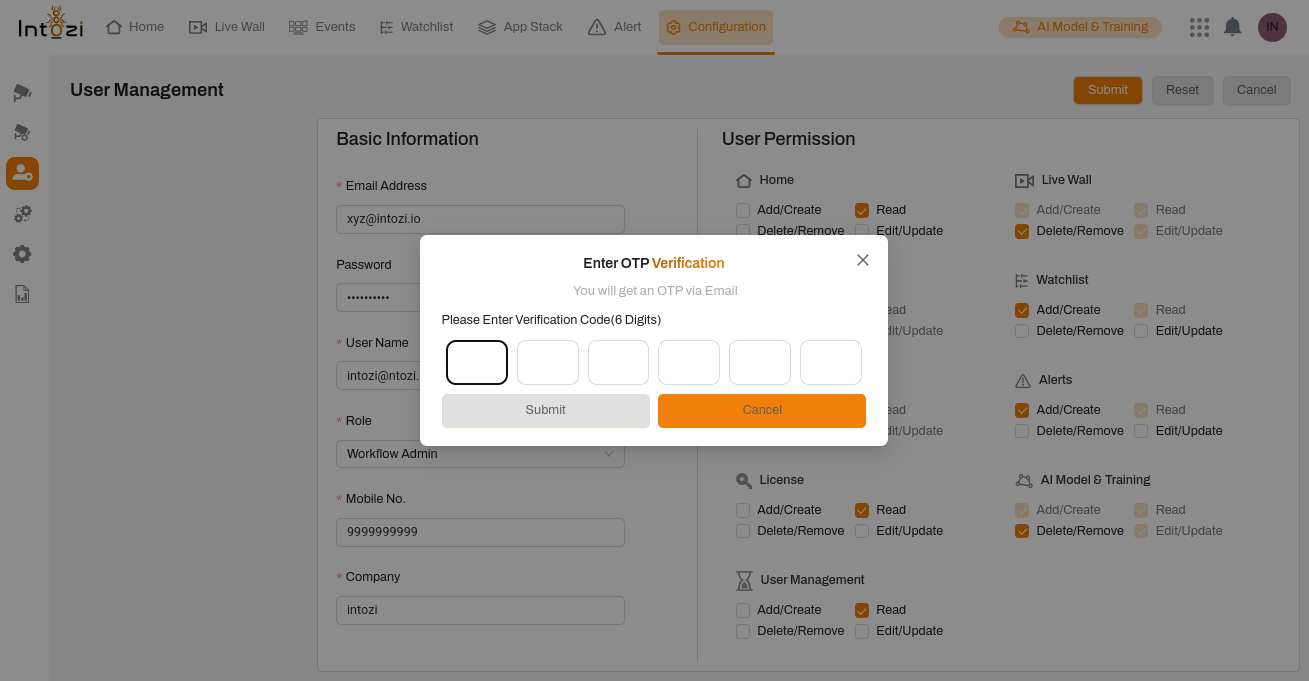
✅ Step 1: Click the Submit button after entering the details.
✅ Step 2: The system will generate a One-Time Password (OTP) and send it to the user's registered email.
✅ Step 3: The administrator must enter the OTP in the provided field.
✅ Step 4: After successful OTP verification, the user will be added with the assigned permissions.
Note: If the OTP is incorrect or expires, the process must be repeated.
Actions Available
At the top-right corner, administrators can perform the following actions:
- 🔸 Submit – Save user details and assigned permissions after OTP verification.
- 🔸 Reset – Clear all entered information.
- 🔸 Cancel – Discard changes and exit the page.
6. How User Management Works
1️ The administrator adds a new user and fills in basic details.
2️ The administrator assigns the necessary permissions based on the user's role.
3️ The administrator submits the form, and the system sends an OTP to the user’s email.
4️ The administrator enters the OTP for verification.
5️ After OTP verification, the user is successfully created with the assigned permissions.
6️ If required, the administrator can later update or revoke permissions.
7. Best Practices for Managing Users
✅ Assign only the necessary permissions to users.
✅ Regularly review and update access levels.
✅ Ensure sensitive data is accessible only to authorized users.
✅ Revoke access immediately when an employee leaves the organization.
✅ Verify the user’s email and OTP to ensure security before finalizing user creation.
This guide ensures that user accounts and permissions in IKSHANA are managed efficiently and securely. 🚀