Vehicle Incident Detection System (VIDS)
Vehicle Incident Detection System (VIDS) is used to detect and monitor traffic-related incidents such as slow-moving vehicles, stopped vehicles, accidents, and wrong-way vehicle movement. This guide walks through opening the VIDS application in App Stack, configuring devices and ROIs, and setting Meta Parameters for a typical deployment.
1. Finding the VIDS Application in App Stack
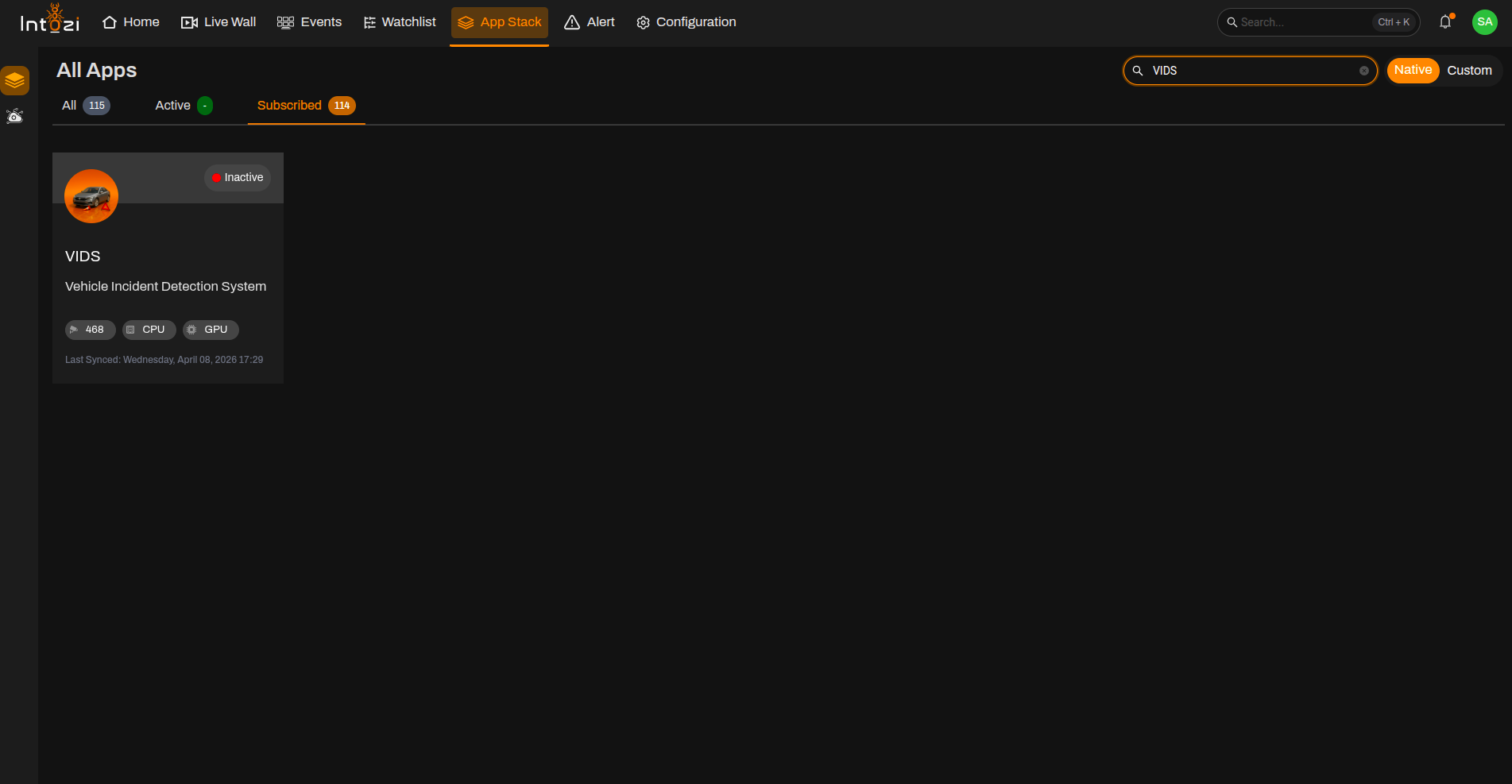
- Open App Stack on the platform.
- Use the search bar (usually at the top right of the dashboard).
- Enter VIDS.
- In the results, click once on the application to open it.
2. Device Configuration
After the application opens, you are taken to the Device Configuration page.
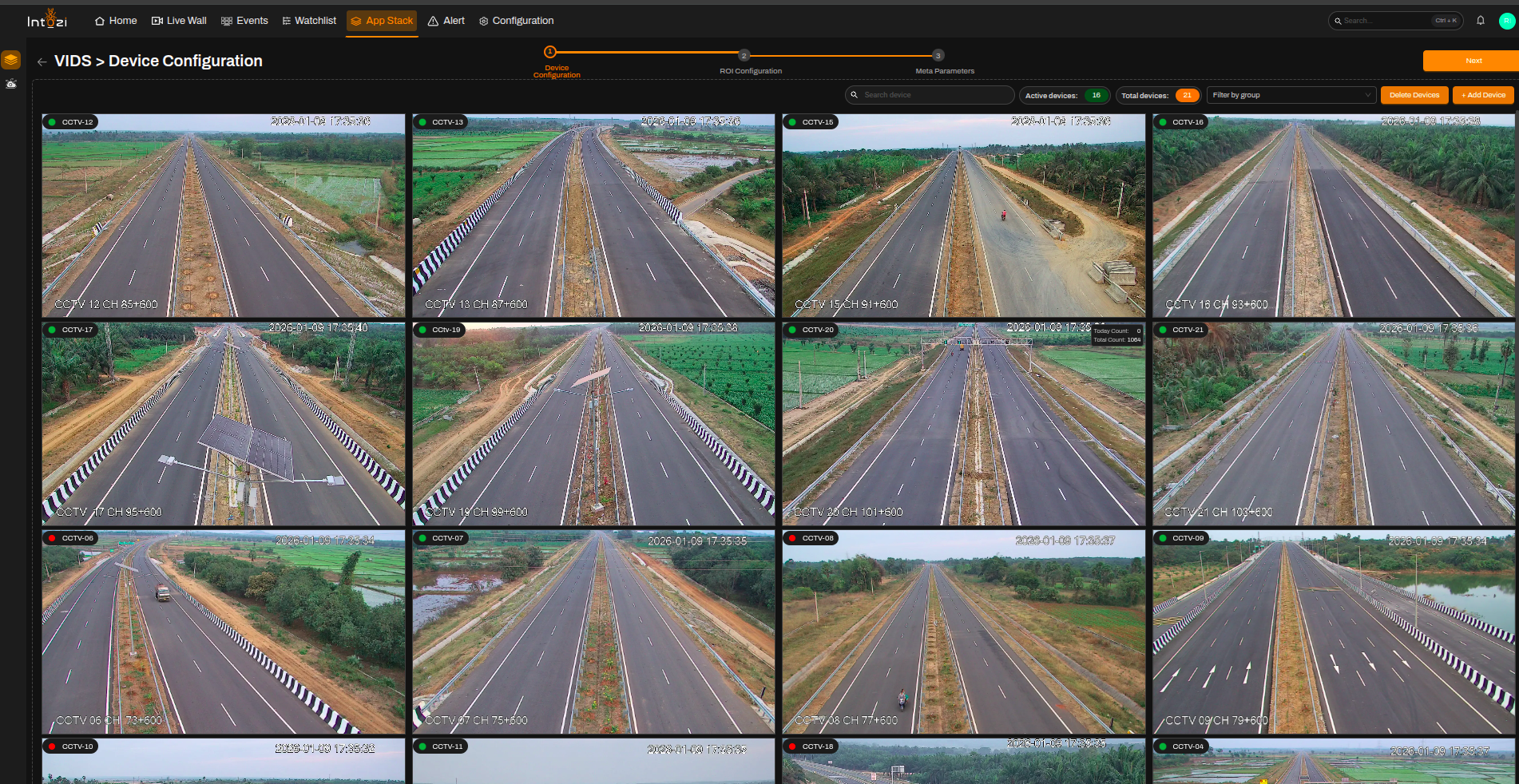
- On the right side of the page, use the option to add devices and connect the cameras you need.
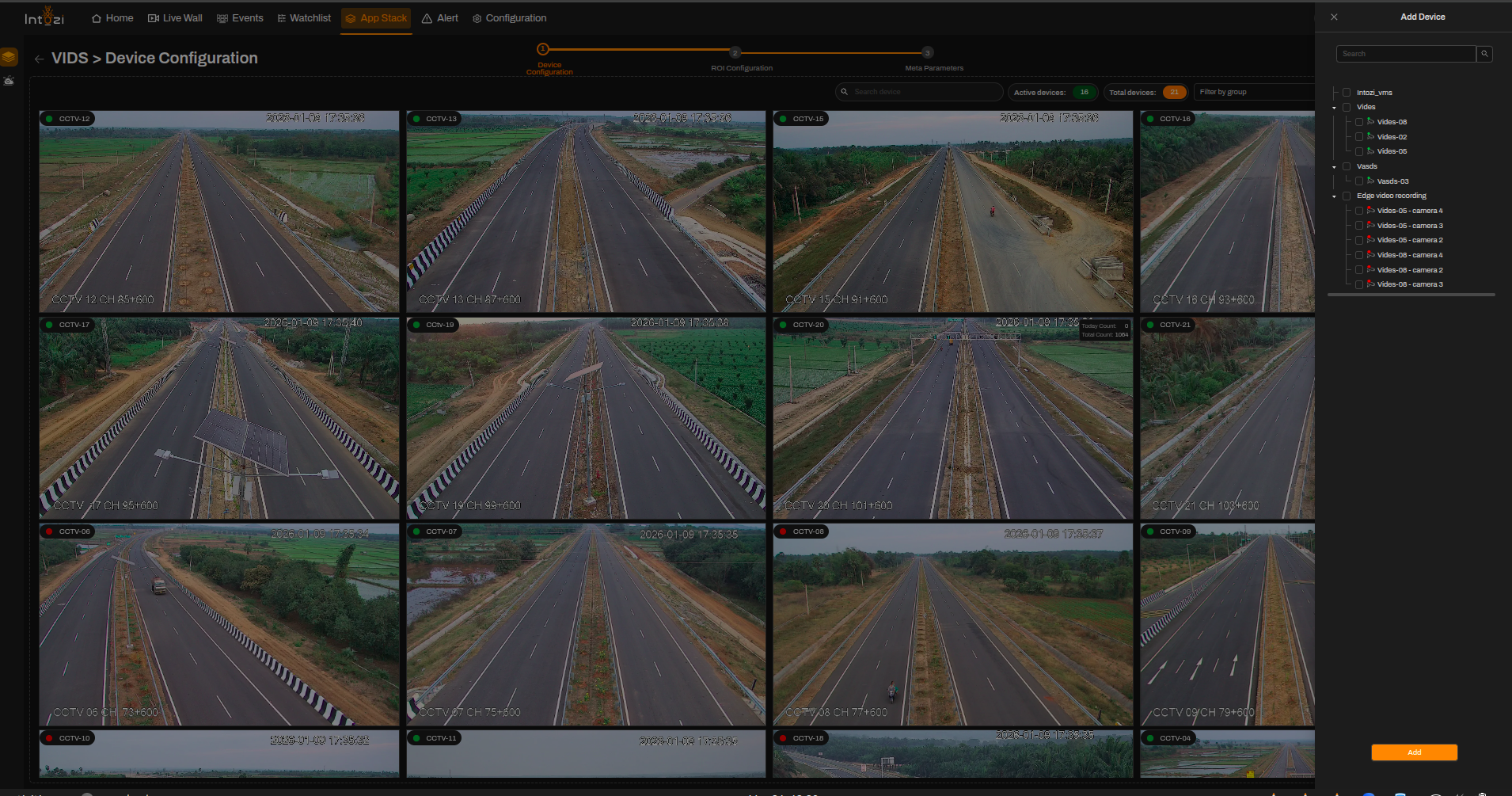
- When finished, continue to the next step (ROI Configuration).
Ensure all required cameras are connected properly before proceeding to ROI configuration.
3. ROI (Region of Interest) Configuration
All devices added during the device configuration step appear here so you can draw ROIs on the correct feeds.
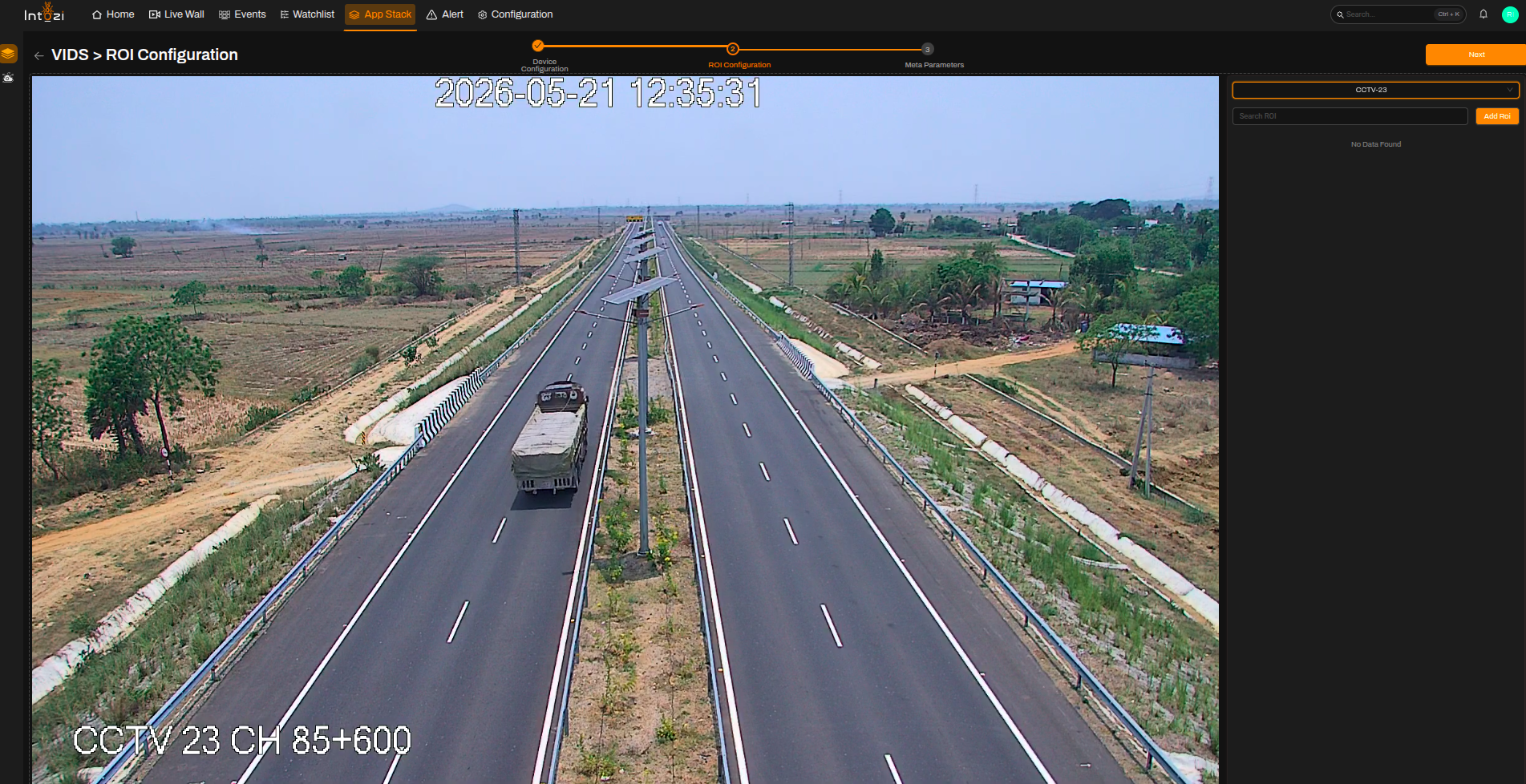
- Select the device you want to configure.
- Click Add ROI (top right of the ROI Configuration page).
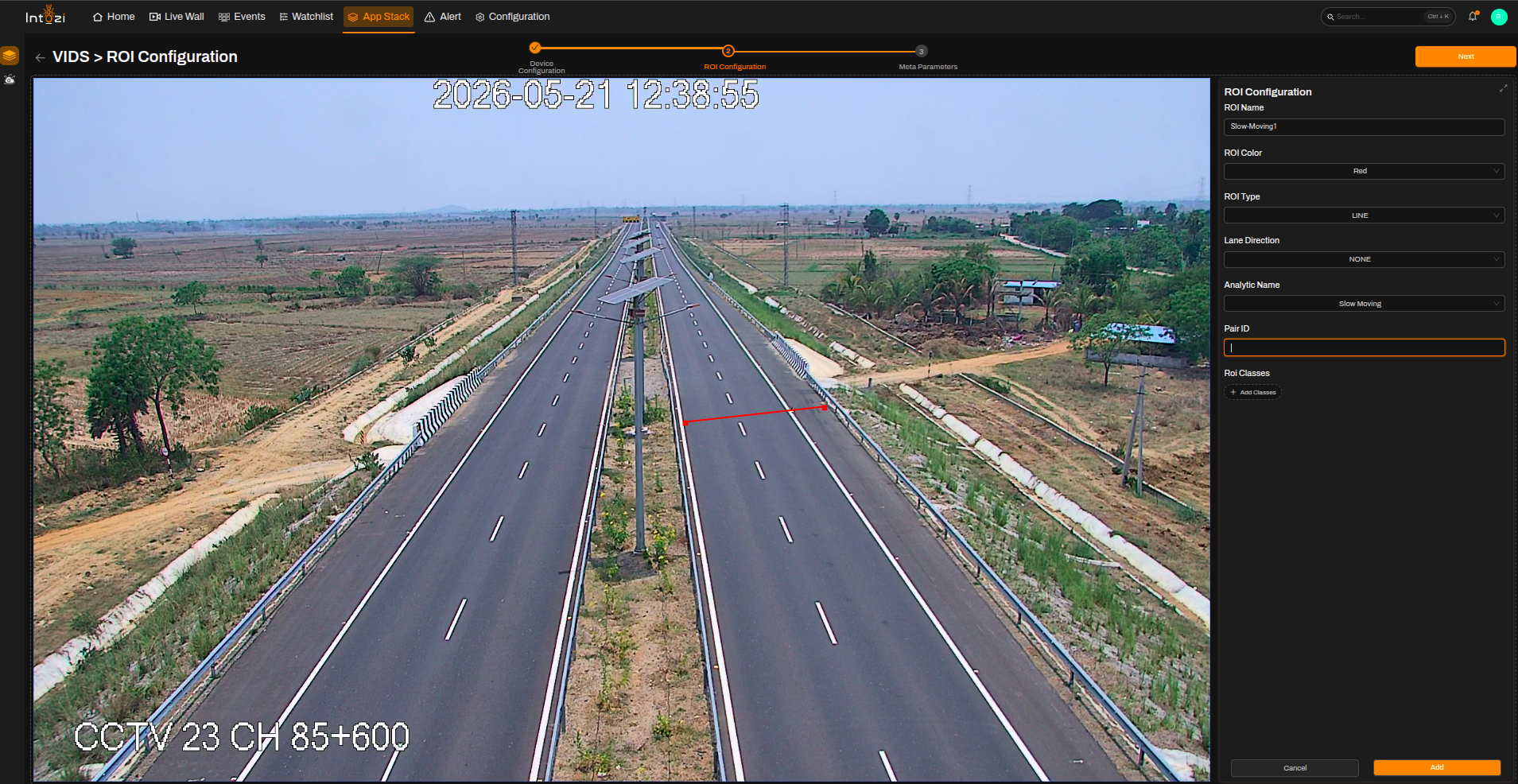
In VIDS, ROI types may vary depending on the selected analytics.
- ROI can be either Line or Junction type.
- Lane direction depends on the analytics use case.
- Pair ID is used in some analytics for linking ROIs of the same lane.
4. Analytics Configuration
VIDS supports multiple analytics within a single application.
4.1 Slow Moving
| Field | Guidance |
|---|---|
| ROI Name | Enter the name of the ROI. |
| ROI Color | Choose the color for the ROI. |
| ROI Type | Select Line. |
| Lane Direction | Set to None. |
| Analytics Name | Slow Moving |
| Pair ID | Can be empty |
| ROI Classes | Not required |
Slow Moving ROI Guidelines
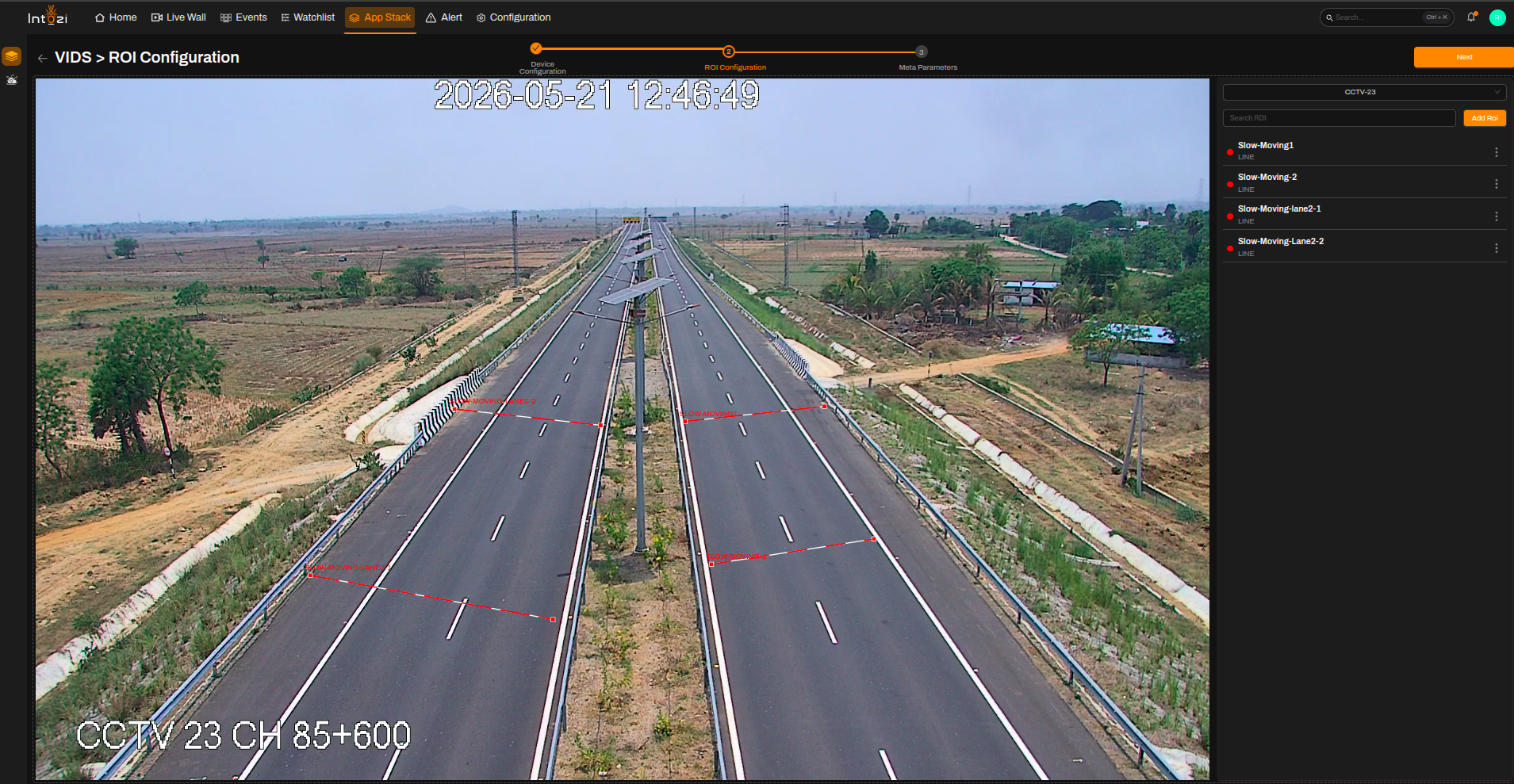
- Two ROI lines are drawn for the same lane.
- The first ROI is drawn where the vehicle first intersects in the traffic flow.
- The second ROI is drawn at some distance ahead in the same traffic flow.
- The distance between these two ROI lines is used in further configuration.
Example:
If there are 2 lanes visible in a camera, then 4 ROI lines will be drawn using the same configuration.
4.2 Stopped Vehicle
| Field | Guidance |
|---|---|
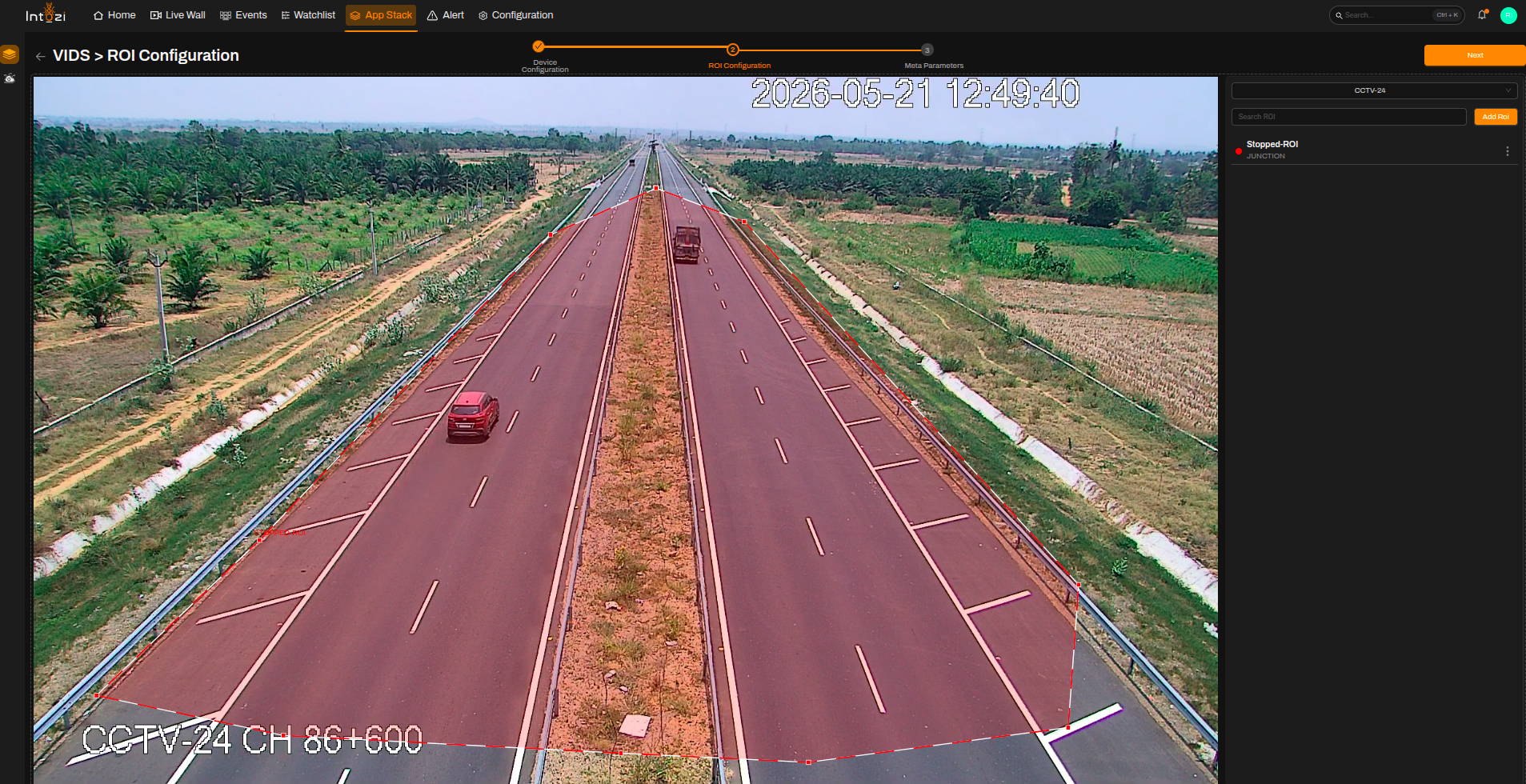
| ROI Name | Enter the name of the ROI. |
| ROI Color | Choose the color for the ROI. |
| ROI Type | Select Junction. |
| Lane Direction | Set to None. |
| Analytics Name | Stopped Vehicle |
| Pair ID | Can be empty |
| ROI Classes | Not required |
4.3 Accident Detection
| Field | Guidance |
|---|---|
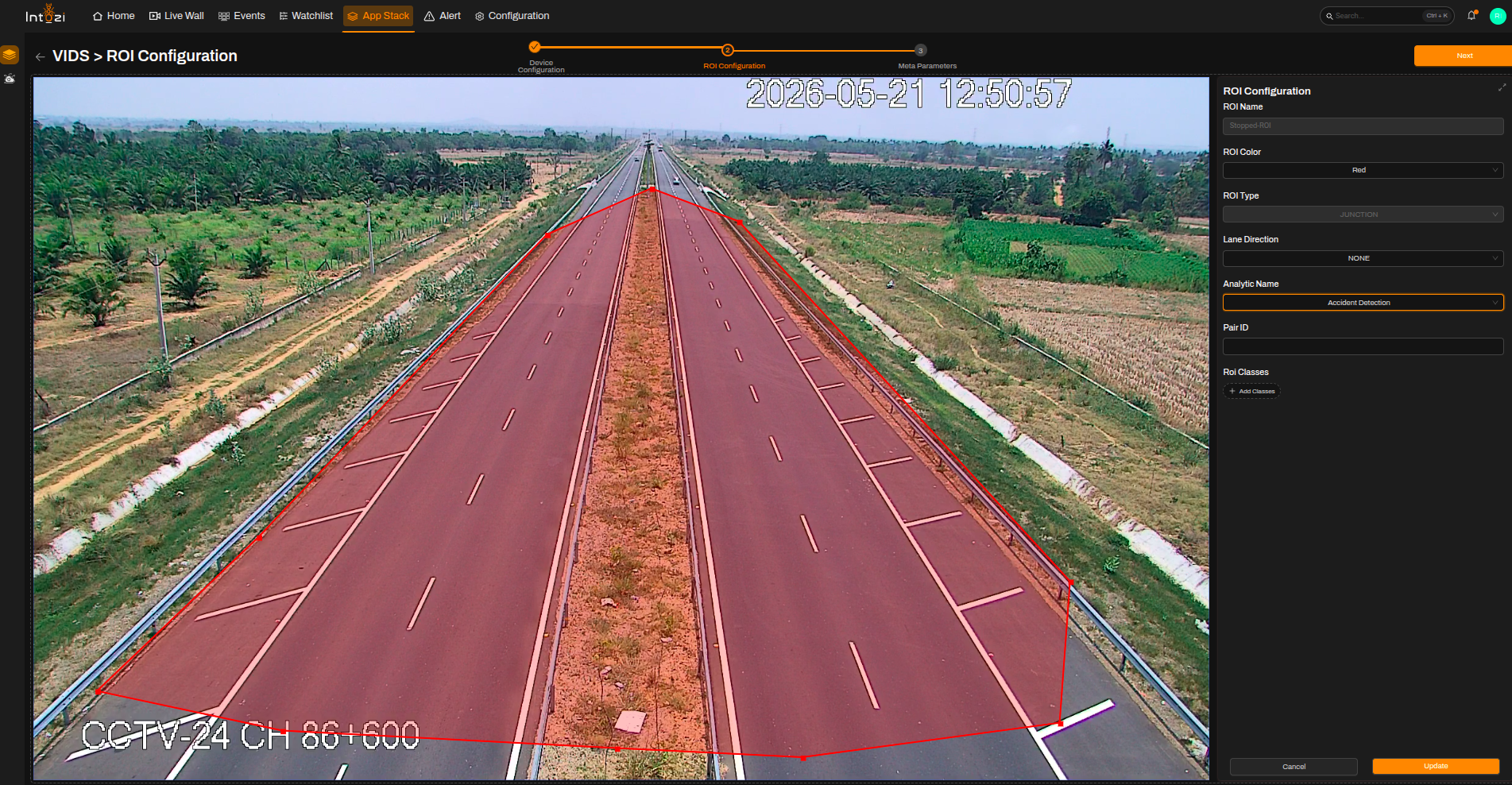
| ROI Name | Enter the name of the ROI. |
| ROI Color | Choose the color for the ROI. |
| ROI Type | Select Junction. |
| Lane Direction | Set to None. |
| Analytics Name | Accident Detection |
| Pair ID | Can be empty |
| ROI Classes | Not required |
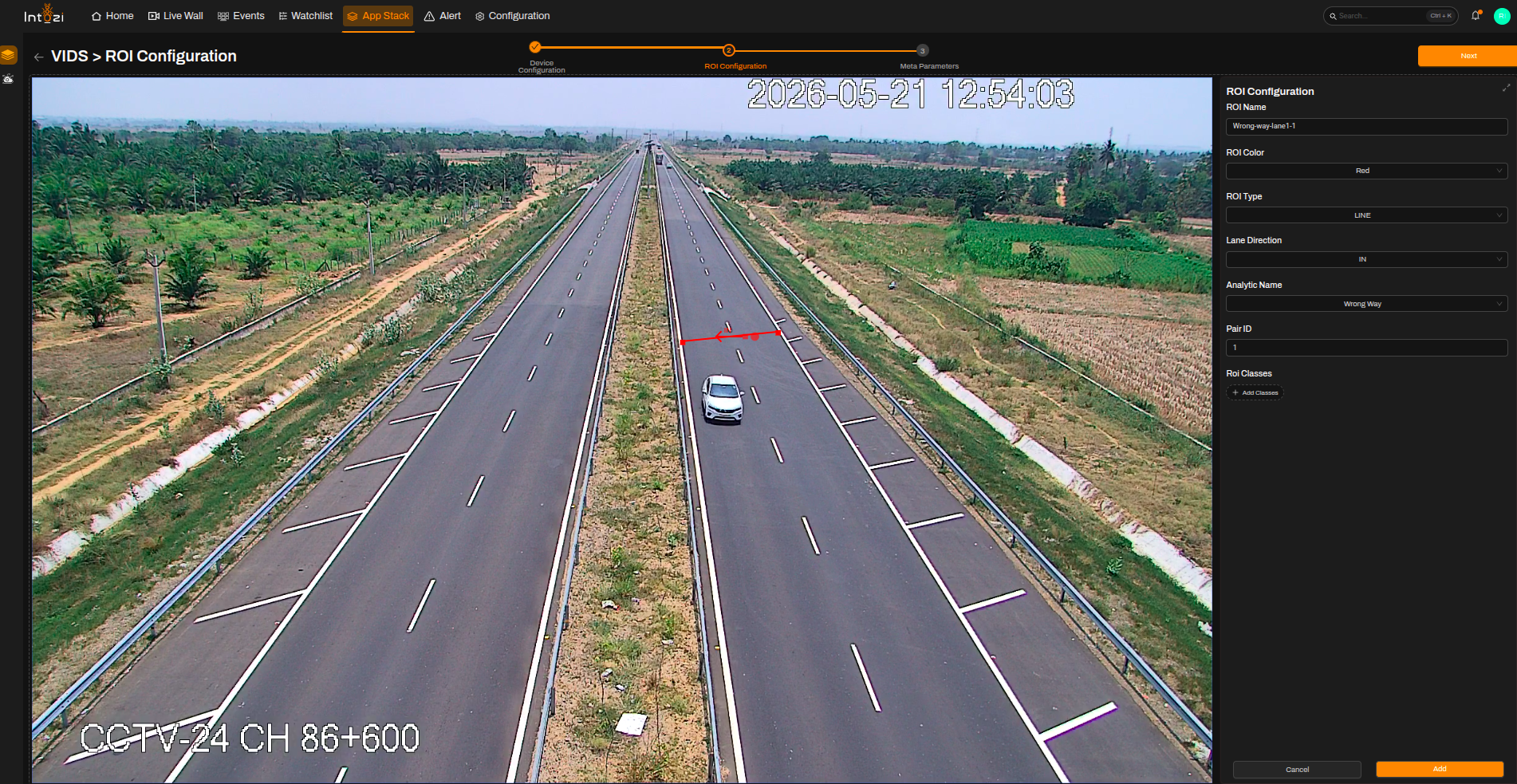
4.4 Wrong Way
| Field | Guidance |
|---|---|
| ROI Name | Enter the name of the ROI. |
| ROI Color | Choose the color for the ROI. |
| ROI Type | Select Line. |
| Lane Direction | Configure based on traffic flow direction. |
| Analytics Name | Wrong Way |
| Pair ID | Applicable |
| ROI Classes | Not required |
Wrong Way ROI Guidelines
- Two ROI lines are drawn for a single lane.
- ROIs belonging to the same lane must use the same Pair ID.
- Lane direction depends on the legal traffic flow direction.
- If a vehicle moves opposite to the configured direction, the event is captured as a Wrong Way Vehicle event.
Example:
If there are 3 lanes, then 6 ROI lines will be drawn.
5. Meta Parameters Configuration
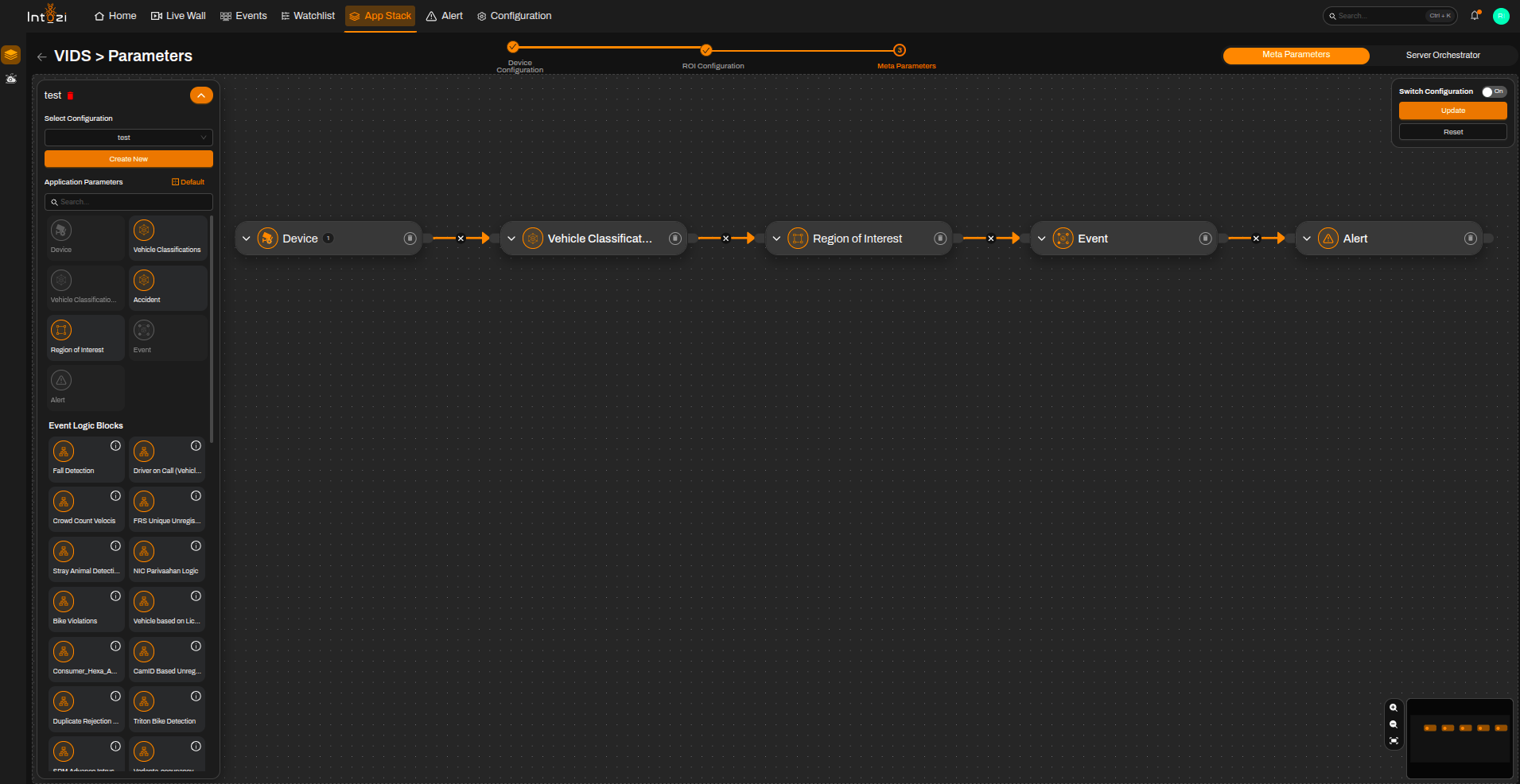
After ROI setup, open the Meta Parameters page.
5.1 Default vs. Custom Configuration
You can either:
- Use a default configuration, or
- Create a new custom configuration.
A default configuration typically includes these modules in the flow:
- Device
- Vehicle Classification or Vehicle Classification Highway
- Region of Interest (ROI)
- Event
- Alert
Vehicle Classification Highway is generally used for highway-based analytics.
6. Device Settings in Device Node
Select the required device and configure the following settings.
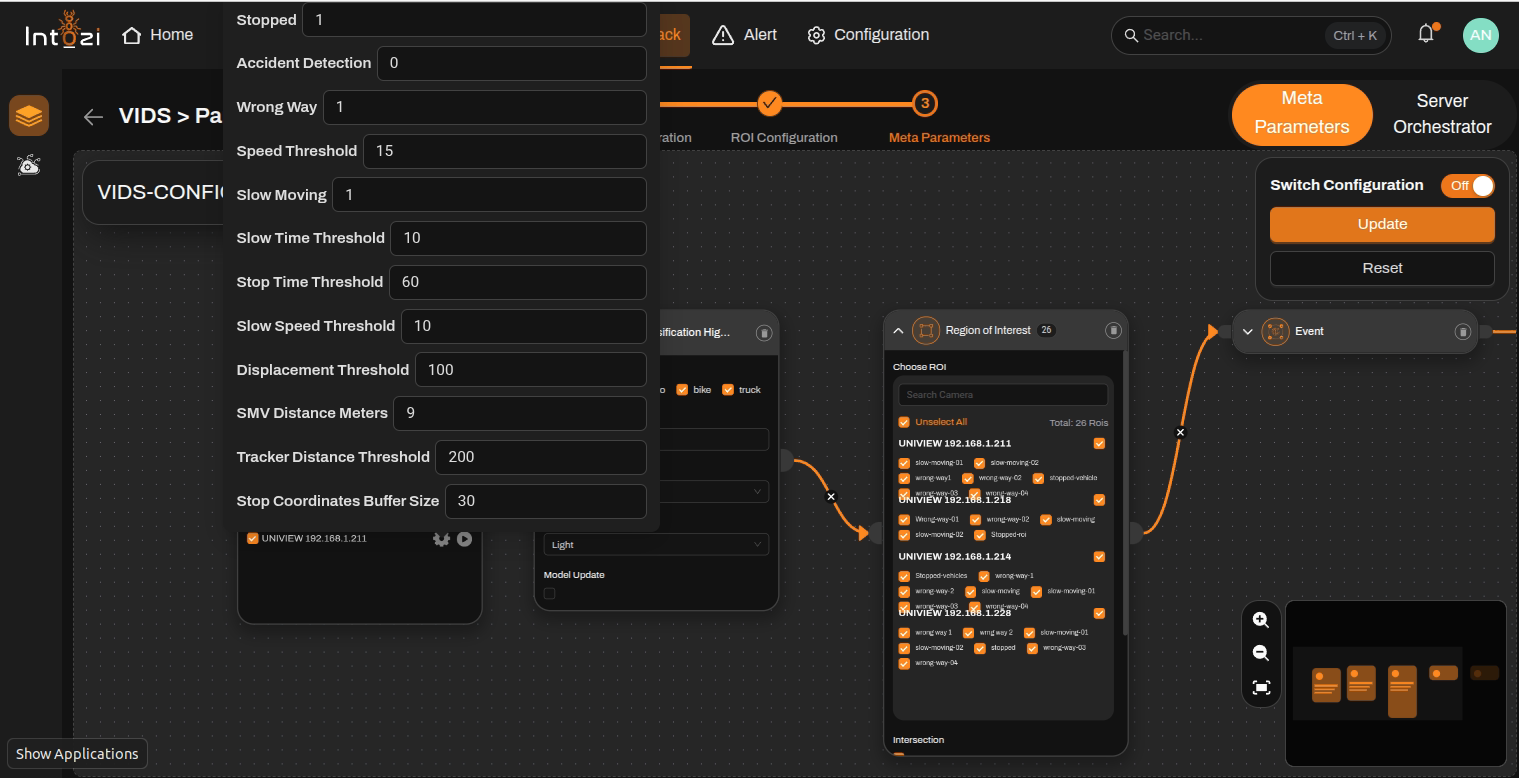
Available Settings
Stopped
| Value | Behavior |
|---|---|
| 0 | Stopped vehicle detection disabled |
| 1 | Enables stopped vehicle detection |
Accident Detection
| Value | Behavior |
|---|---|
| 0 | Accident detection disabled |
| 1 | Enables accident detection |
Wrong Way
| Value | Behavior |
|---|---|
| 0 | Wrong-way detection disabled |
| 1 | Enables wrong-way detection |
Speed Threshold
- Default value: 15
- Used for slow-moving vehicle analytics.
Slow Moving
| Value | Behavior |
|---|---|
| 0 | Slow-moving detection disabled |
| 1 | Enables slow-moving detection |
Slow Time Threshold
- Default value: 15 seconds
- Defines the maximum allowed time between the first and second slow-moving ROI lines.
- If the vehicle does not cross the second line within the configured duration, it is detected as a slow-moving vehicle.
Stop Time Threshold
- Default value: 15 seconds
- Defines the duration a vehicle remains inside the Junction ROI.
- If the vehicle does not leave the ROI within the configured time, it is detected as a stopped vehicle.
Slow Speed Threshold
- Default value: 40 km/h
- Defines the vehicle speed threshold for slow-moving analytics.
Displacement Threshold
- Default value: 100
- Recommended to keep at the default value.
SMV Distance
- Defines the distance between the two slow-moving ROI lines.
Stop Coordinate Buffer Size
- Default value: 30
- Recommended to keep at the default setting.
7. Vehicle Classification / Vehicle Classification Highway
Confidence Threshold
- The default value is 0.45.
- Can be adjusted based on camera angle, lighting conditions, and deployment scenario.
8. Final Configuration
- Select all required devices.
- Configure the required device parameters.
- Select the corresponding ROIs.
- Enter a configuration name.
- Select the hardware type (CPU or GPU).
- Configure batch size if required.
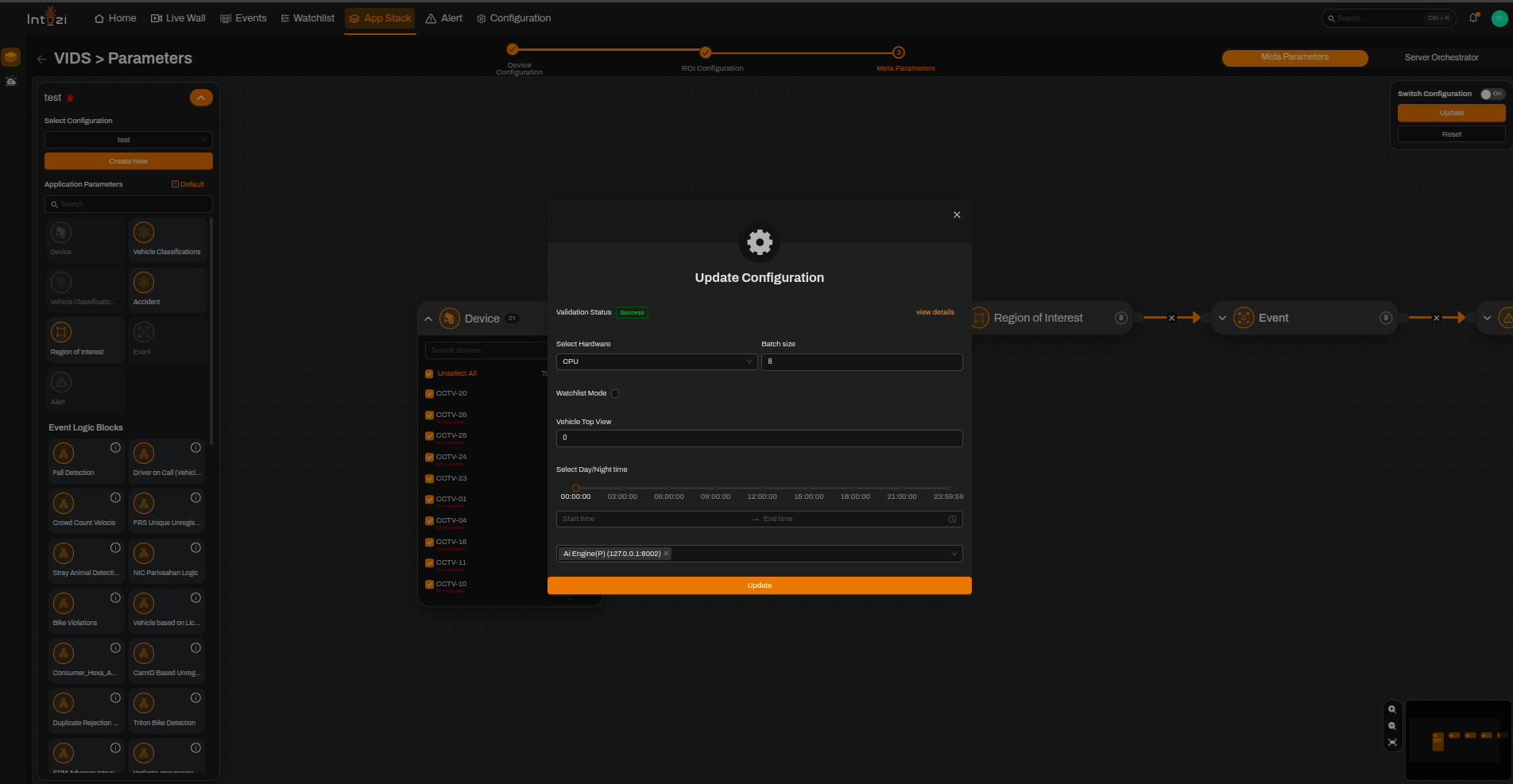
Vehicle Top View
| Value | Behavior |
|---|---|
| 0 | Normal camera view |
| 1 | Highway or top-view camera scenarios |
When everything is configured, click Save.
Conclusion
The VIDS application helps automate traffic incident detection using configurable analytics such as slow-moving vehicles, stopped vehicles, accident detection, and wrong-way vehicle monitoring.
By properly configuring devices, ROIs, analytics parameters, and hardware settings, users can achieve accurate and efficient vehicle incident monitoring for real-time traffic management applications.