Airplane Component Detection
Airplane Component Detection is used to monitor aircraft components and detect Foreign Object Debris (FOD) or Spillage Events within designated areas around an aircraft.
This guide explains how to configure the Airplane Component Detection application in App Stack.
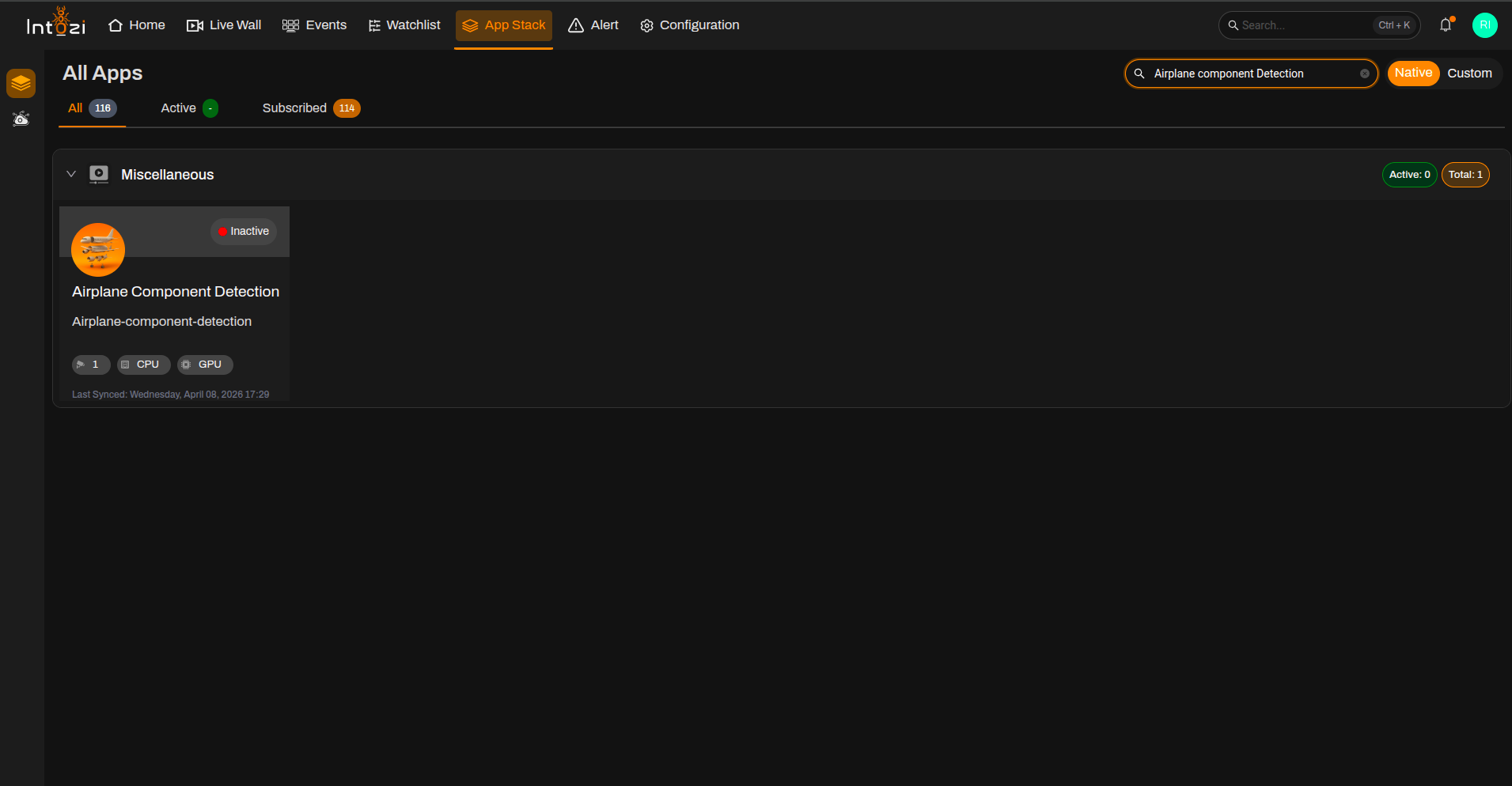
1. Finding the Airplane Component Detection Application in App Stack
- Open App Stack on the platform.
- Use the search bar (usually at the top right of the dashboard).
- Enter Airplane Component Detection.
- In the results, click once on the application to open it.
2. Device Configuration
After the application opens, you will be directed to the Device Configuration page.
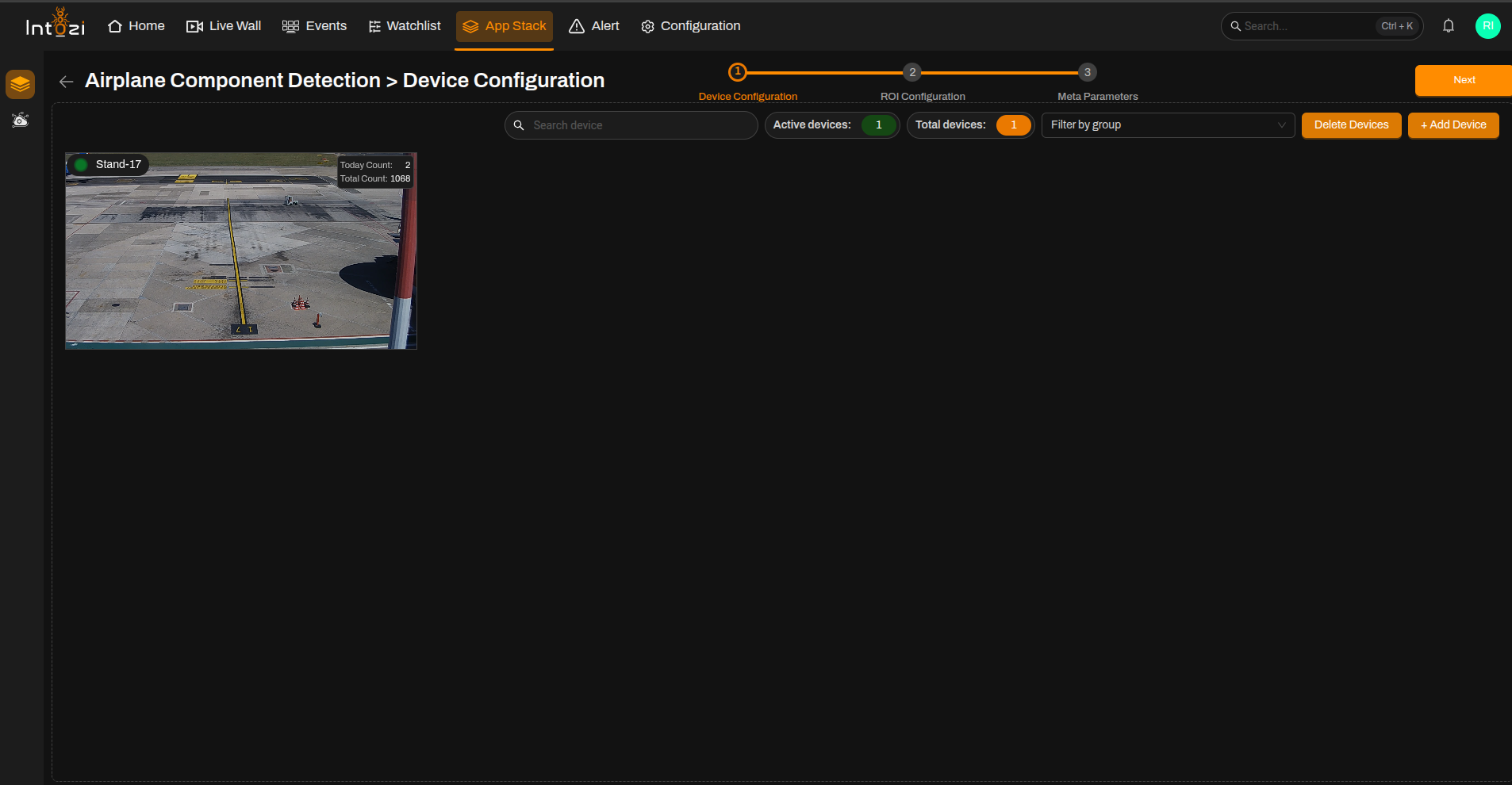
- On the right side of the page, click Add Device to add the required camera(s).
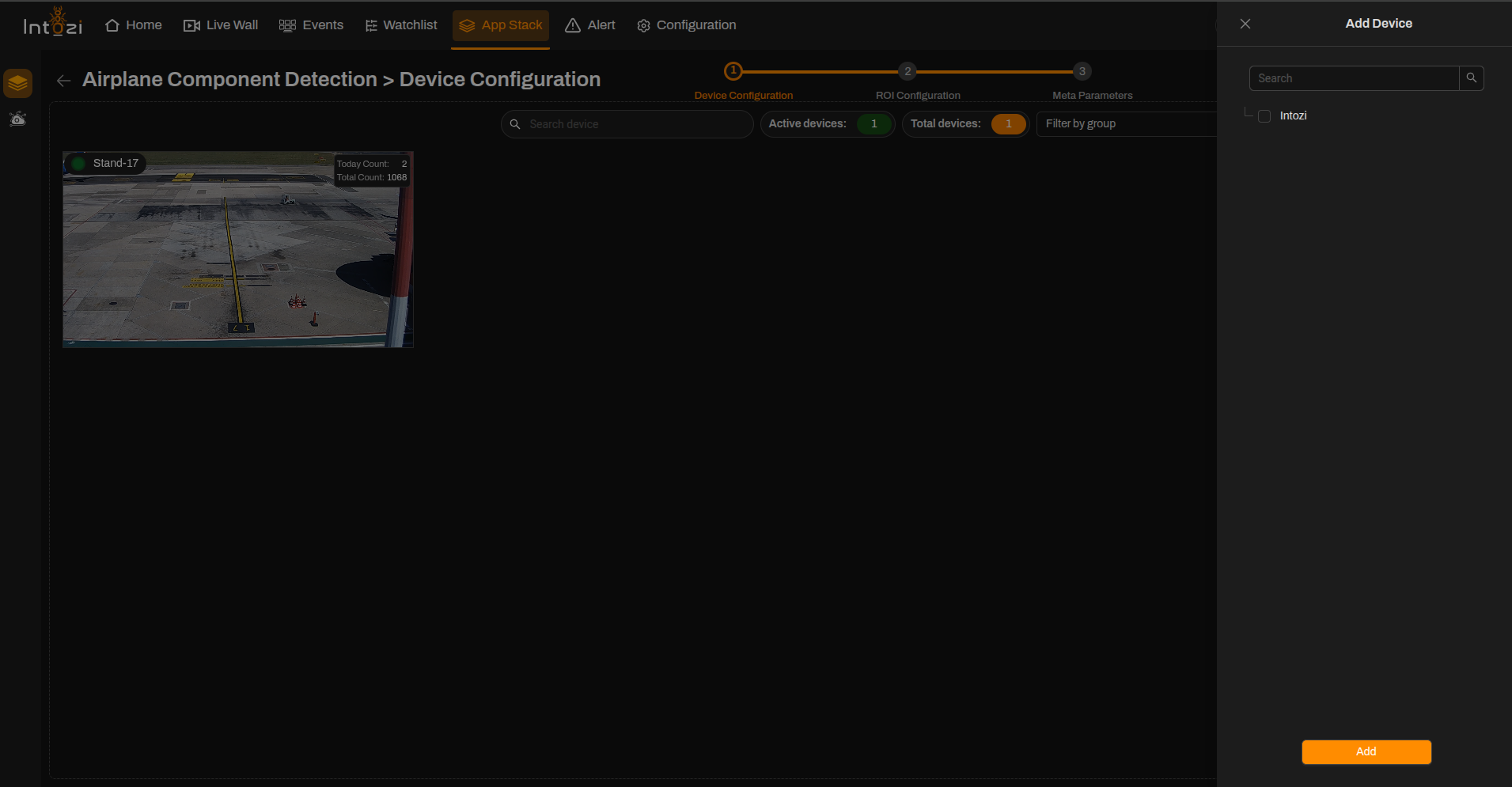
- Configure the required device settings.
- Once the devices are added, proceed to the ROI Configuration page.
Ensure all required cameras are added before proceeding to ROI configuration.
3. ROI (Region of Interest) Configuration
All added devices will be displayed on this page for ROI configuration.
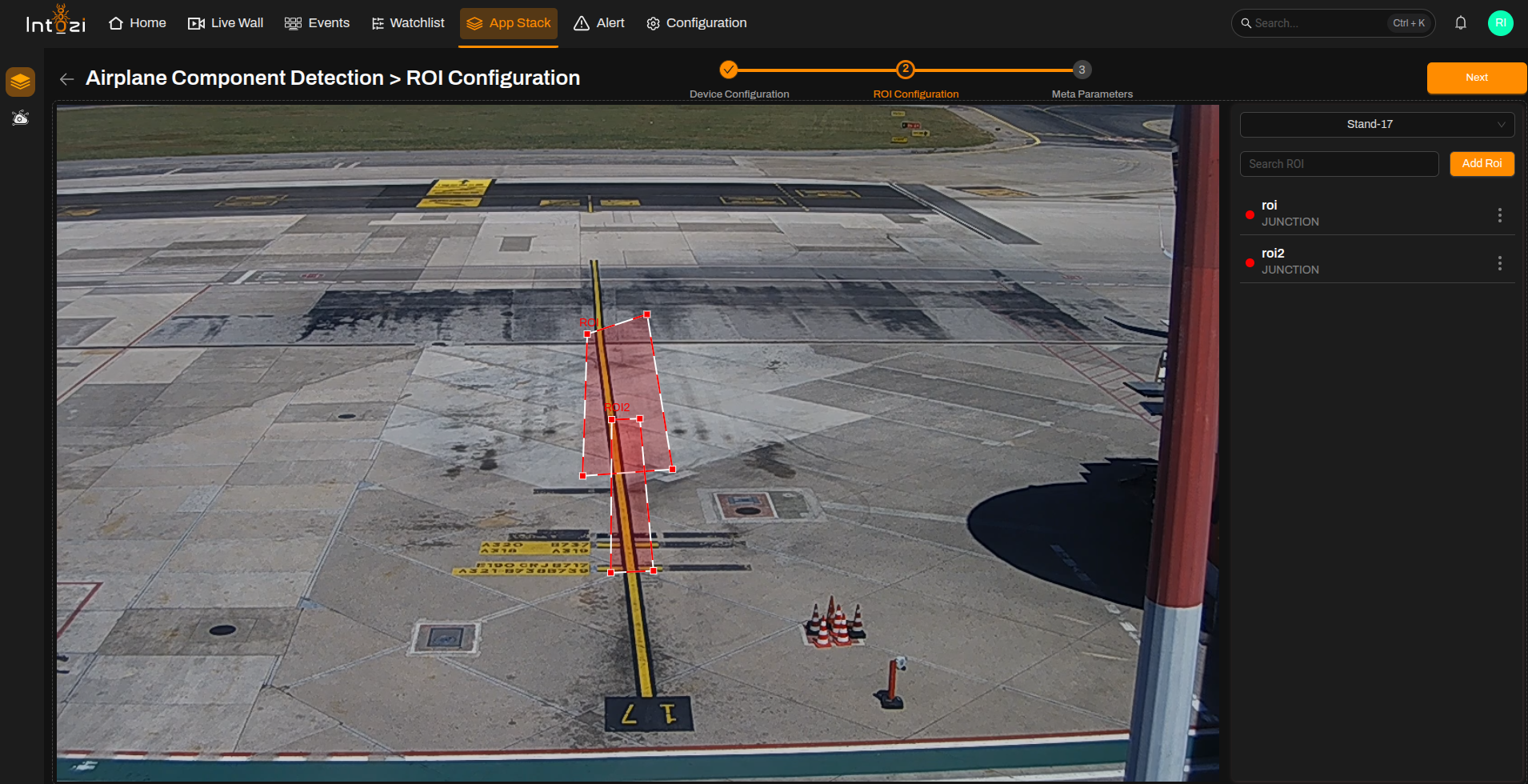
For this application, two ROIs must be configured:
ROI 1 – Geofence IN
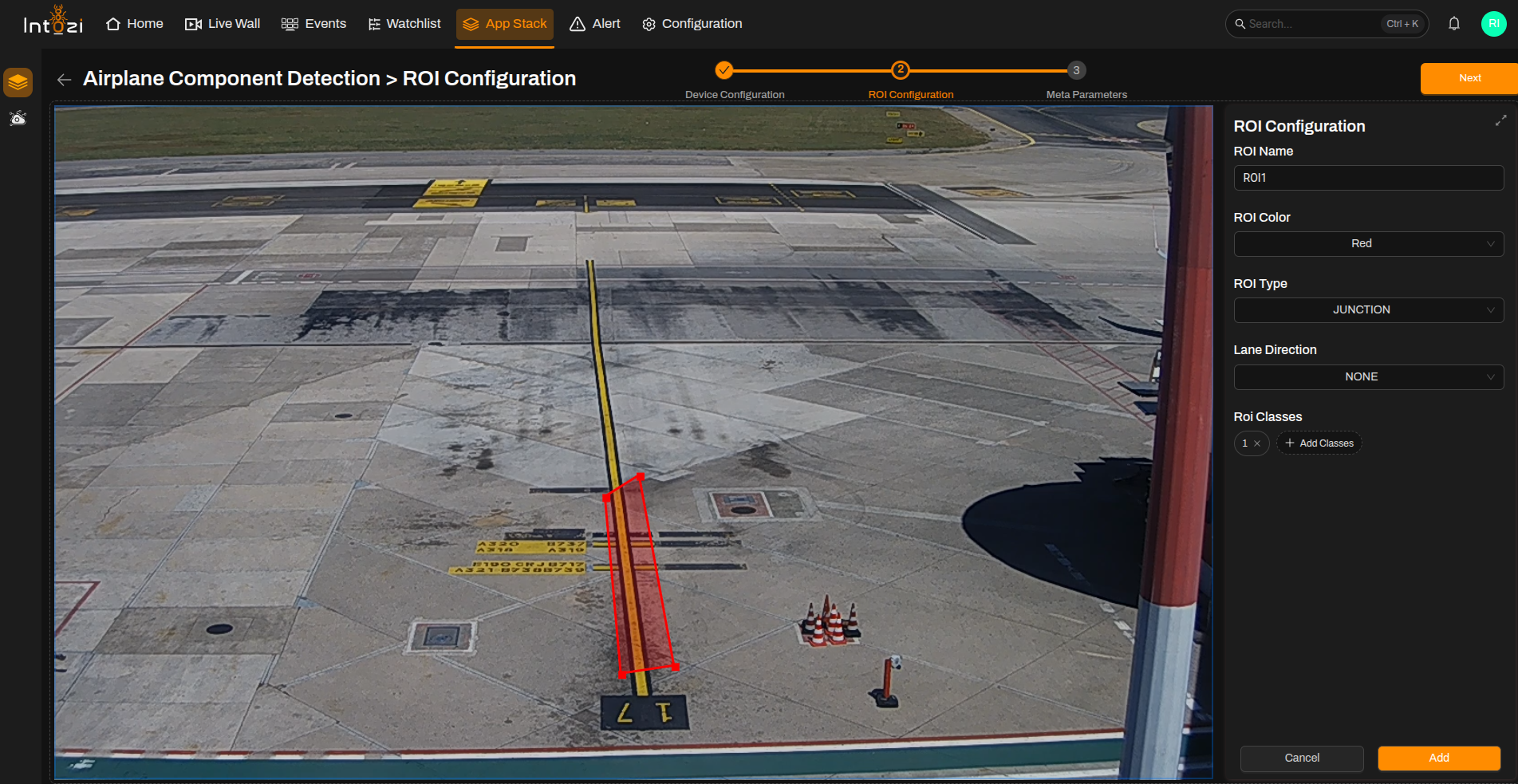
| Field | Configuration |
|---|---|
| ROI Name | Enter a meaningful name. |
| ROI Color | Select a color for visualization. |
| ROI Type | Select Junction. |
| Lane Direction | Set to None. |
| ROI Class | 1 |
ROI 2 – Geofence OUT
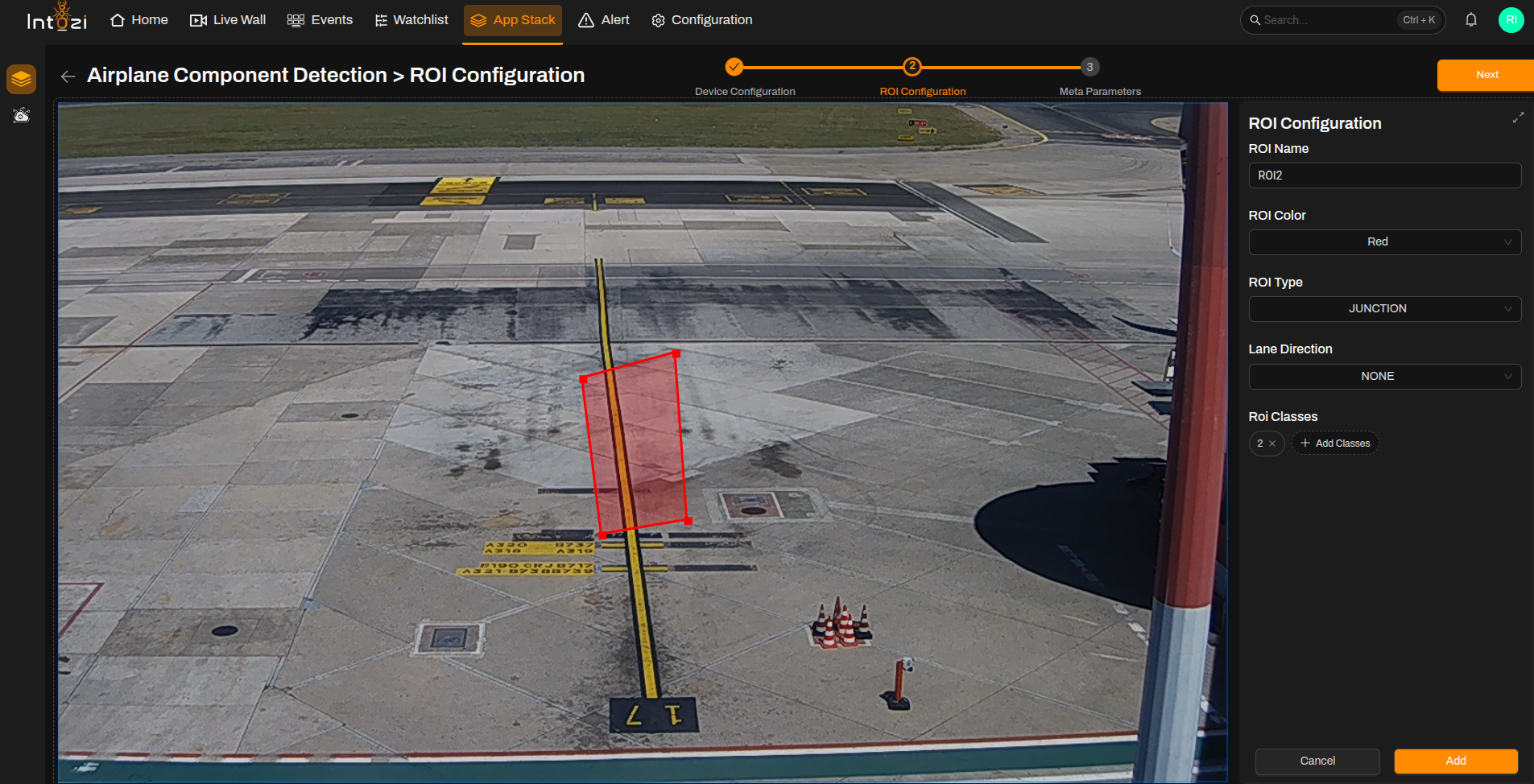
| Field | Configuration |
|---|---|
| ROI Name | Enter a meaningful name. |
| ROI Color | Select a color for visualization. |
| ROI Type | Select Junction. |
| Lane Direction | Set to None. |
| ROI Class | 2 |
Both Geofence IN (Class 1) and Geofence OUT (Class 2) ROIs must be configured for the application to function correctly.
You can update or delete any ROI by selecting it from the list and using the available options.
4. Meta Parameters Configuration
After ROI setup, navigate to the Meta Parameters page.
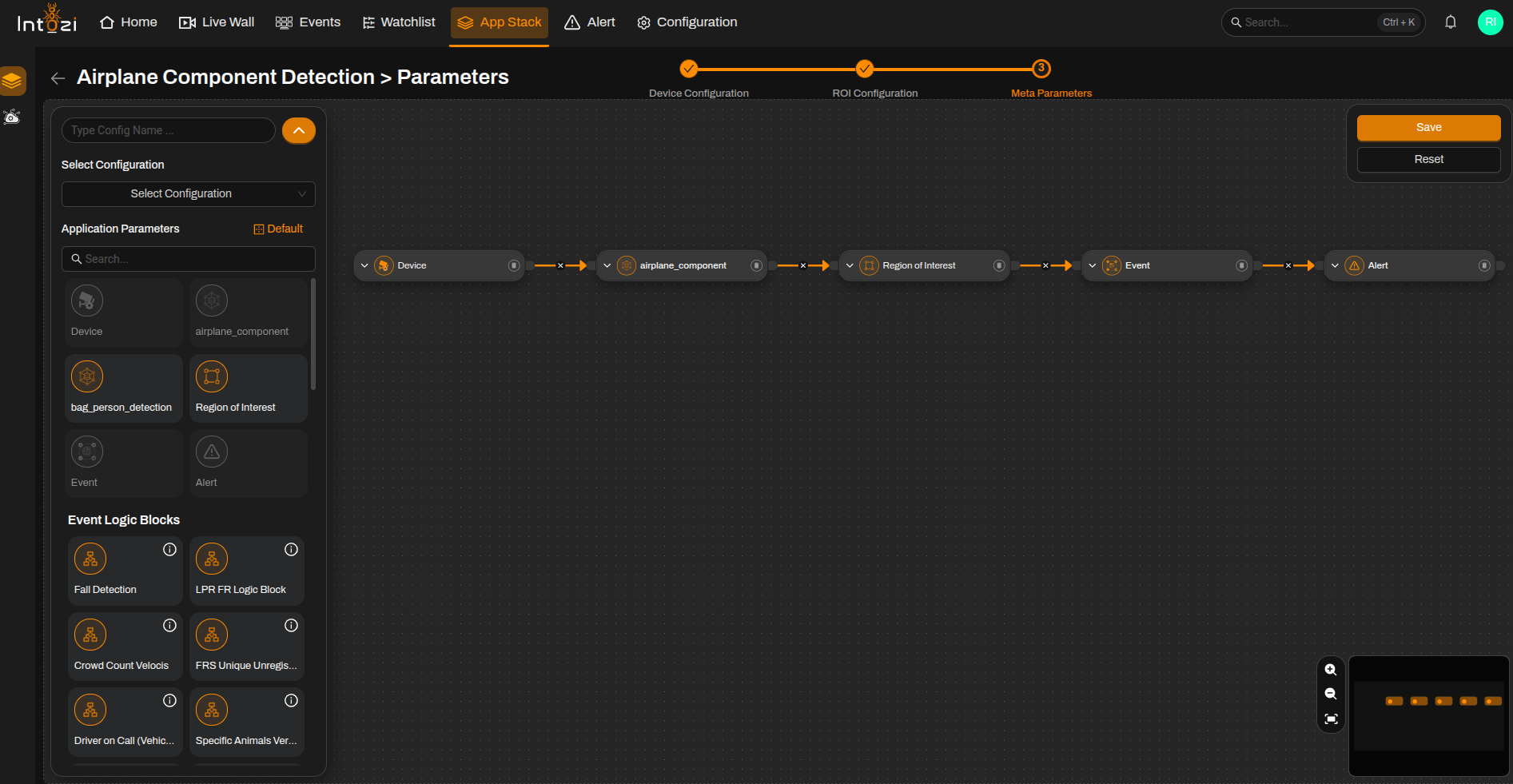
4.1 Default vs Custom Configuration
You can either:
- Use a default configuration, or
- Create a custom configuration.
Default Configuration Nodes
- Device
- Airplane Component
- Region of Interest (ROI)
- Event
- Alert
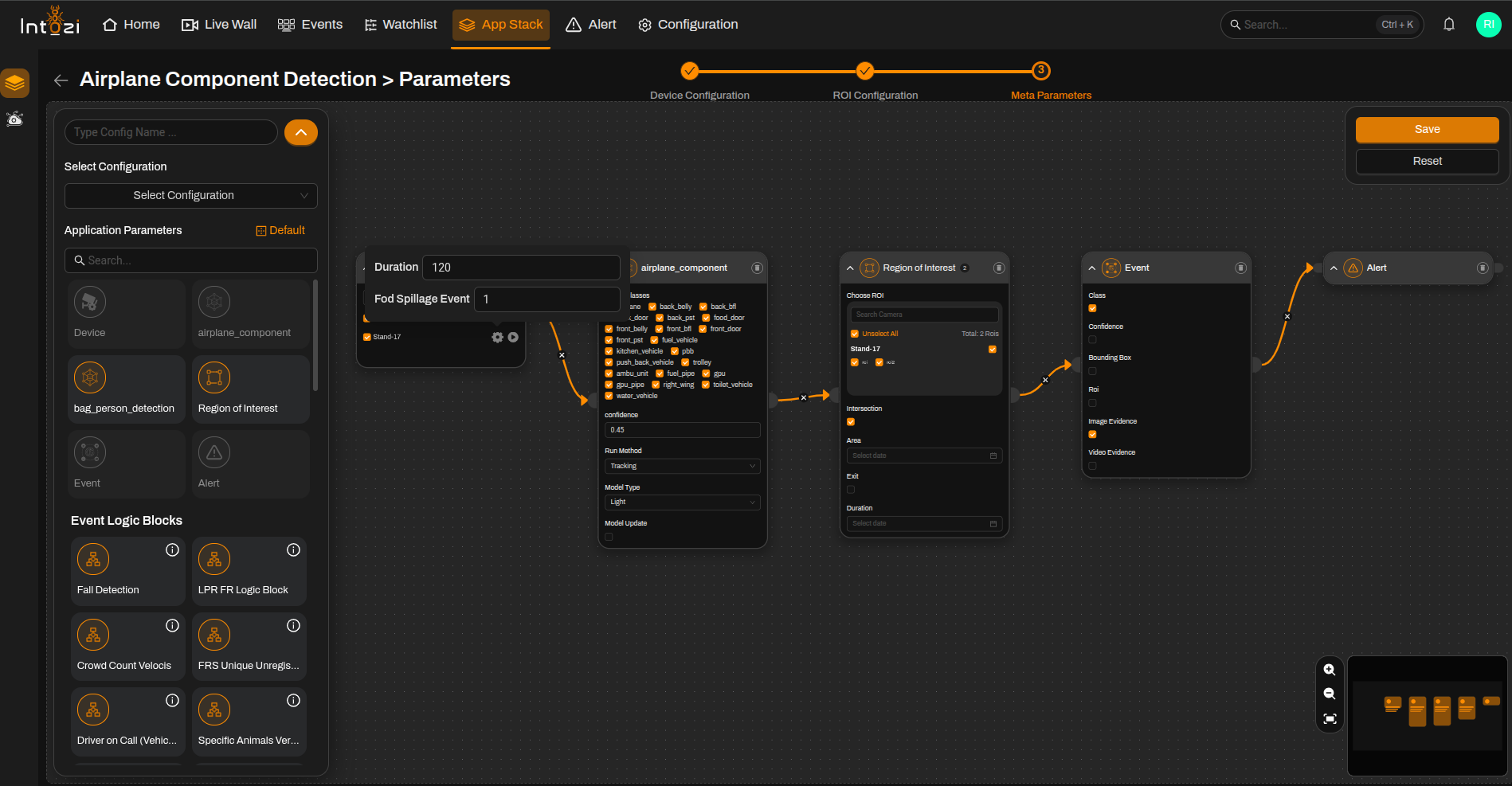
5. Device Node Settings
Select the required device and configure the following settings.
Duration
- Defines the duration after which the application resets the monitoring state when the aircraft leaves the configured ROI.
- Configure this value according to operational requirements.
FOD Spillage Events
| Value | Description |
|---|---|
| 0 | Disable FOD/Spillage event generation |
| 1 | Enable FOD/Spillage event generation |
Enable FOD Spillage Events only when FOD or spillage monitoring is required for the deployment.
6. Airplane Component Node Settings
Confidence Threshold
- Default value: 0.45
- Can be adjusted based on:
- Camera angle
- Lighting conditions
- Aircraft positioning
- Deployment requirements
Adjust the confidence threshold carefully to balance detection accuracy and false event generation.
7. Final Configuration
After configuring the required device and ROIs:
- Enter a Configuration Name.
- Select the hardware type:
- CPU
- GPU
- Configure the Batch Size as recommended by the Development/CV Team.
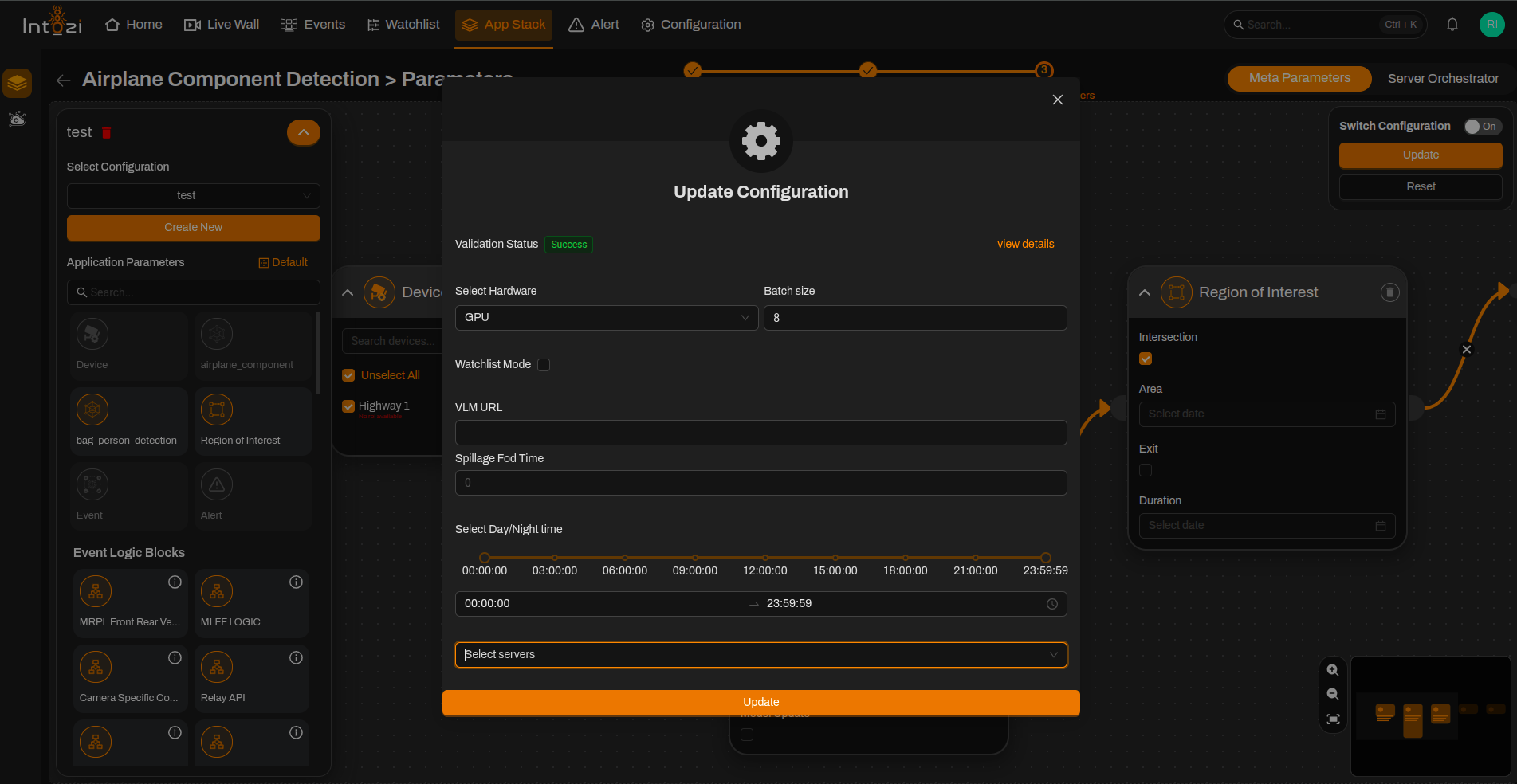
VLM URL
- Required only when FOD Spillage Events = 1.
- Enter the appropriate VLM Service URL used for FOD and spillage analysis.
Spillage FOD Time
- Defines the time threshold after which a FOD or spillage event is generated.
- Configure according to operational requirements.
Lower values generate FOD/Spillage events faster, while higher values help reduce false alarms caused by temporary objects.
Analytics Server Selection
- Select the required Analytics Server from the available list.
8. Saving the Configuration
After verifying all settings:
- Confirm device selection.
- Verify Geofence IN and Geofence OUT ROI placement.
- Review Duration settings.
- Verify FOD Spillage Event configuration.
- Confirm VLM URL configuration (if enabled).
- Review Spillage FOD Time values.
- Verify Analytics Server selection.
- Confirm hardware and batch size configuration.
Click Save to activate the configuration.
Conclusion
The Airplane Component Detection application provides automated monitoring of aircraft components while also supporting Foreign Object Debris (FOD) and Spillage Detection around aircraft operating zones.
By properly configuring Geofence ROIs, FOD monitoring parameters, and analytic settings, users can effectively monitor aircraft safety zones and receive timely alerts for component, FOD, and spillage-related events.