People Queue Management
People Queue Management is used to monitor queues and generate events when the number of people in a defined area exceeds a specified threshold.
This guide explains how to configure the People Queue Management application in App Stack.
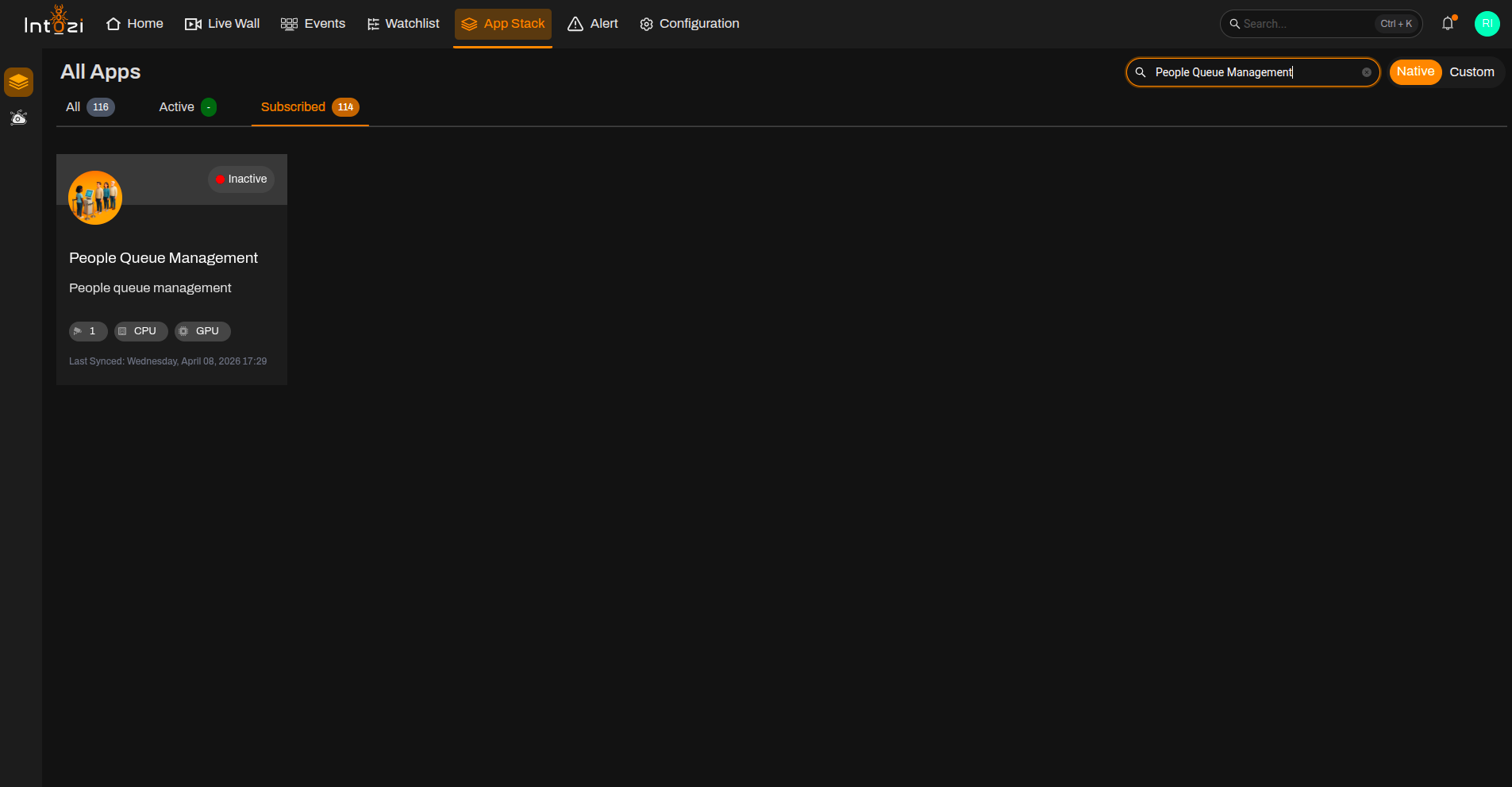
1. Finding the People Queue Management Application in App Stack
- Open App Stack on the platform.
- Use the search bar (usually at the top right of the dashboard).
- Enter People Queue Management.
- In the results, click once on the application to open it.
2. Device Configuration
After the application opens, you will be directed to the Device Configuration page.
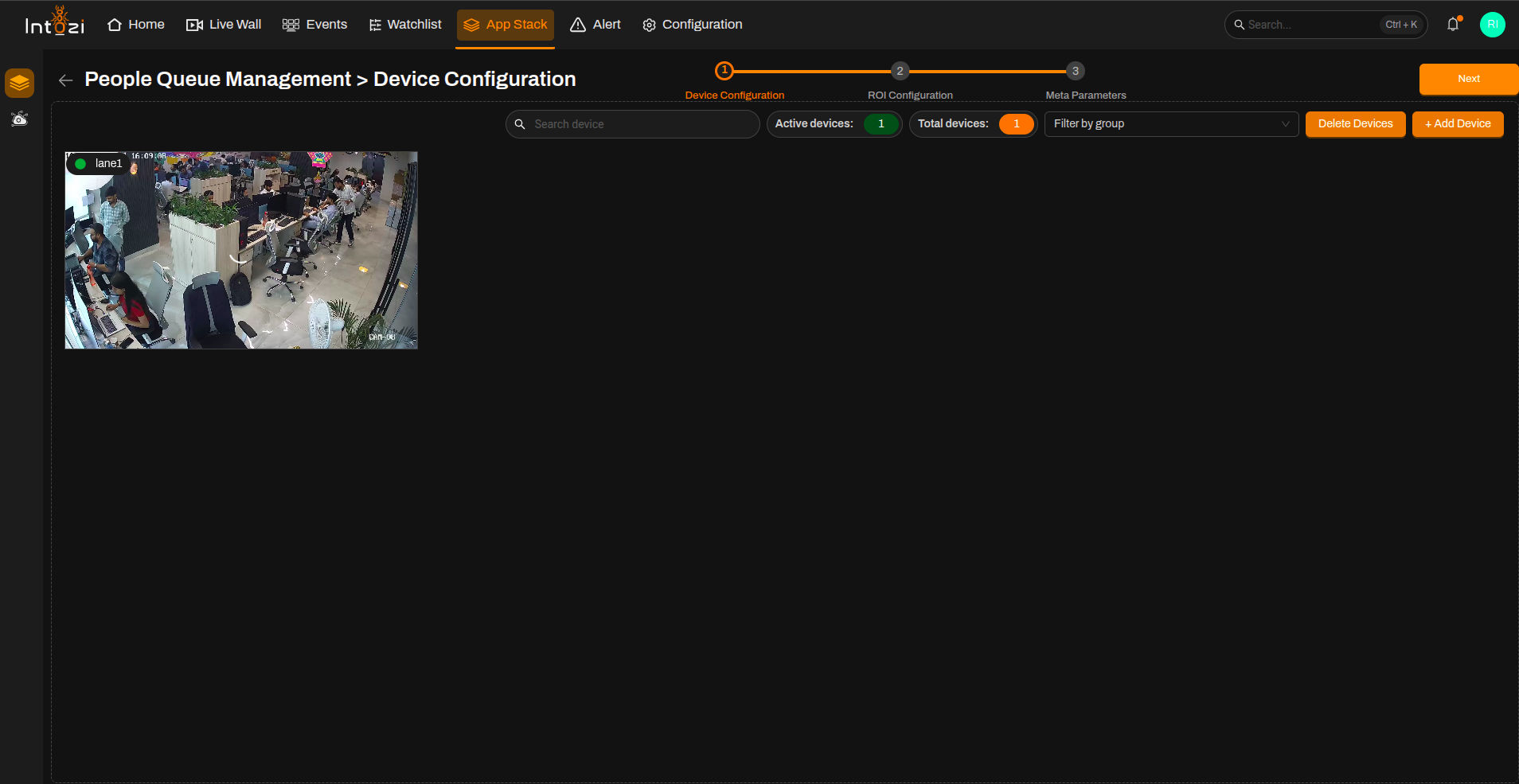
- On the right side of the page, click Add Device to add the required camera(s).
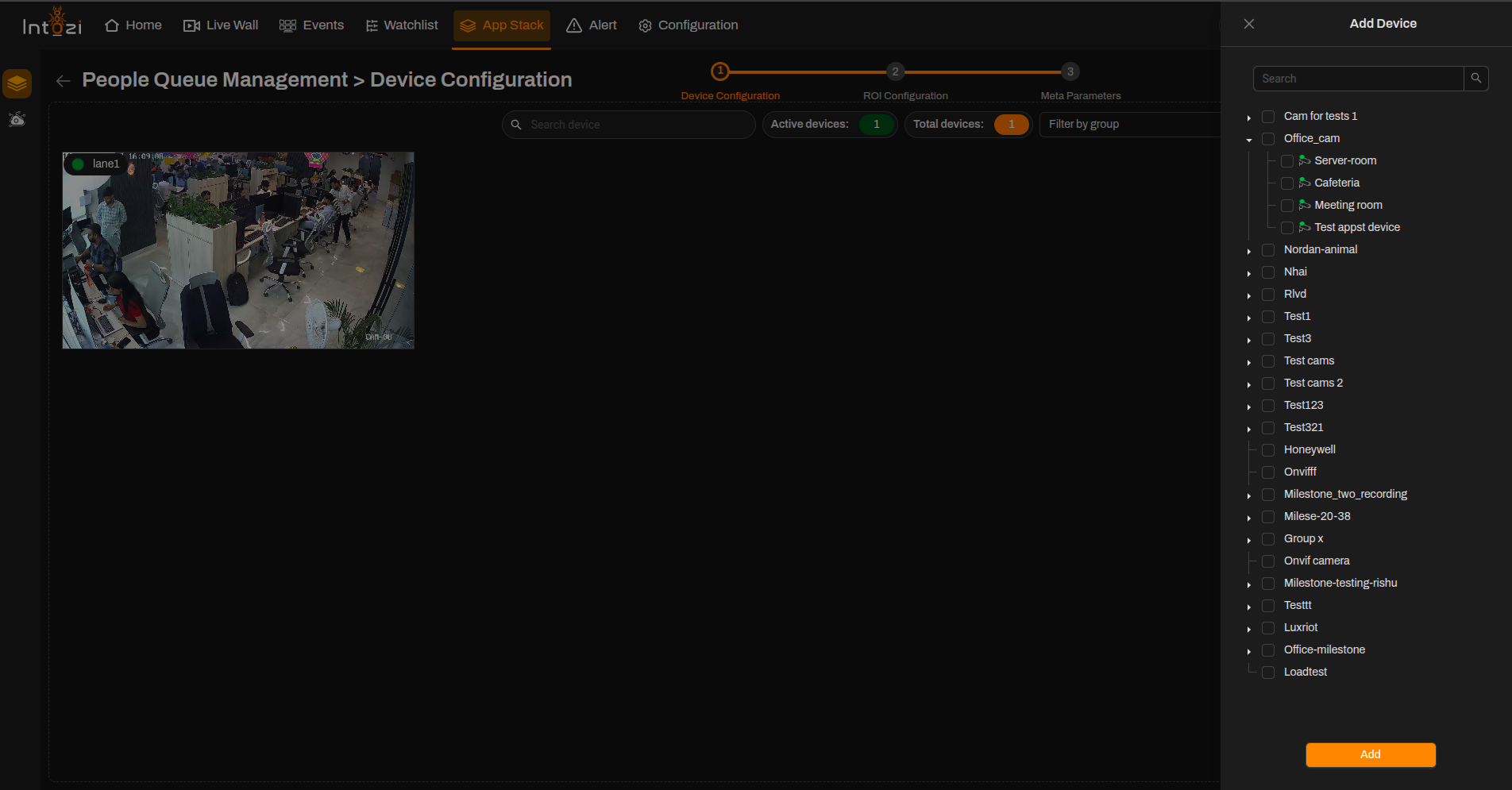
- Configure the required device settings.
- Once the devices are added, proceed to the ROI Configuration page.
Ensure all required cameras are added before proceeding to ROI configuration.
3. ROI (Region of Interest) Configuration
All added devices will be displayed on this page for ROI configuration.
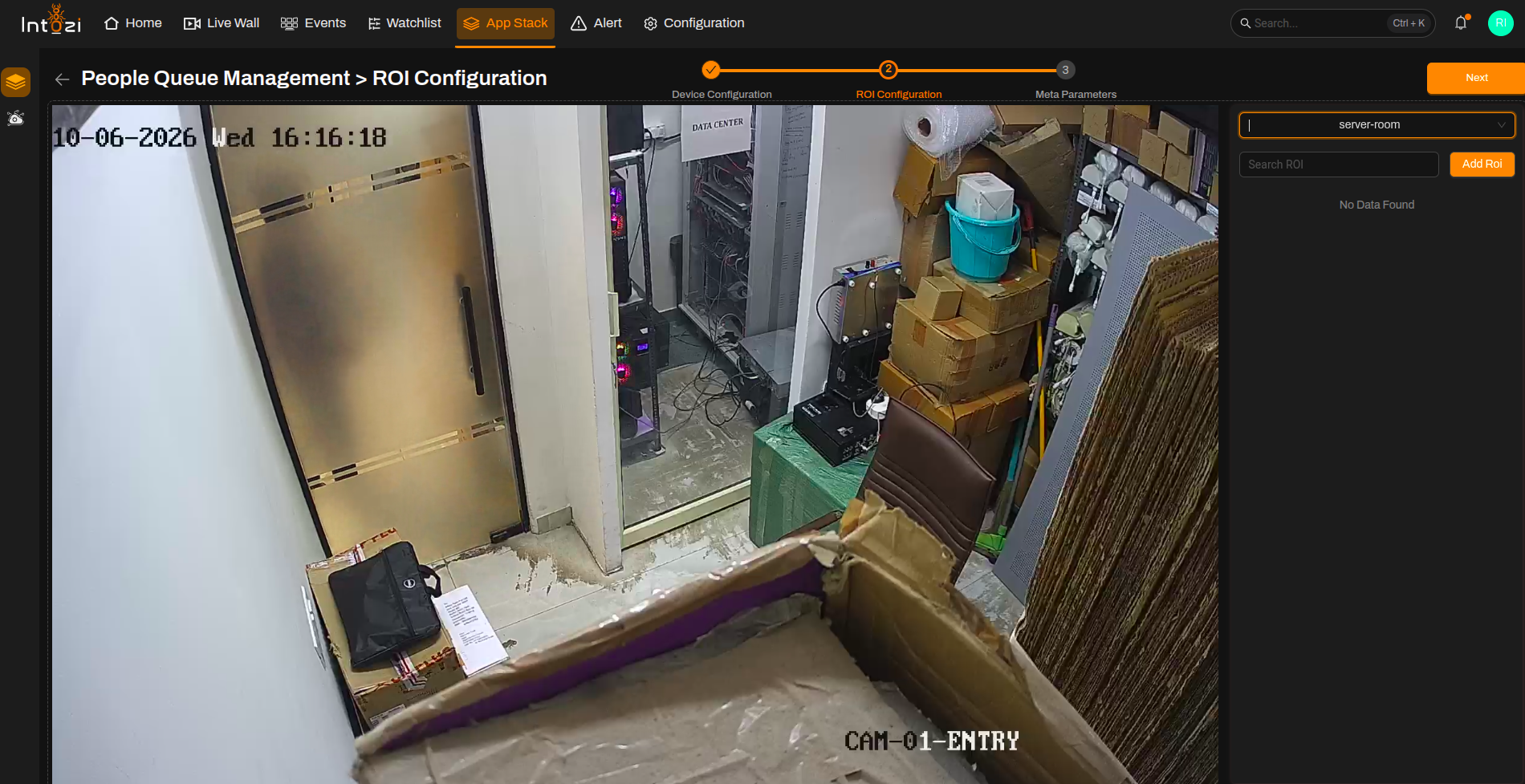
- Select the desired device.
- Click Add ROI (top right of the page).
Fill in ROI Details
| Field | Guidance for People Queue Management |
|---|---|
| ROI Name | Enter a meaningful name for the ROI. |
| ROI Color | Select a color for visualization. |
| ROI Type | Select Junction or LINE. |
| Lane Direction | Set to None. |
| ROI Classes | Not required. |
You can update or delete any ROI by selecting it and using the available options.
4. Meta Parameters Configuration
After ROI setup, navigate to the Meta Parameters page.
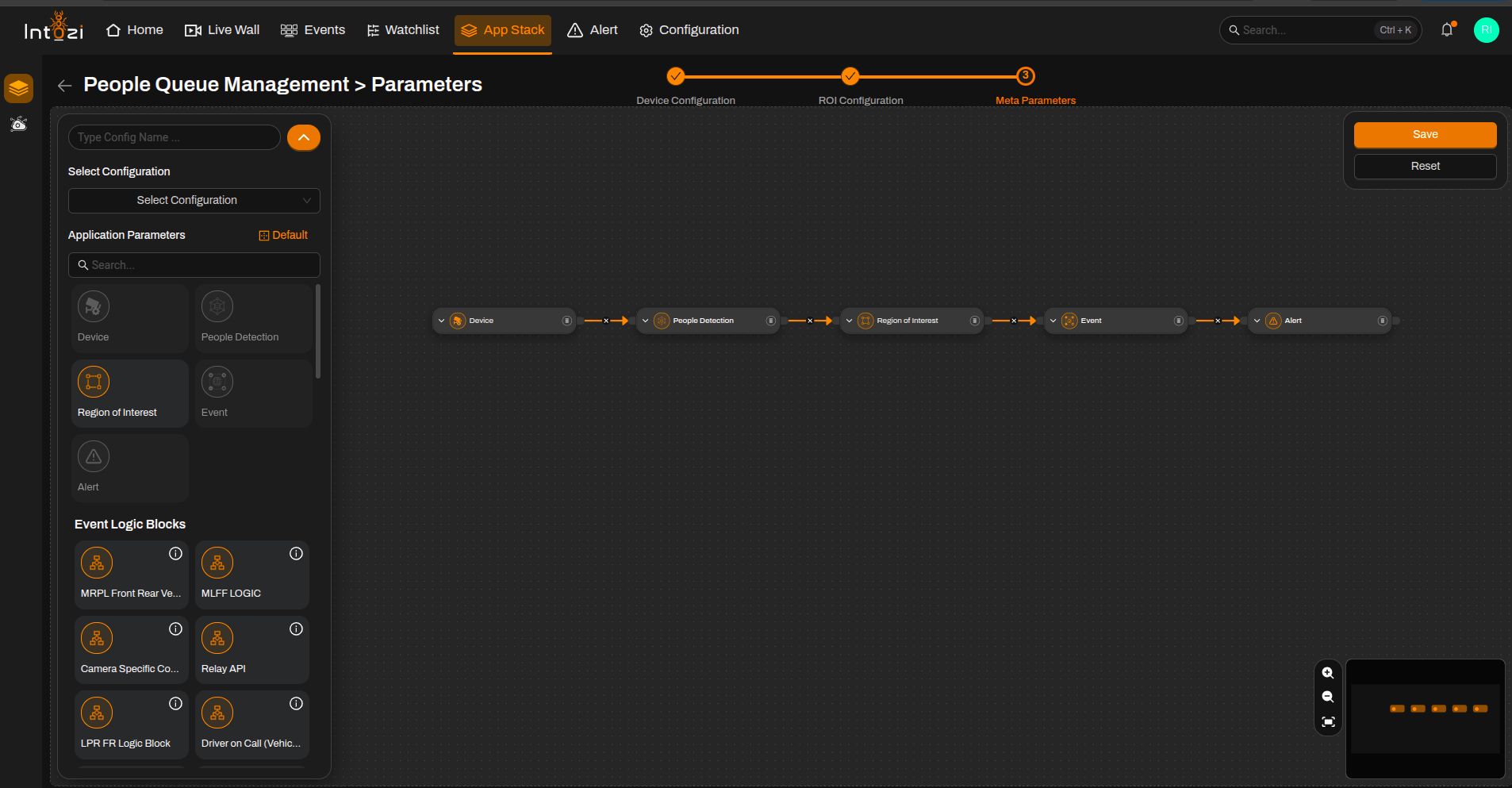
4.1 Default vs Custom Configuration
You can either:
- Use a default configuration, or
- Create a custom configuration.
Default Configuration Nodes
- Device
- People Detection
- Region of Interest (ROI)
- Event
- Alert
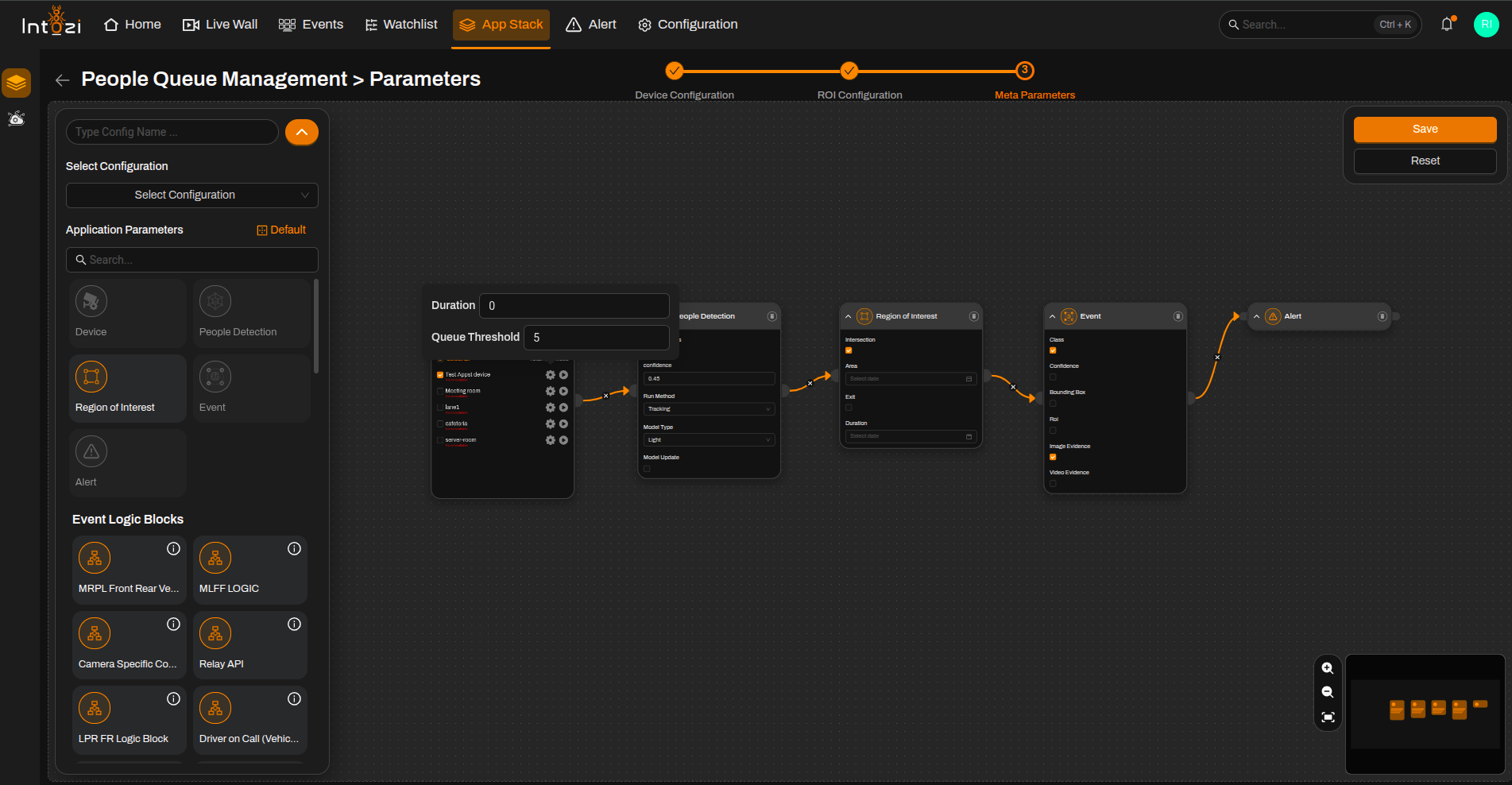
5. Device Node Settings
Select the required device and configure the following settings.
Duration
- Defines the time interval (in seconds) after which a new event can be generated.
- Configure this value according to project requirements.
Queue Threshold
- Defines the minimum number of people required to generate a queue event.
- When the number of detected people exceeds the configured threshold, a queue management event is generated.
Set the Queue Threshold according to the expected queue size and operational requirements of the deployment area.
6. People Detection Node Settings
Confidence Threshold
- Default value: 0.45
- Can be adjusted according to:
- Camera angle
- Lighting conditions
- Crowd density
- Deployment requirements
Higher confidence values reduce false detections, while lower values may improve detection rates in crowded environments.
7. Final Configuration
After selecting the required device and associated ROI:
- Configure the required parameters.
- Enter a Configuration Name.
- Select the hardware type:
- CPU
- GPU
- Configure the Batch Size if required.
- Select the required Analytic Server for deployment.
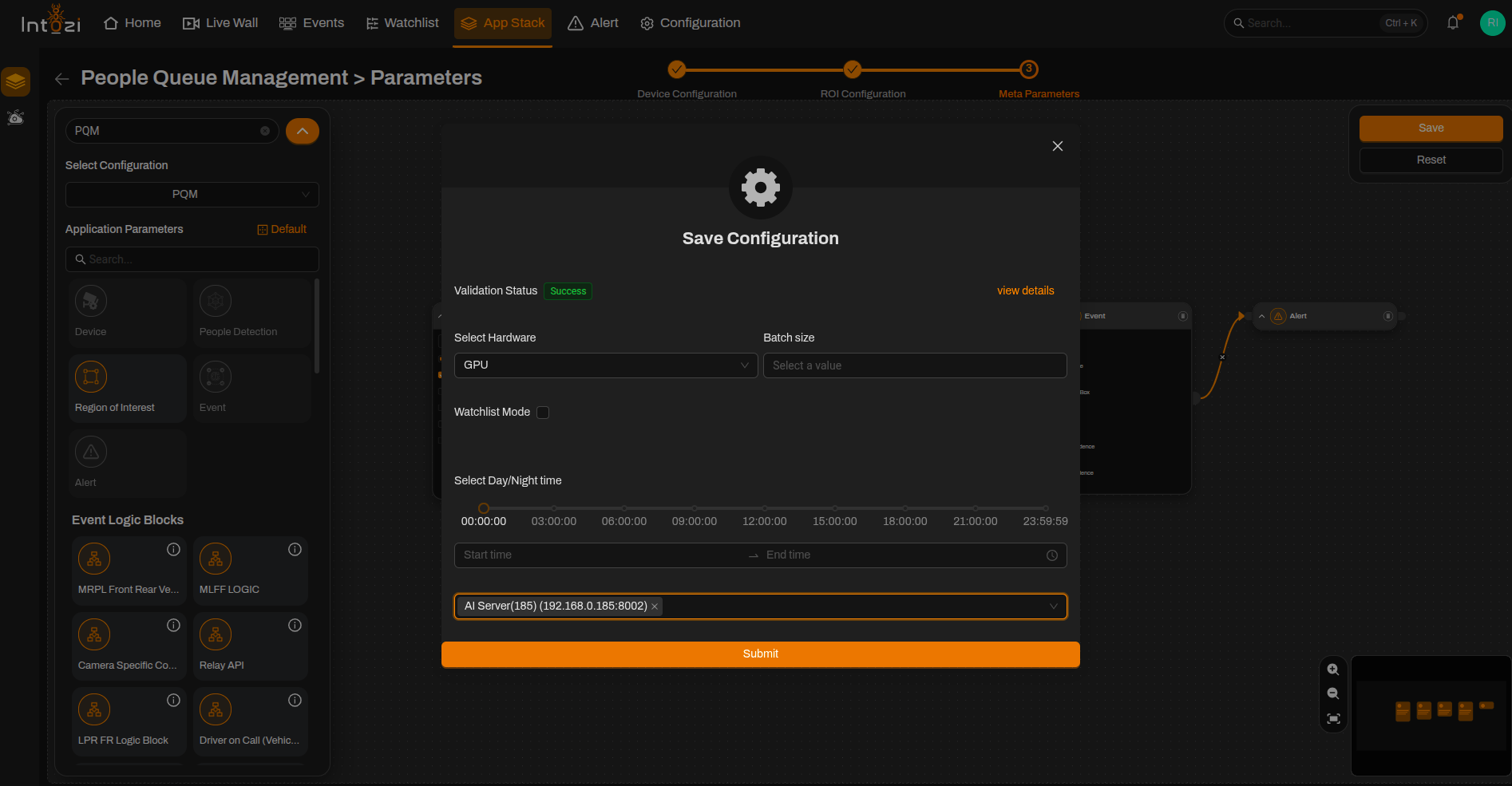
8. Saving the Configuration
After verifying all settings:
- Confirm device selection.
- Verify ROI placement.
- Review Duration settings.
- Verify Queue Threshold values.
- Review confidence threshold settings.
- Verify Analytics Server selection.
- Confirm hardware and batch size configuration.
Click Save to activate the configuration.
Conclusion
The People Queue Management application provides real-time monitoring of queue lengths and crowd accumulation within defined areas. It helps organizations manage customer flow, reduce congestion, and improve operational efficiency.
By properly configuring ROI placement, Queue Threshold values, and detection parameters, users can effectively monitor queue conditions and receive timely alerts when crowd levels exceed acceptable limits.