Tailgating Detection
Tailgating Detection is used to identify instances where two or more people pass through an entry/exit point too closely together within a defined area. This helps monitor unauthorized access attempts and security violations.
This guide explains how to configure the Tailgating Detection application in App Stack.
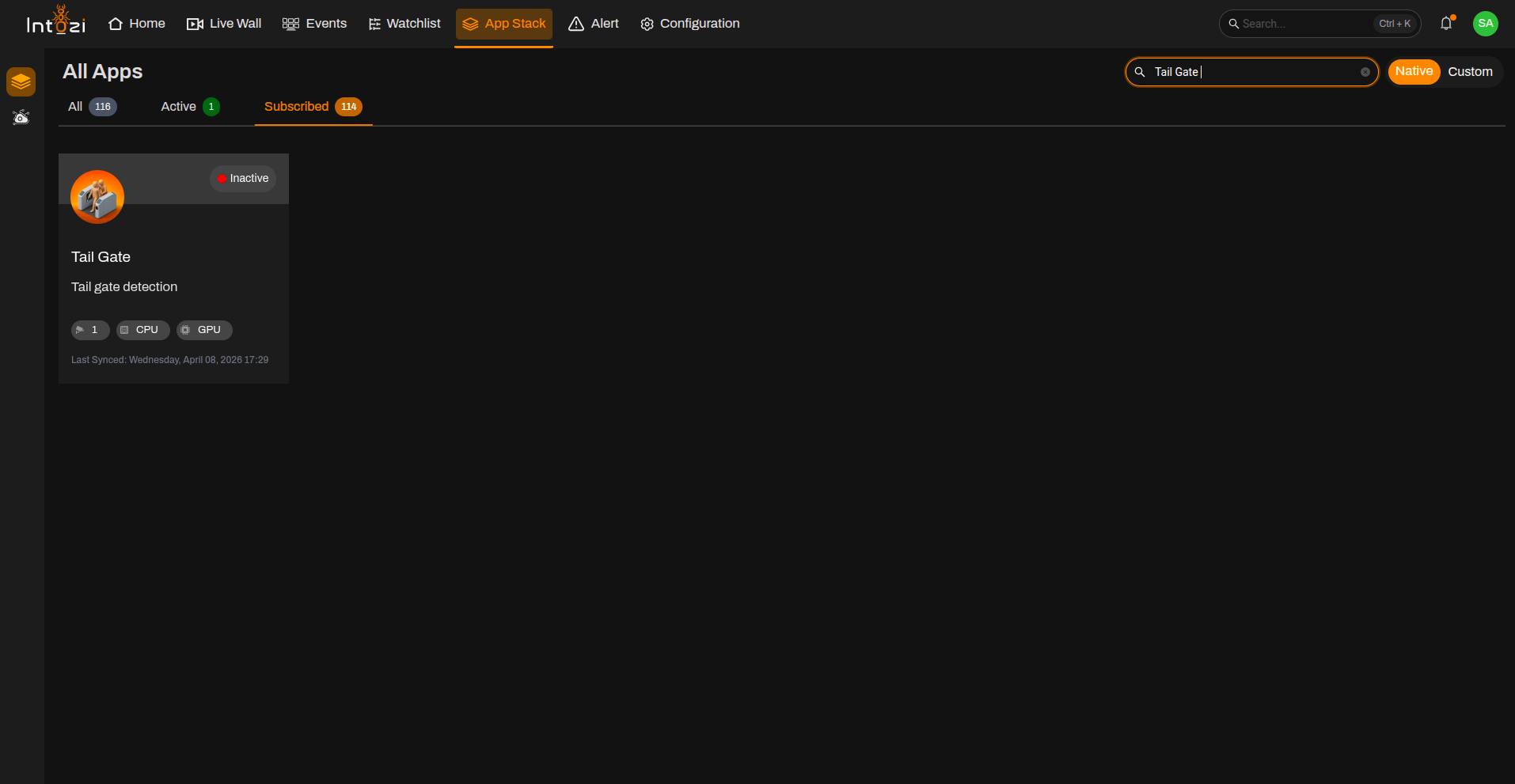
1. Finding the Tail Gate Application in App Stack
- Open App Stack on the platform.
- Use the search bar (usually at the top right of the dashboard).
- Enter Tail Gate.
- In the results, click once on the application to open it.
2. Device Configuration
After the application opens, you will be directed to the Device Configuration page.
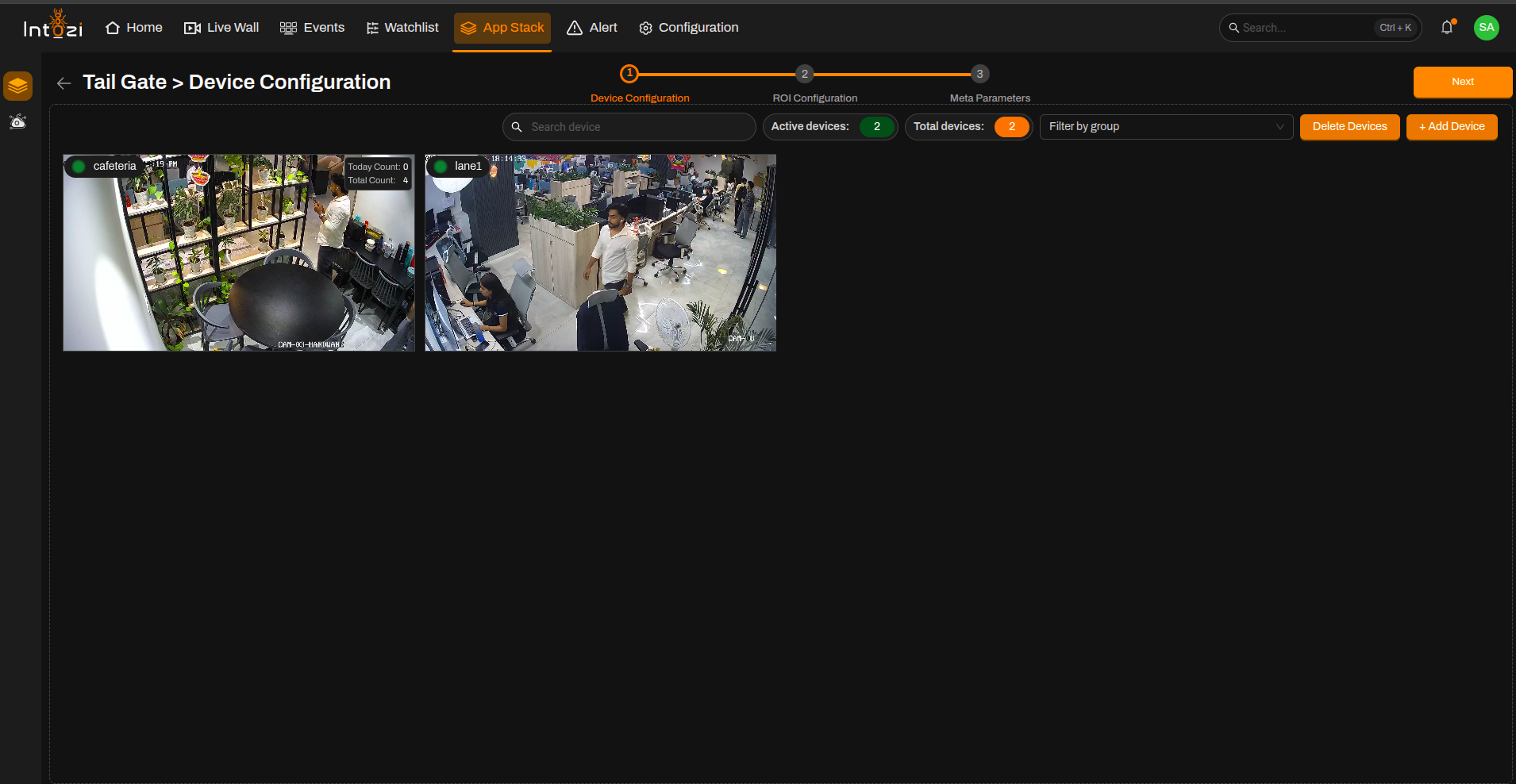
- On the right side of the page, click Add Device to add the required camera(s).
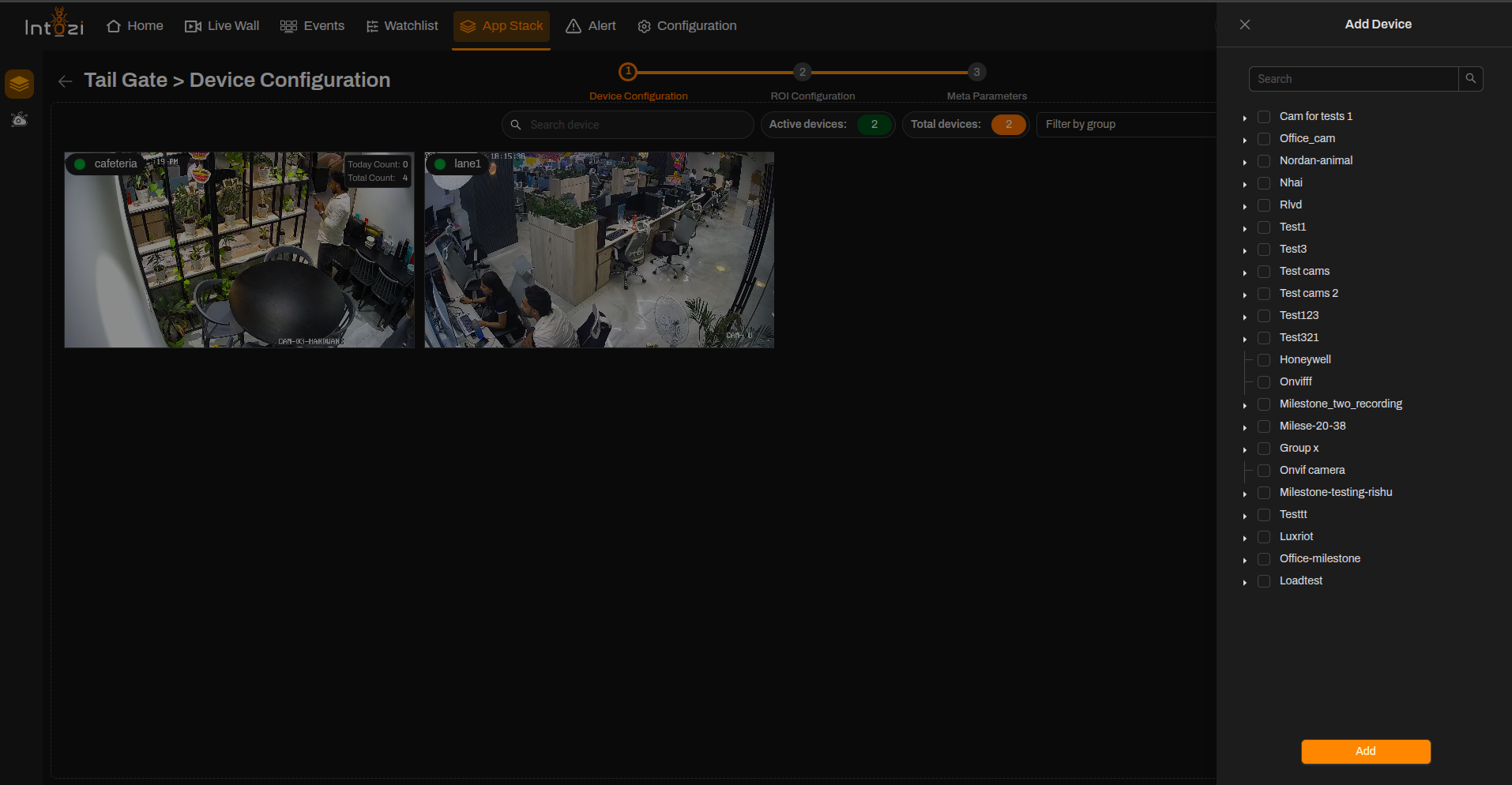
- Once the devices are added, proceed to the ROI Configuration page.
Ensure all required cameras are added before proceeding to ROI configuration.
3. ROI (Region of Interest) Configuration
All added devices will be displayed on this page for ROI configuration.
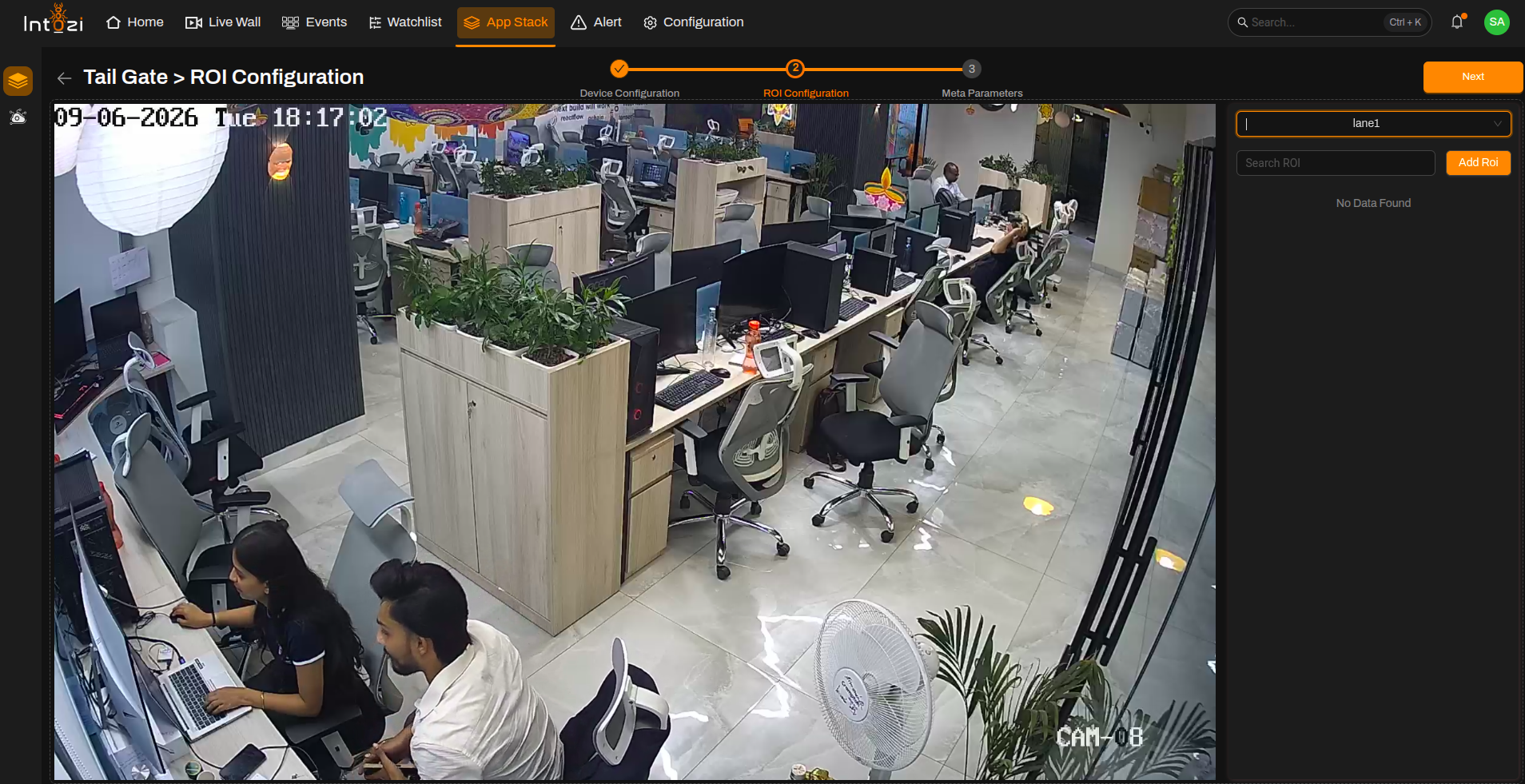
- Select the desired device.
- Click Add ROI (top right of the page).
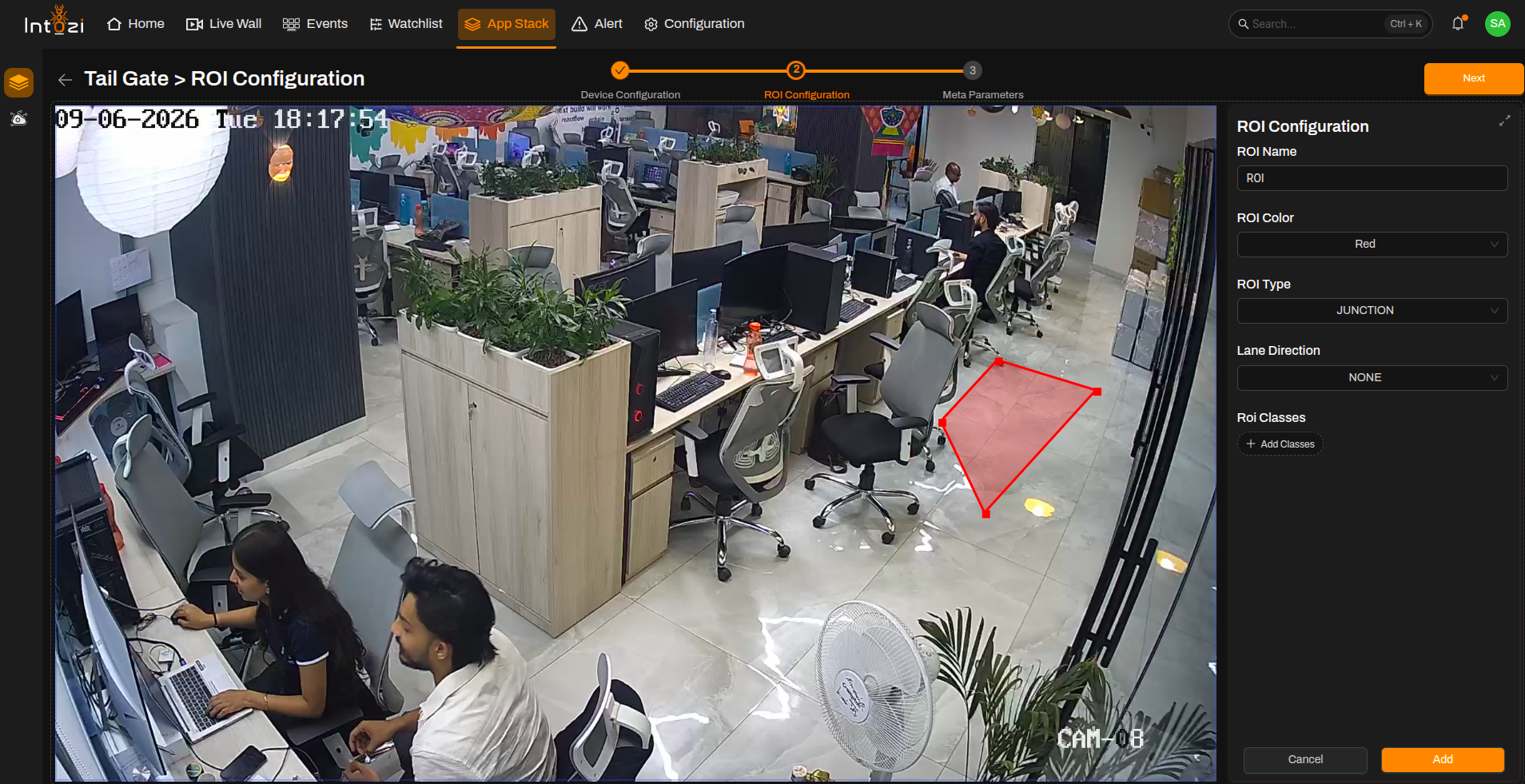
Fill in ROI Details
| Field | Guidance for Tailgating Detection |
|---|---|
| ROI Name | Enter a meaningful name for the ROI. |
| ROI Color | Select a color for visualization. |
| ROI Type | Select Junction or LINE. |
| Lane Direction | Set to None. |
| ROI Classes | Not required. |
ROI Type Selection
| ROI Type | Usage |
|---|---|
| Junction | Detects tailgating events within a defined area. |
| LINE | Detects tailgating events when people cross a defined line. |
Select the ROI type according to the monitoring scenario and deployment requirements.
4. Meta Parameters Configuration
After ROI setup, navigate to the Meta Parameters page.
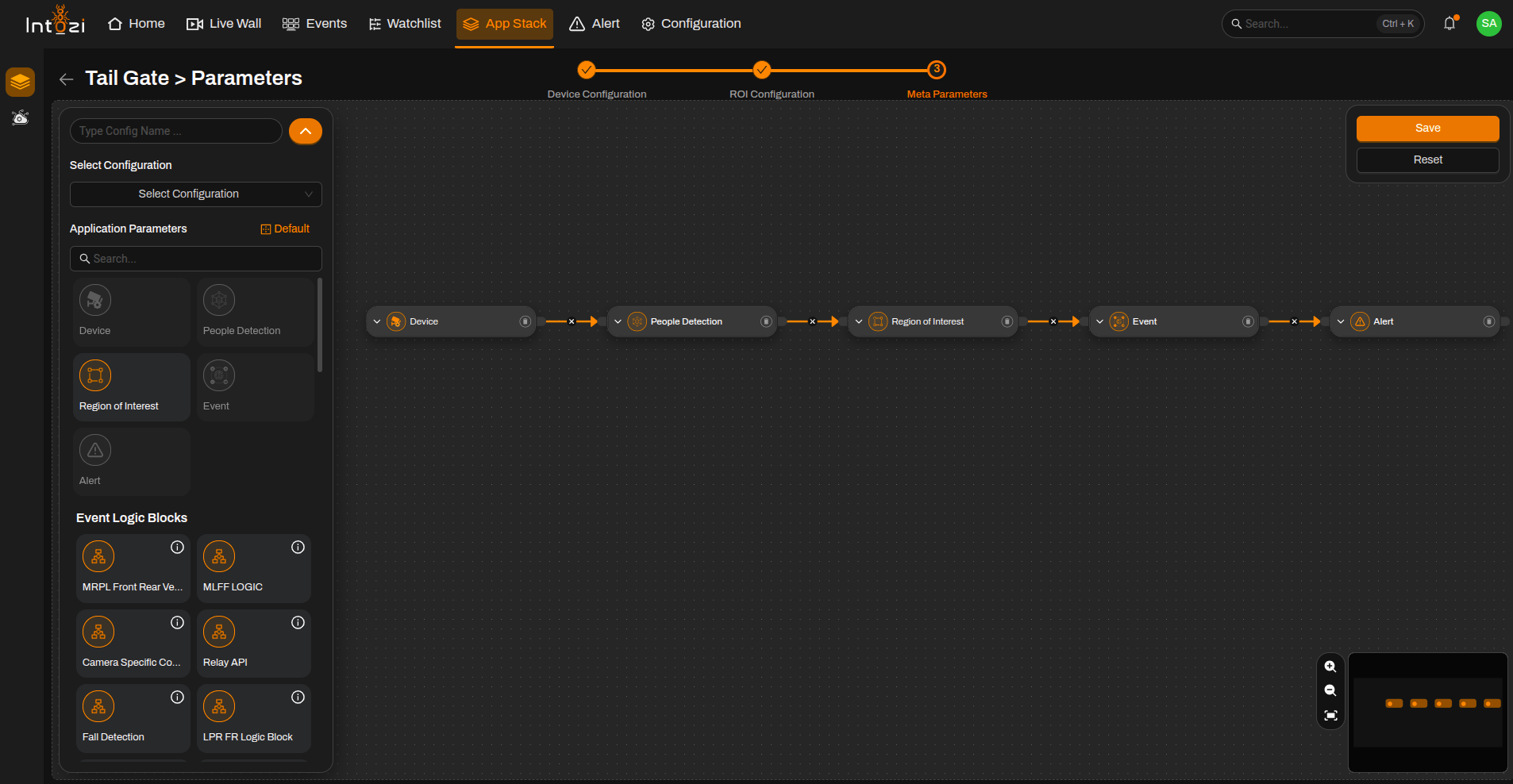
4.1 Default vs Custom Configuration
You can either:
- Use a default configuration, or
- Create a custom configuration.
Default Configuration Nodes
- Device
- People Detection
- Region of Interest (ROI)
- Event
- Alert
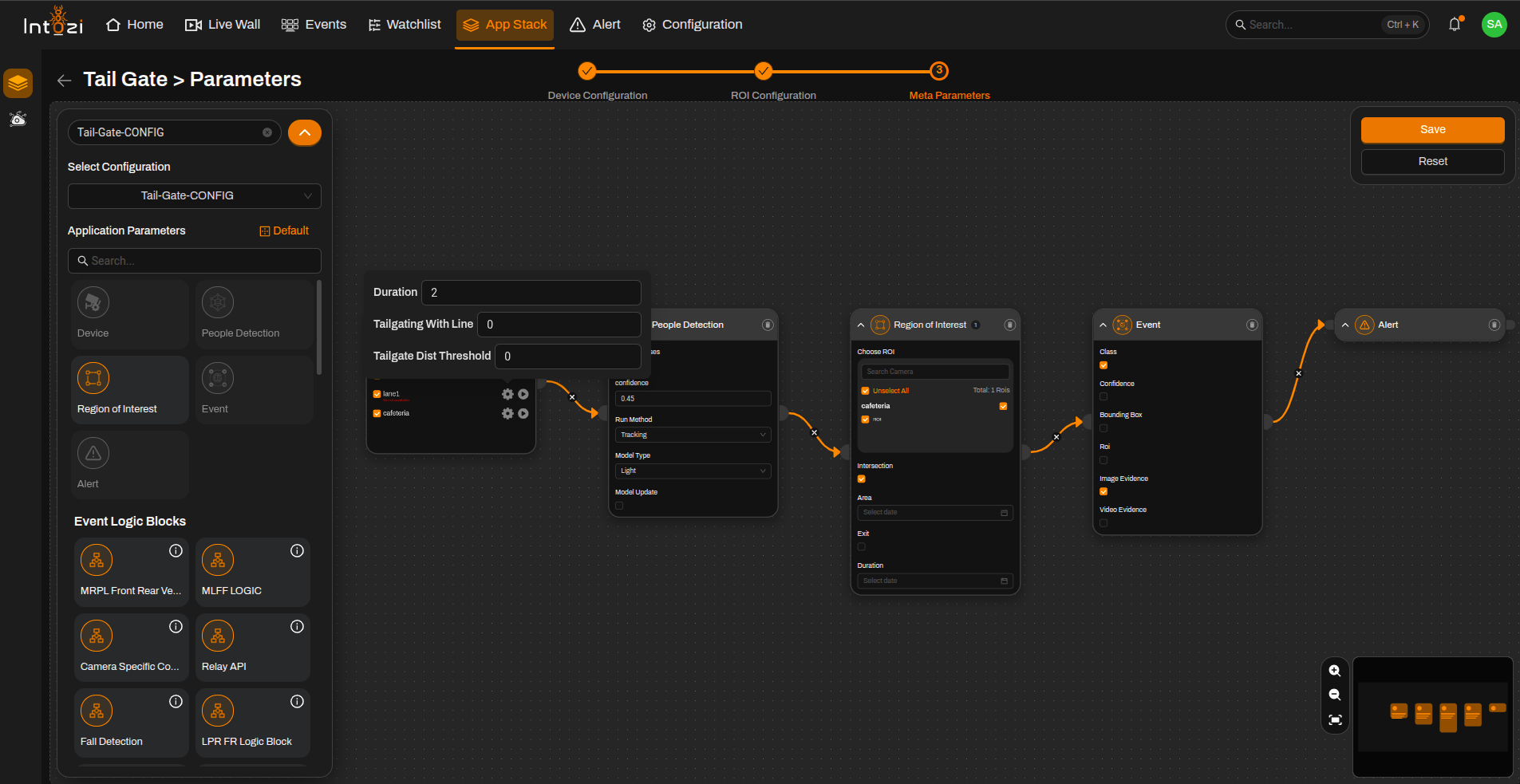
5. Device Node Settings
Select the required device and configure the following settings.
Duration
- Defines the time interval (in seconds) after which a new event can be generated.
- Configure according to project requirements.
Tailgating with Line
| Value | Description |
|---|---|
| 0 | Tailgating detection works with Junction ROI. |
| 1 | Tailgating detection works with LINE ROI. |
Set this value according to the ROI type selected during ROI configuration.
Tailgate Distance Threshold
- Defines the maximum distance between two people for them to be considered a tailgating event.
A lower threshold detects only closely grouped individuals, while a higher threshold may generate more tailgating events.
6. People Detection Node Settings
Confidence Threshold
- Default value: 0.45
- Can be adjusted based on:
- Camera angle
- Lighting conditions
- Scene complexity
- Deployment requirements
Adjust the confidence threshold carefully to balance detection accuracy and false positives.
7. Final Configuration
After selecting the required device and associated ROI:
- Configure the required parameters.
- Enter a Configuration Name.
- Select the hardware type:
- CPU
- GPU
- Configure the Batch Size if required.
- Select the required Analytic Server for deployment.
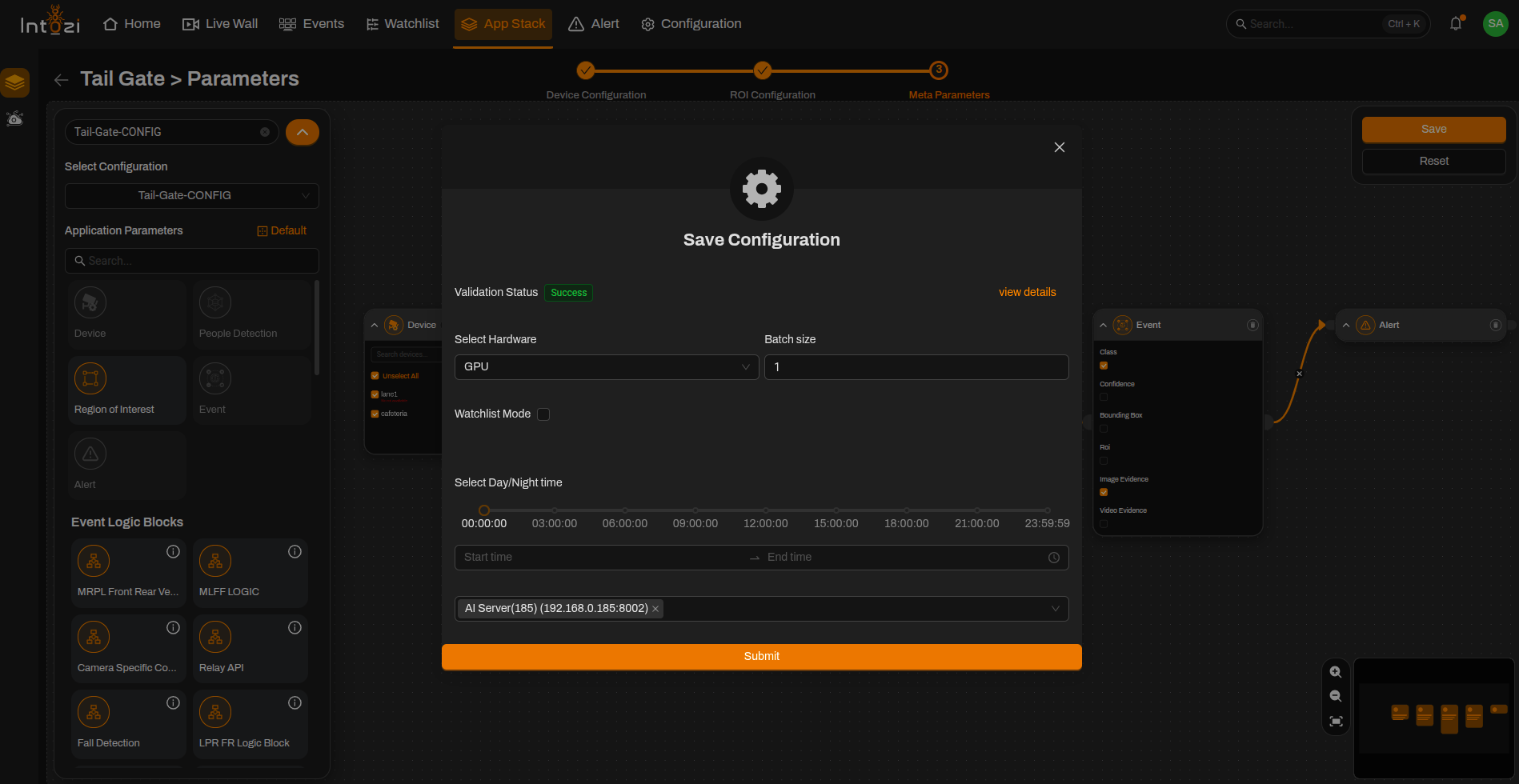
8. Saving the Configuration
After verifying all settings:
- Confirm device selection.
- Verify ROI placement.
- Review Duration settings.
- Verify Tailgating with Line configuration.
- Review Tailgate Distance Threshold values.
- Review confidence threshold settings.
- Verify Analytic Server selection.
- Confirm hardware and batch size configuration.
Click Save to activate the configuration.
Conclusion
The Tailgating Detection application helps identify situations where multiple individuals pass through an entry or exit point too closely together, potentially indicating unauthorized access or security violations.
By properly configuring ROI type, distance thresholds, and detection settings, users can effectively monitor access points and receive reliable tailgating alerts in real time.